

I swapped Microsoft 365 for a stack of free tools and, after a few months, discovered that my daily productivity didn't collapse — it simply changed shape. The move cut a recurring subscription, kept collaboration intact for most use cases, and exposed exactly which Office features I actually missed. This is not a universal recommendation, but for many users who mainly draft documents, manage basic spreadsheets, prepare occasional slides, and handle email, a carefully chosen combination of Google Docs/Sheets/Slides, Thunderbird, and LibreOffice covers the ground once occupied by Microsoft 365 — with trade‑offs worth knowing. consumers and many small teams adopted Microsoft 365 because it bundled powerful desktop apps, cloud storage, and collaborative features into a single, polished subscription. Over time, however, paywalls and feature overlap have made the subscription less compelling for people who use only a fraction of what the suite offers. That was the exact situation described in the MakeUseOf piece: underused OneDrive storage, unused Teams, and features in Word/Excel/PowerPoint that rarely saw the light of day — prompting a full replacement with free alternatives.
This story is repre trend: cloud‑first, browser‑based apps have matured to the point where they satisfy most everyday tasks, and open‑source desktop software has improved file compatibility and offline durability. The question for readers isn’t whether free alternatives can exist — they can — but whether they suit your workflows, file fidelity needs, and security posture.
Practical tip: enable offline before you travel, or use LibreOffice for heavy offline work (covered below).
However, if you need pixel‑perfect, design‑heavy decks — investor pitch decks, keynote talks with advanced animations, or bespoke templates — PowerPoint’s advanced animations (Morph, advanced motion paths), richer template ecosystem, and designer tools give it an edge.
Recommendation: use Slides for speed and collaboration; use PowerPoint for stage‑grade presentations.
But the real calculation isn’t just dollars saved — it’s the cost of migration friction, potential compatibility rework, and any lost integration (calendar + Teams scheduling, single sign‑on, managed device policies) that matter in work contexts. For individuals and small teams, those migration costs are usually low. For enterprises relying on deep Microsoft integrations, the calculus can be very different.
If you’re considering the switch:
Source: MakeUseOf I replaced my entire Microsoft Office setup with free alternatives
This story is repre trend: cloud‑first, browser‑based apps have matured to the point where they satisfy most everyday tasks, and open‑source desktop software has improved file compatibility and offline durability. The question for readers isn’t whether free alternatives can exist — they can — but whether they suit your workflows, file fidelity needs, and security posture.
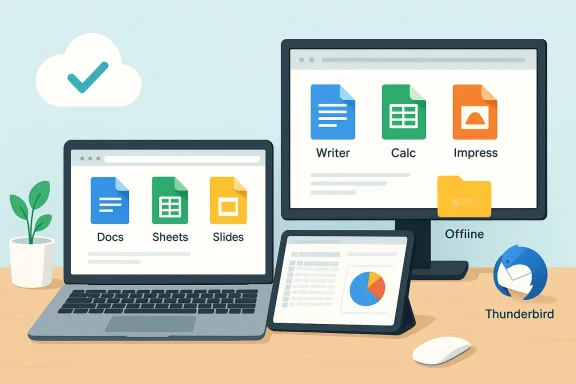 Overview: The replacements and how they map to Office
- Google Docs → Word (drafting, commenting, light formatting)
- Google Sheets → Excel (budgets, trackers, simple analysis, collaboration)
- Google Slides → PowerPoint (basic presentations and collaborative editing)
- Thunderbird → Outlook (desktop email client, multiple accounts)
- LibreOffice → Office desktop fallback (complex formatting, heavy offline work)
Google Docs: simplicity and collt does well
Google Docs nails quick drafting, inline comments, suggestions mode, and version history. Sharing a single link with edit or comment rights remains one of the most friction‑free collaboration experiences available — especially when you need to collaborate with people who don’t use Microsoft accounts. The MakeUseOf author emphasizes how Docs “stays out of the way” for everyday writing, and that rings true for most users who don’t need advanced Word features.Offline caveats
Google Docs is designed as a cloud‑first ne editing requires explicit configuration. Google’s documentation states that offline editing for Docs, Sheets, and Slides is supported on Google Chrome and Microsoft Edge and requires enabling offline mode in Drive or the editors’ settings. That means if you expect seamless offline editing across every browser, you’ll encounter friction — Chrome/Edge (or Chromium derivatives) are still the officially supported path.Practical tip: enable offline before you travel, or use LibreOffice for heavy offline work (covered below).
What you’ll lose compared to Word
- Advanced layout control, macros, mail‑merge power, and deep template customization.
- Complex document fidelity (long legal docs, technical manuals with custom styles) can still behave better in Word.
Google Sheets: collaboration with clear limits
The strengths
Google Sheets replicates the common functions most users rely on: IF, VLOOKUP/XLOOKUP equivalents, COUNTIF, basic pivot tables, charts, and collaborative real‑time editing without the licensing friction of Microsoft 365. The ability to use functions like IMPORTRANGE and collaborate live is a huge convenience for light to moderate datasets. The MakeUseOf piece highlights exactly this: Sheets satisfies budgets, trackers, and quick dashboards while making team edits trivial.Hard limits ties
There’s a hard technical ceiling: Google Sheets has a maximum of up to 10 million cells per spreadsheet (a limit Google announced and implemented in recent years). Practically, performance starts to degrade well before that ceiling if you use many complex formulas, volatile functions, or lots of conditional formatting. Multiple independent writeups and Google’s own Workspace updates confirm the 10‑million cell cap. If your workflow involves tens of thousands to millions of rows, or heavy data modeling, Sheets is likely to lag or force a redesign.Why Excel still matters
Excel’s desktop app supports advanced data modeling via Power Query and Power Pivot, which handle large datasets, relationships between tables, and memory‑resident models that scale far beyond what browser spreadsheets comfortably do. Microsoft’s documentation shows that Power Pivot is explicitly built for larger, more sophisticated analytics, and it’s feature‑rich compared to anything in Sheets. If you rely on BI‑grade modeling, Excel (and Power BI) remain the superior choice.Practical guidance
- Use Sheets for collaborative, light‑to‑medium datasets and prototyping.
- Move large or complex models into Excel (Power Pivot/Power Query) or a real database when performance/scale matters.
- Consider splitting very large datasets across multiple linked Sheets or using Connected Sheets for BigQuery if you need to surface large data without pulling it entirely into the UI.
Google Slides: adequate for most, not for polish
Google Slides covers basic needs — text, images, embedded video, slide transitions, and a shareable live collaboration link. For quick team mts, and internal presentations, Slides is fast, accessible, and good enough. The MakeUseOf account mirrors this: Slides loads quickly in the browser and exports to .pptx when necessary.However, if you need pixel‑perfect, design‑heavy decks — investor pitch decks, keynote talks with advanced animations, or bespoke templates — PowerPoint’s advanced animations (Morph, advanced motion paths), richer template ecosystem, and designer tools give it an edge.
Recommendation: use Slides for speed and collaboration; use PowerPoint for stage‑grade presentations.
Thunderbird: a robust, independent email client
What Thunderbird gives you
Thunderbird is a free, open‑source desktop email client that supports IMAP and POP3, handles multiple accounts, includes a calendar feature (Lightning integrated), arship of data. The MakeUseOf writer chose Thunderbird for exactly that reason: it manages email without pushing a cloud subscription or locking you into a platform.Exchange and enterprise considerations
Historically, Thunderbird’s lack of native Microsoft Exchange support made it a poor fit for Exchange‑centric workplaces. That changed in late 2025 when Thunderbird added native Exchange Web Services (EWS) support for email in release 145, enabling better compatibility with Exchange servers for mail operations without third‑party add‑ons. The implementation initially focused on email functionality, with calendar/address‑book EWS integration planned for later releases. That development removes one of the biggest technical barriers for some enterprise adopters — but be cautious: EWS is a Microsoft protocol that has seen shifting enterprise support and timelines, so organizations relying on Exchange Online should validate long‑term compatibility.UX and integration trade‑offs
- Thunderbird’s interface can feel dated compared to Outlook, and it lacks deep, native hooks into Teams/SharePoint/OneDrive that Microsoft 365 delivers.
- For personal email and light productivity, Thunderbird is a capable, privacy‑friendly choice. For Exchange‑first corporate environments, test thoroughly and coordinate with IT.
LibreOffice: the offline power user’s fallback
Role in the stack
LibreOffice plays the safety role in the MakeUseOf workflow: when Google’s web apps can’t reliably handle a file or when you need fullyternet), LibreOffice Writer/Calc/Impress step in. It opens and saves Microsoft formats (.docx, .xlsx, .pptx), runs locally without any subscription, and is especially valuable for editing complex documents that break during Google‑based conversions.Compatibility and limitations
LibreOffice does a good job, but it’s not an exact Microsoft file clone. The official LibreOffice documentation explains that while it can open and save Office Open XML formats, complex layout features, advanced formatting, and macros can behave differently and may require manual reformatting. In short: LibreOffice is excellent for most offline work and as a recovery path for messy conversions, but it doesn’t guarantee perfect round‑trip fidelity for highly formatted Office documents.Use cases where LibreOffice shines
- Editing large spreadsheets locally when Sheets slows or hits browser limits.
- Fixing layout issues introduced by web‑based conversions.
- Working offline or on older hardware where local processing is faster than cloud rendering.
Costs and value: the arithmetic behind the switch
The direct financial upside is obvious: eliminating a Microsoft 36recurring annual fees. The MakeUseOf writer points to underused OneDrive storage and unused apps as wasted value, a common complaint among light users. If you’re paying primarily for Word/Excel/PowerPoint and only use a subset of features, free alternatives can be economical without a large productivity hit.But the real calculation isn’t just dollars saved — it’s the cost of migration friction, potential compatibility rework, and any lost integration (calendar + Teams scheduling, single sign‑on, managed device policies) that matter in work contexts. For individuals and small teams, those migration costs are usually low. For enterprises relying on deep Microsoft integrations, the calculus can be very different.
Migration checklist: practical steps to switch (and how to test)
- Inventory your usage.
features you actually use: macros, Power Pivot, mail merge, Teams meetings, SharePoint integration. - Pilot with a month of "no renewal".
- Disable auto‑renew for a single seat and use the free stack for 30 days to identify gaps. The MakeUseOf author recommends exactly this approach.
- Test file fidelity.
- Convert representative Word/.docx, Excel/.xlsx, and PowerPoint/.pptx files into Google and LibreOffice and compare.
- Enable offline access where needed.
- For Google editors, enable offline in Chrome/Edge before you travel. For guaranteed offline, keep LibreOffice available.
- Test email workflows.
- Configure Thunderbird with your accounts and verify folder sync, calendar invites, and any Exchange dependencies. If your workplace uses Exchange Online, coordinate with IT and test EWS support (or provider plugins) under realistic conditions.
- Prepare fallbacks.
- Keep a licensed copy of Office or Office 2021 (one‑time purchase) available if you discover mission‑critical features missing from the free stack.
Security, privacy, and compliance considerations
- Google Workspace (even free personal accounts) stores data in Google’s cloud — encryptions, retention policies, and data jurisdiction will follow Google’s terms. That’s fine for personal work, but check regulatory/compliance needs for business documents.
- Thunderbird and LibreOffice emphasize local control and do not nudge you toward subscriptions or cloud storage by default; that can be a privacy advantage for users concerned about cloud telemetry.
- For organizations, Microsoft 365 includes administrative controls, compliance tooling, and enterprise support that are not fully replaceable with a piecemeal free stack. Evaluate governance needs before moving entire teams off Microsoft 365.
Strengths and risks — a quick, practical audit
- Strengths
- Cost savings for light users.
- Low friction collaboration with Google Docs/Sheets/Slides for most casual team work.
- Local fallback (LibreOffice) for offline work and file repair.
- Privacy‑friendly, subscription‑free email client (Thunderbird) that gives control back to users.
- Risks
- File fidelity: complex Office documents can lose layout fidelity in web conversions — LibreOffice mitigates but does not eliminate this risk.
- Scale and performance: Google Sheets will degrade with large datasets and has a 10‑million cell limit that you will hit sooner than you think if you use lots of formulas and tabs.
- Enterprise integration: Exchange, Teams, SharePoint, and advanced device management are Microsoft strengths not fully replaced by the free tools. Thunderbird’s EWS addition reduces one friction point, but long‑term enterprise compatibility should be validated.
- Support and SLA: paid Microsoft 365 customers get enterprise support and SLAs. Free stacks rely on community support or paid third‑party services.
When to keep Microsoft 365
Keep Microsoft 365 if any of the following apply:- You rely on advanced Excel analytics (Power Pivot, Power Query, large in‑memory models).
- Your organization is tightly integrated with Teams, Exchange Online, SharePoint, or requires Microsoft‑managed compliance produce presentation decks that require PowerPoint’s advanced effects and animation features.
- You need vendor support and predictable SLAs.
Final verdict: pragmatic replacement, not a one‑size‑fits‑all
Replacing Microsoft 365 with Google Docs/Sheets/Slides, Thunderbird, and LibreOffice is a practical choice for many users. The MakeUseOf author’s experience demonstrates that for everyday drafting, basic spreadsheets, simple slide decks, and personal email, productivity remains intact without a subscription. The system trades advanced enterprise features and a handful of power‑user capabilities for cost savings, local control, and a lighter footprint.If you’re considering the switch:
- Start with a one‑month trial where you don’t renew Microsoft 365 and keep Office available as a fallback.
- Inventory mission‑critical features first (macros, Power Pivot, legal‑format documents).
- Rely on Google for cloud collaboration and LibreOffice for desktop fidelity problems; use Thunderbird for local email control.
Source: MakeUseOf I replaced my entire Microsoft Office setup with free alternatives
