

If a sudden banner or a loud ping has ever yanked you out of a flow state, you’re not alone—Windows 11 ships with a powerful, sometimes over-eager notification system that can either keep you informed or sabotage your focus. The short guide published by the Fernandina Observer offers a practical walkthrough for taming Windows 11’s alerts—covering everything from per‑app toggles and Focus/Do Not Disturb to lock‑screen privacy and notification sound control—and its core advice lines up with Microsoft’s official feature set while highlighting everyday tweaks most users overlook. ds on that practical primer with deeper verification, step‑by‑step configuration, troubleshooting for common failures (including when Do Not Disturb turns itself on), security and privacy implications, and a few advanced tips to make Windows 11 notifications work for your workflow—not against it. Along the way I’ll cite Microsoft’s documentation and independent Windows coverage to confirm paths, naming, and behavior.
Notifications are a core part of modern operating systems: they surface urgent alerts (calendar events, security warnings), keep chat and email in view, and provide system status. Windows 11 gives you several layers of control—global toggles, per‑app options, Focus (Do Not Disturb), Focus Sessions, lock screen controls, and accessibility timing for banners. Used properly, those controls reduce cognitive load and improve productivity; misconfigured, they lead to missed calls, missed security prompts, or a cascade of “catch‑up” alerts wh PC.
Practical takeaway: the goal isn’t to eliminate notifications entirely (that’s risky), but to classify and route them so only the right things interrupt you at the right time.
Strengths:
Do this: spend 10–15 minutes after reading to implement the checklist above. You’ll reclaim focus, keep critical alerts intact, and avoid surprise catch‑ups when you return to your desk. And if Do Not Disturb appears to be “acting up,” check the automatic rule list and any recently installed utilities first—those are the usual culprits.
Windows 11 notifications should help you work, not work you—learn the controls, set sensible defaults, and enjoy a quieter, more productive desktop.
Source: Fernandina Observer https://www.fernandinaobserver.org/stories/mastering-notifications-on-windows-11,93775/
Source: fernandinaobserver.com https://fernandinaobserver.com/stories/mastering-notifications-on-windows-11,93775/
 Background: why notifications matter (and why they frustrate us)
Notifications are a core part of modern operating systems: they surface urgent alerts (calendar events, security warnings), keep chat and email in view, and provide system status. Windows 11 gives you several layers of control—global toggles, per‑app options, Focus (Do Not Disturb), Focus Sessions, lock screen controls, and accessibility timing for banners. Used properly, those controls reduce cognitive load and improve productivity; misconfigured, they lead to missed calls, missed security prompts, or a cascade of “catch‑up” alerts wh PC.Practical takeaway: the goal isn’t to eliminate notifications entirely (that’s risky), but to classify and route them so only the right things interrupt you at the right time.
Overview: the Windows 11 notification toolbox
Windows 11 provides a layered toolkit for notifications. Here are the building blocks you should understand and where to find them:- System > Notifications — Global on/off and per‑app management. This is the central hub for most settings.
- Do Not Disturb (DND) — The modern name for the Focus/Focus Assist functionality; silences banners and sounds while letting configured priorities through. It can be toggled manually or scheduled.
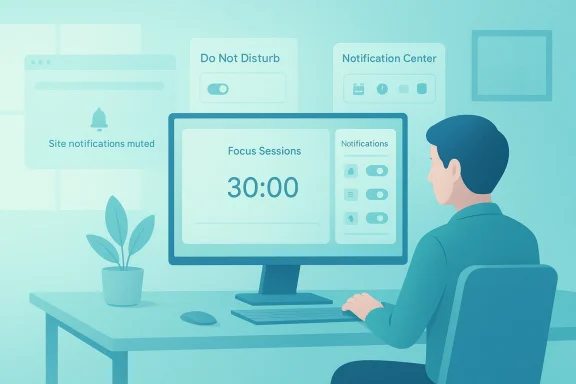
- Focus Sessions — A Clock app feature that activates Do Not Disturb automatically and offers a timer, Microsoft To Do integration, and Spotify links. Useful for planned work blocks.
- Lock screen notification controls — Determines whether notifications appear while the device is locked; important for privacy in shared spaces.
- Accessibility → Visual effects → Dismiss notifications after this amount of time — Controls how long banners remain visible (default 5 seconds). Useful if banners vanish too quickly.
- Per‑app advanced settings — Banner on/off, sound on/off, priority ranking, and badge behavior in the taskbar. Configure these under the same System > Notifications app list.
Step‑by‑step: sensible defaults to tame Windows 11 notifications
Below is a practical setup sequence you can follow in roughly 10–15 minutes. Do this once, then tweak for specific apps.- Open Settings quickly with Windows + I and go to System > Notifications. Confirm the big “Get notifications from apps and other senders” toggle is set to On (you’ll want system and security alerts), but leave it off if you’re doing a deep focus sprint.
- Scroll the app list and turn off non‑essential apps. Common candidates: retail/storefront apps, casual games, and trialware. For each app, click its entry and:
- Turn off Bannerspups.
- Disable Sound if the chime is disruptive.
- Consider priority ranking for truly important apps (Email, Teams, Calendar).
These granular settings let you keep notifications but remove interruption. - Configure Do Not Disturb:
- In Settings > System > Focus (or Notifications > Do Not Disturb, depending on build), choose whether to let “Priority only” or “Alarms only” break through. Add trusted apps/people to the priority list. Consider scheduling DND for evening hours or for a daily work block.
- Set the banner dismissal time (if banners disappear too fast):
- Open Settings > Accessibility >djust “Dismiss notifications after this amount of time.” Default is 5 seconds; many users prefer 10–15 seconds.
- Lock screen privacy:
- If others can see your machine, go to Settings > System > Notifications and uncheck “Show notifications on the lock screen.” This prevents message previews while away.
- Use Focus Sessions for planned work blocks:
- Open the Clock app, link Microsoft To Do and Spotify if desired, set a timer, and start a Focus Session. Do Not Disturb will toggle automatically for the session. Use the session features to hide badge and flashing icons for cleaner focus.
Advanced controls and tips
Prioritize, don’t mute
Rather than silencing everything, create a small set of “must‑reach” apps and people (calendar, primary email, and key collaboration tools). Use the priority list under Focus/re they can break through. This reduces stress from missed critical alerts while cutting noise.Automate around activities
Windows can auto‑enable Do Not Disturb in several conditions (full‑screen apps, gaming, duplicating display). If you find it turning on unexpectedly, check automatic rules and disable the ones you don’t want. Many reported cases where automatic rules were the cause of missed notifications.Tweak taskbar behavior
If icon badges and taskbar flashing are attention grsable flashing under Settings > Personalization > Taskbar behaviors to reduce micro‑interruptions. Hiding badges removes the tiny red or orange cues that can trigger reflexive checking.Control browser notification floods
Site notifications from browsers are a separate floodgate. In Chrome, Edge, and Firefox, disable or block site notifications in privacy/site permissions. Once you shut off browser‑level notifications, browser tabs won’t create popup distractions.Use keyboard shortcuts for quick control
The notification center can be opened with Win + N (or by clicking the date/time area). From there you can toggle Do Not Disturb or end Focus Sessions quickly. Use this for short interruptions without changing global settings.Troubleshooting: when notifications fail or Do Not Disturb misbehaves
Common problem: “I missed messages because Do Not Disturb turned itself on.” The mostixes:- Automatic rules enabled: In Settings > Focus (or System > Notifications), disable rules like “During these times,” “When I’m duplicating my display,” or “When playing games.” These are the usual culprits. Reboot after changing rules to ensure persistence.
- Conflicting app behavior: Some apps (graphics drivers, proprietary OEM utilities) can interact with focus/DND settings or create fullscreen signals. Audit recently installed utilities if the problem coincides with new software.
- Windows build differences: Settings labels and UI locations have changed across builds. If you don’t see a setting, search the Settings app for “Focus,” “Notifications,” or “Do not disturb”; Microsoft documents both older “Focus Assist” and newer “Do not disturb” naming.
- Catch‑up flood on return: Do Not Disturb silences popups while active but keeps notifications in the Notification Center. If you want to avoid the “one‑by‑one” replay effect, enable Do Not Disturb before stepping away and keep it on; there’s no native automatic suppression for the catch‑up sequence beyond that. This limitation has been noted in Microsoft Q&A and community forums. ([learn.microsoft.com](How do I stop notifications from showing everything I missed while away from computer? - Microsoft Q&A are simply not appearing at all (even when DND is off):
- Reboot and check the global “Get notifications from apps and other senders” toggle.
- Verify per‑app toggles.
- Check Focus/Do Not Disturb status in the Notification Center (Win + N).
- Update Windows—some notification bugs have been fixed in cumulative updates; if the problem persists, check Microsoft’s support threads for similar reports.
Security and privacy considerations
Notifications can leak sensitive information. Two privacy vectors to watch:- Lock screen previews: If “Show notifications on the lock screen” is enabled, anyone with physical access can see message contents. Disable lock screen notifications if privacy matters.
- Phishing via notification payloads: Malicious or compromised apps can display deceptive notifications with links or prompts. Limit notifications to trusted apps and carefully review any unexpected popups that request credentials or actions.
- Keep lock screen previews off when in public or shared environments.
- Audit the installed apps list periodically; uninstall or block notifications for software you don’t recognize.
- Prefer to receive important authentication prompts (like MFA prompts) through secure dedicated apps rather than general notifications.
Third‑party tools: when Windows defaults aren’t enough
The native Windows toolkit suffices for most users, but power users sometimes reacification managers to add filtering, theming, or persistence control. Options include utilities that can:- Add granular scheduling rules
- Create white/black lists for notificatihemes and position of toasts
- Auto‑clear or archive notifications
What the Fernandina Observer guide gets right—and where to be cautious
The Observer’s walkthrough is a practical, user‑friendly field guide: it highlights the importance of Focus/Do Not Disturb, per‑app control, lock‑screen privacy, and the dismissal timing tweak. Those are the right knobs to pull for day‑to‑day sanity.Strengths:
- Article emphasizes quick keyboard shortcuts (Windows + I, Win + N) and clear navigation to Settings, which gets users to the controls quickly.
- Focus Sessions coverage: It points to the Clock app’s Focus Sessions as a productivity tool rather than a curiosity; that’s consistent with Microsoft’s recommendations.
- Over‑silencing: The Observer mentions disabling notificationn. That’s safe for short sessions but risky as a default—system and security alerts should not be grouped with marketing notifications.
- Automatic rules caveat: The original guide mentions Dong, but some users report unexpected automatic activations from rules or apps. Make sure readers check and explicitly disable automatic rules if they rely on always‑on alerts.
- Third‑party references: If the article suggests spegers, verify their reputation and permission model before recommending them widely. Unvetted utilities can introduce privacy or security problems.
Quick reference: actionable checklist
- Open Settings with Win + I and visit System > Notifications. Verify global toggle and scan the app list.
- Configure Do Not Disturb (or Focus) priority and automatic rules—disable any automatic rule you don’t want.
- Set banner timeout in Settings > Accessibility > Visual effects to 10–15 seconds if 5 seconds is too short.
- Turn off lock‑screen notifications in shared environments.
- Use Focus Sessions for timed, distraction‑free work and link Microsoft To Do or Spotify for integrated workflows.
- Block browser site notifications at the browser level to stop web‑based spam.
Final verdict: tame the noise, keep the essentials
Windows 11 gives you a comprehensive notification system—flexible enough for both casual users and power workflows. The Fernandina Observer’s piece is a solid primer that directs readers toward the right controls, but it’s worth taking the extra step to verify automatic rules, prioritize rather than silence, and adopt reasonable defaults that preserve security alerts.Do this: spend 10–15 minutes after reading to implement the checklist above. You’ll reclaim focus, keep critical alerts intact, and avoid surprise catch‑ups when you return to your desk. And if Do Not Disturb appears to be “acting up,” check the automatic rule list and any recently installed utilities first—those are the usual culprits.
Windows 11 notifications should help you work, not work you—learn the controls, set sensible defaults, and enjoy a quieter, more productive desktop.
Source: Fernandina Observer https://www.fernandinaobserver.org/stories/mastering-notifications-on-windows-11,93775/
Source: fernandinaobserver.com https://fernandinaobserver.com/stories/mastering-notifications-on-windows-11,93775/
