

Linux offers practical freedoms that many Windows users only imagine — from booting a complete operating system from a USB stick to replacing the kernel itself — freedoms that change the way you think about ownership, control, and longevity of your computing environment.
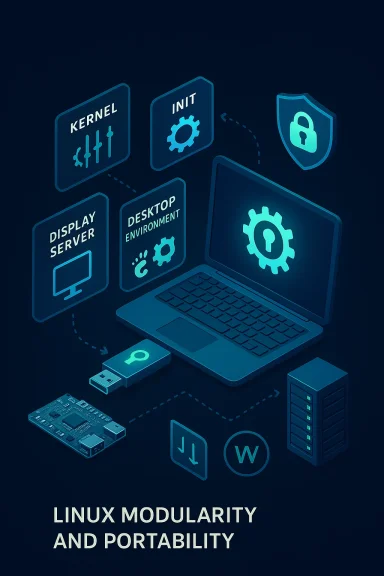
For decades, the Linux ecosystem has evolved not merely as an alternative desktop OS but as a modular collection of software components — kernel, init systems, display servers, desktop environments, filesystems, package managers — that users and distributions can mix and match. That modularity is the foundation of many capabilities Windows doesn’t offer to most users: the ability to run a live session from portable media, choose an entirely different login manager, or recompile and swap kernels on a whim. These are not niche bragging points; they represent meaningful, practical differences that affect system administration, privacy, hardware reuse, and developer workflows.
Below I break down ten concrete things Linux can do that Windows generally cannot, explain how they work, show when they matter, and assess the benefits and risks for real-world users. This is a feature-led look — useful whether you’re an IT pro, a tinkerer, or a regular user evaluating options.
For users constrained by vendor lock-in, legacy hardware, or specialized workloads, Linux offers concrete alternatives that are not theoretical: live sessions you can carry in your pocket, kernels you can swap, filesystems that snapshot your system, and distributions made to resurrect old machines. Conversely, organizations and users prioritizing standardization, vendor support, or specific commercial applications may still find Windows the better fit.
If you’re curious, the practical path is simple: try it. A live USB costs little time and money and will show you whether the freedoms Linux promises translate into day-to-day value for your work and hobby projects. The more you test, the more you’ll understand which of these ten capabilities matter to you — and whether that changes the software choices you make going forward.
In the end, this is less about ideological purity and more about practical options: Linux makes many powerful things possible by design, and those possibilities are worth understanding before you decide which side of the desktop you want to live on.
Source: It's FOSS 10 Things Linux Can Do That Windows Still Can’t
 Background
For decades, the Linux ecosystem has evolved not merely as an alternative desktop OS but as a modular collection of software components — kernel, init systems, display servers, desktop environments, filesystems, package managers — that users and distributions can mix and match. That modularity is the foundation of many capabilities Windows doesn’t offer to most users: the ability to run a live session from portable media, choose an entirely different login manager, or recompile and swap kernels on a whim. These are not niche bragging points; they represent meaningful, practical differences that affect system administration, privacy, hardware reuse, and developer workflows.Below I break down ten concrete things Linux can do that Windows generally cannot, explain how they work, show when they matter, and assess the benefits and risks for real-world users. This is a feature-led look — useful whether you’re an IT pro, a tinkerer, or a regular user evaluating options.
1. Run a full system in a Live USB / Live session
What it is
A live session runs a fully functional Linux distribution directly from removable media (USB, SD card, DVD) without writing to the host’s internal storage unless you choose to. It boots, runs a desktop, and gives you a chance to test hardware, privacy, and software without installing anything.Why it matters
- Instant trial: You can demo a distro, compatibility, and hardware drivers without committing.
- Recovery and testing: Boot into a live environment to repair disks, reset passwords, or recover files.
- Portability and privacy: Carry your OS and settings on a USB stick and use it on different machines.
Practical notes
- Many mainstream distros provide tools to create persistent live USBs that store changes across sessions.
- Live sessions are frequently used by system admins and security professionals for diagnostics and forensics.
Strengths and risks
- Strength: Zero-install testing lowers the barrier to trying Linux and mitigates risk when diagnosing a failing system.
- Risk: Live sessions may run slower from older USB drives; persistent storage should be encrypted for sensitive use to avoid data theft.
2. Customize the login screen and swap login managers
What it is
Linux offers multiple display/login managers (GDM, SDDM, LightDM, Ly, etc.) and deep theming options. You can replace the login manager, change layout, integrate custom greeters, or boot directly to a TTY.Why it matters
- Branding and accessibility: Enterprises and enthusiasts can tailor the login experience for users or public kiosks.
- Privacy and workflow: Remove graphical login, enable auto-login, or force two-factor authentication at the greeter if supported.
Practical notes
- Login managers are packages you can install or remove; switching may require updating systemd targets or service files.
- Customization ranges from simple wallpaper swap to full replacement of the greeter application.
Strengths and risks
- Strength: Granular control over the login layer improves customization and control.
- Risk: Replacing the login manager carelessly can lead to a missing graphical login; know how to revert via TTY.
3. Pick and change desktop environments and window managers
What it is
Linux distributions separate the desktop environment (DE) layer from the kernel and core utilities. You can choose Plasma, GNOME, XFCE, Cinnamon, MATE, or minimalist window managers (i3, Sway, Hyprland, Wayfire), and even run multiple DEs side-by-side.Why it matters
- Performance tailoring: Use a lightweight WM on older hardware or a full-featured DE for productivity.
- Personalization: Adjust everything from compositing to keybindings and workspace behavior.
Practical notes
- Installing multiple DEs is common; switching is typically available at the login greeter.
- Some DEs expect certain background services; removing those services can break DE-specific functionality.
Strengths and risks
- Strength: Unparalleled flexibility to optimize for resources, workflow, and aesthetics.
- Risk: Mix-and-match installs can leave orphaned packages and duplicate utilities, so manage packages carefully.
4. Use the system without a GUI (headless and minimal systems)
What it is
Linux can run without a graphical interface: as servers, embedded systems, or minimal recovery environments. You can install a command-line-only system, manage it over SSH, or build a headless box for automation.Why it matters
- Resource efficiency: Minimal systems use far less memory and disk, which matters on servers or constrained devices.
- Security and stability: Smaller attack surface and fewer graphical dependencies reduce exposure and update complexity.
Practical notes
- Many Linux distributions provide server or minimal installation options; container and orchestration tools prefer headless environments.
- Remote graphical applications can be forwarded over SSH or run via remote desktop if needed.
Strengths and risks
- Strength: Enables robust, scriptable management and is ideal for automation, IoT, and servers.
- Risk: Requires stronger command-line skills; misconfigurations can lock administrators out if remote access isn’t tested.
5. Install on virtually any hardware — portability
What it is
Linux runs on architectures from ARM and x86_64 to RISC-V, as well as microcontrollers and exotic boards. Because the kernel and userland are open and portable, developers and communities build distributions for routers, smart devices, game consoles, and more.Why it matters
- Lifespan extension: Old or non-standard hardware can be repurposed with Linux.
- Embedded and custom projects: Makers and manufacturers can adapt Linux to bespoke hardware without vendor lock-in.
Practical notes
- Hardware support depends on upstream drivers and SoC vendor cooperation. Community ports may require manual steps.
- Some devices require signed bootloaders or vendor cooperation for full support; these are edge cases but real.
Strengths and risks
- Strength: Freedom to run a complete OS on devices vendors didn’t intend to support.
- Risk: Device-specific binaries or closed drivers may not be available; reverse engineering can be legally sensitive.
6. Move an installed system between different machines
What it is
Linux installations are often resilient to hardware changes. You can move an SSD from one machine to another and boot, with the OS automatically using generic drivers or falling back to a usable text environment.Why it matters
- Disaster recovery: If a motherboard dies, you can re-host the drive without reinstalling the OS in many cases.
- Migration flexibility: Users can clone or move installations during hardware upgrades.
Practical notes
- Proprietary drivers (GPU, Wi‑Fi) may need reconfiguration after hardware swaps.
- Using universal initramfs and avoiding vendor-locked features improves portability.
Strengths and risks
- Strength: Practical for admins, technicians, and users who want to minimize downtime.
- Risk: Encrypted drives tied to specific hardware or TPM-bound configurations can complicate moves; test before critical migrations.
7. Replace or customize the kernel
What it is
Linux allows installing alternate kernels — mainline, long-term support (LTS), real-time, low-latency, or custom-compiled kernels — and selecting them at boot. You can also adjust kernel build options to optimize for specific workloads.Why it matters
- Performance tuning: Real-time kernels for audio production or low-latency networking for trading systems.
- Hardware compatibility: Newer kernels may add device support, while custom kernels can remove unused features and reduce attack surface.
Practical notes
- Many distributions provide multiple kernel packages; custom kernel builds require compiling and packaging skills.
- Bootloaders like GRUB or systemd-boot let you maintain multiple kernels and fall back easily.
Strengths and risks
- Strength: Extreme configurability and ability to tailor the core OS to precise needs.
- Risk: Kernel changes can break modules and drivers; always keep a known-good kernel entry for recovery.
8. Choose from a wide variety of filesystems at install time
What it is
Linux supports many filesystems (ext4, Btrfs, XFS, F2FS, ZFS in some distributions) and allows choosing them for root and data partitions during installation.Why it matters
- Feature choice: Btrfs offers snapshots and subvolumes; ZFS provides advanced integrity features; XFS scales well for large files.
- Data management: Filesystem choices directly affect backup strategies, snapshots, and resilience.
Practical notes
- Filesystem tools and installers vary: some distros provide ZFS support out of the box; others require additional packages or installer choices.
- Tools exist to migrate or convert filesystems in-place in some cases, but conversions can carry risk.
Strengths and risks
- Strength: Ability to select a filesystem that matches workload: reliability, performance, or features like snapshots.
- Risk: Advanced filesystems often require learning new management practices; features like snapshotting can complicate backups if not planned.
9. Revive older hardware with purpose-built distributions
What it is
There are Linux distributions specifically tailored to aging hardware (Puppy Linux, antiX, Tiny Core, and community remasters). These distros strip unnecessary components and provide lightweight environments that breathe new life into old machines.Why it matters
- Environmental and economic impact: Extends hardware lifespan, reduces e-waste, and saves money.
- Usability on legacy hardware: Restores functionality to machines that modern Windows versions no longer support.
Practical notes
- Lightweight distros often use lean window managers or run entirely in text mode for the most constrained machines.
- Performance tuning (swap configuration, filesystem choices) further improves responsiveness.
Strengths and risks
- Strength: Practical for schools, labs, and users with limited budgets or legacy workloads.
- Risk: Very old peripherals may lack modern driver support, and browser compatibility can be a limiting factor for web-heavy workflows.
10. Replace or swap nearly every part of the software stack
What it is
On Linux you can replace or remove components across the stack: package manager, init system (in some cases), audio subsystem, display server (X11, Wayland, or variants), and even fundamental services like cron or logging daemons.Why it matters
- Control and philosophy: Users are not locked into a single vendor-defined stack; they can pick solutions that match their values or performance needs.
- Innovation and competition: Alternative projects (systemd alternatives, Wayland compositors, audio servers like PipeWire) can flourish and be adopted.
Practical notes
- Swapping core components can be complex; distributions vary in how much flexibility they actually permit.
- Some changes (like removing systemd on a system designed around it) may require a specialized distribution or significant manual work.
Strengths and risks
- Strength: Encourages experimentation and provides options for users who want minimal or high-performance stacks.
- Risk: Deep modifications may impede maintainability, and support from mainstream vendors will be limited if you diverge from default stacks.
Cross-cutting analysis: strengths, trade-offs, and real-world implications
The modular advantage
The recurring theme across these ten items is modularity. Linux’s separation of kernel, system services, graphical layers, and userland tooling gives administrators and power users the freedom to replace or reconfigure components. This enables innovation and adapts to a wide set of use cases — from embedded devices to high-performance servers.Practical benefits
- Control: You determine what runs and how it runs.
- Longevity: Repurpose old machines instead of buying new ones.
- Portability: Move installations, run live sessions, and support diverse hardware.
- Specialization: Tailor kernels and filesystems to workloads like multimedia production, databases, or flash storage.
Key trade-offs and risks
- Complexity: More choices mean more potential for misconfiguration. Deep changes often require sysadmin knowledge.
- Ecosystem compatibility: Not all software targets every filesystem, kernel, or init system. Vendor-supplied drivers or Windows-only applications remain a blocking point for some workflows.
- Supportability: Heavily customized setups can be hard to support at scale; for organizations, standardization matters.
- Legal and vendor constraints: Porting closed-source software or drivers can be limited by licensing, and bootloader restrictions on some devices may inhibit freedom.
When Windows wins (and why that matters)
This list is not a one-sided attack — Windows has unique strengths that make it the practical choice in many contexts:- Ubiquity of commercial desktop applications and commercial driver support for gaming and some enterprise peripherals.
- Certified hardware ecosystems and enterprise support channels.
- Strong backward compatibility for many legacy Windows applications in business environments.
Who should care, and actionable next steps
Who benefits most
- IT professionals and system administrators who need portable, scriptable environments.
- Privacy-conscious and security-focused users who want full control over login and storage.
- Hobbyists, makers, and organizations that maintain older fleets or bespoke hardware.
- Developers who need custom kernels, containers, or specialized filesystems for performance tuning.
Actionable steps to explore Linux freedoms
- Create a live USB for a friendly desktop distro and test hardware with no install.
- Try a lightweight distro on an old machine to evaluate performance improvements.
- Set up a headless Linux instance (virtual machine or old laptop) and manage it over SSH.
- Experiment with a secondary kernel on a non-critical system to observe driver and performance differences.
- Use a VM or spare drive to practice swapping desktop environments and login managers.
Final thoughts: flip the narrative
The debate “Can I do X on Linux?” often centers on whether a particular Windows workflow can be replicated. The more useful question is: What freedoms does my computing environment need? Linux frames the answer around choice and modularity. That means some tasks require technical investment, but the payoff is control — over privacy, hardware utilization, and the software stack.For users constrained by vendor lock-in, legacy hardware, or specialized workloads, Linux offers concrete alternatives that are not theoretical: live sessions you can carry in your pocket, kernels you can swap, filesystems that snapshot your system, and distributions made to resurrect old machines. Conversely, organizations and users prioritizing standardization, vendor support, or specific commercial applications may still find Windows the better fit.
If you’re curious, the practical path is simple: try it. A live USB costs little time and money and will show you whether the freedoms Linux promises translate into day-to-day value for your work and hobby projects. The more you test, the more you’ll understand which of these ten capabilities matter to you — and whether that changes the software choices you make going forward.
In the end, this is less about ideological purity and more about practical options: Linux makes many powerful things possible by design, and those possibilities are worth understanding before you decide which side of the desktop you want to live on.
Source: It's FOSS 10 Things Linux Can Do That Windows Still Can’t
