

Windows 10 quietly shipped with a productivity feature that worked like a literal time machine for your work sessions—Timeline—and Microsoft’s decision to retire it only to later unveil an intrusive, AI-driven replacement called Recall is one of the clearest case studies in trade-offs between convenience, privacy, and product positioning in modern Windows development. com]
Timeline was introduced as an extension of Task View in Windows 10, surfacing a scrollable visual history of your activities across days and weeks. Unlike a mere “recent files” list, Timeline recorded activities—which application you used, the document or web page you were viewing, and metadata about start and end times—presented as tappable cards that could restore your exact context when selected. That included dee Word could open a specific document in place, or Edge could reopen a particular tab).
Timeline also supported cloud syncing of activity history between devices for users signed into the same Microsoft account or enterprise Entra accounts, enabling cross-device continuity: start something on your work PC, pick it up later on a laptop or phone. That cross-device sync was one of Timeline’s headline capabilities and what made it feel like a practical time machine for workflows. Microsoft documented how Timeline lived under Task View (Win+Tab) and controlled activity history under Settings > Privacy > Activity history.
Timeline wasn’t perfect—developer adoption was patchy (apps had to register activities with the Graph API), and many users never discovered it—but what it did deliver was a privacy-friendly, metadata-driven history that could reconnect you to past context without taking snapshots of your screen.
Recall differs from Timeline in a few fundamental ways:
At the same time, Recall addresses real user pain—people forget contexts and search by fuzzy memory more than by filenames. Recall’s technical ambition is defensible from a product standpoint. The fundamental question is whether the world should accept a default posture of voluminous capture and post-processing, even when the data is “local” and “encrypted.” Past incidents have shown that “local” does not equal “safe” unless the entire threat model—from malware to physical access to insider abuse—is exhaustively mitigated.
For now, Microsoft has tried to move the needle toward improved security and control for Recall, but the trade-off remains: powerful retrieval for a broader set of use cases at the cost of much greater privacy and security complexity. Users and organizations should weigh that trade-off carefully, and remember that a simpler, metadata-driven Timeline once solved much of the same problem without introducing the same scale of exposure.
The story of Timeline and Recall is more than nostalgia for a neat Windows 10 feature; it’s a cautionary tale about product choices in an era when AI, hardware marketing, and platform narratives increasingly shape what ends up running on our machines. Timeline showed a path that respected user privacy while providing tangible productivity gains. Recall showed how quickly the conversation shifts when a feature can be framed as an AI breakthrough tied to premium hardware. Both approaches have merits; the difference is where you draw the line between convenience and the amount of your life you’re comfortable storing as machine-readable snapshots.
Source: How-To Geek The amazing Windows 10 feature that Microsoft wants you to forget
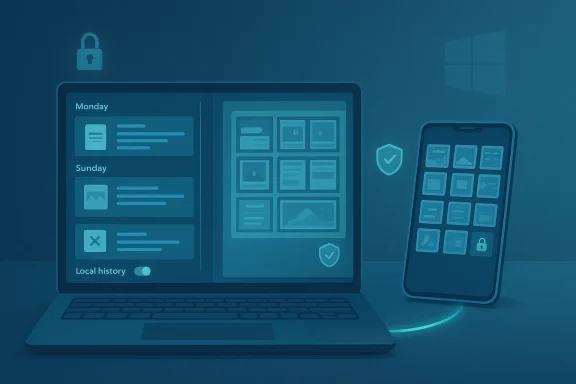 Background: what Timeline was — and what it promised
Timeline was introduced as an extension of Task View in Windows 10, surfacing a scrollable visual history of your activities across days and weeks. Unlike a mere “recent files” list, Timeline recorded activities—which application you used, the document or web page you were viewing, and metadata about start and end times—presented as tappable cards that could restore your exact context when selected. That included dee Word could open a specific document in place, or Edge could reopen a particular tab).Timeline also supported cloud syncing of activity history between devices for users signed into the same Microsoft account or enterprise Entra accounts, enabling cross-device continuity: start something on your work PC, pick it up later on a laptop or phone. That cross-device sync was one of Timeline’s headline capabilities and what made it feel like a practical time machine for workflows. Microsoft documented how Timeline lived under Task View (Win+Tab) and controlled activity history under Settings > Privacy > Activity history.
Timeline wasn’t perfect—developer adoption was patchy (apps had to register activities with the Graph API), and many users never discovered it—but what it did deliver was a privacy-friendly, metadata-driven history that could reconnect you to past context without taking snapshots of your screen.
How Timeline worked (in practical terms)
Activity cards, deep links, and search
Timeline relied on structured activity entries rather than raw images. Each Timeline card represented an action: opening a document, visiting a web page in Edge, viewing diting an image. When an app supported it, Windows stored a content URI and payload data to allow the operating system to restore the exact state—not just launch the app. That meant returning to the same document, the same scroll position, or even the same search result in some integrations.Local-first design with optional cloud sync
By default Timeline stored activities locally. If you opted in, Microsoft could sync a limited activity history across devices using your Microsoft account (MSA) or Entra profiles. This is what allowed Timeline to act as a cross-device continuation system—very handy for people who bounce between multiple machines. Microsoft later announced the cloud-sync portion would be discontinued for certain account types at specific dates as it changed policies, but the local Timeline experience remained on Windows 10.Quick access and discoverability
Users could open Timeline via the Task View button or Win+Tab and scroll backward through days, use the annotated scrollbar, or search Timeline for activities. For many power users this was a faster path than searching by filename or reconstructing a workflow from memory. Guides that explained how to re-enable Task View, turn on Activity history, and navigate Timeline remain widely circulated because the UI still exists in Windows 10.The quiet removal: how Timeline was pared back
Timeline didn’t vanish overnight. Microsoft gradually removed or limited its capabilities before retiring the interface in Windows 11.- First, cross-device syncing was de-emphasized and eventually switched off for Microsoft account users at earlier dates, effectively neutralizing Timeline’s standout feature. Microsoft posted notices explaining the stop to cloud syncing for some account Timeline’s diminishing role.
- Then, with Windows 11 Microsoft removed the Timeline user experience from Task View, replacing it with a much simpler “recent items / recommended” experience in the Start menu. That new UX is a pared-down recent-files view, lacking Timeline’s time-based visualization and actionable activity cards. The result: Timeline’s cross-device smart continuity degenerated into a local, chronological list with significantly less context.
Enter Recall: Microsoft’s photographic-memory approach
In 2024 Microsoft announced Recall as part of the Copilot+ PC experience: an AI-assisted “photographic memory” that captures periodic screenshots (snapshots) of your screen, runs on-device OCR and indexing, and lets you search your visual digital history using natural language. The feature was positioned as a next-generation retrieval tool designed to make past content findable without remembering file names or app states.Recall differs from Timeline in a few fundamental ways:
- Data type: images (snapshots) plus extracted text and semantic embeddings, rather than structured activity metadata.
- Processing: on-device AI (NPU-accelerated) for OCR, semantic indexing, and search.
- Platform: targeted to Copilot+ PCs, a new Windows device class that ships with high-performance NPUs and additional security features; Recall is primarily available on these NPU-equipped systems.
The backlash: privacy, security, and the technical vulnerabilities
Recall’s launch did not go smoothly. Early previews highlighted several concerning implementation details that prompted immediate scrutiny from security researchers, privacy advocates, and even browser vendors.Unencrypted artifacts and easy access
Initial reporting found that Recall stored searchable content in SQLite databases and local snapshot files in ways that were not adequately protected by default. Researchers showed how the searchable text databases could be read, and initial builds lacked per-feature encryption or required authentication barriers, exposing user snapshots to other users on the same machine and to malware with file access. That led to criticism that Recall functioned like a built-in keylogger if misused.Microsoft’s response: encryption, Windows Hello, VBS enclaves
Under pressure, Microsoft revised Recall’s security architecture and published a detailed update describing multiple mitigations:- Encryption of snapshots and associated indexes, with keys protected by TPM and tied to Windows Hello Enhanced Sign-in Security.
- Use of a Virtualization-based Security (VBS) enclave to isolate Recall services and cryptographic operations.
- Requirement of Windows Hello authentication to unlock and access Recall UI and data, and additional runtime protections.
Persistent worries: scope, opt-in reality, and attack surface
Even with encryption and authentication added, privacy experts stressed the remaining issues:- Large attack surface: Recall’s snapshotting mechanism still collects rich contextual data—screenshots nearly every few seconds—that could capture credentials, banking details, or confidential business documents.
- Opt-in vs. preinstalled realities: Recall ships on Copilot+ PCs and Microsoft’s opt-in UX and uninstallability claims were debated; some observers worried about persuasion or discoverability nudges that might lead users to enable the feature without fully understanding implications.
- Third-party pushback: Privacy-focused apps and browsers like Brave and AdGuard implemented blocks or protections preventing Recall from capturing browsing content by default, signaling real-world friction between Recall and other developers’ privacy promises.
Timeline vs. Recall: apples, oranges, and risk trade-offs
Comparing Timeline and Recall is instructive because they present two very different design philosophies for the same user nentext.- Timeline: metadata-first, local by default, with optional cloud sync; required apps to register activities (so less “everything” was recorded), and restored state via deep links.
- Recall: image-first, captures a near-continuous visual log that is semantically indexed via on-device AI, designed to be more forgiving and automatic for the user at the cost of capturing everything.
- Privacy: Timeline collected structured, limited metadata. Recall captures raw imagery (and extracted text), which is far richer and therefore riskier if exposed.
- Attack surface: Unstructured images and plaintext indexes are easier to scrape for secrets unless robust encryption and authentication are enforced. Timeline’s approach inherently minimized accidental data capture.
- Usefulness: Recall is often more forgiving for users who didn’t or couldn’t tag activities; you can find “that thing I saw” without remembering the app. Timeline required some adoption and explicit support by apps to reach parity.
Why Microsoft might have retired Timeline (and why that matters)
No single official statement adequately explains why Microsoft walked away from Timeline in favor of an image-driven approach, but the sequence of events suggests several overlapping motives:- Strategic hardware push: Recall is positioned as a marquee feature for Copilot+ PCs, a new NPU-equipped hardware class that Microsoft and OEM partners want to sell as premium AI machines. Recall benefits from on-device NPUs for semantic indexing and search, so promoting Recall helps justify and differentiate Copilot+ hardware. Microsoft’s documentation ties Recall to Copilot+ PC capabilities and NPU thresholds.
- AI narrative and product packaging: As AI became core to Microsoft’s product narrative, features that could be labeled “AI-powered” gained internal priority. Recall is easier to market as a breakthrough “AI memory” feature compared to Timeline’s more prosaic metadata approach.
- Platform simplification and developer focus: Maintaining multiple activity-tracking systems with different semantics imposes developer and platform costs. Microsoft may have chosen to focus investment on a single, powerful AI-driven retrieval mechanism rather than evolving Timeline further.
The enterprise, legal, and regulatory angle
Enterprise IT teams and regulators read this story differently from consumer users. Several implications stand out:- Compliance complexity: Enterprises must consider whether Recall’s local snapshotting conflicts with data governance, e-discovery, or regulatory regimes (e.g., financial services or healthcare). Although Microsoft says Recall runs locally and offers enterprise controls, IT policies will need to explicitly address retention, encryption, and user consent to avoid compliance risks.
- Legal exposure: If snapshots capture protr trade secrets and those artifacts are not properly managed, organizations could face legal liabilities. The initial unencrypted storage reports intensified these concerns.
- Regulatory interest: Privacy watchdogs in some jurisdictions engaged Microsoft about Recall; public scrutiny from the likes of the ICO was covered in reporting, highlighting that regulators take this kind of automated capture seriously.
What users can do today: practical recommendations
If you care about privacy, control, or simply want the Timeline experience back on Windows 10, here are practical, sourced steps and options.Re-enable and use Timeline on Windows 10
- Open Settings > Privacy > Activity history and make sure “Store my activity history on this device” is checked. Also ensure Task View is visible on the taskbar.
- Press Win + Tab or click the Task View button to access Timeline and scroll back through your activity stream.
- To clear items or days, right-click an activity card and select Remove or Clear all from [date range]. Microsoft’s support documentation explains these steps and privacy controls.
If you’re on Windows 11 and worried about Recall
- Do not enable Recall by default. Microsoft positioned Recall as opt-in during setup on Copilot+ PCs; decline it if you prefer not to have snapshots taken. Check Windows Experience Blog guidance for the updated security model and opt-in details.
- Use Windows Hello and BitLocker or device encryption if you do enable Recall—Microsoft ties Recall’s protections to Windows Hello Enhanced Sign-in and device encryption for confidentiality. ([micrw.microsoft.com/en-us/windows/business/devices/copilot-plus-pcs/)
- Limit exposure by using privacy-focused browsers and apps: some vendors now block Recall-like snapshot access by default to protect browsing content. Brave and other privacy tools have already implemented protections.
- Enterprise controls: Administrators should evaluate group policy, Managed Device settings, and enterprise retention policies before enabling Recall for managed devices. Microsoft’s Copilot+ PC documentation outlines administrative options and requirements.
The broader lesson: convenience vs. data minimization
Timeline’s demise and Recall’s rise illustrate a broader design choice that affects every modern OS: should the system collect less data and rely on structured metadata and developer participation, or should it capture more raw data and rely on heavy security controls and AI to make sense of it?- The metadata-first approach embodies data minimization: gather what’s necessary and useful, not everything that might be useful later.
- The snapshot-first approach banks on post-hoc value extraction: collect broadly and rely on AI and encryption to extract value while managing risk.
Final analysis: when a feature’s death matters
Microsoft’s willingness to walk away from Timeline is consequential because it proves that a useful retrieval tool can exist without pervasive surveillance. Timeline delivered meaningful productivity benefits without creating a photographic record of everything you did. That is a fact worth remembering as we evaluate new product trade-offs: convenience does not always need to come from broader collection.At the same time, Recall addresses real user pain—people forget contexts and search by fuzzy memory more than by filenames. Recall’s technical ambition is defensible from a product standpoint. The fundamental question is whether the world should accept a default posture of voluminous capture and post-processing, even when the data is “local” and “encrypted.” Past incidents have shown that “local” does not equal “safe” unless the entire threat model—from malware to physical access to insider abuse—is exhaustively mitigated.
For now, Microsoft has tried to move the needle toward improved security and control for Recall, but the trade-off remains: powerful retrieval for a broader set of use cases at the cost of much greater privacy and security complexity. Users and organizations should weigh that trade-off carefully, and remember that a simpler, metadata-driven Timeline once solved much of the same problem without introducing the same scale of exposure.
Takeaway checklist
- If you prefer a low-risk history tool that respects data-minimization, use Windows 10 Timeline and keep cross-device sync disabled if you want to limit exposure.
- If you’re considering Recall on a Copilot+ PC, treat it like a capability that requires governance—use Windows Hello, device encryption, and enterprise controls; avoid enabling it on shared or unmanaged machines.
- Enterprise IT should evaluate legal, compliance, and e-discovery impacts before enabling Recall broadly.
- Remember: “AI” does not absolve you of privacy risk. Robust encryption and authentication help, but they don’t eliminate the core problem of capturing everything. Choose features that align with your threat model and organizational policies.
The story of Timeline and Recall is more than nostalgia for a neat Windows 10 feature; it’s a cautionary tale about product choices in an era when AI, hardware marketing, and platform narratives increasingly shape what ends up running on our machines. Timeline showed a path that respected user privacy while providing tangible productivity gains. Recall showed how quickly the conversation shifts when a feature can be framed as an AI breakthrough tied to premium hardware. Both approaches have merits; the difference is where you draw the line between convenience and the amount of your life you’re comfortable storing as machine-readable snapshots.
Source: How-To Geek The amazing Windows 10 feature that Microsoft wants you to forget
