

Fast, frictionless spreadsheet editing without signing up is no longer a niche convenience — it’s a practical workflow for quick data collection, one‑off tasks, classroom exercises, and privacy‑minded collaboration. The five no‑login spreadsheet apps below let you create, edit, and share sheets instantly from a browser, with options ranging from lightweight, open‑source tools for instant collaboration to LibreOffice‑powered editors that prioritize file compatibility. This guide verifies the core capabilities of each service, explains what they do well, warns where they fall short, and gives practical tips for Windows users who want a fast, safe no‑signup spreadsheet experience.
Creating or editing a spreadsheet without signing in usually means one of three patterns: an anonymous editing mode (start editing immediately and get a shareable link), a guest session that keeps data locally until you optionally save to an account, or a service demo that provides temporary, session‑based storage. All five tools covered here support at least one of those modes and let you export to common formats such as CSV, XLSX, or ODS before you close the browser.
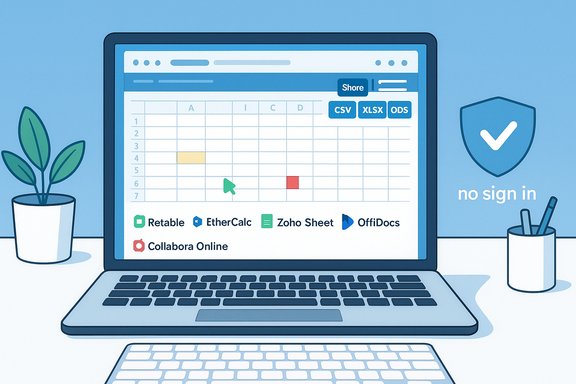
Retable, EtherCalc, Zoho Sheet (guest/anonymous workflows), Collabora Online Demo, and OffiDocs Excel Online represent the most practical tradeoffs in 2025 between feature set, compatibility, and privacy. Product pages and official documentation confirm the no‑login / guest modes for each service.
These no‑login tools are excellent for quick projects, classroom collaboration, and situations where you want to avoid the overhead of sign‑ups. The practical single rule to remember: treat no‑login sessions as temporary — export and archive before you close. For teams and sensitive workflows, move to self‑hosted or authenticated instances that explicitely document retention, encryption, and access controls.
Every tool described here has documentation or product pages that explicitly describe no‑login, guest, demo, or share‑by‑link workflows; readers should test the specific instance they plan to use and export copies of important work. For broad Windows‑focused context about office alternatives and compatibility considerations, community reviews and practical Windows testing notes are available in technical forums and guide collections.
Source: Windows Report Top 5 No-Login Spreadsheet Apps for Quick Editing Online
 Overview
Creating or editing a spreadsheet without signing in usually means one of three patterns: an anonymous editing mode (start editing immediately and get a shareable link), a guest session that keeps data locally until you optionally save to an account, or a service demo that provides temporary, session‑based storage. All five tools covered here support at least one of those modes and let you export to common formats such as CSV, XLSX, or ODS before you close the browser.Retable, EtherCalc, Zoho Sheet (guest/anonymous workflows), Collabora Online Demo, and OffiDocs Excel Online represent the most practical tradeoffs in 2025 between feature set, compatibility, and privacy. Product pages and official documentation confirm the no‑login / guest modes for each service.
Background: why choose a no‑login spreadsheet?
Short tasks — a quick list, an impromptu sign‑up sheet, a classroom exercise, or a throwaway dataset — don’t justify creating, protecting, and syncing an account. No‑login spreadsheets remove friction and keep the interaction browser‑first.- They reduce setup time: open a URL and start typing.
- They help preserve anonymity: no account, no long‑term profile.
- They’re useful for collaboration when everyone needs instant access (share a link, and edits appear in real time).
- They’re convenient for Windows users who lack Excel or prefer not to install extra software.
1) Retable — Best overall for modern, no‑login sheets
What it is and how the no‑login flow works
Retable is a modern online spreadsheet and lightweight database hybrid that explicitly advertises a “Try without login” workflow on its product pages. You can start a workspace, add tables, and generate public views or shareable editable links; the UI supports grid editing, multiple views (kanban, calendar, map), form generation, and simple automations. Retable’s pages describe public views and editable link options so you can share sheets without forcing collaborators to sign in.Strengths
- Fast onboarding: immediate start without account creation; ideal for throwaway projects.
- Modern interface: grid/table view plus Kanban, Calendar, Map and Form views — useful when a simple spreadsheet evolves into a mini app.
- Exports: built‑in CSV and XLSX export to capture work before the session ends.
- Sharing controls: toggle between view and edit for public links; filtered view sharing keeps a shared view’s filters intact for recipients.
Limits and risks
- Data persistence and privacy: public or editable links are convenient but can leak if copied. Always export sensitive work and sign up if you need long‑term storage.
- Feature gating: advanced automations, higher row limits, and organization branding are tiered features; free/guest sessions are intended for quick usage, not heavy production workloads.
Best use cases
- One‑off collaboration (event sign‑ups, shared checklists).
- Rapid prototyping where you might later migrate an important sheet into a paid account.
- Teams that want an Airtable‑like interface without immediate signup overhead.
2) EtherCalc — Best for instant, anonymous real‑time collaboration
What it is and how it works
EtherCalc is an open‑source, browser‑based spreadsheet that predates many modern alternatives. Its defining trait is instant sheets by URL: create a new sheet, copy the generated URL, and everyone can edit immediately — no accounts required. Official project mirrors and package pages confirm the “no registration” ethos.Strengths
- Truly anonymous collaboration: share a URL and users edit in real time.
- Lightweight and fast: designed for low bandwidth and quick edits.
- Open source: self‑hostable if an organization requires control over storage.
- Basic but useful spreadsheet functions: SUM, AVERAGE, COUNT, and many traditional formulas are supported; import/export to CSV/XLS formats is available.
Limits and risks
- UI and features: interface and formatting options are basic compared with modern SaaS; advanced charting and pivoting are limited.
- Data durability: public instances may treat data transiently; unless you self‑host, assume ephemeral storage and export frequently.
- Instance variability: because multiple public instances exist, uptime and behavior vary by host. Choose a reputable mirror or self‑host for reliable availability.
Best use cases
- Live, anonymous collaboration where instant access beats polished UI.
- Classroom or workshop use where attendees need to participate quickly.
- Private self‑hosted deployments for teams who want real‑time editing without cloud providers.
3) Zoho Sheet (Guest mode) — Best professional UI with optional guest sessions
What it is and how the guest/temporary work mode behaves
Zoho offers a full Office‑style spreadsheet (Zoho Sheet) and a separate product, Zoho Tables, with a “guest mode” that lets you create and edit bases without an account and later sync them to a Zoho account if you choose. Zoho’s documentation explains guest mode, temporary storage of work during the session, and the option to sign in later to save permanently. Zoho’s Office Integrator APIs also expose guest/“collabview” behaviors for embedded editors.Strengths
- Excel‑like interface: conditional formatting, data validation, pivot tables, and charts give a near‑desktop experience.
- Hybrid model: start anonymously, then sign in to preserve work—useful if the sheet outlives the ad‑hoc session.
- Strong export options: XLSX, CSV, and PDF exports protect your edits before a session expires.
- Enterprise polish: secure sharing links and comment threads for collaborative review.
Limits and risks
- Guest limitations: guest sessions are temporary and may not permit full collaboration features until you sign in or sync.
- Expect account prompts: Zoho will nudge you to register to retain work; plan for that if you want long‑term storage.
- Privacy model differs: public sharing and guest edits are convenient but treat them as temporary — export to local storage for important data.
Best use cases
- Professional users who occasionally need a quick, Excel‑grade editor without immediate login.
- Teams that want a clean transition from a throwaway sheet to a saved workspace under a managed account.
4) Collabora Online Demo — Best for LibreOffice compatibility without installs
What it is and how the demo session behaves
Collabora Online is a LibreOffice‑based web editor for documents, spreadsheets, and presentations. Collabora’s hosted demo and CODE (the free development edition) let you try a full LibreOffice‑style spreadsheet in the browser; demos typically require only a confirming email to activate a short test session or provide CODE for self‑hosting. Official Collabora demo pages describe a temporary demo environment suitable for testing compatibility with XLS, ODS, and other formats.Strengths
- LibreOffice engine: excellent support for ODS and solid handling of complex formulas and formatting.
- Desktop‑style UI: familiar to LibreOffice users, which helps when editing legacy files.
- Self‑host option (CODE): organizations can run Collabora locally for data sovereignty.
- Good format fidelity: better fidelity for ODF and many Excel documents than some lighter online editors.
Limits and risks
- Demo restrictions: hosted demos are intended for evaluation; storage space and session lifetime are limited.
- Not optimized for anonymous mass collaboration: the demo is primarily for testing and short editing sessions, not replacing a persistent cloud workspace.
- Dependency on emailed activation: some demos require a confirmation email link, which adds a light friction step.
Best use cases
- Editing complex spreadsheets (ODS/XLS/XLSX) when you need LibreOffice‑level compatibility without installing software.
- Testing how a Windows user’s Excel file will behave when opened in LibreOffice‑based online environments.
5) OffiDocs Excel Online — Best for quick Excel file compatibility without sign‑up
What it is and how the no‑login option works
OffiDocs provides web‑based LibreOffice/OpenOffice editors that let you open, edit, and export XLS/XLSX without a sign‑in. OffiDocs documentation and product pages explain template libraries and an integrated file manager; multiple public pages note the service's ability to edit Excel templates via an online LibreOffice engine, and state that no account is required for free, temporary editing.Strengths
- Excel format support: built on LibreOffice/OpenOffice engines, OffiDocs handles common Excel formats and template workflows well.
- No installation or login: upload and edit files immediately — handy on locked-down Windows machines.
- Export and download: save completed work locally as XLSX/CSV/PDF to preserve it.
Limits and risks
- Session persistence: like other demo/guest editors, server‑side storage is temporary; export before closing.
- UI differences: LibreOffice‑style interactions may feel different to heavy Excel users; test macros and advanced features for fidelity.
- Privacy considerations: uploading sensitive spreadsheets to a public demo should be avoided unless you trust the provider and the file contains no confidential data.
Best use cases
- Quick edits of .XLS/.XLSX files on a Windows PC that lacks Excel.
- One‑time conversions or edits before downloading a compatible file for local use.
How to pick the right no‑login spreadsheet (decision checklist)
- If you need instant, anonymous, live collaboration with zero fuss: choose EtherCalc.
- If you want a modern no‑signup app that can evolve into a saved workspace: choose Retable.
- If you want Excel‑grade features and the option to save later: evaluate Zoho’s guest flows.
- If file fidelity and LibreOffice compatibility matter: test Collabora CODE / demo.
- If you must open and edit .XLS or .XLSX quickly on an unmanaged Windows PC: try OffiDocs.
Security and privacy — practical rules
- Treat anonymous or guest sessions as ephemeral. Export to CSV/XLSX/ODS before closing the browser if the data matters.
- Avoid uploading sensitive data (financial records, health information, personal IDs) to public demo instances unless you control the host or confirm strong encryption and retention policies.
- If you need long‑term storage or enterprise‑grade controls, use self‑hosted or managed instances (EtherCalc self‑hosting, Collabora CODE deployments, Retable enterprise options) or sign in and activate the provider’s paid retention and access controls.
- Prefer HTTPS endpoints, and check whether the editor uses client‑side encryption or server storage. Products vary; vendor docs will specify storage behavior. When in doubt, export locally.
Quick setup recipes for Windows users
- Instant anonymous collaboration with minimal friction:
- Open EtherCalc, click “New Sheet,” copy the generated URL, and paste it into a chat or email. Export to CSV when finished.
- Rapid spreadsheet creation with forms and views:
- Start a Retable blank table via “Try without login,” create a form for input, and enable a public view link for readers. Export as XLSX when you want a local copy.
- Temporary LibreOffice editing for complex files:
- Use Collabora’s demo (or CODE if you self‑host) to open ODS/XLSX files that need fidelity testing; then download the file locally.
- Quick open/edit of an Excel file on an unmanaged PC:
- Upload the file to OffiDocs, make small edits, then download the updated XLSX to your Windows machine. Export immediately.
Common questions (short answers)
- What is a “no‑login spreadsheet”?
A browser‑based spreadsheet editor that lets you create or edit sheets without creating an account or signing in, typically via anonymous links, guest sessions, or temporary demos. - Are these tools safe?
Generally safe for low‑sensitivity tasks. Avoid confidential data unless the provider documents encryption, retention policies, or you self‑host. Always export important data. - Do they support formulas?
Yes — basic functions like SUM, AVERAGE, and COUNT are supported across the listed tools; some (Zoho, Collabora) support more advanced formulas and pivot tables. - Will my work be saved automatically?
Depends: guest sessions may save locally in the browser or temporarily on the server; demos often impose storage limits. Export before closing the tab to avoid data loss.
Critical analysis — strengths, blind spots, and practical warnings
- Strengths: no‑login spreadsheets restore immediacy and reduce overhead. For small teams, classroom use, and throwaway tasks they often outpace heavy cloud suites because they eliminate the friction of account management. Retable’s modern views and automation features bridge the gap between a quick sheet and a lightweight app, making it the most broadly useful option for varied use cases.
- Blind spots:
- Reliability: public instances (especially EtherCalc mirrors) vary in uptime and retention. If your workflow must not lose data, self‑host or sign in to a managed plan.
- Feature parity: advanced Excel features (macros, VBA, complex pivot customization) are not uniformly supported. Collabora/LibreOffice do better on fidelity than lightweight editors, but you should test high‑complexity files.
- Privacy and compliance: public links are convenient but do not meet regulatory or corporate data governance requirements; treat them as public by design unless you control the hosting environment.
- Practical warnings:
- Always export before closing a no‑login session.
- Use file fingerprints (checksum) or quick sanity checks after editing complex files in a web editor to ensure formulas and formatting survived the round trip.
- For collaboration with known participants, prefer shareable links with explicit access controls over open public edit links.
Closing verdict
For everyday Windows users who need to edit or share spreadsheets quickly and without friction, Retable and EtherCalc represent the best‑of‑two‑worlds choices: Retable for a modern, feature‑rich no‑signup workflow that scales toward saved work, and EtherCalc for instant, anonymous real‑time collaboration. Zoho Sheet’s guest mode is the professional compromise — full features with optional anonymous editing and an easy path into permanent accounts. Collabora’s demo and OffiDocs Excel Online are the go‑to options when compatibility with LibreOffice/Excel formats matters most.These no‑login tools are excellent for quick projects, classroom collaboration, and situations where you want to avoid the overhead of sign‑ups. The practical single rule to remember: treat no‑login sessions as temporary — export and archive before you close. For teams and sensitive workflows, move to self‑hosted or authenticated instances that explicitely document retention, encryption, and access controls.
Every tool described here has documentation or product pages that explicitly describe no‑login, guest, demo, or share‑by‑link workflows; readers should test the specific instance they plan to use and export copies of important work. For broad Windows‑focused context about office alternatives and compatibility considerations, community reviews and practical Windows testing notes are available in technical forums and guide collections.
Source: Windows Report Top 5 No-Login Spreadsheet Apps for Quick Editing Online
