

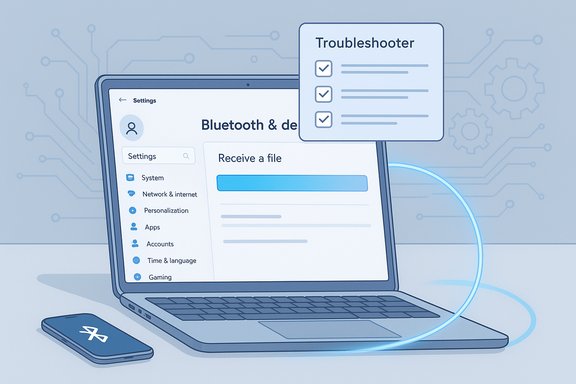
Microsoft’s official troubleshooting guidance for Bluetooth file transfers in Windows presents a short, methodical sequence—start with the automated troubleshooter, check pairing and discoverability, verify encryption settings, and escalate through driver reinstallation and Windows Update—to resolve the common “Waiting for connection / Bluetooth file transfer not completed / File transfer is disabled by policy” errors that block sending or receiving files.
Bluetooth remains a convenient, low-friction method to move small files between devices without cables or third‑party apps. It’s built into Windows and supported across smartphones, tablets, and many peripherals. That convenience comes with trade-offs: limited throughput compared with Wi‑Fi or USB, greater sensitivity to range/interference, and a multi-layered software/firmware stack that can break in a number of ways.
Microsoft’s troubleshooting flow for Bluetooth file transfer failures focuses on the highest‑leverage, lowest‑risk fixes first: automated diagnostics, toggling radios and pairing, ensuring the receiving side is in Receive mode, and adjusting file‑sharing encryption compatibility before advancing to driver uninstall/reinstall and system updates. That sequence addresses the majority of cases where transfers either never initiate or abruptly fail mid‑transfer.
However, two practical limitations deserve emphasis:
For persistent or enterprise cases, escalate methodically: collect logs, test with alternative hardware, avoid third‑party driver updaters, and coordinate with your OEM or IT team before performing destructive operations like driver deletion or Windows update rollbacks. These safeguards limit the chance of unintended regressions while returning your Bluetooth file‑transfer functionality to a reliable state.
Source: Microsoft Support Troubleshoot transferring files using Bluetooth - Microsoft Support
 Background / Overview
Bluetooth remains a convenient, low-friction method to move small files between devices without cables or third‑party apps. It’s built into Windows and supported across smartphones, tablets, and many peripherals. That convenience comes with trade-offs: limited throughput compared with Wi‑Fi or USB, greater sensitivity to range/interference, and a multi-layered software/firmware stack that can break in a number of ways.Microsoft’s troubleshooting flow for Bluetooth file transfer failures focuses on the highest‑leverage, lowest‑risk fixes first: automated diagnostics, toggling radios and pairing, ensuring the receiving side is in Receive mode, and adjusting file‑sharing encryption compatibility before advancing to driver uninstall/reinstall and system updates. That sequence addresses the majority of cases where transfers either never initiate or abruptly fail mid‑transfer.
Symptoms and common error messages
- “Waiting for connection” when the receiver never shows transfer activity.
- “Bluetooth file transfer not completed” or transfer stalls with no progress bar movement.
- “File transfer is disabled by policy” on enterprise-managed machines or devices subject to group policy.
- Receiving device not showing up in the Send files dialog, or Windows’ “Send or receive files via Bluetooth” option is missing.
Quick fixes (the first 5–15 minutes)
These are the fastest checks and will fix most consumer problems.1. Run the automated Bluetooth troubleshooter
Windows includes a built‑in troubleshooter (Get Help or Settings → Troubleshoot → Bluetooth) that runs diagnostics and performs safe, automated fixes like restarting the Bluetooth Support Service and reinitializing the adapter. Always run this first; it’s non‑destructive and often resolves transient issues.2. Turn on Bluetooth and verify the device is in pairing mode
Make sure Bluetooth is toggled on in Settings > Bluetooth & devices and that the receiving device is in pairing/discoverable mode and within range (typical effective range ≈ 10 metres in ideal conditions; obstacles and RF interference reduce that). Moving the devices within a few feet for a test eliminates range and interference as factors.3. Remove and re‑pair the device
If the device appears in Windows but fails to connect, remove the device (Settings > Bluetooth & devices > More options (…) > Remove device) and pair it again. Re‑pairing clears stale pairing state that can block file transfer initiation.4. Prepare Windows to receive files
Right‑click the Bluetooth icon (or open Settings > Bluetooth & devices > Related settings) and select Receive a file before the sending device initiates the transfer. If Windows isn’t explicitly in receive mode, the send process on the other device may hang at “Waiting for connection.”5. Check file‑sharing encryption compatibility
Windows prefers 128‑bit encryption for file‑sharing connections, but some older devices require 40‑ or 56‑bit encryption. If transfers fail due to encryption mismatch, change the File sharing connections option under Settings > Network & internet > Advanced network settings > Advanced sharing settings and select 40‑ or 56‑bit encryption for compatibility (use this only when necessary and in trusted environments).Why these steps work — the technical reasoning
Bluetooth file transfer in Windows depends on three layers working together:- The hardware radio (internal adapter or USB dongle).
- The driver/firmware stack supplied by the chipset vendor or OEM.
- Windows services and user‑level settings (Bluetooth Support Service, discoverability, and file‑sharing encryption policies).
Deep dive: intermediate and advanced troubleshooting
When quick fixes fail, proceed methodically to avoid unnecessary disruption. The following steps escalate from safe to more intrusive.Restart services and check power management
- Open Services (services.msc) and restart Bluetooth Support Service (bthserv).
- In Device Manager → Bluetooth → adapter → Properties → Power Management, uncheck “Allow the computer to turn off this device to save power.” Laptops’ power management can suspend the radio mid‑session, causing transfers to fail.
Update, roll back, uninstall, and reinstall drivers
- Prefer vendor/OEM drivers (Intel, Qualcomm, Broadcom, Realtek) over generic Windows drivers for audio and LE Audio features. Use the vendor’s update assistant or the laptop maker’s support portal.
- If problems started after a driver or Windows update, use the driver’s Roll Back Driver option or uninstall the adapter (Device Manager → Uninstall) and reboot to let Windows reinstall. As a last resort, select Delete the driver software for this device and reinstall with a known‑good vendor package. Back up drivers before uninstalling.
System repair and corruption checks
Run:- DISM /Online /Cleanup-Image /RestoreHealth
- sfc /scannow
Test with known‑good hardware
Try the peripheral with a second host (phone or another PC). If it connects elsewhere, the issue is the Windows host. Conversely, test the PC with a known‑good USB Bluetooth dongle. If the dongle works while the internal adapter doesn’t, suspect an internal radio/firmware problem or BIOS dependency and contact your OEM.Policy, enterprise, and security considerations
- “File transfer is disabled by policy” usually indicates an enterprise Group Policy or Mobile Device Management (MDM) setting that blocks Bluetooth file sharing. Do not attempt to override enterprise policies without IT approval. Work with your IT team to allow necessary exceptions or to use approved transfer methods.
- Reducing encryption from 128‑bit to 40/56‑bit to accommodate legacy devices reduces security; apply this only in trusted scenarios and consider alternatives (temporary USB transfer or cloud share) if security is a concern.
- Avoid third‑party driver updaters in managed environments. They can install incompatible stacks and complicate recovery. Use the vendor or OEM distribution channel.
Special topic: Bluetooth audio, LE Audio, and file transfers
Bluetooth file transfers use classic OBEX and related profiles separate from modern audio profiles, but the overall Bluetooth stack and drivers are shared. Newer features such as LE Audio and shared audio require coordinated support across Windows, the chipset vendor, and peripheral firmware. Expect the following realities:- LE Audio and advanced audio behaviors are ecosystem dependent: Windows build, driver, and device firmware must all support the feature. Missing any link can cause regressions.
- If a Windows update “broke” audio or Bluetooth behavior, verify vendor advisories before rolling back; regressions are often device‑specific. Keep known‑good drivers offline for recovery.
Practical diagnostics checklist (copyable, low → high effort)
- Confirm both devices are powered, charged, and in pairing/discoverable mode.
- Toggle Bluetooth Off → On on the PC (Quick Settings or Settings > Bluetooth & devices).
- On the PC, select Settings > Bluetooth & devices > Related settings > Send or receive files via Bluetooth and choose Receive files.
- Run the Windows Bluetooth troubleshooter (Get Help or Settings troubleshooters).
- Remove and re‑pair the device from Settings > Bluetooth & devices.
- If the receiving device is non‑Windows or older, consider temporarily reducing file‑sharing encryption to 40/56‑bit. Do this only when necessary.
- Restart Bluetooth Support Service and disable adapter power‑savings in Device Manager.
- Update or reinstall OEM/chipset vendor drivers; if the problem follows an update, use Roll Back Driver or uninstall the adapter and reboot.
- Run DISM and SFC to repair system components if driver reinstall fails.
- Test the peripheral on another host and test the PC with a known‑good USB dongle to isolate hardware faults.
When to stop and escalate
- The adapter is completely absent from Device Manager after an update, or the internal radio behaves inconsistently while a USB dongle works. These are signs of firmware/BIOS or hardware failures; open a support case with the OEM.
- You’re on a managed corporate device: do not modify drivers or uninstall updates without IT buy‑in. Provide IT with Event Viewer logs and describe the exact symptoms and timestamps.
Notable strengths and limitations of Microsoft’s guidance
Microsoft’s published sequence is strong because it follows a logical, low‑risk escalation: basics → automated troubleshooting → settings → driver operations → system repair. The troubleshooter and centralized Get Help app reduce friction for typical users and resolve a surprising portion of cases without manual driver surgery.However, two practical limitations deserve emphasis:
- Driver and firmware fragmentation: modern Bluetooth features are gated by vendor drivers and firmware. A Windows update alone doesn’t guarantee feature parity—drivers and firmware must match the OS expectations. That increases the chance of regressions after updates and complicates mass troubleshooting. Keep OEM driver packages and BIOS updates on hand.
- Enterprise policy constraints and destructive fixes: Some fixes (encryption downgrade, removing driver packages) are invasive or reduce security. In managed environments, aggressive steps can break compliance or violate IT rules. Treat these as last resorts and coordinate with IT.
Risk mitigation and best practices
- Prefer vendor‑supplied drivers and firmware; download from Intel, Broadcom, Qualcomm, Realtek, or your laptop maker. Avoid third‑party updater tools.
- Keep a recovery plan: store known‑good driver packages offline and make a System Restore point before major updates or driver replacement.
- Use temporary, secure alternatives where appropriate: for large or sensitive files, prefer USB, encrypted cloud shares, or direct network transfer rather than attempting large Bluetooth transfers. Bluetooth is best for small, ad‑hoc transfers.
- Pair in controlled environments and remove stale pairings periodically to reduce the attack surface. Disable Bluetooth when not needed.
Common myths and clarifications
- Myth: “If Bluetooth is present, Windows will always use the best driver.”
Clarification: Windows may use a generic Microsoft driver by default; OEM/chipset drivers often include additional features and fixes—especially for audio and LE Audio—so vendor drivers can be necessary. - Myth: “Bluetooth transfers are magically fast.”
Clarification: Bluetooth is intentionally low power and optimized for short bursts. For large files prefer Wi‑Fi Direct, USB, or cloud transfer. Bluetooth’s sweet spot is small to medium files and quick, ad‑hoc exchanges. - Myth: “If a Windows update caused the issue, uninstalling it is always safe.”
Clarification: Uninstalling updates can reintroduce security fixes or other regressions. Use rollback as a last resort and coordinate with IT on production systems.
Conclusion
Bluetooth file transfer failures in Windows usually stem from simple, fixable causes: a device not in pairing/receive mode, power management suspending the radio, driver mismatches, or encryption incompatibilities. Microsoft’s recommended troubleshooting sequence—run the automated troubleshooter, verify pairing and discoverability, check file transfer receive mode, adjust encryption for legacy devices, and finally reinstall or update the Bluetooth adapter driver—provides a practical, risk‑aware roadmap that resolves the majority of issues.For persistent or enterprise cases, escalate methodically: collect logs, test with alternative hardware, avoid third‑party driver updaters, and coordinate with your OEM or IT team before performing destructive operations like driver deletion or Windows update rollbacks. These safeguards limit the chance of unintended regressions while returning your Bluetooth file‑transfer functionality to a reliable state.
Source: Microsoft Support Troubleshoot transferring files using Bluetooth - Microsoft Support
