

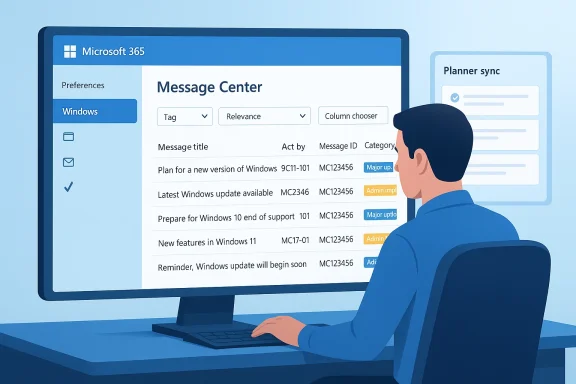
Message center in the Microsoft 365 admin center is no longer just a passive inbox of corporate announcements — it’s a lightweight command center you can tune to surface the Windows updates that truly matter to your environment, and the keys to that control are Preferences, Filters, and Columns. The Windows IT Pro Blog walks administrators through the exact controls — from selecting “Windows” in Preferences to filtering by Tag, Relevance, or Act‑by date, and even syncing tasks to Planner — so you can stop chasing noise and start acting on the signals that keep your estate secure and compliant.
Message center exists inside the Microsoft 365 admin center as a curated delivery channel for product notifications, updates, and operational alerts. For Windows-focused teams, it’s the place where feature rollouts, hardening changes, security updates, lifecycle notices, and other admin‑oriented communications appear. The experience has evolved from a general announcements feed into a more personalizable inbox that supports enterprise workflows — including message tagging, message IDs (MC#######), and optional Planner syncing.
This evolution mirrors Microsoft’s broader push to bring personalized, context‑aware content to users and admins alike (think News & Interests and the personalized experiences Microsoft has built across Windows and Edge). Those earlier personalization projects set expectations for relevance and roaming preferences; Message center applies similar ideas to operational messaging for IT pros.
However, there are several areas where the experience still creates friction:
Conclusion
If you manage Windows at any scale, spend an hour this week to tune your Message center: pick Windows in Preferences, show the Act‑by and Favorites columns, and create a short triage routine that converts high‑impact messages into tracked work. Those simple changes will reduce noise, speed remediation, and make Message center a dependable part of your operational playbook.
Source: Microsoft - Message Center Personalize your Message center experience for Windows news - Windows IT Pro Blog
 Background
Message center exists inside the Microsoft 365 admin center as a curated delivery channel for product notifications, updates, and operational alerts. For Windows-focused teams, it’s the place where feature rollouts, hardening changes, security updates, lifecycle notices, and other admin‑oriented communications appear. The experience has evolved from a general announcements feed into a more personalizable inbox that supports enterprise workflows — including message tagging, message IDs (MC#######), and optional Planner syncing.This evolution mirrors Microsoft’s broader push to bring personalized, context‑aware content to users and admins alike (think News & Interests and the personalized experiences Microsoft has built across Windows and Edge). Those earlier personalization projects set expectations for relevance and roaming preferences; Message center applies similar ideas to operational messaging for IT pros.
What Message center delivers (and what it doesn’t)
Message center gives admins a centralized stream of Microsoft communications aimed at helping you manage Windows in production. Key built‑in capabilities you’ll rely on:- A focused view into Windows‑related messages when you select Windows under Preferences. This is the primary way to suppress non‑Windows noise.
- Tags that classify messages by impact and intent — for example, Major update, User impact, Admin impact, or lifecycle change — enabling fast triage.
- Structured inbox columns (Message title, Favorites, Last updated, Act by, Message ID, Category) that are configurable and sortable so you can surface messages with deadlines or high impact first.
- Filters for Service, Tag, Message state, Relevance and more, which allow temporary focus on a subset of messages without permanently changing global preferences.
- Optional Planner syncing to turn messages into tasks for operational follow‑up. (Note: Planner itself has been undergoing changes in early 2026; treat the Planner sync option as useful but monitor Planner’s feature set as Microsoft rolls out updates.)
Quick walkthrough: personalizing Message center step‑by‑step
Below is a practical, action‑first walkthrough to take the blog’s recommendations and turn them into a repeatable admin routine.1. Set your service preferences
- Open Microsoft 365 admin center -> Health -> Message center.
- Under the Inbox tab, select Preferences (gear icon).
- In the flyout, tick Windows under “Show messages for these services” and choose any additional tags you want to receive.
- Select Save — your selection persists until changed.
2. Use filters to focus quickly
- Locate the Filters ribbon (below Preferences).
- Use Service → Windows to temporarily narrow to Windows messages.
- Use Tag to show only Major updates, Admin impact, or User impact messages.
- Use Message state (read/unread/favorite/updated) and Relevance (Low/Medium/High) to tune urgency.
3. Choose and sort your columns
- Open the column chooser and show/hide columns to match the fields you scan most (Act by, Message ID, Category, Last updated).
- Resize key columns (minimum 48 pixels) so critical fields don’t wrap or hide.
- Click a column header to sort A→Z or Z→A — for dates or Act by deadlines, this becomes your triage queue.
4. Turn messages into tracked work
- Use the Planner syncing option in the Inbox flyout to turn messages into Planner tasks.
- Or copy the message link and paste into your ticketing system (ServiceNow, Jira, etc.), or forward via email if you prefer manual handoffs.
Best practices: how to make Message center operationally valuable
These practices are designed for teams that want Message center to feed actionable processes rather than become another unread inbox.- Check Message center regularly and establish a cadence (daily quick triage, weekly planning). Use email alerts for only the highest‑urgency categories to avoid alert fatigue.
- Build a short list of tags to watch (for example: Major update, Admin impact, Monthly security updates) and save that list in Preferences where possible.
- Map Message center messages to your vulnerability/patch management process: if a message references a security monthly update or an out‑of‑band patch, create an automated ticket (via Power Automate or your ITSM tool) for patch testing, pilot ring deployment, and full rollout.
- Keep a small group of favorites (starred messages) for items under active review and sort the inbox to surface favorites at the top.
- Use Message ID (MC#######) in all communications to avoid ambiguity when discussing a message across teams or when escalating to Microsoft support.
- Configure Preferences to show Windows and relevant tags.
- Create a triage filter (Tag=Major update OR Relevance=High).
- Set Archive rules (archive anything informational after 30 days).
- Test Planner sync for a subset of messages and confirm ticket automation.
- Train 2–3 engineers on the triage process and use MC IDs in handoffs.
Risks, limitations, and things to watch
Message center’s personalization tools are effective, but they have limitations that can create operational risk if not accounted for.- Filter persistence and session scope: Service filters revert on refresh. If an admin thinks a filter is permanent, they may miss messages after navigation or page reload. Mitigation: apply Preferences to persist service selection and use column layouts to simulate persistent views.
- Lack of per‑org message state for Windows: the “Status for your org” column is blank today for Windows messages, meaning Message center won’t automatically tell you whether your tenant is affected by a specific message. That makes it essential to treat messages as potentially relevant and verify impact with targeted scans.
- Overreliance on relevance labels: most Windows messages are marked “Medium” relevance automatically. Don’t assume “Medium” equals “no action required.” Use tags and act‑by dates to prioritize.
- Planner sync dependency: Microsoft’s Planner platform was being updated in early 2026, and some integrations and features were in transition. If your automation depends on Planner’s current behavior (e.g., iCal exports, Loop/whiteboard components), validate the Planner side of the workflow after Microsoft’s rollout windows.
- Compliance blind spots: ignoring messages marked “Low” relevance may have compliance implications if a lifecycle or policy notice is mis‑classified. Mitigation: include a compliance review step for lifecycle and security tags.
How to integrate Message center into an operational playbook
Turn Message center into a reliable input to operations rather than a passive reading list. Here’s a repeatable playbook you can adopt.- Triage (Day 0)
- Open Message center; apply Preferences = Windows and Filters = Tag: Major update OR Relevance: High.
- Star messages that require immediate review.
- Assess (Day 1)
- For each starred message, use the MC####### to search internal documentation, check vendor advisories, and run an impact scan (SCCM/Endpoint Manager queries, vulnerability scanner).
- Plan (Day 2–3)
- If actionable, create a Planner or ticketing task (include MC ID, affected versions, remediation steps).
- Assign pilot devices/groups, set test windows, and define rollback criteria. (Use Planner syncing cautiously and validate Planner behavior post‑update.)
- Execute (rolling)
- Run pilot, collect telemetry, and iterate. If no issues, expand rollout.
- Review and Archive
- Mark messages as complete, archive them, and update your runbook with lessons learned and any MSFT support contacts if escalation was necessary.
Suggested Message center configuration templates for common admin roles
Pick one that matches your team’s operational maturity and modify it.- Small IT shop (1–5 admins)
- Preferences: Windows only.
- Filters: Tag = Major update; Message state = Unread or Favorite.
- Columns shown: Message title, Act by, Favorites, Last updated.
- Actions: Weekly review; Planner sync disabled (manual ticket creation).
- Mid‑sized org (30–500 endpoints)
- Preferences: Windows + Microsoft 365 core services used.
- Filters: Tag = Major update OR Admin impact; Relevance = High or Medium.
- Columns shown: Message title, Act by, Message ID, Category, Favorites.
- Actions: Daily triage; Planner sync to create pilot tasks; automated ticket creation to ITSM.
- Enterprise security‑first org (5000+ endpoints)
- Preferences: Windows + all security/identity services relevant to your tenant.
- Filters: Tag = Major update OR Monthly security updates OR Lifecycle.
- Columns shown: Message title, Act by, Message ID, Last updated, Category, Favorites.
- Actions: Automated ingestion into SIEM/ITSM using MC ID, dedicated security triage, weekly executive summary.
Critical analysis: strengths and where Microsoft should improve
Message center’s personalization is a practical, low‑friction step forward: it reduces noise, gives admins immediate control over the content they see, and supports a simple task handoff model through Planner and links. The combination of tags, message IDs and sortable columns is well suited for teams that want to keep a small, actionable queue and avoid “alert fatigue.”However, there are several areas where the experience still creates friction:
- Persistent filters and user views: session‑scoped filters are a frequent nuisance. Admins should be able to create and save named views (e.g., “Windows Security Triage”) that persist across sessions and devices.
- Per‑tenant impact intelligence: Message center should connect Windows messages to tenant metadata (installed builds, update channel, device inventory) so that messages automatically show whether the message actually affects your tenant. The current blank “Status for your org” field is a missed opportunity.
- Automation and API access: while Planner sync is helpful, organizations need a documented event feed or API for Message center that can push messages directly into ITSM, SOAR, or SIEM platforms with structured fields (MC ID, tags, act‑by, impacted versions). That would reduce manual copy/paste and improve traceability.
- Dependence on other product behavior: Planner’s 2026 updates highlight the fragility of cross‑product integrations; Microsoft should provide clear compatibility guarantees and a published deprecation timeline for integrations used by Message center.
Practical recommendations / checklist for Windows admins
- Immediate (this week)
- Set Preferences -> Windows and choose a small set of tags (Major update, Admin impact).
- Create a “favorites” convention (e.g., star anything with an Act by date within 30 days).
- Document a short triage script for engineers: open MC, apply filter, list starred items, assign MC IDs.
- Short term (1–2 months)
- Pilot Planner syncing for a single team and validate that tasks are created reliably. Watch for Planner UX or API changes during Microsoft’s rollout windows.
- Integrate MC IDs into your ticket subject lines to make cross‑referencing simple.
- Medium term (3–6 months)
- Build automation to ingest Message center messages into your ITSM or ticketing system using message links and MC IDs. If an API isn’t available, schedule a lightweight Power Automate flow to parse message content and create tickets.
- Run a quarterly review of Message center tags and your triage process to ensure no compliance or lifecycle notices are missed.
Final verdict
Message center’s personalization features transform it from a passive information stream into an operationally useful tool for Windows management. When properly configured, Preferences, Filters, and Columns let your team run a tight triage process that reduces risk from missed security updates or lifecycle announcements. The addition of Planner syncing is a welcome bridge to task management, but teams must validate it against ongoing Planner changes. Overall, Message center is a practical piece of the Windows management toolkit — powerful in scope but still maturing in enterprise automation and per‑tenant impact intelligence. Treat it as a reliable source of signals, not a full substitute for targeted vulnerability and inventory scans, and you’ll dramatically reduce noise while improving your ability to act fast.Conclusion
If you manage Windows at any scale, spend an hour this week to tune your Message center: pick Windows in Preferences, show the Act‑by and Favorites columns, and create a short triage routine that converts high‑impact messages into tracked work. Those simple changes will reduce noise, speed remediation, and make Message center a dependable part of your operational playbook.
Source: Microsoft - Message Center Personalize your Message center experience for Windows news - Windows IT Pro Blog
