

A dusty Windows 11 installer on a 32GB stick can, in practice, become a tiny, pocket-sized rescue toolkit — and yes, it’s perfectly reasonable to leave that stick plugged into your BMW’s USB port so the car doubles as a mobile recovery kit and a music drive.
Most people make a Windows 11 USB installer once, then tuck the stick away. That’s understandable — installation media is a single-use safety net. But a modern Windows installer frequently occupies only a few gigabytes once Microsoft’s Media Creation Tool (MCT) has done its work, leaving real free space on anything larger than 8GB. That leftover capacity is useful: you can add music for your car, a handful of portable utilities, and still keep a ready-to-run Windows installer available at all times. Community guides and how‑to threads show plenty of people building exactly this sort of “do‑everything” stick for daily carry or for dropping into a car’s USB port to make the system both an entertainment device and a recovery tool. iat the technical limits are, how to do it safely and reliably, and what risks to watch for. I verify the key technical claims against authoritative references and community practice, and I provide clear, practical steps for readers who want to convert a bootable Windows USB into a dual-purpose rescue + media drive.
Microsoft’s guidance also tells users to prepare a USB device of at least 8GB when creating installation media, so 16–64GB drives are now the practical sweet spot for a bootable USB that you also want to reuse.
Source: How-To Geek Why my BMW's USB drive is secretly a Windows 11 rescue disk
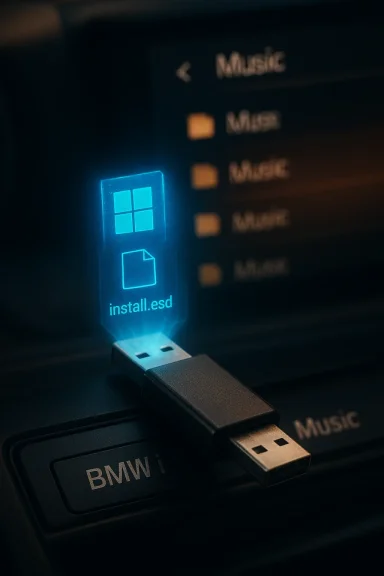 Overview
Most people make a Windows 11 USB installer once, then tuck the stick away. That’s understandable — installation media is a single-use safety net. But a modern Windows installer frequently occupies only a few gigabytes once Microsoft’s Media Creation Tool (MCT) has done its work, leaving real free space on anything larger than 8GB. That leftover capacity is useful: you can add music for your car, a handful of portable utilities, and still keep a ready-to-run Windows installer available at all times. Community guides and how‑to threads show plenty of people building exactly this sort of “do‑everything” stick for daily carry or for dropping into a car’s USB port to make the system both an entertainment device and a recovery tool. iat the technical limits are, how to do it safely and reliably, and what risks to watch for. I verify the key technical claims against authoritative references and community practice, and I provide clear, practical steps for readers who want to convert a bootable Windows USB into a dual-purpose rescue + media drive.Background: why a Windows installer doesn’t need a whole stick
When you run Microsoft’s Media Creation Tool to make Windows 11 installation media, the utility downloads, compresses, and writes the necessary setup files to the USB. The install image the tool produces is often an .esd (compressed) rather than the larger .wim that appears in some downloadable ISOs, and that compression can keep the biggest file well under the FAT32 4GB per-file limit that many devices require. That’s why a 32GB stick often ends up with a small installer footprint and lots of free space for other files. Community troubleshooting and deployment threads confirm this behavior: MCT often produces an install.esd and formats the media in a way designed to be broadly bootable.Microsoft’s guidance also tells users to prepare a USB device of at least 8GB when creating installation media, so 16–64GB drives are now the practical sweet spot for a bootable USB that you also want to reuse.
The filesystem rulebook: FAT32, NTFS, and the 4GB limit
To understand the tradeoffs, you need three facts:- FAT32 is still the most universally supported removable‑media filesystem used for UEFI boot/ESP compatibility, and many car head units and embedded devices only understand FAT16/FAT32. That explains why so many users reformat drives to FAT32 to play music in a car or to update a head unit.
- FAT32 has an unambiguous technical limit: a single file cannot exceed 4,294,967,295 bytes (4GB minus one byte). That’s a hard cap baked into the file system. If a windows installation image’s single file exceeds that, you must either use NTFS/exFAT or split/compress the image.
- UEFI firmware expects EFI files on a FAT‑formatted ESP (EFI System Partition); many firmware implementations will only enumerate removable boot media correctly when the firmware sees a FAT12/16/32 partition containing standard UEFI paths. For broad compatibility, the installer and EFI boot files often live on FAT32.
Why the “car + installer” idea works in real life
- Storage efficiency: a typical MCT-created Windows installer can leave 20GB+ free on a 32GB stick. That space is great for music, portable utilities, or short backups.
- Convenience: if you’re the household tech helper, carrying an installer everywhere (attached to your keyring or in your car) eliminates the “I’ll make it next time” problem. On‑site reinstallations and BIOS updates become a single‑stick affair. Community members who build rescue sticks and multi‑ISO drives routinely rely on this approach in real troubleshooting workflows.
- Compatibility with head units: many aftermarket Android head units only read FAT32, so if the installer was created or left FAT32, the head unit will see the drive and play audio while the installer files remain intact. The player won’t interfere with the Windows installer unless you overwrite its boot files. Real-world reports from head‑unit guides confirm FAT32 is the most reliable filesystem for car playback.
Real risks and downsides (don’t skip this section)
Keeping a bootable Windows installer in your car and using the remainder of the space for music and tools is handy — but there are several practical and security risks to consider.1) Temperature, humidity, and physical stress
USB flash memory is solid‑state, but consumer sticks are not engineered for automotive extremes. High cabin temperatures (parked in sun) and harsh vibrations increase the risk of data corruption or hardware failure over time.- Industrial/automotive‑grade flash parts specify wide operating and storage ranges (e.g., –40 °C to +85 °C), but off‑the‑shelf consumer sticks usually list much narrower ranges and don’t guarantee long data retention under hot storage conditions. If you plan to leave a drive permanently in a vehicle, choose hardware rated for wider temperature ranges or accept the higher failure risk.
2) File corruption and sudden unmounts
Car head units are notorious for popping a drive uncleanly when power is removed or the unit reboots. Sudden unmounts while writing can corrupt files — including the critical setup images.- Best practice: avoid writing new files to the stick while it’s in the car, and don’t use the installer’s partition for frequent edits. Keep the installer files read‑only whenever possible.
3) Theft and exposure of tools
A bootable installer containing recovery utilities, credentials, or portable password reset tools can be a vector for misuse if the stick is lost. Storing sensitive tools unencrypted on a drive left in a car is a privacy hazard.- Use BitLocker To Go or other removable‑drive encryption for any sensitive partition or files. Note that the UEFI/boot partition itself must remain readable by firmware (so it cannot be encrypted), but you can keep the data partition encrypted. (Encryption adds complexity when you need to access the drive quickly on another machine, so weigh convenience vs. security.)
4) Accidental booting and firmware updates
A roadside stranger or a well‑intentioned family member could plug the stick into a laptop and attempt an install. If the install media contains automatic scripts or unattended installers, that could be problematic.- Don’t include unattended install scripts on a public rescue stick. Keep the installer honest and manual.
5) Car head unit compatibility
Not every head unit will accept large drives, exFAT, or NTFS. Many older or cheaper units are limited to FAT32 and smaller volumes. Test the drive with the particular head unit before you commit to leaving it plugged in.How Microsoft and the community handle the FAT32 problem (short technical verification)
- FAT32’s single-file limit is 4GB‑1 byte — that’s non-negotiable and documented. If a downloaded Windows image contains a single file bigger than that, you cannot copy it directly to a FAT32 volume.
- Microsoft’s Media Creation Tool often produces a compressed install.esd file (instead of a larger install.wim), which frequently stays under the 4GB threshold and allows the tool to create FAT32 USB media suitable for UEFI boot. However, recent Windows ISOs have grown (some recent ISOs and build drops push into the 5–7GB range depending on architecture and included features), and that can complicate the simple FAT32 approach. When the image is too large, community tools (Rufus, Ventoy, Easy2Boot) and advanced partition strategies are used to make the stick both UEFI‑bootable and capable of storing large files.
- The practical result: if you create the official USB with MCT on Windows, the tool generally chooses formats and packaging to maximize compatibility — but if you download an ISO directly or use custom images, you might need to adopt splitting or multi‑partition workarounds.
A practical, safe workflow: turning a Windows installer stick into a dual-use car + rescue drive
Below is a pragmatic step-by-step plan that balances convenience and safety. I include options for users who want a simple approach and for those who prefer a more robust multi‑partition setup.Quick (minimum‑risk) method — simplest, best for the non-technical user
- Use a 16GB or 32GB USB 3.x stick (or larger) dedicated to this purpose. Microsoft recommends at least 8GB; 16–64GB gives you breathing room.
- On a Windows PC, run Microsoft’s Media Creation Tool and choose “Create installation media (USB flash drive).” Let MCT format and write the drive. MCT will typically produce a FAT32‑friendly layout (install.esd) and set boot files correctly.
- After creation, use the remaining free space for read‑only media: copy your music folders or static portable utilities, but avoid writing large files while the stick is mounted in the car. Some head units only enumerate the first partition or have limits on partition count; testing is essential.
- Periodically (every few months) test the installer on a spare machine and refresh the installer with the latest MCT before major Windows release cycles.
Advanced method — multi‑partition (for power users, more flexible)
If you want a clean separation between the bootable installer and a big media/data partition, multi‑partition USBs are a proven option. They require a little more care to set up.- Start by downloading a clean Windows ISO from Microsoft or produce an MCT ISO. (If you use an ISO that contains an install.wim > 4GB, you’ll need an NTFS partition or a split image strategy. Community guides and tools explain how to split WIM files or convert ESD↔WIM with DISM.)
- Use DiskPart (or a partition tool such as Rufus, EaseUS, or the Windows PowerShell New-Partition + Format-Volume workflow) to create two partitions:
- Small FAT32 partition (≈1GB–2GB) for the EFI boot files and anything the firmware expects.
- Large NTFS or exFAT partition for music, large utilities, and archives. Many modern UEFI firmwares will boot from FAT32 EFI files but the installer or additional files can live on NTFS.
- Copy the required UEFI boot files and the installer files that must live on FAT32 into the she installer’s larger artifact (if it exceeds 4GB) on the NTFS partition, or use Rufus/Easy2Boot/Ventoy which automate the nuances. Tools like Rufus can create a small FAT32 partition and an NTFS partition and arrange UEFI:NTFS boot shim so systems without native NTFS UEFI drivers still b
- Test on both a PC (to confirm the installer boots) and in the car (to confirm the head unit sees the media partition). Some car stereos ignore second partitions on removable media, so this step is mandatory.
- Windows historically treated USB sticks as “removable media,” which limited multi‑partition behavior. More recent Windows versions and many third‑party tools handle this limitation, but some older sticks and older Windows releases remain problematic. Test before you rely on the configuration.
- If you want the absolute lowest friction (and you don’t want to fiddle with partitioning), use the quick method.
Smart additions for a professional “mobile tech support” stick
If you’re building a rescue drive you’ll use for family and friends, consider adding:- A small, dedicated WinPE/PE‑based troubleshooting environment (WinPE, PhoenixPE builds, or vendor rescue images) for offline repairs and imaging. Community tutorials show how to combine WinPE with multiboot setups.
- Portable recovery utilities (portable antivirus offline scanners, disk imaging and cloning tools, memtest86 image, boot repair utilities). Keep these on the NTFS/exFAT data partition and optionally protect them with BitLocker To Go if they contain sensitive tools.
- A small README.txt with the stick’s purpose, the steps to boot from the USB on typical laptops, and the BitLocker r(if you choose to encrypt anything separately). Keep the README non-sensitive and easily accessible.
- A lightweight hardware label (or different coloured cap) so you always recognize the installer stick from a regular USB drive.
Testing and maintenance checklist
- Boot test: once built, boot at least one PC from the installer and make sure setup starts cleanly. If your target systems are UEFI, test in UEFI mode specifically.
- Head‑unit test: plug the stick into your head unit and confirm playback of the music files and that the unit doesn’t attempt to reformat the drive automatically. Many units prefer a small set of folders and flat structure.
- Temperature check: if you leave the drive in the car, rotate or replace it at least annually and keep backups of anything important elsewhere. Consumer sticks are not designed for constant automotive exposure.
- Update cadence: refresh the Windows installer every 6–12 months (or before you expect to use it) to ensure the image includes recent fixes and drivers. The Media Creation Tool makes this simple.
Alternatives to “leave-it-in-the-car” that keep convenience without the risks
- Keep two dedicated sticks: one smaller, read‑only installer stick (stored in a wallet or glovebox in a temperature‑safe location), plus one music stick you leave permanently plugged into the car. That reduces exposure of your recovery tools to heat and theft.
- Use Ventoy or similar multiboot loaders to maintain multiple ISOs and tools on a larger drive; Ventoy is designed to be safe for multi‑ISO use and can simplify keeping many rescue images in one place. Community walkthroughs and forum threads show enthusiasts using Ventoy + PhoenixPE to create polished rescue toolkits that are flexible and maintainable.
- Cloud rescue + portable authentication: keep current ISO downloads and recovery instructions in cloud storage, and store only a minimal bootloader on the drive that fetches the image when needed. This trades off offline availability for reduced physical exposure.
Bottom line: practical verdict
Turning a forgotten Windows 11 USB installer into a daily‑driver in your BMW is an eminently practical hack — provided you understand the file system limitations, the environmental risks of leaving flash memory in a car, and the security implications.- The technical reasons this works are straightforward: Microsoft’s Media Creation Tool tries to keep installer payloads FAT32‑friendly (install.esd), and modern multi‑partition and boot tools let you combine bootable UEFI media with a user data partition.
- The biggest operational risks are environmental (heat and vibration damage to consumer sticks) and security (unencrypted sensitive tools left in a vehicle). If you follow the maintenance checklist and either choose an industrial‑rated drive or rotate the stick regularly, those risks are manageable.
- If you want the simplest route: create the official installer with Microsoft’s MCT, copy music into the leftover space conservatively, don’t write to the stick while it lives in the car, and test both booting and playback. That gets you the “mobile rescue disk” ergonomics with minimal technical overhead.
Final recommendations (one‑page cheat sheet)
- Use a 16–64GB USB 3.x stick for best value.
- Create the installer with Microsoft’s Media Creation Tool (it typically produces FAT32‑friendly media).
- If you need larger files on the stick, use a two‑partition approach: small FAT32 boot partition + large NTFS/exFAT data partition, built with DiskPart or Rufus/Ventoy. Test thoroughly.
- Encrypt sensitive files (BitLocker To Go) on the data partition; keep the boot partition readable to firmware.
- Don’t leave mission‑critical backups only on a stick in a car — treat the vehicle stick as a convenience/secondary rescue device, not your sole copy.
- Replace the stick annually if it lives in a hot car, and keep an off‑vehicle, up‑to‑date copy of the installer in a safe place.
Source: How-To Geek Why my BMW's USB drive is secretly a Windows 11 rescue disk