
I dyoug an old laptop out of the closet, installed Jellyfin, and had a functioning personal media server streaming to my phone and projector in less than an hour—exactly the quick, low-cost repurpose MakeUseOf describes in its hands-on write-up. ng a retired Windows or laptop into a home media server is one of the simplest, most practical DIY projects you can do with an old PC. For many people the case for a home media server is straightforward: consolidate scattered files, avoid subscription bloat, and keep full control over your content. The MakeUseOf account shows how a modest machine—a Core i5 6300-series laptop with 8 GB of RAM and an SSD—can be repurposed to stream movies, music, and photos to multiple devices with little fuss.
This article explains, what trade-offs to expect, and concrete, practical guidance for getting the same result. It also evaluates the choices the MakeUseOf author made—especially picking Jellyfin—and verifies key technical claims against primary documentation and independent coverage.
A personal media server gives you:
Jellyfin is an excellent choice if you value cost-free, self-hosted control, and you or someone in your household is comfortable with a little DIY for remote access. Plex remains the top pick for users who want frictionless remote playback and polished client apps—but that convenience comes with trade-offs and optional subscription costs for features like hardware-accelerated streaming. Emby is a middle path with its own trade-offs around Premiere-locked features on many platforms. These vendor claims and differences are backed by both vendor documentation and independent comparisons. If you have an old PC and a modest media library, the fastest, lowest-friction option is: plug the machine into Ethernet, install Jellyfin, point it at your organized media folders, install a Jellyfin client on your phone or TV, and enjoy. If you later want safe remote access or more transcoding capacity, add a VPN and/or a small GPU. The repurposed PC will not only reduce waste but also give you a private, subscription-free streaming setup you can iterate on—exactly what the MakeUseOf author discovered.
Source: MakeUseOf I turned my old PC into a media server in under an hour
This article explains, what trade-offs to expect, and concrete, practical guidance for getting the same result. It also evaluates the choices the MakeUseOf author made—especially picking Jellyfin—and verifies key technical claims against primary documentation and independent coverage.
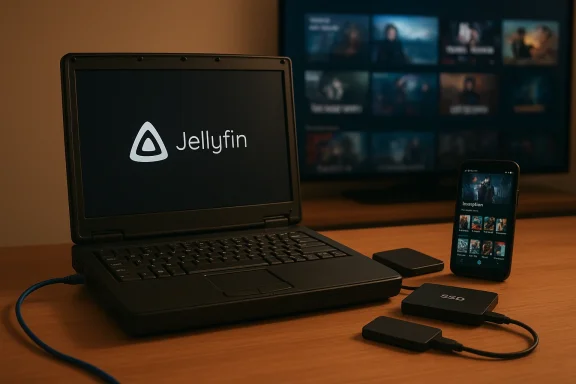 Overview: Why a personal media server still makes sense
A personal media server gives you:- One organized repository for movies, TV, music, and photos.
- Device-agnostic streaming across phones, smart TVs, tablets, and web browsers.
- Local-first ownership and privacy—no involuntary data collection.
- The option to access your library remotely if you configure secure remote access.
The MakeUseOf setup in brief — what happened, and what’s realistic
The MakeUseOf walkthrough reports:- Hardware: an old laptop (Core i5-6300H), 8 GB RAM, a 512 GB SSD.
- Software: Jellyfin installed on Windows, pointing at organized folders (Movies, TV, Music).
- Network: wired Ethernet for the server, Jellyfin client on Android and web.
- Time to basic streaming: under an hour from to play.
- Download and run the Jellyfin installer (10–15 minutes).
- Point the server at media folders and let it scan metadata (5–15 minutes for a small library).
- Install clients or open the web interface and authenticate (5–10 minutes).
The promise: free, open-source, all features included
Jellyfin is entirely free and open-source; everything you get is available without subscriptions. That means:- Hardware transcoding, metadata, remote access options (manual), user profiles, plugins—no paid tiers to unlock features.
- Full local control of metadata, privacy, and service behavior.
The trade-off convenience, and client apps
- Plex provides a more polished, widely distributed app ecosystem and simplifies remote access (including relay fallbacks), but Plex locks some features—particularly hardware-accelerated encoding/decoding and certain mobile conveniences—behind a Plex Pass subscription. Plex documentation explicitly states that hardware-accelerated streaming requires an active Plex Pass for the server owner account.
- Emby sits between Plex and Jellyfin: a polished experience with a paid Emby Premiere tier required for some features (including hardware acceleration on many platforms), though Emby’s implementation and licensing differ across devices. Recent Emby notes show hardware acceleration is gated by Premiere on most platforms.
Hardware reality: what you actually need
CPU, GPU, and transcoding considerations
Two separate things determine how well a media server performs:- Direct play: when client devices can natively decode the file codec/container, the server simply serves the file (very light on CPU).
- Transcoding (on-the-fly conversion): required when a client can’t decode the source format, or when you do real-time HDR→SDR tone-mapping or bitrate reduction for remote connections. Transcoding is CPU‑intensive; hardware acceleration dramatically reduces load and heat.
RAM, storage, and networking
- RAM: 8 GB is fine for a simple, single-purpose server running Jellyfin on Windows, but 8–16 GB is more comfortable if you plan multiple services or many concurrent users. Jellyfin itself is not memory-hungry for small libraries, but the OS and background tasks add up.
- Storage: Use an SSD for the OS and Jellyfin metadata/transcoding cache; keep large media on internal HDDs or external arrays. Jellyfin recommends around 100 GB of SSD space for OS, server files, and transcoding cache as a baseline.
- Networking: Wired Gigabit Ethernet is strongly recommended—Jellyfin and multiple independent guides both highlight the stability and throughput advantages of Ethernet for home media servers. Wi‑Fi can work for single-device streaming, but it is a common source of stutter and network saturation when multiple streams run at once.
Installation and configuration: a practical checklist (Windows example)
The MakeUseOf author’s reported process is close to the steps most people will follow. Here is a short, actionable checklist that mirrors that flow, plus a few extra hardening tips:- Prepare the machine
- Wipe or factory reset if you want a clean environment (optionally install a fresh Windows or Linux build).
- Install a small SSD for the OS and use HDDs for bulk storage.
- Connect via Ethernet and assign a static LAN IP or DHCP reservation on the router.
- Install Jellyfin
- Download the Jellyfin Windows installer and run it.
- During setup, choose the OS drive for installation and point media libraries to your Movies/TV/Music folders.
- Let the server scan metadata and build the library. This step is automatic and quick for small libraries.
- Configure clients
- Install Jellyfin apps on phones, smart devices, or use the web UI.
- Create users and set permissions as needed.
- Optional: enable hardware acceleration
- If using Intel Quick Sync or an NVIDIA GPU, install appropriate drivers and enable hardware acceleration in Jellyfin’s admin dashboard.
- Optional remote access (use caution)
- For remote access, either: set up port forwarding to the Jellyfin server (less secure), configure a reverse proxy with TLS, or better, use a VPN (WireGuard/Tailscale) to avoid exposing t Harden and maintain
- Keep the OS and Jellyfin updated.
- Use non-default admin credentials, and create limited user accounts for family members.
- Back up your metadata and library structure regularly.
Remote access: the options and security considerations
Remote streaming is the feature that changes the risk profile most. There are three common approaches:- Port forwarding: open Jellyfin’s port in your router and forward to the server. Simple but exposes the service to the internet unless you add HTTPS and robust auth.
- Reverse proxy + TLS (nginx/Caddy): terminates TLS and can handle authentication/HTTPS. A more production-like setup that requires additional configuration.
- VPN (WireGuard/Tailscale): the most secure choice for personal servers—clients join your private network and stream as if on LAN. Strongly recommended if you care about security and privacy.
Cost and power: what you’ll pay in money and electricity
One of the strongest reasons to repurpose an old PC is money saved versus buying new hardware or subscribing to multiple services. But there are running costs:- Electricity: a modern small home server can idle in the 20–60 W range depending on hardware; repurposed older desktops can idle higher—typically 50–100 W or more depending on GPU and drives. That translates to roughly $6–$20 per month at common U.S. electricity rates for a modestly efficient server running 24/7, and higher if the machine is power‑hungry or frequently transcodes. EcoFlow and other household power guides demonstrate the wide variability and show simple math for kWh estimates.
- Components: SSDs and extra RAM are cheap upgrades that materially improve responsiveness; an inexpensive discrete GPU (or using integrated Intel Quick Sync) buys many more simultaneous transcodes if needed.
- Alternative: a dedicated small-form-factor NAS or modern low-power mini-PC will often be more energy efficient than a decade-old desktop and may justify the cost for heavy 24/7 use.
- Use power-saving features and a low-power CPU (or an SBC / modern mini-PC).
- Put HDDs to sleep when idle and use SSDs for frequently accessed metadata.
- Limit heavy transcoding by preferring direct-play formats on client devices or pre-transcoding large files to friendly codecs.
Strengths and risks — a critical appraisal
Strengths
- Practical, low-cost reuse of hardware with tangible value within hours. The MakeUseOf example shows the real-world payoff of this project: a quiet, low-power laptop serving media across the house.
- Jellyfin provides a complete feature set without subscription friction, supporting hardware acceleration, metadata scraping, and a wide plugin ecosystem. Jellyfin’s hardware guide strongly recommends a Gigabit NIC and SSD for best results.
- Control and privacy: your media, your rules—no vendor telemetry required. Independent reviews consistently rank Jellyfin highest for privacy-conscious users.
Risks and caveats
- Security: exposing Windows servers (or any server) to the internet without proper hardening is risky. Use VPNs or reverse proxies with TLS rather than wide-open port-forwarding when possible. Community guidance and forum notes repeatedly warn against leaving SMB and other admin ports exposed.
- Power and reliability: older desktops can draw more power than a compact NAS or mini-PC, and older HDDs/power supplies have higher failure risk. If you need high uptime, consider redundancy and backups.
- Transcoding expectations: software-only transcoding is expensive, particularly for HDR→SDR and modern codecs (HEVC/AV1). If you must transcode frequently, ensure hardware acceleration is available and configured. Jellyfin documentation warns that CPU-only setups can be overwhelmed and recommends a GPU or modern integrated graphics for real-time transcoding.
Practical recommendations before you get started
- Start small: try Jellyfin locally first and verify direct-play on your devices before investing in upgrades.
- Prefer wired Ethernet to avoid streaming hiccups—Jellyfin docs explicitly recommend Gigabit Ethernet for servers.
- If you have Intel hardware, verify Quick Sync availability (Intel’s CPU spec pages list Quick Sync support) and install the latest OS drivers to enable hardware transcoding. For uick Sync is present in the platform’s integrated GPU.
- Use an SSD for the OS and server metadata; put bulk media on HDDs if you need capacity. Jellyfin and many NAS guides recommend SSDs for OS/metadata to improve responsiveness.
- Secure remote access with a VPN (WireGuard/Tailscale) or a properly configured reverse proxy—avoid exposing Windows file shares or admin ports directly to the internet.
- Keep an off-network backup of irreplaceable media—repurposing an old PC is great, but single points of failure remain a real risk. Community guides emphasize backups and replacing old HDDs proactively.
Final verdict
The MakeUseOf build is a concise, accurate demonstration of what’s possible with an old laptop: quick setup, immediate usability for local streaming, and a loerting dust-gathering hardware into a genuinely useful home server.Jellyfin is an excellent choice if you value cost-free, self-hosted control, and you or someone in your household is comfortable with a little DIY for remote access. Plex remains the top pick for users who want frictionless remote playback and polished client apps—but that convenience comes with trade-offs and optional subscription costs for features like hardware-accelerated streaming. Emby is a middle path with its own trade-offs around Premiere-locked features on many platforms. These vendor claims and differences are backed by both vendor documentation and independent comparisons. If you have an old PC and a modest media library, the fastest, lowest-friction option is: plug the machine into Ethernet, install Jellyfin, point it at your organized media folders, install a Jellyfin client on your phone or TV, and enjoy. If you later want safe remote access or more transcoding capacity, add a VPN and/or a small GPU. The repurposed PC will not only reduce waste but also give you a private, subscription-free streaming setup you can iterate on—exactly what the MakeUseOf author discovered.
Quick reference: commands and configuration pointers
- Install Jellyfin (Windows): run the official installer and open the web UI at the local address shown after install.
- Enable hardware acceleration (Jellyfin): Admin Dashboard → Playback → Hardware Acceleration; ensure OS drivers for Intel/NVIDIA are installed.
- Secure remote access: set up WireGuard/Tailscale or configure an nginx/Caddy reverse proxy with a Let’s Encrypt certificate—avoid raw port forwarding unless temporarily testing.
Source: MakeUseOf I turned my old PC into a media server in under an hour
