Windows 10 EOL 2025: Repurpose PCs with ChromeOS Flex and Chromebook Plus

  • Thread Author
Windows 10’s retirement on October 14, 2025 has created a hard deadline that many users ignored until the last minute — and Google has moved quickly to turn that anxiety into a marketing and product opportunity: convert aging, unsupported Windows PCs into Chromebooks with ChromeOS Flex or push buyers toward premium Chromebook Plus hardware that promises long update windows and built‑in protections. The result is a clear consumer moment: keep, patch, or replace your machine — or repurpose it into a cloud‑first Chromebook that promises a low‑maintenance, secure experience for largely web‑based users.

Two laptops show an Oct 14, 2025 warning, transitioning to ChromeOS Flex with Titan security.Background​

Windows 10’s consumer lifecycle ends on October 14, 2025. After that date Microsoft will stop shipping routine security and quality updates for consumer editions of Windows 10 unless a device is enrolled in Microsoft’s limited Extended Security Updates (ESU) program, which is explicitly time‑boxed and intended as a temporary bridge. This change forces a realistic choice for millions of machines: upgrade in‑place to Windows 11 (if hardware allows), pay for ESU, switch to another OS such as Linux, or repurpose the hardware with ChromeOS Flex.
Why this matters: a large portion of the Windows install base runs on older hardware that does not meet Windows 11’s baseline requirements (TPM 2.0, Secure Boot, and newer CPU families), and therefore cannot upgrade without hardware changes. Analysts and market trackers differ in estimates, but multiple independent reports agree that hundreds of millions of Windows 10 devices face upgrade friction — a gap Google is trying to fill with a suite of ChromeOS options.

What Google is offering: ChromeOS Flex and Chromebook Plus​

Google’s push has two clear strands:
  • ChromeOS Flex — a free, Chromium‑based image designed to install on generic Intel/AMD PCs and Macs to provide a ChromeOS‑like, cloud‑first operating system with automatic updates, sandboxed browsing, and centralized management for organizations that want to modernize fleets without buying new hardware. Flex targets older Windows 10 machines as a way to refresh devices rather than retire them.
  • Chromebook Plus (premium Chromebooks) — new Chromebook SKUs positioned as higher‑end alternatives to mainstream Windows laptops. Chromebook Plus devices often advertise better displays, higher RAM/storage baselines, dedicated hardware security (Titan‑class chips), AI integrations like Gemini, and extended automatic update lifecycles. Google’s retail push — including homepage prompts and “Switch to Chromebook” messaging — frames Chromebook Plus as a low‑friction replacement for users worried about Windows 10’s EOL.
Key advertised benefits from Google’s messaging include:
  • Fast boot and low maintenance because the OS is lightweight and cloud‑centric.
  • Automatic background updates and long guaranteed update windows on qualifying devices (Google has publicly extended update promises on many platforms).
  • Built‑in security controls and hardware‑backed protections (e.g., Titan C2 on premium models).
These are real product claims — but they require context and technical verification before you decide to switch.

The security claim: “the laptop that has never had a virus” — unpacking the marketing​

Google’s ad copy and homepage prompts use blunt language: Chromebooks “have never had a virus.” That line is an attention‑grabbing shorthand for a few concrete, verifiable technical realities:
  • ChromeOS uses verified boot, a read‑only system partition, and strong sandboxing around browser processes, which reduces the attack surface for traditional file‑based viruses and local ransomware.
  • Chromebooks and ChromeOS fleets benefit from frequent, staged background updates, reducing the window between vulnerability discovery and patch deployment relative to devices that don’t receive timely updates.
But the slogan is also misleading if taken as absolute. Independent coverage and expert analysis point out multiple important caveats:
  • ChromeOS is not immune to all threats. Malicious browser extensions, phishing, account compromise, and Android app malware (where Android apps are supported) can and have affected ChromeOS ecosystems. These are not “classic Windows viruses,” but they are real attack vectors that can cause data loss and account takeover.
  • ChromeOS Flex — the variant intended for repurposed Windows/Mac hardware — is functionally different from the full ChromeOS experience on retail Chromebooks. Flex lacks some features (for example, the Google Play Store is not available on Flex), and uncertified hardware can present driver or stability problems that affect security and functionality. That nuance weakens any absolute “never had a virus” claim for devices running Flex.
Bottom line: ChromeOS’s architecture materially reduces many common commodity threats, and for web‑centric users it is generally a more secure default than running unsupported Windows 10. But no platform is invulnerable; security requires layered defenses, account hygiene, and user awareness. Marketing absolutes deserve skepticism.

ChromeOS Flex vs retail ChromeOS: strengths and technical limits​

ChromeOS Flex is an impressive tool for extending device lifetimes, but it is not identical to the ChromeOS that ships on certified Chromebooks. Know the differences before committing:
Strengths of ChromeOS Flex
  • Free and fast to deploy on x86‑64 Intel/AMD hardware. Flex offers automatic updates and a cloud‑first workflow that revitalizes older laptops for web browsing, email, and cloud productivity.
  • Centralized management and remote deployment options make Flex appealing for schools, non‑profits, and small business fleets that need low‑cost device refresh paths.
  • Flex reduces the immediate e‑waste and capital cost of purchasing new Windows 11‑compatible hardware.
Technical and practical limitations
  • Android apps and Google Play Store: ChromeOS Flex does not include Google Play on many Flex installs, which limits application availability versus retail Chromebooks. If your workflow relies on Android apps, Flex is not a complete substitute.
  • Driver support and hardware quirks: Flex runs on a wide range of uncertified devices; some hardware functions (Wi‑Fi, fingerprint readers, advanced GPUs, power management) may be missing or problematic on non‑certified models. Google maintains a certified devices list and explicitly warns users about driver variability.
  • Enterprise feature parity: Flex can be managed by Google Workspace/Chrome management tools, but certain hardware‑tied security features and long update guarantees vary by platform and SKU. Premium Chromebook Plus devices will have stronger, platform‑guaranteed security features than Flex‑converted machines.
If you consider Flex, test it first in “try” mode from USB, confirm peripheral compatibility, and ensure your critical apps work via web, Android (if available), or Linux containers.

Who should consider converting to a Chromebook or using Flex?​

ChromeOS and ChromeOS Flex are an excellent fit for specific user profiles:
  • Web‑first users and casual consumers who rely on browsers, web apps, streaming, email, and basic productivity suites. These users get immediate benefits: faster boot times, fewer maintenance chores, and privacy/security gains from a smaller local attack surface.
  • Education and shared‑device environments where centralized management, low total cost of ownership, and background updates reduce IT overhead. Chromebooks have dominated many K–12 deployments for that reason.
  • Organizations or households facing constrained budgets that otherwise might discard older but functional PCs rather than buying new hardware. Flex offers a lower‑cost modernization path that reduces e‑waste.
Who should not switch (or should only switch with caveats)
  • Power users and professionals who rely on native Windows applications (Adobe Creative Cloud desktop versions, many engineering/CAD apps, specialized enterprise line‑of‑business software) — these workloads are not replaced by web or Android apps without virtualization or cloud hosted Windows.
  • Gamers and GPU‑heavy users who need local GPU acceleration and Windows‑specific drivers and games. Cloud gaming services exist on Chromebooks but they’re not a one‑for‑one replacement for a local Windows gaming rig.
  • Users who require precise hardware compatibility for peripherals and professional devices — printer drivers, capture devices, and specialized USB hardware may not work reliably on Flex.

A practical, risk‑aware checklist to convert a Windows 10 PC to ChromeOS Flex​

  • Inventory critical apps and workflows. Mark applications as web‑native, Android‑compatible, Linux‑compatible, or Windows‑only. Prioritize replacements for anything that is Windows‑only.
  • Backup everything. Create a full disk image and export local data. ChromeOS Flex installation can be reversible if you boot from USB, but a full install erases the drive. Use Macrium Reflect, built‑in Windows image tools, or equivalent.
  • Test with the live USB first. Create ChromeOS Flex recovery media using the Chromebook Recovery Utility and run Flex in trial mode to check Wi‑Fi, display, keyboard, trackpad, and peripheral compatibility without touching your drive.
  • Confirm a Google account plan. ChromeOS strongly integrates with Google sign‑in for sync, backups, and management; plan your accounts and consider how shared or managed accounts will be used.
  • Deploy and monitor. For larger rollouts, use Google’s remote deployment tooling and start with a pilot group to catch driver or workflow issues before full deployment.
Follow these steps and treat conversion as an experiment first — that approach minimizes the chance of losing access to essential Windows‑only workflows.

E‑waste, economics, and environmental angles​

Advocacy groups warned that the Windows 10 cutoff could trigger a surge in e‑waste as consumers discard still‑functional devices rather than upgrading. Repurposing hardware with ChromeOS Flex or moving devices into managed reuse programs reduces environmental impact and saves money for cash‑strapped households and institutions. Google’s environmental messaging around Flex and device longevity is part of the value proposition for many buyers and procurement teams. However, claims about exact avoided e‑waste tonnages vary by estimator and should be viewed cautiously; independent research and conservative lifecycle assessments are needed for rigorous comparisons.

Enterprise and IT‑admin considerations​

For IT organizations, the calculus is different and more complex:
  • Mixed fleets require strategy. Chromebooks can be an excellent complement to Windows fleets, especially for frontline workers, kiosks, or student devices. But enterprises with heavy Windows app dependencies must plan virtualization or application rehosting strategies before any mass migration.
  • Compliance and regulatory needs. Some industries have regulatory or tooling requirements that depend on Windows capabilities; those constraints often keep Windows in the stack for critical workloads.
  • Management and lifecycle. Chromebook Plus offers guaranteed update windows and hardware security that simplify device lifecycle planning. Flex reduces capital expense but can require careful driver and support planning for non‑certified devices.
Enterprises should pilot, validate, and map application dependencies before committing to wide migrations.

Risks and the things Google’s marketing downplays​

  • Absolute security claims: “Never had a virus” is attention‑getting but oversimplified. Threats like phishing, malicious extensions, compromised cloud services, and Android app malware still affect ChromeOS users. Security remains a shared responsibility of vendor patches, admin policies, and user behavior.
  • Compatibility surprises: Printer drivers, lab instruments, professional USB devices, and niche peripherals may not work on Flex. That can create hidden support costs.
  • Feature gaps on Flex: The absence of Google Play and certain hardware features on Flex can break workflows compared with retail Chromebooks. Treat Flex as repurpose technology — not a like‑for‑like replacement for every use case.
  • Marketing vs reality on update windows: Google’s “10‑year updates” messaging aims to make buyers comfortable about longevity, but the guarantee depends on platform and SKU date details. Buyers should verify AUE (Auto Update Expiration) dates and whether a specific model qualifies for extended update windows.
Where claims cannot be thoroughly verified — for example, precise counts of how many machines are truly unsuited to Windows 11 or exact e‑waste volumes avoided — treat published numbers as estimates and triangulate with multiple independent sources before making procurement decisions.

Final verdict: When to forget Windows — and when not to​

ChromeOS and ChromeOS Flex present a practical, low‑cost alternative for a very large set of users: web‑first households, schools, kiosks, and enterprises looking to extend the life of older hardware. For these groups, the switch can restore performance, reduce maintenance, and improve baseline security compared with unpatched Windows 10. Google’s timing, coinciding with Windows 10’s EOL, is an aggressive but understandable marketing move that spotlights a real migration pain point.
But for anyone who depends on native Windows applications, local GPU performance, or specialist peripherals, the answer remains: do not switch without a plan. Upgrading to Windows 11 on compatible hardware, enrolling in ESU as a short‑term bridge, or adopting virtualization/cloud‑hosted Windows are often the safer long‑term options for business continuity. ChromeOS should be treated as a tool in the toolkit, not a universal replacement.

Quick decision checklist (one page)​

  • List your critical software and peripherals. If everything is web‑native or has web/Android/Linux equivalents, ChromeOS Flex is viable.
  • Test ChromeOS Flex from a USB drive and confirm Wi‑Fi, keyboard, trackpad, and printer basic functions.
  • If you need Windows apps, evaluate virtualization or cloud Windows desktops rather than a wholesale OS switch.
  • If you’re budget constrained and want to avoid e‑waste, Flex gives you a no‑cost option to keep a device productive for basic tasks.
  • For enterprise rollouts, pilot, map application dependencies, and validate management tooling before scaling.

ChromeOS Flex and Chromebook Plus give real, practical options for many people facing the Windows 10 end‑of‑support crossroads. The right choice depends on your workflows, hardware, and tolerance for migration effort. Google’s campaign is effective because it speaks to a genuine pain point; but marketing exaggeration and technical nuance both matter. Act deliberately: inventory, test, and choose the path that preserves security and productivity rather than one driven by fear, flash, or a single homepage prompt.
Conclusion: Forget Windows only if your needs truly fit ChromeOS’s strengths. Otherwise, treat ChromeOS as a smart, sustainable option for particular devices and users — and a useful tool to reduce e‑waste and stretch hardware lifecycles at a time when many PCs face a hard, forced decision.

Source: Forbes Forget Windows—Google’s Free Offer Changes PCs To Chromebooks
 

Today’s software milestone—Windows 10 reaching end of support—forces a practical choice for millions: replace, pay for temporary security, or repurpose the hardware to keep it out of the landfill.

A ChromeOS Flex laptop on a wooden desk, with a recycling symbol, globe, mug, and an “Eco Friendly Tech” sign.Background​

Microsoft’s consumer support for Windows 10 ends on October 14, 2025, meaning routine security and quality updates stop for consumer editions unless a device is enrolled in Microsoft’s limited Extended Security Updates (ESU) program. Devices will still boot and work, but unpatched vulnerabilities will accumulate over time, increasing attack surface and long‑term risk.
That lifecycle decision has ripple effects far beyond software: when millions of devices suddenly become “unsupported,” some owners will be pushed to buy new PCs, creating an avoidable surge in electronic waste. Advocacy groups and market observers have estimated the scale to be substantial—campaigns and estimates have suggested hundreds of millions of Windows 10 devices could lack a straightforward upgrade path to Windows 11. These are high‑level, directional estimates useful for framing the problem rather than precise counts.
Into that gap steps a simple, no‑cost option for many users: install ChromeOS Flex and repurpose an old Windows or Mac laptop as a cloud‑centric Chromebook‑like device. This guide covers what ChromeOS Flex is, why it’s the pragmatic and eco‑friendly choice for many users, how to install it, and what tradeoffs to expect.

Overview: What is ChromeOS Flex?​

ChromeOS Flex is Google’s supported build of Chrome OS designed to run on generic Intel/AMD PCs and Macs. Born out of Neverware’s CloudReady acquisition, Flex lets you convert a Windows 10 laptop into a lightweight, auto‑updating, browser‑centric machine that’s optimized for web apps, streaming, email, and cloud productivity. It’s positioned explicitly as a way to extend device life and reduce electronic waste for devices that don’t — or can’t — upgrade to Windows 11.
Key product traits:
  • Lightweight, fast boot and low maintenance.
  • Automatic background security updates.
  • Centralized management options for small fleets.
  • A certified devices list (some models get better driver/feature coverage).
  • Important differences from retail Chromebooks: Flex often lacks Google Play/Android apps and the dedicated hardware security (Titan/Titan‑M) present on Chromebooks.

Why ChromeOS Flex is the best way to keep a Windows 10 PC from the landfill​

In one sentence: ChromeOS Flex gives old machines a secure, supported OS with minimal cost and effort, meaning fewer functional devices are thrown away simply because Microsoft stopped issuing Windows 10 patches. The practical reasons this works are straightforward.
  • Security and updates: Flex receives automatic updates from Google, reducing long‑term exposure compared with running unpatched Windows 10. That matters because OS patching is the primary defense against many classes of attacks.
  • Low resource needs: ChromeOS Flex runs acceptably on modest hardware — recommended minimums are commonly around 4 GB RAM and 16 GB storage for a usable experience; more memory and an SSD/NVMe noticeably improve responsiveness.
  • Cost and environmental benefit: It’s free, so the choice to repurpose a device avoids immediate capital purchase and delays manufacture‑stage carbon and e‑waste. Industry and advocacy reporting suggests repurposing could meaningfully reduce the potential surge in landfill‑bound devices.
  • Simplicity for web‑first users: Email, calendar, document editing (Office/Google Docs web apps), streaming, and video conferencing work well in a browser‑centric OS. For many households, that covers the majority of daily tasks.
These are not speculative claims — refurbishers and marketplaces have already started converting large numbers of devices to Flex or Linux and marketing them as “refreshed” machines for education and low‑cost buyers.

What ChromeOS Flex does well — and where to be cautious​

ChromeOS Flex is an excellent pragmatic option, but it is not a universal cure. Understanding its strengths and limits will prevent unpleasant surprises.

Strengths​

  • Automatic security updates and a smaller attack surface than a full Windows stack. This makes Flex a stronger long‑term choice than continuing to run unsupported Windows 10.
  • Fast, lightweight experience on older CPUs and modest RAM — many machines feel markedly more responsive after installing Flex.
  • Free and easy to deploy — Chromebook Recovery Utility and a USB stick are the only tools required for a single machine, and Google offers deployment tooling for fleets.
  • Sustainability benefits — repurposing delays disposal and reduces lifecycle emissions when compared with buying new hardware.

Caveats and limitations (important)​

  • No guaranteed Android / Play Store support on many Flex installs. If your workflow relies on Android apps or Play Services, Flex may not provide parity with Chromebook behavior.
  • Hardware security features missing: Flex on third‑party hardware lacks Google’s Titan chips and some firmware‑level protections. That doesn’t make it insecure, but it is a different threat profile compared to certified Chromebooks.
  • Driver and peripheral gaps: Fingerprint readers, stylus features, depth cameras, and some Wi‑Fi or GPU drivers can be flaky on uncertified models. Test before you commit to wiping a disk.
  • Not for heavy Windows desktop users: Adobe Creative Cloud, many engineering apps, GPU‑accelerated games, and custom enterprise line‑of‑business software won’t run natively. If those are essential, consider alternatives (cloud Windows, Windows 365, or a Linux route with Wine/VMs).
  • Auto Update Expiration (AUE): Flex devices have varied update timelines depending on model; certified devices may have longer support windows than uncertified installs. Always check the device’s update horizon for long‑term reliability.
When someone says “ChromeOS Flex is almost impossible to get a virus on,” treat that as shorthand: Chrome OS’s architecture significantly reduces the typical Windows malware vectors, but absolute immunity does not exist. Credential theft, phishing, malicious extensions, and web‑based exploits remain threats; layered security (strong passwords, MFA, safe‑browsing habits) remains essential.

How to install ChromeOS Flex — a practical, safe checklist​

These are the condensed, step‑by‑step instructions used in many community guides and validated pilot deployments. Always back up first; installing will overwrite a disk if you choose full install.
  • Back up your data
  • Create a full disk image (Macrium Reflect, built‑in tools, or similar) and also copy key files to cloud storage (Google Drive, OneDrive, external drive). Don’t skip this.
  • Verify hardware compatibility
  • Check Google’s certified models list or test with a trial USB; certified models have fewer driver issues. Aim for 4 GB RAM & 16 GB storage minimum for acceptable performance; 8 GB/SSD is preferable.
  • Create ChromeOS Flex recovery media
  • Install the Chromebook Recovery Utility in Chrome and write the ChromeOS Flex image to a USB (8–16 GB recommended).
  • Boot from USB and try Flex in “trial” mode
  • Boot the machine from the USB and test Wi‑Fi, audio, camera, display, keyboard, and trackpad before erasing the internal drive. This trial mode is reversible.
  • Install (if satisfied)
  • From the USB trial environment, run the installer to overwrite the disk and install ChromeOS Flex. Reboot and follow initial setup (requires a Google account for sign‑in and syncing).
  • Post‑install validation
  • Confirm peripheral functionality (printers, scanners, VPNs), sign in to apps, enable any management (if for a fleet), and verify updates are being received.
Practical tips:
  • If you’re not comfortable changing boot order, review your OEM’s instructions for using a boot menu or use the BIOS/UEFI prompts.
  • Pilot a small set of machines before a mass conversion in organizations (5–50 units recommended for validation).

Alternatives and the real choices you face​

Not every Windows 10 owner should convert to Flex. Here’s a balanced look at realistic alternatives:

1) Upgrade to Windows 11​

If your PC meets Microsoft’s hardware baseline (TPM 2.0, Secure Boot/UEFI, supported CPU), enabling TPM in firmware or applying vendor firmware updates can allow an official upgrade that preserves Windows app compatibility and entitlement to future updates. This preserves the Windows experience with minimal retraining. However, many mid‑2010s devices are blocked by CPU or firmware limitations.

2) Enroll in Microsoft’s consumer ESU (temporary bridge)​

Microsoft offered consumer ESU as a time‑boxed safety net — a way to receive security updates beyond EOL for a limited period (coverage pathways and deadlines differ by region). ESU is a pragmatic short runway for households that need more time to migrate. Treat it as temporary insurance, not a permanent fix.

3) Switch to Linux​

Full desktop Linux distributions like Ubuntu, Linux Mint, or Zorin OS are excellent for local productivity, broader driver support, and offline applications. Linux can run many apps natively or via Wine, and it’s ideal for users who want a traditional desktop experience while avoiding Windows EoL. The learning curve is steeper for non‑technical users, but Linux is powerful and widely supported.

4) Unsupported Windows 11 installs (risky)​

Community workarounds (Rufus, registry keys) enable Windows 11 to be installed on some unsupported hardware, but Microsoft may choose to block updates and warns that unsupported installs are outside entitlement. This path preserves app compatibility but increases long‑term maintenance and security risk. Only consider for non‑critical machines and after thorough backups and testing.

5) Cloud Windows (Windows 365 / virtual desktops)​

Paying for a Windows Cloud PC or Azure Virtual Desktop keeps your device light while providing a supported Windows environment for legacy apps. This is a subscription cost but can be cheaper than immediate hardware refresh for some users or organizations. It demands consistent network connectivity.

6) Professional refurbishment and trade‑in​

Refurbishers will purchase or take trade‑ins, reimage devices with Flex or Linux, and resell them. This keeps devices in circulation rather than landfill and helps bridge the affordability gap for low‑income users.

Security and privacy tradeoffs to weigh​

ChromeOS Flex improves the basic security posture relative to unpatched Windows 10, but tradeoffs exist:
  • Flex reduces local malware risk through sandboxing and auto‑updates, but credential theft, phishing, and malicious browser extensions remain real threats. Maintain account hygiene and multifactor authentication.
  • Flex installs on third‑party hardware lack a hardware root‑of‑trust (Titan/Titan‑M) and some verified‑boot assurances present on certified Chromebooks. For high‑security environments, a purpose‑built Chromebook or a managed Windows fleet may be more appropriate.
  • Some enterprise features (deep firmware management, certain remote update controls) differ between Flex and ChromeOS on Chromebooks; verify management needs before a large rollout.
If you choose to keep a Windows 10 machine beyond EoL without ESU, hardening and isolation are essential: segregated network segments, minimal internet exposure, updated applications, and third‑party micropatching (e.g., specialist vendors) are stopgaps — not long‑term solutions.

The environmental argument: scale and caution​

The environmental case for repurposing devices is substantial. Global e‑waste totals are large and only a fraction is formally recycled; turning functioning hardware into landfill because of a software policy is an avoidable sustainability loss. Independent monitoring and reporting note that only about 20–25% of e‑waste is formally collected and recycled in many reporting cycles, so keeping devices in active use is a material win for sustainability.
However, not every device should be kept forever. Batteries degrade, security profiles change, and some older hardware becomes unreliable or consumes more energy than modern replacements. The ideal path balances re‑use, secure refurbishment, and responsible recycling — and ChromeOS Flex is one pragmatic tool in that mix.

Real‑world stories and rollout advice​

Organizations and refurbishers already running pilots report predictable patterns: pilot 5–50 devices across varied OEMs, validate printing and VPN connectivity, and measure user acceptance before expanding. For households, test ChromeOS Flex from USB before committing to a full install and keep a small Windows machine or cloud Windows option for any indispensable Windows‑only apps.
If you’re a slower adopter:
  • Start by backing up files and trying Flex from USB.
  • Keep Windows 10 intact until you confirm everything you rely on works in the browser or in Flex.
  • Consider ESU if you need a year to migrate critical apps or buy time for training.

Final assessment — pragmatic, secure, and sustainable​

Windows 10’s end of support is an inflection point that requires choices — each with tradeoffs in cost, security, and convenience. For many users whose daily workflows are web‑centric, installing ChromeOS Flex is the best single action to keep a working laptop useful and out of the landfill. It’s free, relatively fast to deploy, and restores a supported, auto‑updating platform to older hardware.
That recommendation comes with clear caveats: ChromeOS Flex is not a drop‑in replacement for every Windows experience, it lacks some hardware security guarantees, and its driver coverage varies by device. Pilot first, back up always, and choose the path that preserves both usability and security for your particular needs. For many households and small organizations, that path is repurpose → secure → extend, and ChromeOS Flex is the practical lever to make it happen.

Quick recovery checklist (one‑page, action‑oriented)​

  • Back up your files (cloud + external image).
  • Run PC Health Check to test Windows 11 eligibility; update firmware if vendor advises.
  • If eligible and desirable: plan Windows 11 upgrade. If not, choose between ESU (temporary), ChromeOS Flex, Linux, or cloud Windows.
  • Test ChromeOS Flex from USB (do not wipe disk until tests pass).
  • Install and validate peripherals; enable MFA and good password hygiene on accounts.
  • If retiring hardware: use certified refurbishers or accredited recyclers — do not dump or informal‑recycle.
Converting a Windows 10 laptop into a Chromebook with ChromeOS Flex is not a loss — it’s a practical rescue mission for working hardware. Done carefully, it protects users, cuts potential e‑waste, and extends the useful life of machines that otherwise might end up in the landfill.

Source: Android Central RIP Windows 10: This is the best way to keep your computer from the landfill
 

Turning a tired Windows laptop into a fast, low‑maintenance Chromebook is one of the simplest, highest‑value upgrades you can do before discarding hardware — and Google’s ChromeOS Flex makes that conversion free, reversible for testing, and surprisingly practical for everyday browsing, video calls, document editing, and streaming.

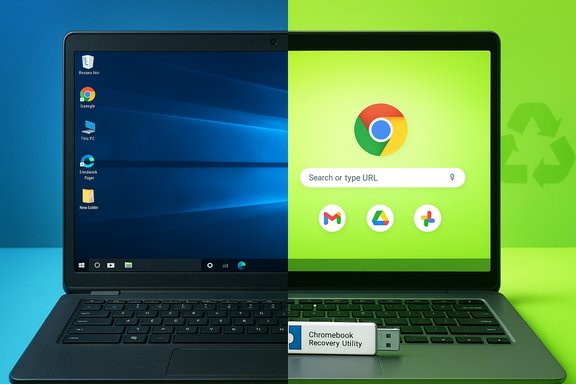
A laptop shows Windows on the left and Chrome OS on the right, with a Chromebook Recovery USB.Background​

Windows 10 reaches end of support on October 14, 2025, a calendar milestone that stops routine security and quality updates for consumer copies unless a device is enrolled in Microsoft’s consumer Extended Security Updates (ESU) program. That deadline leaves many perfectly functional machines in a precarious position: they keep working, but their long‑term security posture weakens as unpatched vulnerabilities accumulate.
Google’s ChromeOS Flex is explicitly positioned as a pragmatic way to extend the life of those older Windows and Mac laptops. Built from the same lineage as Neverware’s CloudReady, Flex is a browser‑centric, cloud‑forward operating system that receives automatic updates from Google and is optimized for web apps and lightweight day‑to‑day tasks. It is not identical to the Chrome OS that ships on purpose‑built Chromebooks, and that difference matters for compatibility and security.

Overview: What ChromeOS Flex is — and what it isn’t​

ChromeOS Flex provides a Chrome OS experience on generic x86‑64 PCs and Macs. It is lightweight, boots quickly, and focuses on a sandboxed browser and cloud services rather than heavy local applications. That makes it an excellent match for users who primarily use email, web productivity suites, streaming services, and social apps.
Important distinctions to understand before converting:
  • ChromeOS Flex often lacks Google Play / Android app support and the hardware‑backed security features (Titan/Titan‑M) found in retail Chromebooks.
  • Hardware driver coverage is variable on uncertified models; sound, Wi‑Fi, or camera features may need testing. Certified models have fewer surprises.
  • A full Flex installation erases the internal drive; testing from USB (“Try it first”) is reversible, but an installed system replaces Windows. Back up everything before you proceed.
These tradeoffs make ChromeOS Flex an excellent tool for refreshing secondary machines, classroom fleets, and family laptops — but not a drop‑in replacement for every Windows workflow.

What you need before you start​

Gather these items and checks before you begin to avoid common pitfalls:
  • A laptop that can boot from USB (UEFI or legacy BIOS) with a 64‑bit Intel or AMD CPU.
  • At least 4 GB of RAM and 16 GB of storage as practical minimums; 8 GB RAM and an SSD/NVMe drive give a noticeably better experience.
  • A USB flash drive or SD card with at least 8 GB (16 GB recommended) for the installer.
  • A stable internet connection and a Google account for sign‑in and synchronization.
  • A full backup or disk image of the Windows installation (Macrium Reflect, Windows System Image, or cloud/local copies). Remember: a full install will erase the drive.

Step‑by‑step: Turn your Windows laptop into a Chromebook with ChromeOS Flex​

1. Prepare your laptop and backup​

Before touching the installer, create complete backups. A full disk image (or clone) is the only reliable way to revert a full‑disk install if you change your mind later. Export documents, photos, browser bookmarks, email archives, and any app license keys. If your drive uses BitLocker or vendor encryption, note the recovery keys or suspend encryption.

2. Install the Chromebook Recovery Utility (create the installer)​

On a working machine with Google Chrome, add the Chromebook Recovery Utility extension. Launch it and choose “Select a model from a list.” Under Manufacturer pick Google → ChromeOS Flex. Connect your USB drive, choose the Stable build, and let the utility create the recovery/installer media. The process writes a verified image to the USB and can take several minutes depending on your connection and USB speed.

3. Boot from the USB drive​

Insert the USB installer into the target laptop and reboot. If the system does not boot from the drive automatically, enter BIOS/UEFI or the boot menu (common keys: F2, F12, Esc, Del) and set USB/UEFI as the first boot device. Some systems default to Secure Boot or OEM boot guards — if that prevents booting, check the OEM docs for a one‑time boot menu or temporarily disable Secure Boot to test.

4. Try ChromeOS Flex (recommended)​

When the Flex environment loads you can choose Try it first or Install. Always Try first to confirm Wi‑Fi, audio, touchpad, camera, and other critical hardware work. Small performance glitches in USB live mode may disappear after a full install, but major hardware failures (no Wi‑Fi, missing video acceleration) are a red flag. Sign in with a Google account to test sync and services.

5. Backup again if the test is OK​

If you confirm Flex works in live mode, ensure any remaining data is backed up because installation will wipe the disk. If you find a missing driver or essential feature fails during the trial, don’t install — consider certified devices, supported drivers, or an alternative OS like Linux.

6. Install ChromeOS Flex​

Reinsert the USB (if you removed it) and choose Install ChromeOS Flex. Follow the on‑screen prompts to format the drive and install. Connect to Wi‑Fi during setup and sign in with your Google account when requested. After the process completes, the machine will reboot into ChromeOS Flex and behave like a Chromebook for web‑centric tasks.

7. Clean the installer media (optional)​

If you want to reuse the USB drive, open the Chromebook Recovery Utility on a machine and use the Erase recovery media option. This will quickly format the drive for normal use again.

Practical tips and troubleshooting​

Confirm certification and driver coverage​

Google maintains a certified devices list for ChromeOS Flex. Certified models receive more predictable driver and firmware behavior; uncertified devices can work but are experimental and may suffer from driver gaps (fingerprint readers, some touchscreens, advanced power management). Test on USB first and be ready to revert if critical hardware fails.

Boot issues and firmware quirks​

If the USB installer doesn’t appear in the boot menu, enable legacy USB support or temporarily disable Secure Boot in UEFI. Some OEMs use locked boot menus — consult the laptop vendor’s support page for the correct hotkey. If a live USB boots but the installed OS is unstable, consider trying a different USB stick or recreating the media at a slower write speed.

Network, audio, and webcam problems​

Wi‑Fi and audio are the most commonly reported issues on uncertified hardware. If Wi‑Fi doesn’t work in the live environment, installation is unlikely to fix it. For webcams and microphones, check the device list during the trial and, if necessary, use USB peripherals that have broader compatibility.

Handling printers and scanners​

Printers and scanners that rely on proprietary Windows drivers may not work natively. Use cloud printing workflows, vendor cloud apps, or connect through a network share. For home users, many modern printers support IPP or Google Cloud Print‑style workflows that work from a browser.

Security posture: better than unsupported Windows — but not identical to a Chromebook​

ChromeOS Flex receives automatic updates from Google, which reduces the long‑term risk compared to running an unpatched Windows 10 system. That automatic update model and a sandboxed browser paradigm provide a smaller attack surface for typical consumer tasks.
However, it’s important to understand where Flex differs from factory Chromebooks:
  • Flex on uncertified hardware does not benefit from dedicated hardware roots of trust like Titan chips and therefore lacks some verified‑boot guarantees and firmware protections found on OEM Chromebooks. For high‑security use cases, factory Chromebooks remain superior.
  • Flex’s enterprise management features exist, but if you manage a fleet with strict compliance needs, validate that Flex meets your controls and test device‑level attestation.

Application compatibility and alternatives​

ChromeOS Flex is optimized for web apps and browser‑first workflows. That means:
  • Native heavy Windows applications (Photoshop, full desktop Office suites with certain plugins, many professional creative or engineering apps) will not run natively. For these needs, consider upgrading eligible devices to Windows 11, keeping a Windows machine for heavy tasks, or using remote Windows services.
  • Remote app and virtualization options exist — services such as Windows 365, Azure Virtual Desktop, or app virtualization gateways like Cameyo let you run Windows apps remotely while using ChromeOS Flex as a thin client. These approaches preserve compatibility at the cost of network dependence and potentially subscription fees.
For users who want a full local desktop alternative that remains free and supports more native apps, Linux distributions such as Linux Mint or Ubuntu remain excellent options and can be trialed from USB in the same way as Flex. Choose Linux if you need greater control, local app support, or open‑source tooling.

Pros, cons and who should convert​

Key benefits of converting to ChromeOS Flex​

  • Zero‑cost OS refresh for older hardware with automatic updates and background security patches.
  • Faster, simpler experience for web‑centric tasks; low maintenance and quick boot times make older machines usable again.
  • Environmental benefit: keeping devices in use reduces the immediate pressure to buy new hardware and reduces electronic waste.

Notable limitations and risks​

  • No guaranteed Android app (Google Play) support on many Flex installations. If you rely on Android apps, test carefully or consider a retail Chromebook.
  • Driver and hardware variability on uncertified devices can leave essentials (Wi‑Fi, audio, camera) unreliable.
  • Security caveat: while Flex receives updates from Google, uncertified hardware lacks the same hardware‑root protections of OEM Chromebooks. For sensitive workloads, a certified Chromebook or supported Windows device is safer.

Who should convert​

  • Home users, students, and families who primarily browse, stream, write, and use web productivity suites.
  • Organizations repurposing classroom or lab machines where the management model and app set match ChromeOS capabilities.
  • Anyone who wants to avoid the one‑time cost of new hardware and prefers a low‑maintenance device for nonspecialized tasks.

Decision framework: choose the right path for your device​

  • If you need full Windows compatibility daily → upgrade to a Windows 11‑eligible device or enroll in ESU as a temporary bridge.
  • If your device is mostly web‑centric and you want a free, low‑maintenance option → test ChromeOS Flex from USB and install if everything important works.
  • If your device is usable but you need local native apps and control → try a mainstream Linux distro (Linux Mint, Ubuntu) in a live session.
  • If you manage devices for an organization → pilot Flex on noncritical units, ensure management tooling and compliance needs are met, and document the migration path before broad rollout.

Advanced notes for power users and admins​

  • For fleet deployments, Google offers mass‑deployment tooling and admin options; building and testing a standardized image or management policy reduces variability compared to ad‑hoc single‑device installs.
  • Unsupported or uncertified installs should be treated as experimental. Organizations with compliance demands should rely on certified hardware or approved management stacks.
  • If you must keep Windows for specialized apps but want portable web access, consider a dual‑device strategy: repurpose old machines with Flex for family/guest use and reserve a supported Windows PC for work that requires native Windows applications. This balances cost, security, and capability.

Environmental and cost perspective​

Repurposing perfectly functional machines reduces immediate replacement purchases and the associated environmental footprint of new device manufacturing. Industry observers and refurbishers have begun converting large volumes of devices to Flex or Linux to supply low‑cost education and charity markets, which demonstrates a practical circular economy approach: repair, refresh, reuse. For many households, that strategy is cheaper and greener than buying new hardware simply because Windows 10’s lifecycle ended.

Final verdict and practical checklist​

ChromeOS Flex is not a magic fix for every old laptop, but it is a practical, no‑cost strategy that will restore usefulness to many Windows 10 machines for web‑centric users. The conversion is straightforward, reversible for testing, and supported by Google’s recovery tooling — but it requires realistic expectations about app compatibility and hardware variability.
Quick checklist before you convert:
  • Back up everything (full disk image + personal files).
  • Confirm CPU is 64‑bit and the device can boot from USB; aim for 4 GB RAM / 16 GB storage minimum.
  • Create ChromeOS Flex installer with the Chromebook Recovery Utility and choose the Stable build.
  • Boot and choose “Try it first.” Test Wi‑Fi, audio, touchpad, webcam, and printing workflows.
  • If everything critical works, install and enjoy a lightweight, auto‑updating Chromebook experience. If not, consider Linux or keep a supported Windows option.
Converting an old Windows laptop to a Chromebook with ChromeOS Flex is one of the fastest, greenest ways to get more life from aging hardware while moving to a safer, lower‑maintenance computing model — just be deliberate, test before you commit, and keep backups.

Conclusion
For many users facing Windows 10’s end of support, ChromeOS Flex offers a practical, free pathway to continued, secure use of older laptops. It’s not perfect for specialized Windows workflows or for high‑security use cases that require hardware roots of trust, but for everyday browsing, streaming, writing, and education use it provides a fast, simple, and environmentally sensible second life for devices that might otherwise be retired. Test it first, back up everything, and choose the path (upgrade, ESU, Flex, or Linux) that best fits the applications and data you can’t leave behind.

Source: Hindustan Times How to turn a retired Windows laptop into a Chromebook for free
 

Back
Top