

I turned my Ubuntu 24 desktop into something that looks and feels remarkably like Windows 11 — and the result is more useful than a simple gimmick. What started as a cosmetic experiment (themes, icons, a centered taskbar and a Start‑style menu) quickly revealed a practical middle ground: the visual familiarity of Windows 11 combined with the speed, flexibility and privacy of a modern Ubuntu installation. This walkthrough and analysis pulls the XDA‑style how‑to into sharper technical focus, verifies the components used, and flags the trade‑offs every Windows refugee or customization hobbyist needs to know.
Canonical shipped Ubuntu 24.04 LTS (Noble Numbat) with GNOME 46 as the default desktop stack, so any GNOME Shell theming and extension strategy for “Ubuntu 24” should be built on that baseline unless you’ve deliberately changed your DE. GNOME 46 is the platform that delivers the Panels, Shell, Mutters and GTK versions a theme or extension must support. There are two sensible ways to achieve a Windows‑11‑like experience on Linux:
A minimal set of commands to prepare the environment (run from a terminal) is:
Fonts: Windows 11 uses Segoe UI Variable as its system font. Segoe UI is a Microsoft proprietary font family and cannot be lawfully redistributed; the typical approach is:
Benchmarks and anecdotal reports across the Linux community show that GNOME Shell with a small set of well‑maintained extensions performs adequately on a broad range of hardware when compared to heavier desktop environments. The real risk to performance is poorly written or experimental extensions and heavy composite effects (oversized blur layers, many animations), not the basic theme + dash changes. Always test your setup after each change.
That said, customization for the sake of appearance alone can produce maintenance liabilities. If your machine is a production workstation for critical work or is managed by corporate IT, avoid heavy third‑party extension use and prefer a supported, consistent desktop configuration.
Key takeaways:
Source: XDA I turned Ubuntu 24 into Windows 11, and it looks surprisingly good
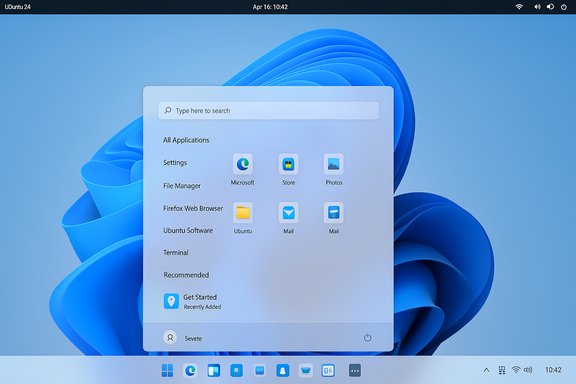 Background / Overview
Canonical shipped Ubuntu 24.04 LTS (Noble Numbat) with GNOME 46 as the default desktop stack, so any GNOME Shell theming and extension strategy for “Ubuntu 24” should be built on that baseline unless you’ve deliberately changed your DE. GNOME 46 is the platform that delivers the Panels, Shell, Mutters and GTK versions a theme or extension must support. There are two sensible ways to achieve a Windows‑11‑like experience on Linux:- Install a curated distribution or flavor that deliberately emulates Windows (projects such as WINUX or Windows‑styled spins), which can give out‑of‑the‑box familiarity.
- Manually assemble a set of trusted GNOME Shell extensions, a GTK shell theme, icon and cursor packs, and a few utilities to replicate the Windows 11 layout while keeping the underlying Linux system intact — the route described in the XDA account and expanded below.
What was used: the components that matter
To recreate Windows 11 on Ubuntu 24, the practical parts are straightforward and well known in the GNOME/UX community. The key building blocks are:- GNOME Shell extensions that change the panel and launcher behaviour:
- Dash to Panel (taskbar that combines top bar + dash)
- Arc Menu (Start‑menu style launcher)
- AppIndicator / KStatusNotifier support (system tray-like icons)
- Blur‑style extension (for frosted/blurred panels)
- GTK Shell themes that provide the window and UI chrome (Win11‑style GTK themes such as Win11 GTK variants and the Fluent GTK theme)
- Icon and cursor packs (Windows‑style icon sets)
- Fonts — Windows 11 uses Segoe UI Variable as its system font (licensing caveats apply)
- Wallpapers — using Windows 11’s Bloom/Bloom variants for the final visual cue
Step‑by‑step: how the visual transformation was done (and why each step matters)
Below is a validated, practical sequence that mirrors the XDA experiment but adds verification, alternatives and precise cautions.1. Preparing the system: update, install prerequisites and snapshot
Before changing your desktop, make sure Ubuntu is fully updated and that you have a system snapshot or backup (Timeshift is a good choice). That guardrail is essential because GNOME Shell extensions and themes can break across GNOME upgrades or if an extension is incompatible with your shell version.A minimal set of commands to prepare the environment (run from a terminal) is:
- Update the system:
- sudo apt update && sudo apt upgrade -y
- Install core utilities used for theming and extension management:
- sudo apt install -y gnome-tweaks gnome-shell-extensions gnome-software-plugin-flatpak unzip git wget
2. Recreate the taskbar with Dash to Panel
Ubuntu’s dock is left‑anchored by default; Windows uses a single, bottom‑centered taskbar. The robust and mature way to get that layout is Dash to Panel, which merges the Shell top bar and dock into a single panel, and offers extensive configuration (centred icons, compact spacing, notification area control). Dash to Panel has been tested across many GNOME versions and is actively maintained on GitHub and extensions.gnome.org. Recommended Dash to Panel tweaks to approximate Windows 11:- Move the panel to the bottom of the screen.
- Centre running and pinned icons.
- Reduce icon padding and spacing for a compact look.
- Move the clock and tray to the right side.
- Disable or reconfigure the GNOME “Overview” hot corners if you want a more Windows‑style experience.
3. Add a Start‑style menu using Arc Menu
To recreate the Windows 11 Start experience — pinned apps, recent files and a search field — Arc Menu is the most flexible GNOME extension available. It includes multiple built‑in layouts, including “Modern” menus and Windows‑style presets, and can be placed at the bottom center to match the Dash to Panel layout. Arc Menu provides canned layouts and theme support so you don’t need to code anything. Note: Arc Menu may depend on a package likegir1.2-gmenu-3.0 (or distribution equivalent) to expose the application menu backend. If the extension complains, install the distribution package suggested by the Arc Menu page and relogin. 4. Apply a Windows‑style GTK shell theme (Win11 / Fluent)
Two popular choices replicate Windows 11 aesthetics: Win11 GTK theme variants and Fluent GTK. Fluent GTK is maintained on GitHub and provides both normal and blur variants; it’s designed to pair well with blur extensions and includes install scripts. Win11‑style themes live on community theme sites and Git repos; choose them carefully and stick to reputable sources. Installation pattern (typical):- Create theme folders: mkdir -p ~/.themes ~/.icons
- Download and extract the theme into ~/.themes
- Use the theme’s install script (for example, ./install.sh) where provided
- Apply the theme via GNOME Tweaks -> Appearance -> Themes
5. Icons, cursors and fonts: the small things with big impact
A carefully chosen icon pack (Windows‑style icons) and a cursors pack will close most of the visual gap. Copy icon archives into ~/.icons and select them in GNOME Tweaks.Fonts: Windows 11 uses Segoe UI Variable as its system font. Segoe UI is a Microsoft proprietary font family and cannot be lawfully redistributed; the typical approach is:
- Extract Segoe from an existing licensed Windows installation for personal use, or
- Use an acceptable open substitute if you do not have a Windows license (e.g., Inter or system sans fonts), or
- Accept a slightly different look if you avoid proprietary fonts.
6. Blur effects and final polish
To get the frosted glass look, use a GNOME blur extension (Blur My Shell or Blur Me) in combination with a theme that has a blur variant (Fluent) — note the theme and the blur extension often advertise joint compatibility. Blur My Shell has a GitHub repo and version matrix showing which GNOME Shell versions it supports; that matters because major GNOME upgrades can break blur extensions. Finally, add the Windows 11 wallpaper and adjust icon/font sizes. The visual payoff is far larger than the effort once everything is in place.Performance: looks like Windows, performs like Ubuntu
A key result of the test: the system still boots and runs like Ubuntu. Carefully chosen extensions (Dash to Panel, Arc Menu) are mature projects with wide adoption and typically have minimal runtime overhead compared to heavy, invasive shell replacements.Benchmarks and anecdotal reports across the Linux community show that GNOME Shell with a small set of well‑maintained extensions performs adequately on a broad range of hardware when compared to heavier desktop environments. The real risk to performance is poorly written or experimental extensions and heavy composite effects (oversized blur layers, many animations), not the basic theme + dash changes. Always test your setup after each change.
The drawbacks and important risks
No makeover is purely positive. Here are the most relevant downsides and cautions — all grounded in community experience and extension documentation.- Extension breakage after GNOME upgrades: GNOME Shell is a rapidly evolving platform. Extensions must be ported to each major Shell API revision. Users repeatedly report that extensions sometimes stop working for weeks after a GNOME release until maintainers update compatibility. Backups and careful upgrades are mandatory if you rely on third‑party extensions.
- Theme inconsistencies and GTK4 apps: Not every app follows GTK theming equally. Some Electron or Qt apps will keep their own chrome, and certain GTK4/libadwaita apps prioritize a different theming path — expect some UI mismatches. This is a known limitation of the GTK theming ecosystem.
- Licensing issues with fonts and assets: Segoe UI is proprietary. Downloading and redistributing it is a license issue. If you want the authentic Windows font, obtain it from a properly licensed Windows install or use an open alternative. Microsoft’s documentation explicitly identifies Segoe UI as the system font for Windows 11.
- Security surface for downloads: Themes, icon packs and cursors often come from community sites or GitHub. Prefer well‑known sources and verify checksums where available. Avoid downloading random, unsigned assets or executables from unknown pages.
- Not a substitute for native Windows apps: Visual skinning doesn’t change platform compatibility. If you need genuine Windows software, you still require Wine/Proton, a virtual machine, or a dual‑boot setup. Visual mimicry is a UX move, not a compatibility layer.
- Time and maintenance cost: The manual route requires some patience. Every GNOME or Ubuntu point release is a chance for regressions. Track extension activity before upgrading major components.
Alternatives and shortcuts
If you want a Windows‑like experience without assembling the pieces yourself, consider:- Windows‑themed distributions: Projects such as WINUX (Linuxfx/Winux) are Ubuntu 24.04‑based spins that ship KDE with heavy Windows‑style theming and work to provide an out‑of‑the‑box Windows‑like desktop. These projects trade off some purity for convenience.
- Dedicated shell overlays on Windows: If you’re on Windows and want cosmetic changes, tools such as Start11, Rainmeter, and Windhawk alter the Windows UI directly. These are irrelevant to a Linux setup but useful to know if your aim is simply to keep a consistent look across both OSes.
- Use a VM: If you need both full Windows behavior and a Linux environment, a virtual machine or WSL2 (on Windows host) are practical. Benchmarks show WSL2 performs well for many workloads but may have measurable overhead compared to native Linux installs.
Practical troubleshooting tips
- Always keep a second tty or be prepared to run:
- sudo systemctl restart gdm3 (or log out and switch to X11)
These are lifesavers if an extension crashes the Shell. - If an extension breaks after an update, disable it via Extensions Manager or via gnome‑extensions CLI and check the extension’s upstream issue tracker for a ported version.
- Use Flatpak overrides or environment variables for theming Flatpak apps (they can ignore host themes by default). For example:
- sudo flatpak override --filesystem=$HOME/.themes --env=GTK_THEME=YourThemeName
- If blur causes artifacts or transparency issues, try a static blur mode or use the Blur Me fork, which supports a wider range of Shell versions and has different implementation tradeoffs.
Why this kind of customization matters (and when to avoid it)
For many long‑time Windows users, the visual cues of Windows reduce cognitive load. A Windows‑like layout eases the transition when migrating to Linux without changing toolchains or developer workflows. The ability to craft a familiar UI while retaining Ubuntu’s performance and package ecosystem is exactly why projects and guides to “make Linux look like Windows” remain popular.That said, customization for the sake of appearance alone can produce maintenance liabilities. If your machine is a production workstation for critical work or is managed by corporate IT, avoid heavy third‑party extension use and prefer a supported, consistent desktop configuration.
Final verdict: an achievable, useful compromise — with caveats
Turning Ubuntu 24 into a Windows 11 look‑alike is both feasible and, if done with care, practical. The steps are well trodden: install GNOME Tweaks and Extension Manager, use Dash to Panel to recreate the taskbar, add Arc Menu for a Start menu, choose a polished GTK theme (Win11/Fluent), apply an icon pack and cursors, and optionally use a blur extension. Most of the pieces are mature and documented, and the outcome is a desktop that feels familiar while remaining a true Linux environment.Key takeaways:
- Do it for usability, not deception: If the goal is to smooth the move from Windows to Ubuntu, this is a low‑risk, high reward approach.
- Expect to maintain it: Plan for occasional breakage after GNOME upgrades; have backups and be ready to disable extensions if needed.
- Respect licensing: Don’t redistribute proprietary fonts or assets — obtain Segoe UI only through proper channels or use substitutes.
- Consider alternatives: If you want the whole package without handcrafting, look at purpose‑built spins like WINUX, but weigh the pros and cons of a nonstandard distro image.
Source: XDA I turned Ubuntu 24 into Windows 11, and it looks surprisingly good
