

I discovered the simplest meeting upgrade you probably already own: your Android phone can double as a high‑quality meeting microphone, saving you the cost and hassle of an extra USB mic—and in many real‑world meeting scenarios it’s more than good enough. A few free tools and a short setup (virtual audio cable on Windows + a phone client) route your phone’s voice into Zoom, Teams or Discord like any other microphone. The result: clear, consistent voice pickup with built‑in phone audio processing (AGC, noise suppression, voice enhancements) and near‑zero extra hardware cost—plus a highly portable backup whenever your dedicated mic fails or you’re travelling.
Smartphones are designed around voice first: multiple mic elements, on‑device noise suppression, automatic gain control and DSP tuned to human speech. That hardware and software stack means a modern Android handset already contains the core ingredients for trustworthy meeting audio. The practical bridge is a small set of utilities that send the phone’s live mic into Windows as a standard audio input using a virtual audio device. This approach replaces the need for a separate budget mic or an extra XLR/USB recording chain for everyday meetings and quick interviews.
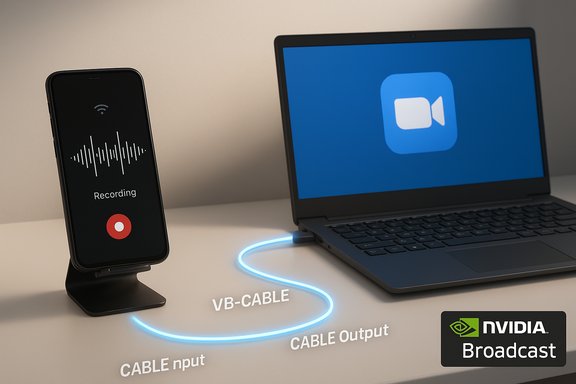
Windows users typically implement this with a virtual audio cable driver on the PC and a companion app on Android that streams the microphone over Wi‑Fi, USB or ADB. The virtual cable captures the phone stream on the PC as if it were a microphone, so conferencing apps see it automatically. VB‑Audio’s VB‑CABLE is the lightest, most common virtual device for this, and community guides note the same install‑and‑route pattern: install the virtual driver, pick the virtual cable as the system’s communication device, then connect the phone client to stream audio into that device.
Turning your Android phone into a meeting microphone is an inexpensive, effective hack that solves many real‑world problems: forgotten mics, dead batteries, and travel packing. It leverages the phone’s DSP and mobility while using well‑established virtual‑audio routing on Windows. The setup is approachable for most users and produces meeting‑ready audio that, in practice, is better than many inexpensive dedicated microphones. For power users who need studio fidelity, keep your dedicated mic; for the rest of us, a carefully configured phone + VB‑CABLE is a remarkably pragmatic toolkit—fast to deploy, cheap to maintain, and surprisingly polished for everyday meetings.
Source: MakeUseOf You don’t need an expensive microphone for meetings — you already own a great one
 Background / Overview
Smartphones are designed around voice first: multiple mic elements, on‑device noise suppression, automatic gain control and DSP tuned to human speech. That hardware and software stack means a modern Android handset already contains the core ingredients for trustworthy meeting audio. The practical bridge is a small set of utilities that send the phone’s live mic into Windows as a standard audio input using a virtual audio device. This approach replaces the need for a separate budget mic or an extra XLR/USB recording chain for everyday meetings and quick interviews.Windows users typically implement this with a virtual audio cable driver on the PC and a companion app on Android that streams the microphone over Wi‑Fi, USB or ADB. The virtual cable captures the phone stream on the PC as if it were a microphone, so conferencing apps see it automatically. VB‑Audio’s VB‑CABLE is the lightest, most common virtual device for this, and community guides note the same install‑and‑route pattern: install the virtual driver, pick the virtual cable as the system’s communication device, then connect the phone client to stream audio into that device.
Why use your phone as a meeting microphone?
- Built‑in speech processing: Most phones apply noise reduction, AGC and voice optimisation by default; that’s why phone calls sound clear despite tiny hardware. Using the phone leverages those optimisations without extra cost.
- Portability & redundancy: If your USB mic dies or you forget it at home, your phone rarely leaves you stranded.
- Cost efficiency: A free app + a free virtual driver beats buying a second budget mic whose audio chain and batteries may be unreliable.
- Simplicity for meetings: For Zoom/Teams/Meet calls you rarely need studio fidelity—speech clarity and stable gain are the priorities, and most phone mics excel here.
The basic setup: what you need
- An Android phone (any recent model will work; newer phones tend to have better mic arrays).
- A Windows PC (Windows 10 or 11 — the routing steps are the same).
- A virtual audio cable (VB‑CABLE or equivalent) installed on Windows. The vendor’s package is lightweight and installs a CABLE Input/CABLE Output pair that forwards audio streams between apps. VB‑Audio notes that installation requires administrator privileges and typically a reboot.
- A companion app on Android and a Windows client that receive the phone’s mic and send it into the virtual cable. There are multiple apps that do this (Android‑to‑PC mic clients, DroidCam variants, WO‑Mic, AudioRelay, and others). Community tutorials show steps for pairing any of these clients with VB‑CABLE or VoiceMeeter virtual devices.
Step‑by‑step: turn your Android phone into a PC microphone (practical walk‑through)
Below is the pragmatic, minimal path you can test in 10–15 minutes. It follows the common pattern used by community guides and virtual‑audio workflows.- Install a virtual audio cable on Windows
- Download VB‑CABLE (donationware) from the VB‑Audio site, run the setup as Administrator and reboot if prompted. The installation adds “CABLE Input” (playback) and “CABLE Output” (recording) devices to Windows. This driver bridges audio between apps.
- Install a phone‑to‑PC mic client
- Choose an app that supports audio streaming to a Windows client. Popular options include apps that offer Wi‑Fi, USB or ADB modes; DroidCam and similar tools are often used for webcam audio too. Install both the Android app on your phone and the Windows companion on the PC. Community testing favors wired USB for lower latency and Wi‑Fi for convenience.
- Configure the Windows app to use the virtual cable
- In the desktop client, set its playback/output device to “CABLE Input” (this sends the phone audio into VB‑CABLE). In the phone app, enter the PC’s IP/port or connect via USB as the client instructs and establish the stream.
- Make VB‑CABLE the default communication device in Windows
- Open Settings → System → Sound → More sound settings → Recording.
- Right‑click “CABLE Output” and select “Set as Default Communication Device.” This tells conferencing apps to prefer the virtual device for calls. Once selected, Zoom/Teams/Discord will pick it by default; otherwise select the device manually in the app’s audio settings.
- Test and tweak
- Make a test recording with Voice Recorder or Audacity and check clarity and latency. Adjust buffer sizes in the phone or desktop client if you hear lag or dropouts. If you’re on Wi‑Fi and experience instability, try USB (developer options / USB debugging) for a more robust link. Community threads recommend 5 GHz networks and proximity to the router for wireless streams.
- Some setups require running the desktop client as administrator for virtual device access.
- If the virtual device doesn’t appear in Sound Settings, confirm the VB‑CABLE driver installed successfully (Device Manager → Sound, video and game controllers) and reboot if necessary. Troubleshooting guides for VB‑CABLE recommend running the installer as admin and rebooting after install.
Illustrated example (typical values and choices)
- Virtual device: VB‑CABLE (CABLE Input / CABLE Output).
- Connection type: Wi‑Fi/TCP or USB (USB typically lower latency).
- Conferencing app: Zoom/Teams set to “Cable Output” as microphone source.
- Windows default format: 16‑bit, 48 kHz is a sensible default for speech.
Which apps should you consider? (alternatives and trade‑offs)
- AndroidMic / AudioRelay / WO‑Mic / DroidCam (and others) — these are the community‑favourite classes of apps that stream phone audio to a Windows client. They vary by connection types (Wi‑Fi/USB/Bluetooth), ease of setup, and whether advanced features are paid. Community guides show DroidCam as a mature choice for video + audio, and many users pair it with VB‑CABLE for audio routing.
- WO‑Mic (common alternative) — widely used in the past because it supports Wi‑Fi, USB and Bluetooth; it requires a small Windows client and exposes a virtual microphone device.
- AudioRelay — marketed for low‑latency Android→PC audio streaming; its paid tier unlocks advanced features.
- DroidCam / Camo / Phone Link — if you also want webcam features, several tools pair video and audio streaming; Windows’ Phone Link and OEM solutions also offer camera sharing that may include mic routing for some phones. For USB webcam mode, Pixel phones sometimes expose a native “Use USB for → Webcam” option that simplifies routing.
How good does it sound? Real‑world audio quality and testing
Phone mics won’t replace a broadcast microphone for podcasting or professional voicework, but they often beat cheap budget mics and perform extremely well in typical meeting contexts.- Practical tests reported by users show phone audio performs strongly for speech clarity and intelligibility; a dedicated mid‑range USB mic may still have an edge in raw fidelity, but the difference is small for meetings. The phone’s DSP removes background noise and stabilises levels, which is exactly what meeting apps care about. Community comparisons indicate the phone is “impressive for meetings” while recognising dedicated mics still help for voice‑over or studio tasks.
- If you want to push quality further, you can chain the phone stream through advanced noise suppression on the PC. Nvidia’s Broadcast (and its Studio Voice features) apply AI‑driven noise removal and can noticeably improve low‑quality sources—provided you have an Nvidia RTX GPU to run the processing. For users with RTX hardware, combining a phone mic stream with Nvidia Broadcast’s Noise Removal or Studio Voice produces surprisingly good results. Nvidia’s documentation and independent testing both show strong noise removal benefits, especially for keyboard clicks and ambient chatter.
- Latency: Expect a small amount of delay, especially on Wi‑Fi. USB is lower latency; Wi‑Fi performance depends heavily on your local network. Community guidance recommends aiming for sub‑200 ms round‑trip latency for conversational meetings and testing with short recordings before joining an important call.
Practical tips to get the best results
- Use the phone’s main (rear) microphone or the mic array that’s oriented toward your mouth if the app supports it—some apps let you select which mic to use.
- Prefer USB if you need the lowest latency and worst‑case reliability (USB debugging / ADB modes are available in many tools).
- Keep the phone plugged into power for long meetings—continuous streaming drains batteries quickly.
- Stabilise and position the phone near your mouth (but not too close) using a small tripod or clamp. Phones often have better mic pickup than laptop mics but placement still matters.
- Enable Do Not Disturb and silence notifications to avoid notification sounds being captured live.
- Use 5 GHz Wi‑Fi when using wireless streaming and keep the phone near the router for best throughput.
Security, privacy and corporate considerations
Turning a phone into a mic creates new surfaces and risk vectors that enterprises and privacy‑conscious users must manage.- App permissions: the client on the phone needs microphone access; confirm it only requests what it needs. Audit Android permissions after install and remove the app when not in use. Community guidance emphasises limiting unnecessary permissions.
- Local network exposure: Wi‑Fi streaming opens a local socket between devices. Avoid doing this on public/untrusted networks. If you must, prefer USB tethering or a wired host to avoid broadcasting on an insecure LAN.
- Virtual drivers & corporate policy: VB‑CABLE and other virtual drivers behave like standard audio drivers; some corporate environments restrict the installation of unsigned drivers. Check IT policy before installing kernel or driver‑level software on managed machines.
- Data flows: confirm whether any phone‑to‑PC client sends audio to cloud services for processing. Prefer local processing for sensitive calls; if a vendor relies on cloud inference, check the privacy policy and retention terms. Community testing workflows recommend packet capture to confirm local‑only operation when privacy matters.
Troubleshooting checklist (quick hits)
- Virtual device missing after VB‑CABLE install: run the installer as Administrator and reboot; confirm Device Manager lists the driver.
- No audio on the PC: ensure the desktop client is set to output to “CABLE Input” and that “CABLE Output” is selected as the recording device in Windows Sound settings.
- App won’t list the virtual mic: check Windows Sound → Recording and set “CABLE Output” as Default Communication Device.
- Wireless dropouts: move to USB or move phone closer to router; prefer 5 GHz band and avoid congested Wi‑Fi.
- Latency or stuttering: increase buffer size in the desktop app, or switch connection type (USB for better stability).
When a phone makes sense — and when it doesn’t
Use a phone mic when:- You need a reliable meeting mic quickly or while travelling.
- Your priority is clear speech, not studio‑grade fidelity.
- You want a low‑cost, portable backup to a primary mic.
- You require studio quality recordings (podcasts, voice‑overs).
- You must guarantee absolute low latency for live broadcast music or high‑speed production workflows.
- Corporate policy forbids third‑party driver installs or network streaming.
A short checklist for safe adoption (practical)
- Test locally first: record short clips in Audacity and measure latency.
- Use USB if reliability matters; use Wi‑Fi for convenience.
- Keep the phone powered and muted for notifications.
- Audit app permissions and keep the desktop client up to date.
- If you must capture sensitive conversations, verify the app’s privacy model or use local‑only processing tools.
Final analysis — strengths, risks and recommended workflow
Strengths- High portability and reliability for meetings. Phones are optimised for voice and therefore outperform many ultra‑cheap mics in normal meeting scenarios.
- Low cost to entry. VB‑CABLE plus a free companion app is typically free or donationware, making this an attractive backup option.
- Easy integration with conferencing apps. Once VB‑CABLE is set as the default communication device, Zoom/Teams/Discord use it without extra configuration.
- Driver and app compatibility. Virtual audio drivers can conflict with some antivirus or enterprise restrictions; unsigned driver installs may be blocked.
- Latency and network dependency. Wi‑Fi streams are subject to network quality; USB is recommended for critical calls.
- Privacy & data flow ambiguity. Some phone‑to‑PC apps may rely on cloud processing or collect telemetry—confirm policies before use in sensitive environments. Community guides recommend checking for local‑only mode and testing traffic to be sure.
- Install VB‑CABLE on a test PC and reboot.
- Select a trusted Android app (try DroidCam, WO‑Mic or AudioRelay first) and test on USB.
- Configure VB‑CABLE as the Default Communication Device and confirm in Zoom/Teams.
- Optionally route the virtual mic through an AI denoiser like Nvidia Broadcast if you have an RTX GPU and need to clean noisy environments.
Turning your Android phone into a meeting microphone is an inexpensive, effective hack that solves many real‑world problems: forgotten mics, dead batteries, and travel packing. It leverages the phone’s DSP and mobility while using well‑established virtual‑audio routing on Windows. The setup is approachable for most users and produces meeting‑ready audio that, in practice, is better than many inexpensive dedicated microphones. For power users who need studio fidelity, keep your dedicated mic; for the rest of us, a carefully configured phone + VB‑CABLE is a remarkably pragmatic toolkit—fast to deploy, cheap to maintain, and surprisingly polished for everyday meetings.
Source: MakeUseOf You don’t need an expensive microphone for meetings — you already own a great one

