

Windows 11 quietly packs productivity and accessibility tools that feel like paid add‑ons — if you know where to look. From a time‑saving clipboard that remembers 25 items to system‑wide live captions and a proximity‑based lock that secures your session when you walk away, many of these features are turned off by default or tucked behind a keyboard shortcut. Enable a handful of them and your daily workflow will feel faster, safer, and less cluttered — without installing anything extra.
Windows 11 has matured into more than a visual refresh; Microsoft has been folding high‑impact utilities directly into the OS. The company’s strategy favors small, discoverable wins — shortcuts, in‑app productivity timers, and privacy‑conscious AI features — rather than a single marquee overhaul. For power users and IT administrators alike, that means there are practical gains hiding in plain sight inside Settings, the Clock app, and a few keyboard combinations. This article verifies the most useful of those features, explains when and how to use them, and calls out the security and privacy tradeoffs you should watch for.
That said, some claims deserve cautious qualification. AI features like Copilot vary by hardware and licensing, and cloud‑dependent modes can affect privacy; always validate how a given Windows build handles on‑device vs. cloud processing before adopting these tools for sensitive workflows. Enterprise admins should pilot changes and use MDM to enforce safe defaults.
If you use Windows daily and haven’t explored these nine areas, set aside half an hour this week to toggle them on and test. The cumulative payoff is real: fewer interruptions, faster task flow, and an OS that works a little smarter for you — with no extra subscriptions required.
Conclusion
Windows 11 hides several friction‑free productivity tools that many users never discover. From a clipboard that remembers 25 items to system‑wide live captions and AI helpers in the taskbar, these built‑in features can replace paid utilities and streamline everyday computing. Use the quick checklist above to enable the features that match your priorities, be mindful of privacy and hardware limits, and treat pilot testing as a must for managed fleets. Learn a few shortcuts, flip a couple of toggles, and your Windows desktop will start working smarter — not harder.
Source: TechRepublic 9 Windows 11 Features You’re Probably Not Using (But Should)
 Background / Overview
Windows 11 has matured into more than a visual refresh; Microsoft has been folding high‑impact utilities directly into the OS. The company’s strategy favors small, discoverable wins — shortcuts, in‑app productivity timers, and privacy‑conscious AI features — rather than a single marquee overhaul. For power users and IT administrators alike, that means there are practical gains hiding in plain sight inside Settings, the Clock app, and a few keyboard combinations. This article verifies the most useful of those features, explains when and how to use them, and calls out the security and privacy tradeoffs you should watch for.1) Clipboard History: your copy‑and‑paste power tool
What it is and why it matters
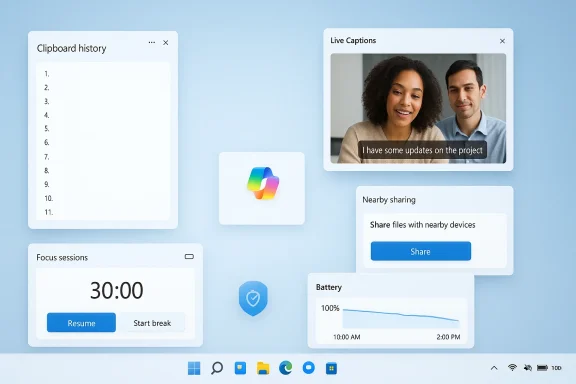
Windows 11’s Clipboard History stores up to 25 recent clipboard entries — text, images, and screenshots — and gives you a searchable quick menu to paste previous items. It solves the classic “I copied something and then copied again” panic and replaces single‑purpose clipboard managers for many users. You can also pin up to five entries so they survive reboots.How to enable and use it
- Open Settings > System > Clipboard and turn on Clipboard history.
- Press Windows + V to open the clipboard manager and pick any previous item.
- Use the pin icon to keep frequently used snippets available across restarts.
Pro tips and caveats
- Turn on Sync across devices to paste between Windows PCs signed into the same Microsoft account. Note this pushes chosen clipboard content to Microsoft’s cloud for syncing; choose automatic or manual sync modes depending on sensitivity.
- For Android integration, Microsoft’s SwiftKey keyboard can sync clipboard content to/from phones where you’re signed in with the same account. Treat sensitive data with caution when cloud sync is enabled.
2) Dynamic Lock: automatic locking when you step away
What it does
Dynamic Lock uses a paired phone’s Bluetooth presence as a proximity leash. If your phone moves out of range, Windows locks the session after a short delay — a simple but effective anti‑shoulder‑surfing safeguard. It’s great for shared workspaces and crowded cafes.How to set it up
- Pair your phone via Bluetooth, then go to Settings > Accounts > Sign‑in options and enable Dynamic Lock under Additional settings. Pairing and enabling are one‑time tasks.
Strengths and practical limits
- It’s low friction and doesn’t require hardware upgrades. Combine Dynamic Lock with facial recognition or a PIN for fast re‑entry.
- Bluetooth signal strength is an imperfect proxy for distance; false locks are possible if your phone briefly loses connectivity. For highly sensitive environments, consider hardware presence sensors or enterprise MDM policies instead.
3) Voice typing (Win + H): high‑quality dictation built into Windows
Why this is useful
Windows 11’s Voice typing uses modern speech recognition to transcribe in almost any text field, with automatic punctuation and impressive accuracy for many accents and languages. It’s ideal for drafting emails, notes, or longform ideas faster than typing.Quick start
- Place the cursor in a text field and press Windows + H to begin. Press again to stop. The UI includes a microphone button and quick access to language packs.
Caveats and privacy
- Some speech features can route audio to cloud services for enhanced recognition depending on settings and installed language packs. Windows 11 offers local language packs to keep processing on‑device when available, but behaviour varies by build and configuration — check your speech privacy settings before dictating sensitive content. Treat dictation like a productivity convenience, not a compliance tool.
4) Live Captions (Windows + Ctrl + L): subtitles for everything
The capability
Live Captions produces real‑time, system‑wide subtitles for any audio playing on the PC — browser streams, video calls, or media files — and can be moved anywhere on the screen. Language packs download locally and most processing can occur on the device to reduce cloud exposure. This is a major accessibility win and a practical tool for noisy environments.How to use it
- Press Windows + Ctrl + L to turn captions on. Windows will prompt to download a language pack if needed and then show a floating caption window.
Tradeoffs
- Accuracy varies by audio quality and speaker clarity. Captions are best for comprehension and note‑taking, not for verbatim transcripts for legal or compliance use. Consider manual transcription services when accuracy must be audited.
5) Nearby Sharing: built‑in file transfer between PCs
How it compares
Microsoft’s Nearby Sharing functions much like Apple’s AirDrop or Google’s Quick Share: send files, links, or photos to nearby Windows PCs over Bluetooth or Wi‑Fi. It’s convenient for ad‑hoc transfers without email or cloud uploads.Using Nearby Sharing
- Enable Nearby Sharing under System > Nearby Sharing. Right‑click a file and choose Share, then pick the nearby device from the list. You can limit sharing to your devices or allow anyone nearby.
Practical advice
- Use the my devices only mode in public settings to avoid unwanted file requests. Transfer speeds depend on Wi‑Fi speeds when large files move via Wi‑Fi rather than Bluetooth. For repeated sharing needs in corporate environments, MDM policies can manage device visibility and permissions.
6) Focus Sessions (Clock app): an integrated Pomodoro with calendar ties
What Focus Sessions delivers
Built into the Clock app, Focus Sessions lets you schedule blocks of uninterrupted work and pairs with Windows’ Focus/Do‑not‑disturb controls. It can enforce short breaks after longer sessions (for example, after 45 minutes), helping you protect deep work time without third‑party timers.Best use cases
- Use short blocks for email triage and longer, timed sessions for creative work. Focus Sessions can also integrate with Microsoft To Do and the calendar, making it useful for knowledge workers who plan time‑boxed work.
Limitations
- Focus Sessions is a productivity helper, not a project manager. Combine it with task lists and calendar discipline to get the most benefit.
7) Enhanced battery insights: smartphone‑style power profiles
What you get
Under Settings > System > Power & battery, Windows 11 exposes detailed charts showing which apps consume power and how usage trends change over time. You can restrict background activity for energy‑hungry apps, similar to mobile battery management. This helps extend battery life on laptops and identify rogue processes.How IT teams and users can use it
- For individual users: identify and throttle background apps that drain your battery.
- For admins: combine telemetry with MDM policies to set power profiles for field devices and extend battery life across fleets. Note that app‑level restrictions may affect background sync or notifications.
8) Copilot in the taskbar: an actionable AI assistant
The feature set
Microsoft’s Copilot is embedded in the Windows 11 taskbar (Windows + C or via the icon) and can summarize webpages, draft messages, explain on‑screen content, or help with settings. On machines advertised as Copilot+ PCs, Microsoft exposes additional AI features like semantic search, Recall for revisiting past activity, and GPU/NPU‑accelerated image enhancements. These enhanced capabilities are hardware dependent.How to use and what to watch for
- Open Copilot with the taskbar icon or Windows + C, then type or speak requests. For heavy AI features, check whether your PC is labeled Copilot+ and whether local hardware supports acceleration; otherwise, Copilot may rely on cloud services for advanced operations. Because some Copilot functionality uses online services, review sign‑in and telemetry settings before handling sensitive enterprise data.
Caveats
- The availability and scope of Copilot features depend on Microsoft’s licensing, OS build, and hardware. Treat advanced Copilot capabilities as optional productivity extras rather than guaranteed tools on every Windows 11 machine. Flag any organization‑wide deployment for security review and manageable rollout.
9) Keyboard shortcuts worth memorizing
The essential keystrokes
Windows 11 adds and standardizes several shortcuts that meaningfully speed daily tasks. Learn these and you’ll shave seconds off every workflow:- Windows + W: Open Widgets.
- Windows + A: Open Quick Settings (Action Center).
- Windows + Z: Snap layouts — choose a tile arrangement when hovering the maximize button.
- Windows + Shift + S: Screenshot tool (Snip & Sketch).
- Windows + K: Cast media to wireless displays or speakers.
- Windows + . (period): Emoji and GIF panel.
- Windows + N: Notification center and calendar.
- Windows + Ctrl + D: Create a new virtual desktop.
How to get the most value
- Focus on mastering three shortcuts that solve your daily friction points (window management, screenshots, and virtual desktops). Muscle memory builds quickly and pays off across work sessions.
A Settings app full of surprises: where to look next
The modern Settings app has absorbed many legacy Control Panel features and scattered utilities. If you’re used to Windows 10, assume some options live in new places: the Clock app for Focus Sessions, System pages for Nearby Sharing and battery insights, and Accounts > Sign‑in options for Dynamic Lock. Explore Settings deliberately — many productivity gains are a single toggle away.Security, privacy, and enterprise considerations
- Privacy of synced data: Clipboard syncing and some Copilot features rely on cloud services. For confidential or regulated content, disable cloud sync and prefer local processing options where available.
- False positives and UX tradeoffs: Dynamic Lock’s Bluetooth proximity detection can lock a machine unexpectedly; test behavior in your physical environment before relying on it for secure workflows.
- Hardware and licensing variance: Features branded as Copilot+ or AI‑accelerated require specific hardware and licensing; verify which machines in your fleet actually support these enhancements before rolling out Copilot‑dependent workflows.
- Enterprise rollout guidance: Use pilot rings, MDM controls, and staged policy deployments when enabling features that touch identity, sync, or telemetry. Small changes in default behavior can have outsized impacts across thousands of devices.
Quick enablement checklist (do this in 10 minutes)
- Turn on Clipboard History: Settings > System > Clipboard → enable and optionally turn on Sync across devices. Pin your most used snippets.
- Pair phone and enable Dynamic Lock: Bluetooth pairing → Settings > Accounts > Sign‑in options → Dynamic Lock. Test the lock/unlock behavior.
- Try Voice typing: Place cursor in a text field → press Windows + H → speak. Check speech settings for local language packs.
- Start Live Captions: Press Windows + Ctrl + L during a meeting or video to confirm captions and adjust positioning.
- Enable Nearby Sharing if you swap files with other PCs: System > Nearby Sharing → choose visibility and test a transfer.
- Open the Clock app and schedule one Focus Session to see how notifications are silenced and breaks are suggested.
Strengths, limitations, and final verdict
Windows 11’s incremental approach — shipping a collection of small, well‑integrated features — is its strongest play. These tools are low‑friction, useful for a wide range of users, and in many cases remove the need for third‑party utilities. Clipboard History, Live Captions, and Voice Typing are practical day‑to‑day winners; Dynamic Lock and Nearby Sharing are convenience features that raise baseline security and connectivity without extra services.That said, some claims deserve cautious qualification. AI features like Copilot vary by hardware and licensing, and cloud‑dependent modes can affect privacy; always validate how a given Windows build handles on‑device vs. cloud processing before adopting these tools for sensitive workflows. Enterprise admins should pilot changes and use MDM to enforce safe defaults.
If you use Windows daily and haven’t explored these nine areas, set aside half an hour this week to toggle them on and test. The cumulative payoff is real: fewer interruptions, faster task flow, and an OS that works a little smarter for you — with no extra subscriptions required.
Conclusion
Windows 11 hides several friction‑free productivity tools that many users never discover. From a clipboard that remembers 25 items to system‑wide live captions and AI helpers in the taskbar, these built‑in features can replace paid utilities and streamline everyday computing. Use the quick checklist above to enable the features that match your priorities, be mindful of privacy and hardware limits, and treat pilot testing as a must for managed fleets. Learn a few shortcuts, flip a couple of toggles, and your Windows desktop will start working smarter — not harder.
Source: TechRepublic 9 Windows 11 Features You’re Probably Not Using (But Should)
