

Windows users have found a way to flip a switch and turn on Microsoft’s new native NVMe storage stack — a change that can, on the right hardware and driver combination, deliver measurable SSD performance gains — but the path from promising lab numbers to stable, everyday improvement is not guaranteed and carries real risks.
Microsoft recently introduced a redesigned storage stack for Windows Server 2025 that implements a native NVMe I/O path, removing the historic step of converting NVMe commands into SCSI commands and allowing modern NVMe SSDs to be driven in a way that matches their hardware design. Microsoft’s engineering notes and internal benchmarks show very large potential gains in IOPS and CPU efficiency for workloads that are bottlenecked by the legacy stack, and the capability is delivered as an opt‑in feature that administrators can enable after installing the appropriate cumulative update. Independent testing and community experimentation quickly followed. Enthusiasts discovered that the underlying native NVMe components are present in recent Windows 11 builds and that, by adding specific Feature Management registry overrides, Windows 11 can be made to present NVMe devices using the native path. Early community measurements report everything from modest single‑digit improvements to very large jumps — with Microsoft’s server tests showing the largest gains — while many consumer systems see no change or experience compatibility hiccups. This article unpacks what the native NVMe stack actually is, how the opt‑in mechanism works (both official and community-discovered variants), the real-world performance picture, compatibility and safety issues, and practical advice for Windows 11 enthusiasts who are considering trying the tweak.
The native NVMe stack removes that translation layer and reworks the I/O path for NVMe semantics: more direct queue handling, lower software overhead, and lower latency for high‑concurrency I/O. In large‑scale or high‑IOPS scenarios (virtualization hosts, databases, AI/ML data nodes), this architectural match can unlock dramatic improvements in throughput and CPU usage. Microsoft’s published numbers for server workloads show very large deltas versus the legacy stack.
reg add HKEY_LOCAL_MACHINE\SYSTEM\CurrentControlSet\Policies\Microsoft\FeatureManagement\Overrides /v 735209102 /t REG_DWORD /d 1 /f
reg add HKEY_LOCAL_MACHINE\SYSTEM\CurrentControlSet\Policies\Microsoft\FeatureManagement\Overrides /v 1853569164 /t REG_DWORD /d 1 /f
reg add HKEY_LOCAL_MACHINE\SYSTEM\CurrentControlSet\Policies\Microsoft\FeatureManagement\Overrides /v 156965516 /t REG_DWORD /d 1 /f
Users commonly place those three entries under the FeatureManagement Overrides key, reboot, and then look for changes in Device Manager and driver listings. Several outlets and independent testers published step‑by‑step guides that mirror that sequence. This is not an official Microsoft recommendation for Windows 11.
For end users, the change is potentially valuable but transitional — the benefits will first be clear in server and enterprise workloads, and consumer ecosystems will need vendor cooperation (firmware, drivers, tools) to make the transition smooth and broadly beneficial.
Source: Notebookcheck Windows 11 hack: Higher SSD speeds with new Microsoft NVMe driver
 Background / Overview
Microsoft recently introduced a redesigned storage stack for Windows Server 2025 that implements a native NVMe I/O path, removing the historic step of converting NVMe commands into SCSI commands and allowing modern NVMe SSDs to be driven in a way that matches their hardware design. Microsoft’s engineering notes and internal benchmarks show very large potential gains in IOPS and CPU efficiency for workloads that are bottlenecked by the legacy stack, and the capability is delivered as an opt‑in feature that administrators can enable after installing the appropriate cumulative update. Independent testing and community experimentation quickly followed. Enthusiasts discovered that the underlying native NVMe components are present in recent Windows 11 builds and that, by adding specific Feature Management registry overrides, Windows 11 can be made to present NVMe devices using the native path. Early community measurements report everything from modest single‑digit improvements to very large jumps — with Microsoft’s server tests showing the largest gains — while many consumer systems see no change or experience compatibility hiccups. This article unpacks what the native NVMe stack actually is, how the opt‑in mechanism works (both official and community-discovered variants), the real-world performance picture, compatibility and safety issues, and practical advice for Windows 11 enthusiasts who are considering trying the tweak.What “native NVMe” means — the technical shift
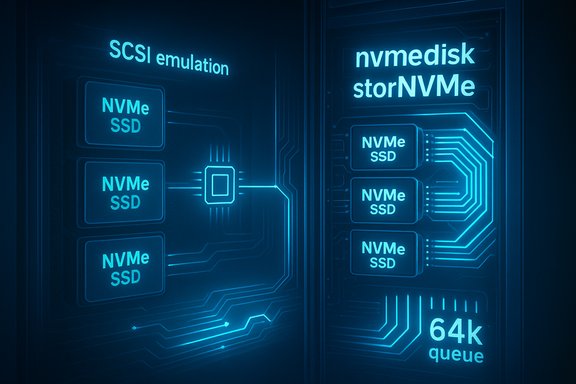
Why NVMe versus SCSI emulation mattered
NVMe was designed for PCIe flash media and supports massive parallelism: many submission/completion queues and very high command counts per queue. The classic Windows storage stack treated NVMe devices behind SCSI-oriented layers, which simplified compatibility with older architectures but introduced translation overhead, locking contention, and a queue model that didn’t match NVMe’s strengths.The native NVMe stack removes that translation layer and reworks the I/O path for NVMe semantics: more direct queue handling, lower software overhead, and lower latency for high‑concurrency I/O. In large‑scale or high‑IOPS scenarios (virtualization hosts, databases, AI/ML data nodes), this architectural match can unlock dramatic improvements in throughput and CPU usage. Microsoft’s published numbers for server workloads show very large deltas versus the legacy stack.
Which driver components are involved
Microsoft’s public guidance for the Server feature references their in‑box NVMe modules (the server announcement references StorNVMe.sys in its instructions for admins), while community testing on client builds has shown the disk‑level driver listed as nvmedisk.sys after activation in some builds. Driver filenames and UI labels can vary by build and update channel, so looking for both common names in Device Manager and in the Windows driver path is useful when verifying a switch.How Microsoft releases and enables the feature (official path)
Prerequisites
- A Windows Server 2025 installation with the servicing update that carries the native NVMe implementation (Microsoft documents the opt‑in as present in the October servicing update and later).
- Systems using Microsoft’s in‑box NVMe stack (vendor‑supplied NVMe drivers typically bypass the Microsoft path and will not benefit).
- Administrator privileges and standard update testing practices (drivers/firmware up to date, backups, lab validation).
The official toggle Microsoft published (server)
Microsoft’s example command to opt in on Server is a single FeatureManagement override DWORD:- Ensure the cumulative servicing update that includes the Native NVMe components is installed.
- Run, as Administrator:
- Reboot and verify device presentation and driver usage in Device Manager (NVMe devices will be shown under the storage category expected by Microsoft’s guidance).
The Windows 11 path: community findings versus the official server toggle
Two approaches — official server key vs. community keys for client builds
Because Windows client and Server share a lot of the same kernel code, enthusiasts and researchers began probing the Feature Management overrides available on Windows 11. Two distinct approaches emerged:- The official server override (the single DWORD value Microsoft published for Windows Server 2025).
- A community‑discovered set of three override values that many testers report enable the native NVMe components on Windows 11 client builds and switch device presentation to the native stack.
The three community registry values (client variant)
The community commands commonly used on Windows 11 systems are, run as Administrator:reg add HKEY_LOCAL_MACHINE\SYSTEM\CurrentControlSet\Policies\Microsoft\FeatureManagement\Overrides /v 735209102 /t REG_DWORD /d 1 /f
reg add HKEY_LOCAL_MACHINE\SYSTEM\CurrentControlSet\Policies\Microsoft\FeatureManagement\Overrides /v 1853569164 /t REG_DWORD /d 1 /f
reg add HKEY_LOCAL_MACHINE\SYSTEM\CurrentControlSet\Policies\Microsoft\FeatureManagement\Overrides /v 156965516 /t REG_DWORD /d 1 /f
Users commonly place those three entries under the FeatureManagement Overrides key, reboot, and then look for changes in Device Manager and driver listings. Several outlets and independent testers published step‑by‑step guides that mirror that sequence. This is not an official Microsoft recommendation for Windows 11.
Real‑world performance: expectations versus variability
Microsoft’s lab numbers
In Microsoft’s server testing, native NVMe removes SCSI emulation overhead and enables much higher parallelism: up to 64,000 queues and 64,000 commands per queue in the NVMe model. Microsoft’s reported server results show up to 80% higher IOPS on certain synthetic 4K random workloads and substantial CPU reductions (numbers in the ~45% CPU reduction range were shown in Microsoft’s white‑paper style benchmarks). Those server results are the highest‑impact case and reflect enterprise PCIe Gen5 hardware and specialized workloads.What consumer systems are seeing
Community and independent tests on Windows 11 client hardware show a much wider range:- Some users see modest improvements (single‑digit to low‑double‑digit percentage increases) on consumer PCIe Gen4 SSDs in everyday tasks and synthetic benchmarks.
- A number of testers report notable gains in sequential and threaded synthetic tests — Notebookcheck’s laptop test showed sequential read improvements of up to ~45% on one Micron PCIe 4.0 drive in their configuration, while other drives on the same machine saw smaller or different gains.
- Conversely, many users report no change or worse results, and a subset encountered stability or tool‑compatibility issues.
Compatibility, stability, and real risks
Known trouble spots and why this matters
Community reports and published followups list several concrete issues you should consider before trying the registry approach:- Third‑party SSD utilities may fail or misreport: Tools like manufacturer dashboards and firmware update utilities may not recognize the drive or may report it twice after the switch, because the device presentation changes. This can block firmware updates or leave the drive unmanaged.
- Backup/restore and imaging tools may rely on disk IDs or the SCSI presentation: Some software can fail to locate volumes or report altered identifiers, which breaks backup workflows or restore operations.
- Some NVMe vendor drivers bypass Microsoft’s stack: If your system is using a vendor driver (for example from Samsung, Western Digital, Intel/Solidigm), the in‑box native NVMe path may not be in the call path and you may see no effect.
- Worse performance or instability on some drives: Several community members reported slower writes, higher tail latency, or BSODs on particular models when forcing the stack change. That behavior is drive and firmware specific.
- Potential boot or system failure: As with any unsupported registry tweak that affects a core driver stack, there is a non‑zero chance of making a system unbootable or corrupting a partition table if something goes wrong. Full image backups and recovery media are mandatory safety measures.
Which systems are most likely to benefit
- Enterprise servers with high‑concurrency NVMe hardware (PCIe Gen5 or beyond) and workloads designed to saturate I/O will see the biggest, most predictable gains.
- Consumer systems that already use the Microsoft in‑box NVMe driver and have SSDs with headroom for parallel access (and updated firmware) may see improvements, but expect variability.
- Systems using vendor‑supplied drivers or older/underpowered SSDs are the least likely to benefit and the most likely to see odd behavior.
How to check whether your system is eligible (quick checklist)
- Confirm Windows updates: ensure you have the cumulative update that contains the native NVMe components — the opt‑in was added in the servicing update Microsoft referenced for Server 2025.
- Confirm driver: check Device Manager → driver details for each NVMe device; note whether the driver path shows the Microsoft in‑box NVMe stack or a vendor driver. Microsoft’s guidance points to their in‑box stack as the one that benefits.
- Back up: create a full disk image and a separate file backup before attempting the change. Recovery media and a tested rollback plan are essential.
- Test in a lab or VM: where possible, test on a non‑production machine or in a clean environment first.
Step‑by‑step: safely testing the feature on Windows 11 (expert users only)
Below is a pragmatic approach that balances curiosity with caution. This is a description of community procedures and official server toggles; it is not an endorsement to run unsupported changes on production machines.- Image backup: Create a full image of the system drive (use a trusted imaging tool and verify the image).
- Create recovery media: Ensure a bootable Windows recovery USB is available and that you can reach system restore or WinRE if needed.
- Update: Install the latest cumulative update that contains the native NVMe components (the server blog and vendor reporting cite the October servicing update or later). Reboot and verify update status.
- Verify driver: In Device Manager, expand "Disk drives" and check driver details for your NVMe device. If a vendor driver is installed (Samsung, WD, etc., the in‑box path may not be used and you are unlikely to see benefits.
- Decide toggle:
- Official Server toggle: If you are on Server or following Microsoft’s published path, use the single official override DWORD (1176759950).
- Community client toggle: If you are an advanced Windows 11 user accepting risk and you want to try the community method, prepare to add the three override DWORDs (735209102, 1853569164, 156965516) under the FeatureManagement Overrides key.
- Apply the registry changes as Administrator: use elevated cmd or PowerShell — do not double‑click random .reg files from untrusted sources. (Example commands are shown earlier in this article.
- Reboot and verify: After restart, open Device Manager and check whether the NVMe device presentation and driver changed (look for “Storage disks/Storage media” and for the driver name such as nvmedisk.sys or stornvme/storNVMe variations depending on build).
- Benchmarks and validation: Run your chosen tests (real‑world file copy, AS SSD / CrystalDiskMark / DiskSpd profiles) and capture before/after measurements. Watch for anomalies in latency or utility behavior.
- Revert if needed: Delete the registry entries or set the values back to 0, reboot, and restore the image if you encounter instability. Always have your restore image available.
How to revert and recover
If anything goes wrong:- Boot into Windows Recovery Environment (WinRE) via your recovery USB or automatic recovery options.
- Use a previously created system image to restore the disk if system boot fails.
- From an administrative prompt (or offline registry edit in recovery), remove the FeatureManagement override values (either the single server DWORD or the three community DWORDs) and reboot.
- If you can boot but tools misbehave, revert the changes and reinstall the vendor NVMe driver if required by the SSD manufacturer.
Practical recommendations for Windows 11 users
- Prioritize data safety: create a verified image backup and ensure you can restore before altering registry keys that affect core drivers. Do not experiment on a production machine with irreplaceable data.
- Prefer official paths when possible: for fleet or server environments, use Microsoft’s documented enablement artifacts and Group Policy MSI for controlled rollout.
- Test hardware compatibility first: if your system uses vendor drivers, update them and check vendor guidance; many vendor drivers won’t benefit from Microsoft’s stack changes.
- Measure, don’t assume: run meaningful before/after tests for your workloads — the most visible gains are for high‑concurrency I/O, not necessarily for single large sequential transfers or light desktop usage.
- Expect variability: treat community numbers as experimental; Microsoft’s server claims and community desktop results can both be true in their respective contexts but won’t map one-to-one onto every PC.
Why Microsoft’s change matters long term
For the industry, native NVMe represents a modernization of the Windows I/O model that aligns software with modern hardware capabilities. Over time, that architectural realignment should reduce software overhead, allow OS optimizations for next‑generation SSDs, and open the door to storage features that depend on low latency and high parallelism.For end users, the change is potentially valuable but transitional — the benefits will first be clear in server and enterprise workloads, and consumer ecosystems will need vendor cooperation (firmware, drivers, tools) to make the transition smooth and broadly beneficial.
Final assessment: opportunity with important caveats
The bottom line is pragmatic: there is a real, technically sound reason why the native NVMe path can significantly improve throughput and CPU efficiency on modern NVMe hardware, and Microsoft’s server numbers are credible for server-class workloads. For Windows 11 users, the community registry tweaks demonstrate that the new stack can be activated and can produce noticeable gains on some hardware — but those same community experiments also reveal compatibility issues and the possibility of worse behavior on unsupported configurations.- If you manage servers or testbeds: evaluate Microsoft’s official guidance, follow the documented enablement path, validate with controlled benchmarks, and deploy via Group Policy where appropriate.
- If you are an enthusiast on Windows 11: be conservative — back up comprehensively, test on non‑critical hardware first, and treat the three‑value registry sequence as experimental. Expect mixed results and be prepared to roll back.
Source: Notebookcheck Windows 11 hack: Higher SSD speeds with new Microsoft NVMe driver
