

Most Windows 10 PCs that are suddenly labeled “incompatible” can still be brought forward to Windows 11 without buying new hardware — but doing so requires understanding Microsoft’s rules, the real technical limits (what can and cannot be bypassed), and the trade‑offs that come with community workarounds.
Microsoft’s official position is straightforward: Windows 10 reached end of support on October 14, 2025, and users should move to Windows 11 or enroll in an Extended Security Updates (ESU) program if they cannot upgrade immediately. That end‑of‑support milestone is the practical deadline pushing many households and small organizations to act now. At the same time, Windows 11 introduced a stricter hardware baseline — UEFI boot, Secure Boot support (recommended enabled), a Trusted Platform Module (TPM, typically 2.0), and a processor on Microsoft’s supported list. Microsoft enforces those checks in its upgrade flow and warns that installing Windows 11 on unsupported hardware is not recommended and may remove entitlement to future updates. But the reality on the ground is nuanced: many modern PCs built for Windows 10 (roughly the past 10–15 years) meet almost all the necessary requirements except a CPU entry on Microsoft’s supported list, or a firmware setting like Secure Boot or fTPM that’s disabled by default. For those systems there are two widely used, safe‑to‑moderate options: a simple registry tweak that permits an in‑place upgrade, and a Rufus‑assisted installer flow that automates a set of installer tweaks. Both approaches are documented and widely tested by enthusiasts and IT pros — but each carries different limits and risks.
Source: ZDNET Upgrade your 'incompatible' Windows 10 PC to Windows 11 for free - here's how
 Background / Overview
Microsoft’s official position is straightforward: Windows 10 reached end of support on October 14, 2025, and users should move to Windows 11 or enroll in an Extended Security Updates (ESU) program if they cannot upgrade immediately. That end‑of‑support milestone is the practical deadline pushing many households and small organizations to act now. At the same time, Windows 11 introduced a stricter hardware baseline — UEFI boot, Secure Boot support (recommended enabled), a Trusted Platform Module (TPM, typically 2.0), and a processor on Microsoft’s supported list. Microsoft enforces those checks in its upgrade flow and warns that installing Windows 11 on unsupported hardware is not recommended and may remove entitlement to future updates. But the reality on the ground is nuanced: many modern PCs built for Windows 10 (roughly the past 10–15 years) meet almost all the necessary requirements except a CPU entry on Microsoft’s supported list, or a firmware setting like Secure Boot or fTPM that’s disabled by default. For those systems there are two widely used, safe‑to‑moderate options: a simple registry tweak that permits an in‑place upgrade, and a Rufus‑assisted installer flow that automates a set of installer tweaks. Both approaches are documented and widely tested by enthusiasts and IT pros — but each carries different limits and risks. Why Microsoft tightened Windows 11 checks
Microsoft’s stated goal for the requirements is to raise the platform’s security baseline and reduce the attack surface for modern threats. UEFI + Secure Boot and TPM 2.0 enable hardware‑backed protections (virtualization‑based security, measured boot, hardware attestation) that Windows 11 relies on for key features. Those protections are real advantages — but they also mean Microsoft will only officially support devices that meet the baseline. A separate technical reality emerged with Windows 11 version 24H2: the OS now requires specific CPU instruction support (POPCNT and later SSE4.2 on newer builds). That change makes it technically impossible to run the latest Windows 11 builds on very old CPUs that lack those instructions; no installer tweak can add CPU instructions to silicon. In short: some machines are only policy blocked (fixable), while others are hardware blocked (not fixable).Quick summary of the two practical paths (which to pick)
- Option 1 — Registry edit (in‑place upgrade): Best when the PC is UEFI‑capable, Secure Boot is available (does not necessarily have to be enabled in every case), and a TPM is present (TPM 1.2 or 2.0). This skips Microsoft’s CPU whitelist check and accepts TPM 1.2 in many cases, allowing Setup.exe to run from within Windows and preserve apps and files in a full upgrade.
- Option 2 — Rufus created installer (USB): Use when the machine lacks TPM, boots legacy BIOS/MBR, or you need to bypass Secure Boot requirements. Rufus (v4.6 and later) adds a Setup.exe wrapper and offers explicit checkboxes to remove hardware requirements; the utility automates the manual Appraiser/Appraiserres.dll tricks enthusiasts previously used. Rufus cannot manufacture missing CPU instructions; it only bypasses installer checks.
Deep dive — Option 1: the registry edit (how it works, step‑by‑step, risks)
This method is the least invasive when it applies: it modifies one registry value so the Windows 11 Setup program ignores the CPU whitelist and accepts a wider TPM range. The upgrade runs from inside Windows (you mount the ISO and run Setup.exe), so it can preserve apps, settings, and files in a full in‑place upgrade.When to use it
- PC boots using UEFI (BIOS Mode = UEFI when you run msinfo32.exe).
- TPM exists and is enabled (run tpm.msc to confirm); TPM 1.2 often suffices for the tweak.
- You have free disk space (aim for 30–64 GB free) and an x64 CPU.
- You prefer to keep apps and settings and avoid a clean reinstall.
The steps (concise)
- Backup everything. Create a disk image or at least a full file backup; registry and OS changes can break the system.
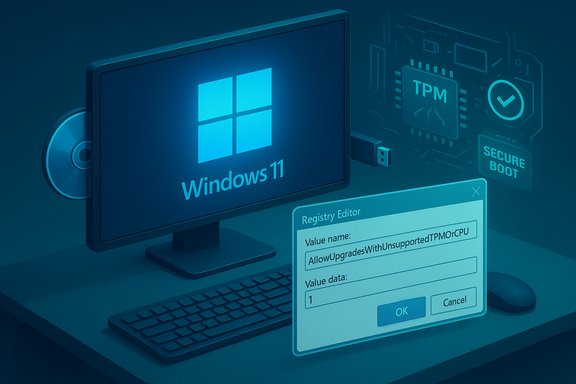
- Open Registry Editor (Regedit.exe) and create the key:
- Path: HKEY_LOCAL_MACHINE\SYSTEM\Setup\MoSetup
- Create a new DWORD (32‑bit) value: AllowUpgradesWithUnsupportedTPMOrCPU
- Set the value data to 1.
- Reboot the PC.
- Download the official Windows 11 ISO from Microsoft (choose the correct language) and mount it in File Explorer.
- Run Setup.exe from the mounted ISO and follow the prompts. When Setup shows the “compatibility” warning, accept it and proceed.
- Watch for the “Change how setup downloads updates” link early in Setup — choose “Not right now” if you see stability issues during the upgrade.
What this actually changes
The registry tweak tells Windows Setup to bypass the CPU model check and to accept TPM 1.2 as sufficient for the installer. It does not invent missing CPU instructions, it does not alter firmware, and it does not enable Secure Boot for you — it simply removes the installer’s hard stop in the common cases where firmware and TPM exist but the CPU is not on Microsoft’s whitelist.Risks and limitations
- Microsoft’s public support guidance explicitly warns that devices installed outside the supported path aren’t guaranteed updates and aren’t supported; this impacts warranty and official support entitlements. The official guidance was updated in December 2024 to reiterate that installing on unsupported hardware is not recommended. Treat this as a hobbyist or short‑term migration tool rather than a permanent corporate strategy.
- If the CPU lacks POPCNT/SSE4.2 required by 24H2+, the OS might fail to boot or certain builds will refuse to install. The registry tweak won’t help there.
- Mistyping the registry key or placing the value in the wrong location will make the upgrade fail; back up the registry and the whole system first.
Deep dive — Option 2: Rufus (create installer media that bypasses checks)
Rufus is an open‑source, widely used utility for writing bootable USB installers. Starting with Rufus v4.6 the developer added a Setup.exe wrapper and explicit options to remove hardware checks during installer creation. This makes Rufus the practical choice when the target PC lacks TPM, uses Legacy BIOS, or cannot easily be converted to UEFI/GPT.When to use it
- Target PC lacks TPM or Secure Boot and you cannot enable or add them.
- Target PC still uses legacy BIOS/MBR and you prefer not to convert the disk to GPT/UEFI.
- You want a clean installer USB that automates the Appraiser/Appraiserres.dll trick and registry bypasses.
The steps (concise)
- Backup all data from the target machine — Rufus will reformat the USB drive and you may perform a clean install.
- Download the latest Windows 11 ISO directly from Microsoft and store it on the PC used to build the USB. Avoid using a stale ISO if you run into revoked bootloader errors.
- Download Rufus (v4.6 or later) from the project page or GitHub releases and run it (portable EXE).
- In Rufus:
- Select your USB drive.
- Choose “Disk or ISO image” and select the Windows 11 ISO.
- Confirm Partition Scheme and Target System (UEFI vs BIOS) for the target PC.
- When the Windows User Experience dialog appears, check the top option to remove hardware requirements (it will say something like “Remove requirement(s)” or “Remove hardware requirements”).
- Click Start and wait for Rufus to finish.
- On the target PC open the USB drive in File Explorer and double‑click Setup.exe — do not boot from the USB if you intend an in‑place upgrade that preserves apps and data; Rufus’s wrapper is designed for use from within Windows for that reason. If a clean install is intended, booting from the USB is accepted.
What Rufus does (technically)
Rufus modifies/augments the Windows installer image so that Setup will not abort for TPM, Secure Boot, or CPU checks and injects a setup wrapper to handle newer installer lockouts introduced in Windows 11 24H2. It automates the appraiserres.dll replacement and registry bypasses that enthusiasts used to perform by hand. It does not add CPU instructions and cannot make a machine boot a 24H2 build if the CPU lacks required instructions.Risks and catch‑points
- If you choose the wrong language ISO (for example English US vs English UK mismatch on certain localizations) Setup may refuse to keep apps and settings; re-download the ISO with the correct language and try again. This subtlety has been reported by multiple users.
- Rufus‑modified media will trigger the same “compatibility” warning in Setup; accept and proceed only if you understand the support implications.
- Rufus cannot bypass SSE4.2/POPCNT boot requirements. If your CPU is from the pre‑2008 era it may simply fail to boot the latest Windows 11 builds. Use a CPU‑feature tester (Coreinfo or similar) to confirm POPCNT/SSE4.2 support before attempting an in‑place upgrade.
Verifying the hard limits: CPU instructions and 24H2
A critical point for readers: modern Windows 11 feature updates (24H2 and later) moved beyond mere whitelists and now depend on certain CPU instructions in core system code paths. Reports and testing by multiple independent outlets show that builds around 24H2 require POPCNT and later SSE4.2; if the CPU lacks those instructions, the OS may simply fail to boot or will be blocked. No registry trick or Rufus wrapper can change silicon; these are true hardware limits. If your CPU predates those instruction sets (rough rule: pre‑2008 Intel Core 2 Duo or very early AMD hardware), it’s time to plan replacement or migration to an OS that supports older processors.What Microsoft says about unsupported installs (and the reality)
Microsoft’s support article explicitly states that installing Windows 11 on unsupported hardware is not recommended, and that such devices aren’t guaranteed updates. That advisory was updated and re‑published in December 2024 to tighten the language — and Microsoft removed an official step‑by‑step bypass it had previously documented, which demonstrates the company’s stance that unsupported installs are the user’s responsibility. In practice, community reports show many unsupported machines continue to receive some updates, but the behavior is variable and can change at any time. Use unsupported installs as a stopgap or hobbyist project, not a production plan.Troubleshooting and practical tips
- Always back up. Full disk image is strongly recommended before attempting any upgrade.
- Check firmware: run Msinfo32.exe and verify BIOS Mode = UEFI if you want an in‑place upgrade without converting disks. If it says Legacy you’ll either need to convert your disk to GPT and enable UEFI or use Rufus for a clean install.
- Confirm TPM: run tpm.msc; if it reports “Compatible TPM cannot be found” you either need to enable a firmware TPM (fTPM) in your motherboard settings or use Rufus to bypass that check (accepting the security trade‑off).
- Test CPU features: use Coreinfo or another CPUID tool to confirm POPCNT and SSE4.2 support before you try to install the latest 24H2+ builds. If missing, consider keeping Windows 10 under ESU for a limited window or migrating to Linux/ChromeOS Flex.
- If Setup fails with “An unsupported operation was attempted” after starting from Rufus media, watch for the “Change how setup downloads updates” option at the start of Setup and pick “Not right now” — many users reported that avoiding online update attempts during Setup reduces failures.
Long‑term considerations and risks (what most articles underplay)
- Update entitlement and security: Microsoft’s warning that unsupported installs may not receive updates is real — you may eventually be running an OS that no longer receives security fixes. For personal, non‑critical devices that are offline or used for simple tasks, this may be acceptable for a time; for business or sensitive uses, it’s a significant risk.
- Driver support: driver vendors will not guarantee new drivers for very old hardware on Windows 11. Some peripherals may stop working or behave unpredictably.
- Warranty and OEM support: installing an OS outside the official supported path can void vendor support for software issues and occasionally hardware warranty claims that they tie to supported configurations.
- The ESU bridge: Microsoft’s consumer ESU program is a time‑boxed lifeline (one year for consumer ESU with possible paid or account‑linked options). For many users ESU is a pragmatic stopgap to plan a measured migration rather than forcing an unsupported install.
Quick decision flow (practical checklist)
- Is the PC critical for work or business? If yes, aim for a supported path (upgrade firmware, enable Secure Boot/fTPM, or replace hardware). Unsupported installs are poor choices for critical endpoints.
- Does msinfo32 report UEFI and tpm.msc show a TPM present? If yes, try the registry tweak method first (in‑place upgrade).
- If TPM is absent or BIOS Mode is Legacy, use Rufus (v4.6+) to create a USB and run Setup.exe from within Windows if you want to preserve files — otherwise boot and clean install.
- Check CPU feature flags for POPCNT/SSE4.2. If missing, plan for replacement or ESU; do not waste time forcing 24H2+ installs that will not boot.
Final verdict — strengths and the real risks
Strengths- These community and tool‑based workarounds allow many perfectly serviceable Windows 10 PCs to move to Windows 11 without purchasing new hardware.
- The registry method is simple for UEFI + TPM‑present systems and preserves apps and settings in place.
- Rufus automates and simplifies the more invasive installer edits and supports Legacy BIOS scenarios.
- Unsupported installs reduce or eliminate official update entitlement and may lose security patches at Microsoft’s discretion.
- Hardware limits (missing CPU instructions) cannot be bypassed; attempting to force modern builds on these chips may result in unbootable systems.
- Driver, warranty, and vendor support are uncertain for machines running Windows 11 outside the official matrix.
Conclusion
Upgrading an “incompatible” Windows 10 PC to Windows 11 is often possible and free — but success requires matching the right method to the machine. Use the registry tweak for UEFI + TPM systems that only fail the CPU whitelist; use Rufus when TPM or firmware is lacking; and accept that no tweak substitutes for missing CPU instruction support introduced in Windows 11 24H2 and later. Above all, back up, test CPU features first, keep recovery options ready, and treat unsupported installs as a measured, temporary choice rather than a permanent solution.Source: ZDNET Upgrade your 'incompatible' Windows 10 PC to Windows 11 for free - here's how
