

Upscayl arrived on my hard drive like a small miracle: a free, open-source desktop app that uses local AI models to enlarge and enhance low-resolution photos, letting you rescue grainy point‑and‑shoot scans and faded film prints without shipping them to a cloud service or signing up for a subscription. What seemed like a niche hobbyist tool has matured into a practical, privacy‑friendly restoration option — and its cloud tier gives a paid escape hatch for users who want faster, server-side processing. The result is an approachable, effective toolkit for anyone who wants to give old family photos a second life without paying big fees or surrendering privacy.
Upscayl is an open-source desktop application for Windows, macOS, and Linux that performs AI-driven image upscaling locally on your machine. It uses Real‑ESRGAN models accelerated with an NCNN/Vulkan backend to infer plausible high‑frequency detail and produce sharper, larger images from low‑resolution inputs. The desktop app is distributed under an AGPL‑3.0 license and is free to download and run indefinitely; the project also offers an optional cloud/credit service with paid tiers for faster, server‑powered processing. This mix of free local processing and optional paid cloud processing is what makes Upscayl compelling for hobbyists and privacy‑minded users: you can get excellent results entirely on your own hardware, and you can only pay when you need the convenience or higher throughput of cloud credits. The core limitations — hardware requirements and the limits of what AI can infer from badly blurred or completely out‑of‑focus images — are straightforward and worth understanding before you commit large batches of photos to an automated workflow.
Upscayl has turned a decades‑old problem—how to bring faded, low‑res family photos into the present—into an approachable, cost‑free solution for most users. It’s not magical, but it’s practical, well‑engineered, and built for the privacy‑minded. Combining smart scanning, modest manual cleanup, and Upscayl’s model choices will let many people salvage memories that would otherwise remain stuck in a shoebox.
Source: MakeUseOf This free open-source tool let me upscale old photos without paying a cent
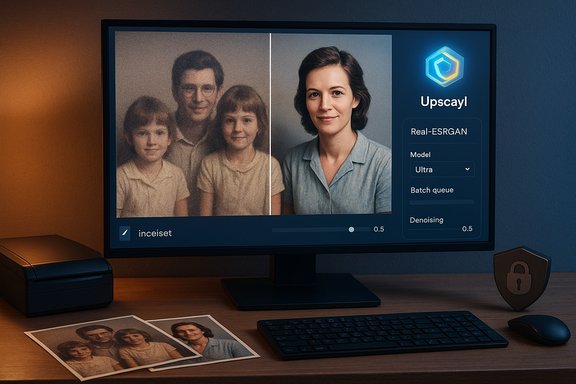 Background / Overview
Upscayl is an open-source desktop application for Windows, macOS, and Linux that performs AI-driven image upscaling locally on your machine. It uses Real‑ESRGAN models accelerated with an NCNN/Vulkan backend to infer plausible high‑frequency detail and produce sharper, larger images from low‑resolution inputs. The desktop app is distributed under an AGPL‑3.0 license and is free to download and run indefinitely; the project also offers an optional cloud/credit service with paid tiers for faster, server‑powered processing. This mix of free local processing and optional paid cloud processing is what makes Upscayl compelling for hobbyists and privacy‑minded users: you can get excellent results entirely on your own hardware, and you can only pay when you need the convenience or higher throughput of cloud credits. The core limitations — hardware requirements and the limits of what AI can infer from badly blurred or completely out‑of‑focus images — are straightforward and worth understanding before you commit large batches of photos to an automated workflow. How Upscayl works: AI models, Vulkan acceleration, and local inference
The engine under the hood
Upscayl’s desktop application is a user interface wrapped around a proven image‑restoration backbone: Real‑ESRGAN models executed through an NCNN implementation that uses Vulkan for GPU acceleration. Real‑ESRGAN is a family of neural upscaling models that predict missing high‑frequency detail rather than simply interpolating pixels, and the NCNN/Vulkan execution path allows that work to run locally on a wide range of GPUs (NVIDIA, AMD, and many Intel GPUs) without relying on CUDA. The official Upscayl GitHub and documentation explicitly list Real‑ESRGAN and Vulkan as core components. Why that matters in practice: Vulkan support means Upscayl can leverage modern GPU drivers on Windows, macOS (when supported), and Linux, and the NCNN runtime provides a portable, cross‑platform way to execute the models. The trade‑off is that not all integrated GPUs or older devices will be fast or even compatible — Upscayl’s own docs warn that a Vulkan‑compatible GPU is recommended, and that some iGPUs may not work reliably.Model selection and modes
Upscayl packages several model variants and lets you choose which to run depending on the job. Some models prioritize noise reduction, others emphasize detail preservation, and community‑contributed models (and the app’s custom‑models repo) broaden the choices for specific image types (portraits, textures, scanned film, etc.. A “TTA” (test‑time augmentation) or double‑pass strategy can be used to push results further: running an image through two stages of upscaling can sometimes sharpen features more aggressively but at the cost of processing time and a higher risk of artifacts. The official documentation and community model listings explain these options and their trade‑offs.Local vs cloud execution
The desktop variant keeps processing on your machine, which is the main privacy draw: images don’t leave your drive. Upscayl additionally offers a cloud service (credit‑based) for users who prefer server speed or don’t have compatible hardware. The cloud subscription tiers and credit packs are clearly presented on Upscayl’s site, with a commonly referenced Pro plan at $24.99 per month for 300 credits (as of this writing), which provides faster processing, storage, and access to higher resolution output. The desktop app itself remains free.First‑hand workflow: what using Upscayl actually looks like
A simple, four‑step desktop flow
- Drag and drop or select the photo(s) you want to upscale. You can also enable Batch Upscayl to queue multiple files.
- Pick an AI model and options (single pass, Double Upscayl, TTA, denoising level).
- Choose an output folder or accept the default (same directory).
- Click the Upscayl/upscayl button and wait for the GPU to process the image.
Typical results and realistic expectations
In hands‑on testing (and in independent writeups by hobbyists and reviewers), Upscayl does an excellent job of reconstructing crisp faces, clothing textures, and background detail for images that are noisy, pixelated, or low in native resolution. Because the underlying model predicts plausible detail rather than “hallucinating” completely new objects, the results often look natural rather than oversharpened. That said, the app does not magically restore images that are entirely out of focus or blurred beyond interpretation — the project FAQ explicitly calls out that deblurring and focus recovery are outside its core capabilities. Upscayl is best used on images where structure and some detail remain.Feature deep‑dive
Batch processing and clipboard convenience
- Batch Upscayl: queue dozens or hundreds of images for unattended processing.
- Clipboard paste: quick tests from screenshots or scanned snippets.
- Model library: built‑in models plus community/custom models you can add.
Double Upscayl and TTA
- Double Upscayl (two‑pass processing) can improve micro‑detail but increases runtime and GPU load.
- TTA (test‑time augmentation) and certain denoising modes can smooth compression artifacts but might soften edges.
Output ceiling: how big can you go?
The desktop app lists practical upscaling multipliers and maximum output sizes; the cloud tiers advertise support for very large outputs (measured in megapixels) depending on plan. Keep in mind that upscaling from tiny sources to ultra‑large prints will still depend on how much structural data exists in the original; extreme enlargements risk visible artifacts or soft regions even when the model infers plausible texture. The cloud Pro plan advertises support up to 256MP for certain tiers.Hardware, performance, and troubleshooting
Minimum hardware considerations
- A Vulkan‑compatible GPU is strongly recommended. Modern discrete GPUs from NVIDIA and AMD are ideal; some Intel iGPUs may work but are generally slower.
- On weak or incompatible hardware, Upscayl may fall back to slower CPU execution or simply fail to run models that require Vulkan acceleration.
- Processing time varies dramatically: a midrange GPU will finish a typical 2×–4× upscale in seconds to a couple of minutes; older machines can take far longer.
Performance tips
- Update GPU drivers to the latest stable Vulkan‑capable release.
- Close other GPU‑heavy applications (video players, games) to free VRAM.
- For batch jobs, run overnight or break the set into smaller batches to avoid thermal throttling.
Common errors and fixes
- SmartScreen on Windows may flag the unsigned installer; use the official releases page or the app’s GitHub releases to confirm the installer and follow the “More info → Run anyway” flow if you trust the source.
- If a model doesn’t support a given action, Upscayl finishes upscaling before applying post‑processing — waiting rather than interrupting is usually the right course. Refer to the project’s troubleshooting docs for GPU selection and platform‑specific workarounds.
Privacy and data handling — why local matters
One of Upscayl’s strongest selling points is that the desktop application runs locally by default: your photos do not leave your machine unless you explicitly use the cloud service. That removes a major privacy concern tied to cloud upscalers where personal family photos, IDs, or other sensitive images are uploaded to third‑party servers. For users restoring intimate family archives or legally sensitive material, on‑device processing is a real advantage. Conversely, the cloud service is useful when performance and throughput are more important than absolute locality.Pricing, cloud tiers, and the “free vs paid” trade‑off
Upscayl’s model is clear: the desktop app is free and open‑source; the cloud offering is a paid, credit‑based service. The Pro cloud plan commonly referenced costs $24.99 per month for 300 credits (with rollovers on certain plans and higher limits on business tiers), and it unlocks larger maximum outputs, priority support, and server‑side speed. If you mainly need occasional, small upscales and have a compatible GPU, the desktop version lets you avoid all costs. If you need bulk processing or don’t have compatible hardware, the cloud subscription is a reasonable, pay‑as‑you‑scale option. Key takeaway: for most home users rescuing family photos, the desktop app is sufficient. For studios, small businesses, or users without appropriate GPUs, the cloud subscription provides convenience at a moderate price.How Upscayl compares with paid alternatives and built‑in OS tools
Paid desktop alternatives
- Topaz Gigapixel AI (commercial, one‑time or subscription options): widely praised for very strong single‑image results and fine control, but it’s a paid product and runs on a cloud + local hybrid depending on version. Paid tools often offer more tuned models and a polished UI, but at a cost. Upscayl’s results are competitive for many common photo restorations and certainly attractive given the price (free desktop app). Independent reviewers find Upscayl performs surprisingly well for a free project.
Built‑in OS features
- Microsoft Photos now includes AI “Super Resolution” features in Windows 11 for Copilot+ devices (NPU‑enabled Copilot+ PCs) that can upscale images locally on supported hardware. This demonstrates that OS vendors are embedding upscaling features, but availability and device requirements vary; Upscayl’s open approach gives you local control on many systems, not just Copilot+ hardware. Use cases and policies differ, and Photos’ Super Resolution is tied to Microsoft’s rollout cadence and device support.
Practical restoration workflow: scanning, upscaling, and finishing touches
A reliable restoration pipeline produces the best results, especially for fragile film prints and old scans. A practical five‑step workflow:- Scan or photograph originals at the highest practical optical resolution (600–1,200 dpi for small prints is a common recommendation).
- Save a lossless master (TIFF) before edits so you can always return to the original capture.
- Run cosmetic pass: dust removal, scratch repair, and contrast/crop corrections in a photo editor (Photoshop, GIMP, or a lightweight tool).
- Upscale with Upscayl (choose a model tuned for portraits or film, and test a single image to get parameters right).
- Final pass: color correction, sharpening, selective cloning to fix residual artifacts, and export for print or web.
Risks, caveats, and when Upscayl is not the right tool
- Not a deblurring miracle: images that are heavily out of focus or motion‑blurred will not be magically corrected — Upscayl’s FAQ warns against expecting focus recovery. Use specialized deblurring tools if that is your specific problem.
- Artefacts and “hallucination”: like all generative enhancement tools, Upscayl can introduce plausible but inaccurate detail. For archival or forensic work where fidelity matters, document edits and preserve the original unmodified master.
- Hardware constraints: if your system lacks a Vulkan‑compatible GPU, processing can be slow or impossible; verify compatibility before planning a large batch.
- Cloud privacy trade‑offs: using the paid cloud service will, by definition, transfer image data to remote servers — useful for speed, but a privacy consideration for sensitive content.
Real‑world use cases and reader recommendations
- Family photo rescue: Upscayl is ideal for digitizing and enhancing old point‑and‑shoot photos and film scans where structure remains.
- Game texture remastering: modders and indie devs use Upscayl’s models to enhance legacy textures.
- Content creation: social media creators and bloggers can quickly scale legacy assets for modern resolutions.
- Not recommended for: forensic image recovery, heavily blurred photos, or cases requiring strict historical accuracy without added inference.
Verdict: strengths, weaknesses, and the final word
Upscayl is one of those rare tools that delivers real value for zero cost to the desktop user. Its biggest strengths are:- Local processing and privacy-first design for the desktop app, so sensitive photos never leave your machine.
- Open‑source development with an active GitHub repo, community models, and transparent model/back‑end choices (Real‑ESRGAN + NCNN + Vulkan).
- Practical features like batch processing, model selection, and double‑pass options that scale from hobbyists to power users.
- Hardware dependency: performance and compatibility hinge on Vulkan‑capable GPUs.
- Not a cure‑all: Upscayl won’t fix badly‑blurred or out‑of‑focus photos; it infers detail from existing structure.
- Cloud trade‑offs: the optional paid cloud is useful for speed and large outputs but introduces privacy trade‑offs and monthly costs.
Quick start checklist (for readers ready to try Upscayl)
- Confirm your OS: Windows 10+, macOS 12+, or a modern Linux distro.
- Check GPU: ensure Vulkan support through your GPU vendor drivers.
- Download the latest Upscayl desktop release from the official releases page and install.
- Scan photos at a high optical DPI and keep a lossless master (TIFF).
- Start with 2×–4× upscaling and test different community models to find the best balance between detail and artifacts.
- If your machine is slow or you need bulk throughput, evaluate the cloud Pro tier (300 credits per month is a common midrange plan).
Upscayl has turned a decades‑old problem—how to bring faded, low‑res family photos into the present—into an approachable, cost‑free solution for most users. It’s not magical, but it’s practical, well‑engineered, and built for the privacy‑minded. Combining smart scanning, modest manual cleanup, and Upscayl’s model choices will let many people salvage memories that would otherwise remain stuck in a shoebox.
Source: MakeUseOf This free open-source tool let me upscale old photos without paying a cent
