

Redmond Magazine’s walkthrough is a practical, no‑nonsense primer for administrators who want to manage Linux virtual machines the same way they manage Windows guests: by connecting with an RDP client rather than switching tools between SSH, VNC, or the hypervisor console. The article’s core recommendation—install and enable xrdp on an Ubuntu VM, open port 3389, and choose an Xorg session from the login screen—works as a quick on‑ramp to RDP access for many environments, but it leaves important operational and security tradeoffs to be explored before you roll this out in production. rview
Linux historically favors remote management via command line (SSH), protocols such as VNC for GUIs, or hypervisor consoles for VM consoles. For administrators who prefer a single GUI client—Windows’ Remote Desktop (RDP)—xrdp provides an open‑source RDP server that bridges Microsoft RDP clients to a Linux desktop session. xrdp is actively maintained and packaged by mainstream Linux distributions; it advertises TLS encryption by default and supports features like clipboard and drive redirection when the environment is properly configured.
The practical appeal is obvious: use the same Remote Desktop client you already use for Windows VMs to open a Linux desktop session and manage the guest without extra tools. But the devil is in the details—desktop availability on server images, display server compatibility (Wayland vs Xorg), session handling, audio/clipboard integration, and network security all affect whether xrdp is a safe, reliable, and performant choice.
xrdp is an open‑source RDP server that accepts standard RDP client connections (Windows mstsc, Microsoft Store Remote Desktop app, FreeRDP, etc.) and hands those connections off to a graphical desktop session on the Linux host. It supports features you expect from RDP: session resizing, reconnecting to existing sessions, clipboard transfer, and optional audio/drive redirection when the matching modules (for example pulseaudio modules) are installed. For full compatibility and the best performance, the xorgxrdp module (X.Org backend) is recommended; if not available, xrdp can proxy to an Xvnc backend.
Key strengths:
Best practices:
Harden xrdp by:
However, risks include:
xrdp converts a Linux desktop into a familiar RDP target, but it’s not a zero‑touch replacement for the careful configuration and security posture any remote‑access service requires. If you follow the verified steps above and harden the network access, you can safely manage Linux VMs with the same RDP client you use for Windows—streamlining administration without sacrificing control.
Source: Redmondmag.com How to Remotely Manage Linux VMs With RDP -- Redmondmag.com
Linux historically favors remote management via command line (SSH), protocols such as VNC for GUIs, or hypervisor consoles for VM consoles. For administrators who prefer a single GUI client—Windows’ Remote Desktop (RDP)—xrdp provides an open‑source RDP server that bridges Microsoft RDP clients to a Linux desktop session. xrdp is actively maintained and packaged by mainstream Linux distributions; it advertises TLS encryption by default and supports features like clipboard and drive redirection when the environment is properly configured.
The practical appeal is obvious: use the same Remote Desktop client you already use for Windows VMs to open a Linux desktop session and manage the guest without extra tools. But the devil is in the details—desktop availability on server images, display server compatibility (Wayland vs Xorg), session handling, audio/clipboard integration, and network security all affect whether xrdp is a safe, reliable, and performant choice.
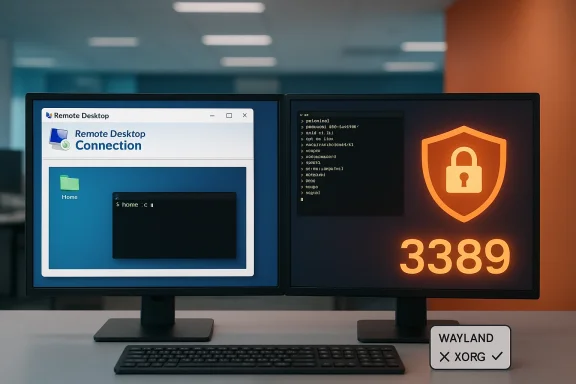 What xrdp is, and why it matters
xrdp is an open‑source RDP server that accepts standard RDP client connections (Windows mstsc, Microsoft Store Remote Desktop app, FreeRDP, etc.) and hands those connections off to a graphical desktop session on the Linux host. It supports features you expect from RDP: session resizing, reconnecting to existing sessions, clipboard transfer, and optional audio/drive redirection when the matching modules (for example pulseaudio modules) are installed. For full compatibility and the best performance, the xorgxrdp module (X.Org backend) is recommended; if not available, xrdp can proxy to an Xvnc backend.Key strengths:
- A single, familiar client for mixed Windows/Linux environments.
- Integration with common desktop environments (GNOME, XFCE, LXDE) when configured.
- Active upstream with releases and modules for audio and other device redirection.
Step‑by‑step: Installing and enabling xrdp on Ubuntu (verified)
Below is a verified minimal procedure for Ubuntu desktop/server guests. This mirrors the commands covered in the Redmond Magazine piece but adds context and checks you should perform.- Update package lists and install xrdp:
- sudo apt update
- sudo apt install -y xrdp
These commands install the xrdp package from Ubuntu’s repositories. The xrdp project itself recommends installing both xrdp and xorgxrdp when possible (xorgxrdp is often packaged alongside xrdp), because the Xorg backend gives the best desktop experience. - Enable and start the service:
- sudo systemctl enable xrdp
- sudo systemctl start xrdp
- If you’re running Ubuntu Server (no GUI), install a light desktop (XFCE is a common, low‑overhead choice):
- sudo apt install -y xfce4 xfce4-terminal
Then configure xrdp to use XFCE by creating or updating ~/.xsession with: - echo "xfce4-session" > ~/.xsession
- Allow the RDP port through the guest firewall (if using ufw):
- sudo ufw allow 3389/tcp
This opens the default RDP TCP port (3389) on the VM. Use caution: exposing 3389 broadly is risky—see the security section below. (onelinerhub.com) - Verify the VM’s network address to reach it:
- ip a
Use the listed IPv4 address from the appropriate interface when you connect from your client. The Redmond piece shows the same step as a convenience check. - Test a connection from a Windows RDP client (mstsc) or another RDP client (FreeRDP/Remmina). When you reach the login screen, choose an Xorg/X11 session (not Wayland) and authenticate with your Linux credentials. If a desktop session is already active on the console and you have not set up session reconnection, the client may fail to attach properly—see the troubleshooting section.
Wayland vs Xorg: the critical compatibility issue
Modern Ubuntu desktop releases default to Wayland for GNOME sessions. xrdp’s most robust and feature‑complete backend expects Xorg. That means you may need to either:- Select “Ubuntu on Xorg” at the login screen’s gear icon (per‑session), or
- Permanently disable Wayland in GDM by editing /etc/gdm3/custom.conf and un‑commenting or adding the line WaylandEnable=false, then restarting gdm3 or rebooting.
Session behavior and the “must be logged out” claim
The Redmond piece notes that, for some setups, your user must be logged out of the console for an xrdp session to attach properly. This behavior depends on how xrdp is configured (xorgxrdp vs Xvnc), and whether the server is set to create new sessions or reconnect to an existing one.- xrdp with Xorg/xorgxrdp can create a new desktop session for the connecting user (often preferred), or it can reconnect to an existing session if permitted.
- On some Ubuntu configurations with display manager + GNOME, remote sessions can conflict with an active console session (especially when Wayland is active or when seat management blocks multiple sessions). That’s why the pragmatic rule of “log out before connecting” often solves early friction during testing. For production, prefer configuring xrdp to allow reconnects or use a lightweight desktop configured per‑user session.
Networking and firewall: open port 3389—but not to the public Internet
Yes, xrdp listens on TCP port 3389 by default and you typically open that port on the VM’s firewall to allow inbound RDP connections. Community how‑tos and the xrdp README confirm this. However, exposing 3389 to the open Internet is a common and high‑risk misconfiguration.Best practices:
- Keep 3389 closed to the Internet. Allow it only on trusted networks (e.g., a private VLAN) or via a secure tunnel.
- Use a VPN (WireGuard/OpenVPN/IPsec) or an SSH tunnel to reach the RDP port from off‑network.
- If remote access must be allowed, restrict inbound rules to specific IP ranges and enforce strong multi‑factor authentication at the perimeter.
- Consider alternative approaches such as Remote Desktop Gateway or Zero Trust access products for cross‑site access.
- sudo ufw allow from 10.0.0.0/24 to any port 3389 proto tcp
Security hardening: TLS, authentication, and brute‑force protection
xrdp supports TLS for encrypting the session by default, and many packaged builds use TLS to protect RDP transport. That’s good, but network encryption alone does not make exposing RDP safe.Harden xrdp by:
- Ensuring xrdp’s TLS is active and using a valid certificate if you plan to expose the service beyond trusted networks. The xrdp project documents TLS usage and options.
- Using local firewall rules and host‑based controls (fail2ban to block repeated auth failures).
- Disabling RDP for root login and enforcing strong passwords or SSH key‑based login where possible.
- Consider PAM integration for account lockouts and centralized authentication (LDAP/Active Directory) rather than local accounts when scaling across multiple VMs.
Practical alternatives and when to choose them
xrdp is convenient, but not always the right tool. Consider alternatives by use case:- SSH + terminal: best for server management, scripting, and configuration. More secure and lower‑bandwidth than GUI. No need for xrdp if you’re only VNC / x11vnc: useful when you need to attach to the existing console session and share the exact desktop state shown on the VM console.
- Hypervisor console (Hyper‑V, VMware, libvirt): required for out‑of‑band troubleshooting (e.g., if the guest fails to boot its desktop).
- RemoteApp / FreeRDP integration: for per‑application seamless experiences, FreeRDP can be used with RemoteApp workflows or projects like WinApps that integrate Windows apps into Linux desktops. These are larger integration projects and are outside the simple xrdp setup.
Troubleshooting checklist (ranked steps)
- Confirm xrdp service status:
- sudo systemctl status xrdp
- If failed, check /var/log/xrdp-sesman.log and /var/log/xrdp.log for errors.
- Verify Xorg backend is available:
- Ensure xorgxrdp is installed (packaged or built). If not, xrdp may fall back to Xvnc with a different experience.
- Wayland vs Xorg:
- If using GNOME on modern Ubuntu and you see a black/green screen or immediate disconnect, switch to Xorg at the login screen or disable Wayland in /etc/gdm3/custom.conf and restart gdm3.
- Session conflicts:
- If your client connects then immediately disconnects, ensure the console user is logged out or configure xrdp to reconnect. Try creating a fresh user and connecting to isolate session‑state issues.
- Firewall/port check:
- From the client, test that TCP 3389 is reachable (use nc, Test‑NetConnection, or telnet depending on client OS). If the port is blocked, inspect host and network firewalls.
- Audio/drive redirection:
- Install pulseaudio‑module‑xrdp and ensure the module autostart script is present; without it you’ll get no audio redirection.
- Check for known upstream bugs:
- The xrdp GitHub issue tracker is active and useful for version‑specific bugs (green screen, black screen, reconnect problems). Searching the tracker by your xrdp version often yields immediate guidance.
Advanced features: audio, drive redirection, and session reconnection
xrdp’s ecosystem includes modules for audio redirection (pulseaudio hooks) and the ability to reconnect to existing sessions. For audio you’ll typically install pulseaudio‑module‑xrdp or ensure your distribution’s package provides it. For per‑user persistent sessions and better UX, invest time in configuring xrdp’s sesman and using the xorgxrdp backend rather than Xvnc. These enhancements make RDP feel more like native Windows RDP but require additional packaging (and sometimes building from source) on some distributions.Operational checklist before rolling out to production
- Inventory which VM images will host GUIs; convert server images only when necessary.
- Standardize desktop choice: choose XFCE/Lightweight or ensure GNOME uses Xorg.
- Harden network access: prefer VPN, restrict IP ranges, and enable host‑level protections (fail2ban).
- Document the exact install and config steps, including Wayland changes and sesman rules.
- Test with representative clients (mstsc, Microsoft Store Remote Desktop, FreeRDP) and measure latency, multi‑monitor behavior, and clipboard/file redirection.
- Keep xrdp and xorgxrdp packages updated and monitor upstream issues.
Final analysis: strengths, risks, and recommendation
xrdp fills a real administrative niche: it simplifies mixed‑OS environments by giving Windows‑centric operators a consistent remote desktop experience across VMs. For labs, developer workstations, and internal administration on trusted networks, xrdp is fast to deploy and effective.However, risks include:
- Display server incompatibilities (Wayland), which require explicit switching to Xorg.
- The temptation to expose port 3389 to the Internet; that is a high‑risk configuration that must be mitigated with VPNs, tunneling, or gateway controls.
- Feature gaps unless supporting modules (xorgxrdp, pulseaudio modules) are installed and configured.
xrdp converts a Linux desktop into a familiar RDP target, but it’s not a zero‑touch replacement for the careful configuration and security posture any remote‑access service requires. If you follow the verified steps above and harden the network access, you can safely manage Linux VMs with the same RDP client you use for Windows—streamlining administration without sacrificing control.
Source: Redmondmag.com How to Remotely Manage Linux VMs With RDP -- Redmondmag.com