
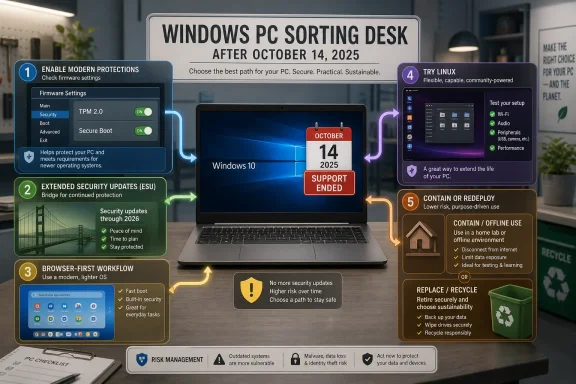
The post-Windows 10 era is not a cliff so much as a sorting exercise. Some PCs can be nudged into Windows 11 with a firmware setting. Some deserve a paid or free one-year security reprieve. Some are better off becoming Chromebooks in spirit, Linux desktops in practice, or offline appliances with sharply limited duties. The mistake is treating all old PCs alike.
 Microsoft’s Deadline Turned Hardware Compatibility Into a Household Problem
For years, Windows 10 felt like the safe harbor of the PC world: familiar, broadly compatible, and forgiving of old hardware. That era is over for mainstream users. Microsoft has now moved Windows 10 from “still supported” to “still runs,” and that difference is where the practical risk begins.
A Windows 10 machine does not suddenly stop booting because the support date has passed. Files remain where they were, apps still launch, printers may continue to misbehave in the same old ways, and the Start menu does not display a dramatic obituary. The danger is quieter: newly discovered vulnerabilities continue to arrive, but the regular patch pipeline no longer does.
That is a familiar lifecycle story for IT departments, but it lands differently in homes, small offices, and community organizations. A business may have asset inventories, endpoint management, and budget cycles. A retiree with a perfectly functional Core i5 laptop from 2016 has a machine that feels fine and a support matrix that says otherwise.
This is where Microsoft’s Windows 11 requirements become more than a spec sheet. TPM 2.0, Secure Boot, UEFI firmware, supported 64-bit processors, 4GB of RAM, and 64GB of storage are not merely installation trivia. They are the line Microsoft drew between PCs it wants to carry forward and PCs it would rather users retire, replace, or run under some other arrangement.
The First Upgrade Failure May Not Be the Final Answer
The first rule of post-Windows 10 triage is simple: do not assume the Windows 11 checker is telling the whole story. A failed compatibility result may mean the PC is truly unsupported. It may also mean the machine has the right hardware but the wrong firmware settings.
That distinction is especially important for systems from the late Windows 10 era. Many shipped with firmware TPM support, Secure Boot capability, and UEFI firmware, but not every feature was enabled or configured in the way Windows 11 expects. In some cases, a trip into firmware settings can turn an apparent dead end into a supported upgrade path.
The most common culprits are TPM and Secure Boot. On many Intel and AMD systems, TPM functionality is implemented in firmware rather than as a separate visible chip. A user searching for a “TPM chip” may conclude the PC lacks one, while the firmware menu contains the setting under a vendor-specific label such as Intel PTT or AMD fTPM.
Secure Boot can be equally confusing. A PC may be Secure Boot-capable but running in a legacy boot configuration, or it may have the option disabled because of past dual-boot setups, cloning tools, or old installation habits. Changing those settings is not something to do casually on a production machine, but it is worth checking before writing off otherwise capable hardware.
The processor requirement is harder to work around in any supportable sense. If the CPU is outside Microsoft’s approved Windows 11 list, flipping switches will not make it officially supported. Enthusiasts may know of bypasses, registry edits, and installation tricks, but those belong in a different category: technically possible, administratively awkward, and not the answer most users should build a security plan around.
ESU Is a Grace Period, Not a Strategy
Microsoft’s consumer Extended Security Updates program is the most conservative answer for users who want to keep Windows 10 a little longer. It extends critical and important security updates for eligible Windows 10 PCs through October 13, 2026. For some households and small offices, that year is valuable.
But ESU should be understood for what it is: a runway. It is not a second life for Windows 10, not a feature-support program, and not a promise that aging hardware will remain safe indefinitely. It buys time to migrate files, replace applications, budget for hardware, or test alternatives without leaving an internet-connected Windows 10 PC fully exposed.
The consumer offer also reflects Microsoft’s broader account strategy. Users can enroll by paying $30, redeeming Microsoft Rewards points, or using Microsoft’s cloud-sync route for settings backup. That makes the program more accessible than traditional enterprise ESU arrangements, but it also reinforces a familiar Microsoft pattern: support, identity, and cloud services are increasingly bundled together.
For IT pros, ESU has a different flavor. It is useful for exceptions, not estates. A handful of machines tied to legacy peripherals or specialist software may justify a short extension. A fleet-wide decision to sit on Windows 10 because “ESU exists” merely postpones the migration while preserving the operational risk.
The real value of ESU is psychological as much as technical. It interrupts panic. It gives users permission to make a plan rather than spend a weekend impulse-buying a cheap laptop, attempting an unsupported upgrade, or wiping a machine they still need.
ChromeOS Flex Is the Cleanest Escape for Browser-First PCs
Google’s ChromeOS Flex pitch lands neatly in the vacuum Microsoft created. If a Windows 10 laptop is mostly used for browsing, email, streaming, documents, and video calls, then turning it into a browser-first machine is not a downgrade for many users. It may even feel faster and simpler than nursing an old Windows installation.
The reported sellout of Google’s low-cost ChromeOS Flex USB kit is revealing. The kit itself is not required; users can create their own installer. What matters is the demand signal. People are not just looking for abstract operating-system alternatives. They want a low-friction way to make old hardware useful without becoming Linux hobbyists overnight.
ChromeOS Flex is strongest where the old PC has already become a thin client in practice. If the user lives in Gmail, Google Docs, Microsoft 365 on the web, banking sites, streaming services, and browser-based school portals, the operating system underneath matters less than it once did. A lighter, more locked-down environment can be a better match for a machine whose Windows future is finished.
The catch is hardware certainty. Google certifies specific models for expected functionality, and uncertified machines can work but may have issues with Wi-Fi, touchpads, webcams, sleep behavior, or firmware oddities. That distinction matters because an old laptop that cannot reliably sleep or reconnect to Wi-Fi is not “saved”; it is merely annoying in a new operating system.
ChromeOS Flex also does not turn every PC into a full Chromebook. Android app support is not the point here, and local Windows applications are out of the picture. For users who still depend on desktop Office macros, old tax software, proprietary device tools, or Windows-only utilities, ChromeOS Flex is a lifestyle change, not just an installation option.
Linux Is the Power Move, but It Demands Honesty
Linux remains the most flexible route for users who want a full desktop operating system on older hardware. Distributions such as Linux Mint and Zorin OS have become popular recommendations because they present familiar desktop metaphors and avoid making newcomers start from first principles. For a capable but unsupported Windows 10 PC, Linux can feel like liberation.
It is also where the advice often becomes too romantic. Linux is excellent at giving old machines new life, but it is not magic compatibility dust. Before wiping Windows, users need to test Wi-Fi, Bluetooth, display scaling, audio, suspend and resume, printers, scanners, and any specialized peripherals they actually use.
The application question matters even more. A browser, LibreOffice, Thunderbird, VLC, Steam in some cases, and a large universe of open-source tools may cover a surprising amount of daily work. But “surprising amount” is not the same as “everything.” If a user depends on a particular Windows app, an old accounting package, Adobe workflows, Microsoft Access databases, or vendor utilities for hardware, the migration needs testing rather than optimism.
For security-minded users, Linux has a compelling advantage: it returns the machine to a supported update stream without requiring new hardware. That can be a responsible choice for a technically comfortable household or a small organization with the right skills. But it also shifts support responsibility. When something breaks, there is no Microsoft Store appointment, no OEM recovery partition that solves everything, and no single vendor accountable for the entire stack.
The best Linux migrations start with a live USB session and a checklist. Does the machine boot cleanly? Does the network work? Does video playback stutter? Does the printer matter? Can the user open and edit the documents they rely on? If the answer is yes, Linux may be the most durable way to keep the hardware alive.
Repurposing Works Only When the Threat Model Shrinks
There is a perfectly respectable future for some Windows 10 PCs that does not involve being a main computer. An old desktop can become a home lab box, a local media player, a retro gaming machine, a writing station, a backup target, or a test bench. The key is to reduce the machine’s exposure and the value of what it can lose.
That means an unsupported Windows 10 PC should not be the system used for banking, password management, sensitive personal documents, tax filing, medical portals, or work accounts. The more valuable the activity, the less defensible it becomes to perform it on an unsupported, internet-connected operating system. Convenience is not a security control.
Offline use is different. A laptop used for drafting documents, controlling a non-networked device, or playing local media has a much smaller attack surface. Even then, users should think carefully about USB transfers, old browsers, and whether “offline” really means offline or merely “not used online very often.”
Repurposing is especially attractive for enthusiasts. Home labs need machines that can run experiments, host lightweight services, or absorb mistakes. An old Windows 10 box can teach virtualization, networking, backups, Linux installation, or scripting without risking a primary system.
But repurposing should not become an excuse for indefinite neglect. If the hardware is unreliable, the storage is failing, the battery is swollen, or the machine consumes too much power for the work it performs, retirement is not wasteful. It is maintenance by another name.
Replacement Is the Least Interesting Option and Sometimes the Correct One
Nobody wants to be told to buy a new PC, especially when the old one still works. The environmental and financial objections are real. A support deadline that pushes functional hardware toward disposal deserves scrutiny, particularly when the underlying machine may be fast enough for ordinary tasks.
Still, replacement is sometimes the cleanest answer. If a PC is slow, lacks an SSD, has limited memory, suffers from poor battery life, or cannot run current software comfortably, spending time and money to extend its life may be false economy. A supported machine is not just a faster machine; it is a simpler security and maintenance proposition.
For families and small businesses, the hidden cost is attention. Every workaround has a management burden. ESU must be enrolled. ChromeOS Flex must be tested. Linux must be learned. Offline repurposing must be disciplined. A replacement PC may be expensive, but it reduces ambiguity.
The better way to frame replacement is not “old equals bad.” It is “primary computing deserves support.” A machine used for money, identity, work, school, and personal records should receive regular security updates from a vendor that still cares about it. That is a baseline, not a luxury.
Recycling and trade-in programs are imperfect, but they matter. If a PC cannot be responsibly reused, it should not end up in a closet until the battery degrades or in a trash stream where components become someone else’s problem. The end of Windows 10 support should force planning, not hoarding.
The Real Choice Is Between Trust, Time, and Tolerance for Friction
The five-option framing is useful, but it can make the decision sound cleaner than it is. In practice, users are choosing between trust, time, and friction. How much do they trust the old machine? How much time do they need before replacing it? How much friction are they willing to tolerate to keep it useful?
ESU is the low-friction, short-time answer. ChromeOS Flex is the low-maintenance answer for browser-first users. Linux is the high-control answer for people willing to test and adapt. Repurposing is the containment answer. Replacement is the reset.
The wrong answer is pretending nothing changed on October 14, 2025. That is tempting because Windows 10 still looks like Windows 10. But security risk rarely announces itself with a new wallpaper. It accumulates in unpatched components, outdated drivers, abandoned browsers, and users who keep logging into sensitive services because the machine still feels normal.
Microsoft’s critics are right to note that Windows 11’s requirements stranded a large amount of usable hardware. Microsoft is also right that modern security depends on hardware-backed protections that older PCs may not provide. Both things can be true. The practical question is not whether the transition is fair in the abstract, but what a user should do with the machine on the desk.
The Post-Windows 10 PC Needs a Job Description
The most useful way to decide is to assign the machine a future role before choosing the software. A primary computer has one set of requirements. A guest laptop, media box, lab machine, or offline writing station has another. Once the job is clear, the operating-system choice becomes less emotional.
- A Windows 10 PC that only fails because TPM or Secure Boot is disabled deserves a firmware check before it is written off.
- A working Windows 10 PC that still handles important daily tasks can use ESU as a one-year bridge, not as a permanent home.
- A browser-first laptop is often a better ChromeOS Flex candidate than a Windows machine kept alive through habit.
- A user who needs a full desktop and can test compatibility carefully may get the longest useful life from Linux.
- A machine used for banking, work credentials, password storage, or sensitive files should move to a supported platform rather than rely on hope.
- A PC that is too slow, unreliable, or power-hungry for its new role should be recycled or replaced instead of preserved out of guilt.
The end of Windows 10 support does not make every incompatible PC e-waste, but it does end the illusion that doing nothing is a neutral choice. The best outcomes will come from treating old PCs less like sentimental objects and more like tools with defined risk, limited duties, and a migration clock. Microsoft has closed the mainstream Windows 10 chapter; what happens next depends on whether users turn that deadline into a plan or let unsupported machines quietly become the weakest devices they own.
