

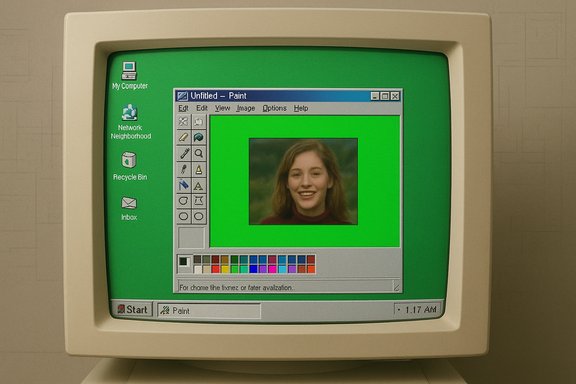
Old Windows screenshots that somehow “played” video when pasted into Paint were not ghosts, Photoshop magic, or a hallucination — they were a side effect of how early Windows and video hardware cooperated to show moving pictures efficiently, using an overlay technique that acted like a literal green screen.
For much of the 1990s and early 2000s, PC video playback relied on a clever performance shortcut: instead of having the media player draw decoded video pixels into the same framebuffer used by ordinary windows, the player wrote frames into a special buffer the graphics card could read directly, and the GPU was instructed to “replace” a particular color region on the screen with the contents of that buffer. This is essentially the same idea as chroma‑key (green‑screen) compositing used in video production — draw a distinctive mask color in the desktop plane and let the display hardware substitute the moving picture from an overlay surface. That approach delivered two concrete advantages at the time:
The technical pivot away from unsynchronized overlay usage toward compositor‑managed planes is a clear improvement: it keeps the performance wins of hardware planes while restoring predictable, auditable behavior for screenshots and recording. Still, the episode is worth remembering, because it captures a recurring theme in systems design: innovations that solve an immediate practical problem can introduce new assumptions, and those assumptions eventually need explicit contracts and visibility to scale cleanly.
The green pixels didn’t come from witchcraft — they were the pragmatic residue of a performance optimization, and the story neatly ties the everyday (how you take a screenshot) back to the fundamental trade‑offs of operating‑system and hardware co‑design.
Source: theregister.com Why old Windows screenshots sometimes played video in Paint
 Background / Overview
For much of the 1990s and early 2000s, PC video playback relied on a clever performance shortcut: instead of having the media player draw decoded video pixels into the same framebuffer used by ordinary windows, the player wrote frames into a special buffer the graphics card could read directly, and the GPU was instructed to “replace” a particular color region on the screen with the contents of that buffer. This is essentially the same idea as chroma‑key (green‑screen) compositing used in video production — draw a distinctive mask color in the desktop plane and let the display hardware substitute the moving picture from an overlay surface. That approach delivered two concrete advantages at the time:- No format conversion on the CPU: The overlay buffer could be in a YUV format or another pixel layout that matched video decoders, avoiding costly conversions into the desktop’s RGB framebuffer.
- Low CPU overhead and smooth playback: Because the graphics hardware composited the overlay at scanout time, the player could update the video buffer asynchronously and avoid causing full window repaints for each frame.
What actually happened when a screenshot “played” in Paint
The overlay workflow, step by step
- The media player decoded a video frame into a dedicated hardware surface (the overlay).
- The application drew a rectangle onto the desktop window and filled it with a special mask color — historically an arbitrary unused color like bright green — to mark where the overlay should appear.
- The GPU, told to watch that region, substituted the overlay buffer contents during display (scanout), so the viewer saw the video instead of the green mask.
- When a user invoked a standard screenshot (Print Screen, Win+PrtScn, Win+Shift+S, etc., the OS captured the desktop image — the masked rectangle full of green — and stored that bitmap.
- Pasting into Paint sent those green pixels back to the GPU when Paint’s window overlapped the media player region.
- If the media player was still active and the overlay channel remained bound, the GPU’s compositor again replaced green pixels with pixels from the overlay buffer — producing a live, playing video inside Paint’s window. The GPU doesn’t check “where the pixels came from”; it only sees the mask and performs the overlay substitution.
Why the picture sometimes became “just green” again
If you moved the Paint window so it no longer overlapped the media player, or if the player released the overlay surface, nothing would instruct the GPU to substitute anything for the mask color — so the true nature of the bitmap was revealed: a block of green pixels. That’s why screenshots could flip between showing the live video and showing an obvious green placeholder depending on which windows overlapped and which overlay planes were active.Technical context: overlays, chroma‑keying and the desktop compositor
The overlay trick is a manifestation of a larger class of hardware features commonly called hardware overlays or, in modern Windows terminology, multiplane overlays (MPO). These are hardware planes that the display controller can compose at scanout time without CPU‑driven blending. They have long been used to accelerate video, video capture cards, and similar streams. Early systems implemented very simple keying schemes (color‑based masks) because they were cheap and did the job. The effect is analogous to chroma key compositing in broadcast and film work: choose a color that doesn’t appear in the foreground content and treat that color as transparent. Hardware overlay implementations sometimes supported more advanced clipping and even per‑pixel alpha in later generations, but the simple color‑key approach explains the green‑pixel artifacts users encountered. Windows itself has changed how it composes the desktop. The introduction of the Desktop Window Manager (DWM) moved Windows from a single primary framebuffer model to a compositing architecture where each window draws into a buffer and the compositor (DWM) blends textures into a final desktop image. That model makes screenshots behave predictably — everything is composited into a single desktop image before display — and removes the class of surprises caused by separate hardware overlay planes in earlier environments.Verification and cross‑references
The explanation above is grounded in multiple independent technical sources:- Contemporary reporting summarizing Microsoft engineer Raymond Chen’s account, which directly ties the green‑pixel behavior to overlay surfaces and the mask‑color technique.
- Standard descriptions of hardware overlay behavior and the screenshot caveat (that overlays may not be captured by conventional framebuffer screenshots), which explain the mismatch between what the GPU displays versus what the OS captures.
- Platform vendor documentation describing modern multiplane overlay (MPO) support and the move toward compositor‑centric display pipelines, which explains why the problem largely disappeared as Windows adopted compositing.
Why Microsoft and video developers used overlays (trade‑offs)
Understanding why overlays existed in the first place helps explain the trade‑offs. The design choices were pragmatic:- Performance: Offloading composition to display hardware and avoiding framebuffer copies reduced memory bandwidth and CPU use on machines that were comparatively weak by today’s standards.
- Format fidelity: Video decoders often produced YUV frames. Keeping frames in a hardware surface with the right pixel format avoided lossy or costly conversions before display.
- Latency and tearing control: By flipping overlay buffers the GPU could present each frame atomically (double buffering the overlay), which reduced tearing without forcing the entire desktop to repaint.
Risks, quirks and long‑tail effects
The overlay technique introduced a handful of predictable problems. Some are minor and merely confusing; others have operational or security implications.- Misleading screenshots: Captures that omitted overlay contents could misrepresent what a user actually saw, complicating bug reports, help‑desk diagnostics, and documentation. This impacted both casual users and support teams.
- Clipboard oddities: A screenshot pasted into an editor could, under the right conditions, appear to play video — a confusing feedback loop that broke assumptions about static clipboard images.
- Privacy and compliance surface: If overlay contents contain sensitive information but screenshot tooling does not capture overlays, reliance on screenshots for audits or evidence can be unreliable. Conversely, when overlays are composed into the desktop by newer systems, previously hidden information becomes capturable, shifting compliance calculus. Administrators and auditors need awareness of what capture tools actually record.
- Driver and compatibility complexity: Overlay planes are hardware capabilities exposed through drivers. Differences in driver behavior, pixel formats, or plane counts produced inconsistent behavior across GPUs and OS versions. That variability makes long‑term reliability a concern for software that depended on exact behaviors.
- Visual artifacts and wardrobe hazards: The classic green‑screen problem in broadcast — picking a mask color that exists elsewhere in the scene — shows up here too: if an application or the user’s content used the same mask color, parts of the image might be keyed out, producing visual glitches. Chen’s anecdotal note about presenters appearing partially transparent is just the desktop equivalent of that wardrobe fail.
How modern Windows solved (or mitigated) the problem
The architectural lesson Windows took was to centralize composition so that the system controls a single authoritative desktop image. Key components of that shift:- Desktop Window Manager (DWM): The compositor model makes each window render into an off‑screen buffer; the compositor then assembles those buffers into the final frame the GPU scans out. Screenshots can therefore capture the composited desktop, eliminating the mismatch between the OS and the display pipeline in most cases.
- Multiplane overlays with composition awareness: Modern display stacks still use hardware planes for efficiency — MPOs are now explicitly managed by the OS compositor and driver stack so the system knows about plane usage and can include them in capture and composition policies. This preserves performance without sacrificing correctness.
Practical implications for users, IT admins and developers
- For end users: modern Windows captures (Win+PrtScn, Snipping Tool, Game Bar, etc. are reliable for screenshots on contemporary systems, but odd edge cases still exist on older hardware or with custom display drivers. When sharing captures from legacy machines, be mindful that the image you see may not match a screenshot taken by a colleague on a different PC.
- For IT and compliance teams:
- Validate screenshot and screen‑recording tools across your enterprise hardware matrix — do not assume identical behavior on GPUs from different vendors or on older inventory.
- Treat third‑party capture tools cautiously; some capture from the primary framebuffer and may miss overlays on older systems.
- Add checks in your capture‑dependent processes (e.g., incident reporting) so they either require a recording or an exported frame from the media player itself rather than a desktop screenshot.
- For developers working on media apps:
- Prefer APIs and rendering models that let the OS compositing infrastructure manage overlays when possible.
- If you must use low‑level overlay planes for performance, provide a fallback path that can render into an OS‑capturable buffer for screenshots and diagnostic capture.
- Document behavior clearly for users and support teams so they understand how to extract frame‑accurate screenshots if needed.
Quick checklist: How to avoid the “playing screenshot” mystery today
- Use a modern OS build with compositor enabled (Windows Vista and later with up‑to‑date DWM drivers) to minimize overlay surprises.
- If you need frame‑accurate stills from a video, use the media player’s snapshot/export feature or record and extract a frame. This avoids desktop framebuffer quirks.
- On legacy systems where overlays are in use, toggle the player to software rendering or disable hardware overlays in the player/driver settings for reliable captures. Many players and drivers provide such toggles.
- For support workflows, capture both the screenshot and the environment (system info, driver versions) so that overlay‑related artifacts can be diagnosed.
Critical appraisal: what this anecdote reveals about OS and hardware co‑design
The Paint‑playing‑video story is charming on the surface, but it’s instructive in deeper ways:- Strength — pragmatic engineering: Overlay planes were an elegant, hardware‑level optimization that let Windows and media players deliver competent video playback on constrained hardware. The engineering is a classic example of practical trade‑offs: real user benefit at the cost of a non‑trivial systems complexity.
- Strength — composability over time: The evolution toward a compositor (DWM) plus driver‑visible MPOs shows platform maturity: performance characteristics are retained while correctness and tooling behave better for users. That evolution is a model for how platform teams can reconcile efficiency with developer and user expectations.
- Risk — brittle assumptions: The problem exists because multiple layers (application, OS, driver, display hardware) had implicit assumptions about each other that were not encoded into a single contract. Any architecture that relies on “secret” hardware behavior runs the risk of surprising users and breaking tooling.
- Risk — operational visibility: The screenshot anomaly highlights the importance of what tools capture. For enterprise governance, making sure capture and logging tools align with display pipelines is crucial for reliable audits and incident handling.
Final thoughts and legacy
For modern users the “Paint playing video” trick is a curiosity — a retro corner of Windows lore that surfaces when developers and platform historians reminisce. It’s also a reminder that system design choices optimized for one era’s constraints (CPU cycles and memory bandwidth) can leave surprising behavioral footprints that persist in user experience and support queues.The technical pivot away from unsynchronized overlay usage toward compositor‑managed planes is a clear improvement: it keeps the performance wins of hardware planes while restoring predictable, auditable behavior for screenshots and recording. Still, the episode is worth remembering, because it captures a recurring theme in systems design: innovations that solve an immediate practical problem can introduce new assumptions, and those assumptions eventually need explicit contracts and visibility to scale cleanly.
The green pixels didn’t come from witchcraft — they were the pragmatic residue of a performance optimization, and the story neatly ties the everyday (how you take a screenshot) back to the fundamental trade‑offs of operating‑system and hardware co‑design.
Source: theregister.com Why old Windows screenshots sometimes played video in Paint
