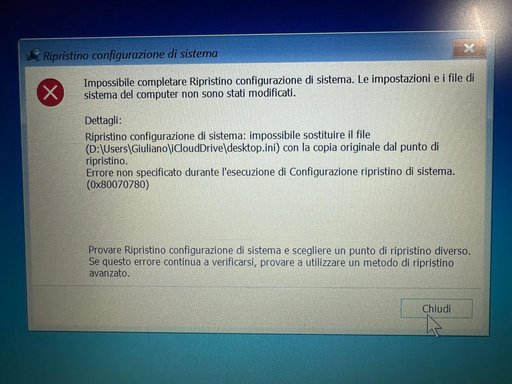
Thanks — that screenshot is very helpful. The error text (translated) says System Restore couldn’t replace the file D:\Users\Giuliano\iCloudDrive\desktop.ini and failed with code 0x80070780. That code usually means the file or the storage device couldn’t be read/accessed (corrupt, locked, or bad sectors). Based on what you wrote, the likely causes are:
- The system-restore/backup image (or the external disk where it’s stored) has some corruption or unreadable sectors, or
- A file/service (Norton, iCloud sync) is locking that file so the restore can’t replace it, or
- File‑system errors on the internal disk (or on the D: volume) are preventing replacement.
What I recommend (step‑by‑step). Please follow these in order and tell me results for each step.
1) Stop and don’t try another restore yet
- Repeated failed attempts can make troubleshooting harder. Do the checks below first.
2) Check the external backup disk (where the image lives)
- Connect the external Toshiba (and the new external you used) to a working PC. In an elevated Command Prompt run:
- chkdsk X: /f /r
- (Replace X: with the external drive letter.
- If chkdsk reports errors it fixes, try a restore again afterwards. If chkdsk can’t complete or reports many bad sectors, the image file may be damaged — copy the WindowsImageBackup folder off that disk (if possible) to another healthy drive.
3) Verify the image file can be mounted/read
- On a working Windows PC open Disk Management (diskmgmt.msc) → Action → Attach VHD (or in Windows 10 you can just double‑click .vhd/.vhdx).
- Browse to the backup folder (X:\WindowsImageBackup\<PCname>\Backup …) and mount the .vhd / .vhdx included in the image.
- If it mounts you can browse the restored filesystem and check that D:\Users\Giuliano\iCloudDrive\desktop.ini exists and is readable. If the VHD won’t mount, the image is likely corrupted.
4) Run disk and system checks on the laptop
- In an elevated Command Prompt in Windows run:
- sfc /scannow
- DISM /Online /Cleanup-Image /RestoreHealth
- chkdsk C: /f /r (and chkdsk D: /f /r if D: is a separate partition)
- Reboot after these complete and try the restore again (preferably from WinRE — see step 6).
5) Disable security / cloud services that may lock files
- Temporarily disable Norton (or uninstall it briefly) and pause iCloud Drive syncing before attempting the restore. Those services can lock files such as desktop.ini and block replacement.
6) Use the Recovery Environment (recommended for a full image restore)
- Boot from a Windows 10 recovery USB (or the Recovery Drive you can create on another PC): Settings → Recovery → Create a recovery drive, or use a Windows 10 install USB.
- Choose Troubleshoot → System Image Recovery → follow the wizard and select your image. This runs outside of Windows and is less likely to be blocked by running services.
7) If the same desktop.ini error still appears, delete or rename that file before restoring
- Boot into WinRE → Troubleshoot → Advanced options → Command Prompt.
- Identify drive letters (they often change in WinRE) with:
- Then delete the problematic file (example):
- del /f /a "D:\Users\Giuliano\iCloudDrive\desktop.ini"
- (Use the correct drive letter shown by diskpart.
- Then try the image restore again.
8) If mounting the VHD worked but restore still fails: extract files or re-create the image
- If you could mount the VHD, you can copy your user data out manually (Documents, Desktop, Outlook PSTs) before doing anything else.
- If you can’t restore the Windows image reliably, create a fresh image using a 3rd‑party tool (Macrium Reflect Free is a good choice) and its rescue media — Macrium can also mount and verify images, and its restore engine is often more tolerant and gives better diagnostics.
9) If all else fails — collect logs and exact error messages
- If you still get 0x80070780 after the steps above, tell me:
- Exactly how you start the restore (inside Windows → System Restore? or WinRE → System Image Recovery?. The screenshot you sent was System Restore (not the full image restore) — confirm whether you tried both.
- Which drive letters correspond to internal partitions and the external image when in WinRE (I can show how to get that).
- Whether the image VHD mounted successfully on another PC.
- Any chkdsk output that reported unrecoverable errors.
Quick summary of most likely fixes for 0x80070780 in your case
- Run chkdsk on the external drive and on the internal drive; fix errors.
- Disable Norton / pause iCloud so files aren’t locked.
- Mount the VHD to confirm the image is readable.
- Delete/rename the specific file (desktop.ini in iCloudDrive) from the target volume in WinRE, then retry the restore.
- If the image is corrupted, copy it off and recreate with Macrium or a healthy external disk.
If you want, I can give the exact commands for mounting VHD, for using diskpart in WinRE, and for deleting the file safely — tell me whether you’re working from inside Windows now or will be booting to recovery media, and whether you can attach the second screenshot (the one from inside Windows) so I can confirm both error dialogs.