

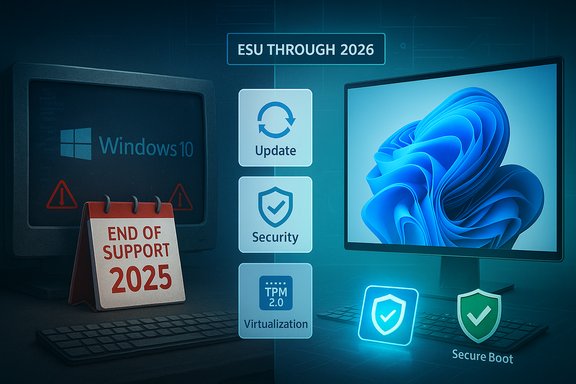
Microsoft’s October 14, 2025 cutoff for Windows 10 support has forced a stark choice for millions of users: upgrade to Windows 11 where hardware allows, enroll in a time‑limited Extended Security Updates (ESU) program, or remain on an increasingly risky, unsupported OS—and a wave of community workarounds to force Windows 11 onto older machines has returned, carrying real stability, update, warranty and security trade‑offs that must be understood before anyone attempts them.
Source: Forbes Microsoft’s Free Windows Upgrade Offer—New Deadline Warning
 Background
The calendar everyone must respect
Microsoft formally ended mainstream support for Windows 10 on October 14, 2025. After that date, Home and Pro consumer SKUs no longer receive routine security or feature updates unless the device is enrolled in a supported ESU program. Microsoft’s own lifecycle and support pages make the cutoff and its implications explicit: the OS will continue to run, but vendor patches and standard technical support cease, exposing unpatched devices to increasing risk over time.The temporary safety valve: Windows 10 ESU
To give users breathing room, Microsoft introduced a consumer ESU option that provides one additional year of security‑only updates through October 13, 2026 for eligible devices; enrollment routes include a free path tied to settings sync to a Microsoft Account, a Microsoft Rewards redemption, or a one‑time paid license that covers multiple devices. Enterprise customers have longer ESU options under volume licensing. These are explicitly stopgap measures designed to buy migration time, not to offer indefinite protection.Why the Windows 11 minimums exist — and what they enforce
The security and feature baseline
Windows 11 was built to take advantage of hardware‑based security and isolation features that reduce the attack surface against modern threats. Microsoft’s published minimums require, among other things:- A compatible 64‑bit processor (1 GHz or faster, 2+ cores).
- 4 GB of RAM minimum and 64 GB of storage.
- UEFI with Secure Boot capability.
- Trusted Platform Module (TPM) version 2.0 (TPM is a hardware root of trust).
- Graphics compatible with DirectX 12 / WDDM 2.0.
Practical consequences for older PCs
Machines without TPM 2.0, lacking UEFI/Secure Boot, or with less than the mandated RAM/storage are blocked from the standard upgrade path via Windows Update and the Installation Assistant. That leaves a large installed base of functioning Windows 10 PCs—somestill perfectly usable for daily tasks—unable to take the free, supported upgrade without hardware changes.The workarounds: what’s available, how they work, and why they keep resurfacing
Several methods that bypass Microsoft’s checks have been documented and tested in the community. They fall into three broad categories:- Official Microsoft registry allowance (limited): a documented registry flag that relaxes CPU/TPM checks for in‑place upgrades under narrow conditions.
- Installer‑time registry edits (LabConfig trick): create keys during setup (or from the installer environment) to bypass TPM, Secure Boot and, in some cases, RAM checks.
- Media creation tool / third‑party tooling (Rufus et al.: build bootable media that injects an installer variant or flags to skip checks at boot time, enabling clean installs or in‑place upgrades on many unsupported machines.
The registry escape hatch (what Microsoft documented)
Microsoft itself published guidance that allows upgrading certain ineligible devices by creating the DWORD value AllowUpgradesWithUnsupportedTPMOrCPU under HKEY_LOCAL_MACHINE\SYSTEM\Setup\MoSetup and setting it to 1. The company warns this approach is “not recommended,” explicitly stating devices that do not meet minimum requirements will no longer be guaranteed to receive updates, including security updates. That caveat is central: an upgrade performed this way may succeed now but risks losing entitlement to future updates.The LabConfig / setup‑time registry hacks
During a clean install, it’s possible to open a command prompt (Shift+F10), run regedit, and create a LabConfig key with BypassTPMCheck, BypassSecureBootCheck and BypassRAMCheck set to 1. This removes the installer’s blocking checks and allows setup to proceed on machines that would otherwise fail. Community tests and technical guides show this works on many older PCs—but it changes exactly what Microsoft intended to enforce at the hardware level.Rufus and third‑party media
Rufus (a widely used bootable media creator) introduced an “extended” or “extended Windows 11 installation” option in its 3.x series that can produce USB installers configured to skip TPM/Secure Boot/RAM checks. The tool automates the creation of media that uses those installer‑time workarounds, simplifying a process that used to be manual and error‑prone. Independent reporting confirms the option exists in Rufus builds and community experiences show it often succeeds where the standard installer refuses.Community and developer scripts
Scripts maintained in public GitHub projects (media creation tool forks and wrapper scripts) can patch or bypass update paths that would otherwise reject an in‑place upgrade via Windows Update. These tools are effective, but they carry the same structural risk: they circumvent vendor checks for very specific platform protections.The real risks — stability, security, updates, and more
1) Update entitlement is uncertain
Microsoft’s explicit policy language warns repeatedly that devices not meeting the minimum will not be guaranteed to receive updates, including security updates. That language creates a fragile, unpredictable future for patchedness: a method that receives updates today might be silently blocked tomorrow. For environments that require predictable security patching, that uncertainty is unacceptable.2) Hardware‑backed protections are bypassed
TPM 2.0 and Secure Boot exist to provide hardware‑anchored integrity and pre‑boot trust. Removing those protections—intentionally or effectively by using install media that ignores their absence—reduces the platform’s resistance to firmware attacks, credential theft, and sophisticated kernel‑level exploits. While some users will accept this trade for immediate functionality, it reverses the very security model Microsoft designed Windows 11 to enforce.3) Stability, performance and driver compatibility
Windows 11’s driver and update ecosystem assumes certain hardware features. Unsupported CPUs and missing firmware features can produce driver incompatibilities, app crashes, degraded performance (notably on systems with less than 4 GB of RAM), and a higher incidence of bluescreens or glitches. Community test reports confirm these issues occur in real deployments on older machines.4) Warranty, OEM support and commercial risk
Claims that an OS swap will automatically void a device warranty are manufacturer‑specific and therefore not universally verifiable. Some OEMs explicitly warn that unsupported software configurations may not be covered; others do not mention it. The correct approach is to check warranty and support terms with the device manufacturer before performing unsupported upgrades. This is an area where blanket statements are risky; users should treat warranty claims as potentially affected but confirm with the OEM. (Unverifiable as a universal rule.5) Long‑term maintenance and organizational risk
For businesses and institutions, an unsupported fleet is an operational liability—security teams, compliance officers and insurers often require demonstrable supportable configurations. Relying on workarounds to run Windows 11 on excluded hardware can create audit failures, reduce cyber‑insurance effectiveness, and escalate maintenance costs as teams chase obscure driver and firmware problems.Cross‑checking key claims (verification summary)
- Windows 10 end‑of‑support date: Microsoft’s lifecycle pages and support articles confirm October 14, 2025 as the formal end date for Windows 10 consumer editions.
- ESU availability and limits: Microsoft’s ESU documentation and the Windows ESU consumer page state that consumer ESU extends security updates through October 13, 2026, with enrollment methods documented (settings sync, Rewards, paid license).
- Windows 11 minimums (TPM 2.0, 4 GB RAM, Secure Boot, 64 GB storage): Microsoft’s Windows 11 system requirements documentation explicitly lists these items as the minimums. Any claim that Windows 11 requires 4 GB RAM or TPM 2.0 is verifiable on Microsoft’s pages.
- Availability of bypasses (registry, LabConfig, Rufus): Microsoft documented an official registry key to allow certain in‑place upgrades on unsupported devices, and independent reporting plus community tools (Rufus and documented installer hacks) confirm other bypass methods remain effective. Cross‑referenced coverage from Microsoft’s support guidance and technical outlets like Tom’s Hardware and community testing corroborate the claims.
- Warnings about updates and device malfunction: Microsoft’s repeated caveats about unsupported devices not being guaranteed updates and possibly malfunctioning are present in its support material and are echoed across reputable tech coverage and community reporting.
Practical guidance for users and administrators
If the device is eligible for a supported upgrade (recommended)
- Run PC Health Check or check Settings → Update & Security → Windows Update for the official offer.
- Back up everything (full disk image + user files) before upgrading.
- Use Microsoft’s Windows 11 Installation Assistant or Windows Update for the cleanest, supported path.
- After upgrading, confirm driver and app compatibility and verify device activation.
If the device is ineligible and the priority is security
- Enroll in consumer ESU before the end of support to receive security‑only updates through October 13, 2026. Use the Microsoft Account or paid redemption paths as documented.
- Alternatively, consider migrating to a supported alternative OS (Linux distributions, ChromeOS Flex) if Windows 11 compatibility is impossible and ESU is unsuitable.
If considering a workaround to install Windows 11 on unsupported hardware (only for non‑critical machines)
- Treat this as a hobbyist or temporary step for experimentation, not a production solution.
- Full image backup is mandatory.
- Expect manual driver maintenance, potential app incompatibility and possible loss of future update entitlement.
- Verify OEM warranty/support terms for the device before proceeding (some vendors may decline to support issues caused by such modifications).
- Prefer using separate test hardware or virtual machines rather than modifying primary machines holding sensitive data.
For IT teams and organizations
- Document any instances of unsupported installs and the mitigation strategies in place.
- Avoid unsupported configurations on devices handling sensitive or regulated data.
- Plan hardware refresh and migration timelines using ESU as a bounded bridge, not as a long‑term solution.
Critical analysis: Microsoft’s position and the market dynamics
Microsoft’s tradeoff: security posture vs. installed base
Microsoft’s insistence on TPM 2.0, Secure Boot and a supported CPU baseline is defensible on security grounds: hardware roots of trust and virtualization protections materially reduce attack surfaces that plague legacy Windows deployments. However, the requirement created an obvious tension with millions of still‑functional devices in the wild. Microsoft’s public policy—push users to Windows 11 while offering a time‑boxed ESU—is an attempt to balance security objectives with practical migration realities. The strategy nudges users and organizations toward hardware renewal, cloud‑anchored device management and tighter identity ties (Microsoft Account requirements for some ESU paths).The community response and the cat‑and‑mouse cycle
Workarounds and bypass tools have persisted because there is real value in extending hardware life and because the original free‑upgrade story set user expectations that upgrades would remain broadly accessible. The existence of official Microsoft registry allowances complicates the moral framing—Microsoft itself has supplied limited escape hatches while simultaneously warning of the consequences. That dual posture fuels a cat‑and‑mouse ecosystem where community tools fill functional gaps, and Microsoft responds by tightening or clarifying update and entitlement checks.Consumer protection and regulatory friction
Microsoft’s ESU conditions—especially account and sync requirements—have prompted scrutiny from privacy and consumer groups and led to regional concessions in the EEA. Those debates underscore the policy tension: how to maintain security for users who cannot upgrade, while avoiding coercive account or cloud entanglement. The result is a fragmented landscape where entitlements vary by region and enrollment route.Conclusion — a practical verdict for Windows users
The technical reality is straightforward: bypasses that let Windows 11 run on unsupported PCs continue to exist and, in many cases, work. They are attractive to tinkerers and for specific short‑term needs. However, they are not a drop‑in replacement for a supported upgrade path:- Microsoft’s end‑of‑support deadline for Windows 10 (October 14, 2025) and the ESU bridge through October 13, 2026 are verifiable facts that define the migration time frame.
- Windows 11 minimums (TPM 2.0, 4 GB RAM, Secure Boot, 64 GB storage) are documented vendor requirements; their purpose is to deliver hardware‑backed security that unsupported installs remove.
- Workarounds (registry, installer LabConfig, Rufus media) remain effective in many cases, but they come with documented risks: uncertain update entitlement, reduced platform security, potential stability problems, and possible OEM support issues. Cross‑checked reporting from Microsoft and independent outlets confirms both the availability of these methods and Microsoft’s warnings about them.
Source: Forbes Microsoft’s Free Windows Upgrade Offer—New Deadline Warning
