

Microsoft’s official lifecycle clock has run its course for Windows 10: on October 14, 2025 Microsoft ended mainstream support for Windows 10, and millions of PCs now face a concrete decision—upgrade to Windows 11, enroll in the short-term Consumer Extended Security Updates (ESU) program, or accept rising security and compliance risk. This practical, step‑by‑step upgrade guide digests the official guidance, explains the technical requirements, assesses the real-world tradeoffs, and lays out safe migration paths so home users and businesses can move confidently. The guidance draws on the HP upgrade briefing you provided and independently verifies technical specifications and timelines against Microsoft documentation and leading industry reporting.
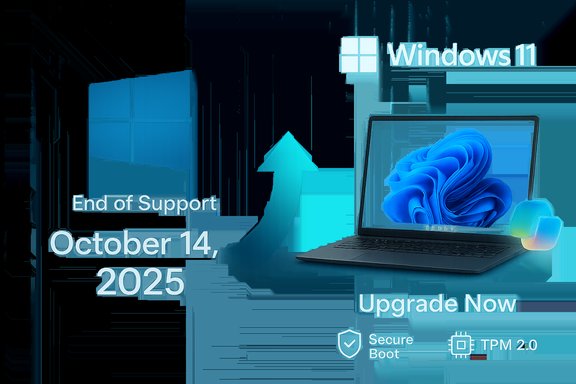
Microsoft set a fixed lifecycle for Windows 10 when it shipped in 2015, and that lifecycle culminated on October 14, 2025. After that date most Windows 10 editions—Home, Pro, Enterprise and Education—stopped receiving feature updates, security updates, and standard technical support. That does not mean systems instantly stop working; it means vendor-supplied security patches and routine support stop, making continued online use progressively riskier. This is the operational reality the HP guide highlights and the official Microsoft lifecycle page confirms. Microsoft simultaneously published a limited consumer ESU (Extended Security Updates) option that provides a time‑boxed bridge to give users more time to migrate. The ESU program is security‑only, requires enrollment, and runs only through mid‑October 2026 for consumer devices. The official Microsoft ESU page explains the prerequisites and options for enrollment.
The HP upgrade guide you provided is a practical playbook for users in India and beyond: it stresses the security imperative, explains TPM and Secure Boot, and offers upgrade and fallback options. The technical specifics and timelines in that guide are consistent with Microsoft’s official lifecycle pages and the wider reporting from industry outlets. Where the HP content mentions AI/Copilot hardware tiers, that picture is corroborated by Microsoft’s Copilot+ documentation and independent reporting that details the specific chip families and NPU TOPS thresholds required for full on‑device AI experiences. If action is required today: inventory and backup. If you want the safest long‑term path and continued security updates, plan to move supported devices to Windows 11 or replace unsupported hardware—ESU can buy a little time, but it is not a permanent solution.
Source: HP Windows 10 Support Ending: Complete Windows 11 Upgrade Guide
 Background / Overview
Microsoft set a fixed lifecycle for Windows 10 when it shipped in 2015, and that lifecycle culminated on October 14, 2025. After that date most Windows 10 editions—Home, Pro, Enterprise and Education—stopped receiving feature updates, security updates, and standard technical support. That does not mean systems instantly stop working; it means vendor-supplied security patches and routine support stop, making continued online use progressively riskier. This is the operational reality the HP guide highlights and the official Microsoft lifecycle page confirms. Microsoft simultaneously published a limited consumer ESU (Extended Security Updates) option that provides a time‑boxed bridge to give users more time to migrate. The ESU program is security‑only, requires enrollment, and runs only through mid‑October 2026 for consumer devices. The official Microsoft ESU page explains the prerequisites and options for enrollment. What “End of Support” Actually Means — The Practical Effects
- No new feature updates or quality fixes. The Windows 10 codebase is frozen at the final serviced build; Microsoft will not ship new features or non‑security quality patches for consumer and most business SKUs.
- No routine security updates for un‑enrolled devices — kernel, driver and platform vulnerabilities discovered after Oct 14, 2025 are not fixed for non‑ESU Windows 10 devices. That gap grows every month, raising exposure to worms, ransomware, and privilege‑escalation exploits.
- No standard Microsoft technical support. Microsoft’s public support channels will direct users toward upgrade or ESU options rather than troubleshoot Windows‑10‑specific problems.
- Compliance and software compatibility risk. Over time vendors stop testing against an out‑of‑support OS; regulated businesses can face audit and liability concerns if they retain unsupported systems.
Why Upgrade to Windows 11? Key Benefits and Verified Claims
Windows 11 is not just a visual refresh; it was architected with tighter hardware‑rooted security, new productivity features, and a lifecycle Microsoft intends to service continuously. Key, verifiable benefits:- Hardware‑backed security (TPM + Secure Boot + virtualization protections). Windows 11 requires TPM 2.0 and UEFI Secure Boot and builds on hardware isolation features (Virtualization‑Based Security). TPM stores keys and performs attestation; Secure Boot prevents unauthorized boot‑time code. These are foundational to modern protections like BitLocker and Windows Hello.
- Copilot and AI features (where hardware permits). Microsoft’s Copilot integrations and the higher‑tier “Copilot+ PC” experiences rely on local neural processing units (NPUs) and specific hardware thresholds (detailed below). These features provide on‑device AI assistants, improved search and contextual workflows, but require qualifying hardware to deliver fully.
- Modern performance and gaming features. DirectStorage, Auto HDR, and ongoing DirectX 12 improvements continue to be developed for Windows 11; gamers and media consumers benefit from new platform-level optimizations. Microsoft’s Windows 11 specs and industry coverage confirm these advantages.
- Longer, modern support cadence. Windows 11 receives continuous feature and security updates via Microsoft’s modern lifecycle; specific versions have set support windows (24 months for Home & Pro; 36 for Enterprise & Education for each major release). This keeps devices up to date longer than a frozen end‑of‑life OS.
Windows 11 System Requirements — Verified Technical Checklist
Microsoft’s published minimum requirements for Windows 11 are the authoritative baseline. These are verified against Microsoft documentation:- Processor: 1 GHz or faster with two or more cores on a compatible 64‑bit processor or SoC.
- Memory: 4 GB RAM minimum.
- Storage: 64 GB free storage minimum (note: updates may require more).
- System firmware: UEFI with Secure Boot capability.
- TPM: Trusted Platform Module (TPM) version 2.0.
- Graphics: DirectX 12 compatible GPU with WDDM 2.0 driver.
- Display: >9‑inch, 720p or greater.
- Internet & Microsoft Account: Required for initial setup of Windows 11 Home and needed for some features.
Copilot / Copilot+ Hardware Notes (what HP’s guide called “Copilot features”)
Copilot (the integrated AI assistant) and the higher‑tier Copilot+ experiences are separate from the baseline Windows 11 requirements:- Baseline Copilot features (text‑based assistant, Start menu suggestions, some integrated AI features) run on ordinary Windows 11 hardware, but cloud processing may be used. Microsoft is expanding local/offline capabilities across devices.
- Copilot+ PC features (local, NPU‑accelerated experiences such as Recall, improved on‑device language translation, super‑fast contextual search, and certain real‑time image/video operations) require an NPU capable of 40+ TOPS and are initially available on specific hardware lines (Qualcomm Snapdragon X Elite/Pro, Intel Core Ultra 200V series, AMD Ryzen AI 300 series). Copilot+ hardware guidance also targets higher RAM (often 16 GB) and NVMe SSDs (256 GB+), depending on the feature. These requirements and rollout notes are published in Microsoft’s Copilot and NPU device documentation and corroborated by industry coverage.
Understanding Secure Boot and TPM — Simple, Verified Explanations
- Secure Boot: A UEFI‑level feature that ensures only digitally signed, trusted bootloaders and kernel components run at startup. It prevents many classes of firmware/rootkit attacks by refusing to execute tampered boot binaries. Most OEM Windows 11 devices ship with Secure Boot enabled by default.
- TPM (Trusted Platform Module) 2.0: A hardware or firmware module that stores cryptographic keys in an isolated environment, enables BitLocker disk encryption, supports Windows Hello credential protection, and participates in attestation checks during boot. Many motherboards since roughly 2016 include a TPM or firmware TPM (fTPM) that can be enabled in UEFI. If TPM is missing, some desktop motherboards accept discrete TPM modules; laptop upgrades are typically not possible. Microsoft and hardware vendors provide step‑by‑step guidance for checking and enabling TPM (via Windows Security → Device security, tpm.msc, or BIOS/UEFI settings).
How to Check Your PC’s Compatibility — Practical Steps
- Use Microsoft’s PC Health Check tool to run a quick compatibility scan (official tool; shows TPM/CPU/Storage/UEFI compatibility).
- Open Windows Security → Device security to view the Security processor (TPM) status, or run tpm.msc from Start → Run.
- Use msinfo32.exe (System Information) to confirm BIOS mode (UEFI vs Legacy), installed RAM, and processor details. Look for “Secure Boot State” and “TPM” entries.
- If your PC is flagged incompatible due to TPM or Secure Boot, check your UEFI settings to enable fTPM/PTT (Intel Platform Trust Technology) or firmware TPM. Update the firmware/BIOS if the option is absent. Manufacturer support pages (HP, Dell, Lenovo) publish model‑specific steps.
Preparing for a Smooth Upgrade — Checklist
- Back up everything: create a full system image and copy personal files to an external drive or cloud backup. A disk image speeds recovery if an upgrade fails.
- Update Windows 10 to the latest servicing build (22H2) and install vendor firmware/driver updates. Many upgrade failures arise from outdated firmware or device drivers.
- Audit installed software and licensing: note productivity apps, specialized utilities, and any software tied to hardware IDs or legacy drivers. Verify vendor support for Windows 11.
- Confirm driver availability: particularly for peripherals and custom hardware (printers, VPN/network adapters, audio devices). If the vendor lacks Windows 11 drivers, expect compatibility work.
- Plan a rollback period: Windows keeps old OS files to revert for a short window (typically 10 days); if you plan to remain on Windows 11 longer, capture a separate system image before wiping the fallback snapshot.
Upgrade Paths — Step‑by‑Step Options
- In‑place upgrade via Windows Update (recommended if offered). If your PC is eligible, Windows Update shows “Upgrade to Windows 11” and will guide through automatic download and install. This preserves most apps and settings.
- Microsoft Installation Assistant / official ISO for manual upgrade. Use the official Installation Assistant when Windows Update does not show the offer but the PC is compatible. Always download the ISO from Microsoft’s pages and follow the guided process.
- Clean install (ISO + USB): Best for fresh starts or role‑changing devices. Requires reinstallation of apps and restoration of data from backups. Use official ISOs and product keys as needed.
- Unsupported bypasses (registry edits / third‑party tools): These exist to install Windows 11 on machines that fail checks (no TPM, unsupported CPU). They carry known risks: potential update entitlement loss, driver instability, lack of official patches, and watermarks. Microsoft explicitly warns users who do this to “be comfortable assuming the risk.” Use these methods only as a pragmatic stopgap after careful consideration and full backups.
If Your PC Doesn’t Support Windows 11 — Practical Options
- Consumer ESU (short bridge): Enroll in the Consumer Extended Security Updates program to receive security‑only patches through October 13, 2026. Enrollment requires a Microsoft account for the free/account‑linked path; a one‑time paid option (approx. $30 USD per device or regional equivalent) allows local account continuation. ESU is explicitly temporary and security‑only—no feature updates or standard support. Verify enrollment prerequisites before counting on ESU.
- Buy a new Windows 11 PC or a Copilot+/AI‑capable Copilot+ PC if you want on‑device AI experiences and future‑proofing; shop by Copilot+ certifications if AI features are a priority.
- Cloud PC / Virtual Desktop / Windows 365: Organizations or power users can run modern Windows instances in the cloud to avoid desktop hardware upgrades. This suits some business scenarios but needs dependable network connectivity.
- Switch to Linux or Chrome OS Flex: For older hardware that can no longer run modern Windows securely, consider a supported Linux distribution (Ubuntu, Linux Mint) or Chrome OS Flex as a low‑cost alternative. These are valid paths for many home users and K‑12 environments. Independent reporting and community guides show this is a practical migration option.
Enterprise & Compliance Considerations
Enterprises must inventory devices, classify risk, and plan staged migrations well in advance. ESU for organizations differs from the consumer program and requires separate licensing; enterprises should consult Microsoft’s commercial lifecycle pages and partner programs. For compliance‑sensitive industries, continuing to operate unsupported devices can create audit failures and insurance exposures—factor these into the cost analysis of buying new hardware vs. paying for ESU vs. migration effort.HP‑Focused Notes (BIOS, TPM, and Practical Tips)
HP’s guidance (the content you supplied) is operationally accurate: most modern HP desktops and workstations ship with Secure Boot and TPM enabled or available in firmware. If a business or home user uses HP hardware:- Enter BIOS/UEFI (often Esc or F10 during boot) → Security tab → set “TPM Device” to “Available” and “TPM State” to “Enabled,” then save and exit. Confirm via Windows Security → Device security or run tpm.msc. Manufacturer menu names vary; consult the model’s support page for exact steps.
- Update HP system firmware and drivers via HP Support Assistant before attempting an upgrade—this reduces driver-related upgrade failures.
Migration Timeline & Priorities — A Recommended Plan
- Inventory: list hardware, OS build (must be Windows 10 22H2 for ESU), critical apps, and hardware‑tied licenses.
- Compatibility sweep: run PC Health Check and vendor driver checks.
- Backup: create an image and file backup.
- Pilot: upgrade a small set of machines and validate core apps, printers, VPNs, and workflows.
- Rollout: use Windows Update, Installation Assistant, or managed deployment tools (SCCM/Intune) for staged migration.
- Retirement: retire unsupported machines or re-image them with Linux/ChromeOS Flex or repurpose via cloud workloads.
Risks, Tradeoffs, and What to Watch For
- Unsupported installs = fragile maintenance. If you bypass TPM/CPU checks you may lose Windows Update entitlement for cumulative patches and introduce instability; that’s explicitly warned by Microsoft. Only use bypasses as a temporary, well‑documented measure.
- ESU is short and security‑only. Planning to use ESU as a multi‑year solution is risky; treat it as breathing room for migration, not a replacement for upgrading. ESU enrollment also shifts some account/management responsibilities (Microsoft account linkage for consumers).
- Application and driver compatibility. Legacy device drivers or specialized enterprise apps may require vendor updates or testing; factor remediation time into migration schedules.
- Cost vs. value analysis. Older but functional hardware may be cheaper to maintain short‑term; long‑term security and productivity gains from modern hardware (and Copilot‑capable features, if relevant) have to be balanced against replacement costs. Independent estimates and OEM offers can affect that calculus.
Final Recommendations — Practical, Actionable Next Steps
- Run Microsoft PC Health Check now and make a compatibility list (TPM, Secure Boot, CPU, RAM, disk).
- If compatible: update Windows 10 to the latest cumulative patches, update firmware and drivers, back up, then accept the Windows Update offer or use the official Installation Assistant.
- If not compatible: enroll in Consumer ESU only to buy time (through Oct 13, 2026) while you plan hardware upgrades or replacements; factor Microsoft account enrollment and one‑time purchase options into the plan.
- For organizations: prioritize devices handling sensitive data for immediate replacement or migration to minimize compliance risk. Consider cloud PC or thin client strategies as alternatives.
- If on the fence about AI features: evaluate whether Copilot+ capabilities (which require Copilot+ certified hardware) justify buying new hardware now—many Copilot features also work with cloud assistance on regular Windows 11 hardware.
The HP upgrade guide you provided is a practical playbook for users in India and beyond: it stresses the security imperative, explains TPM and Secure Boot, and offers upgrade and fallback options. The technical specifics and timelines in that guide are consistent with Microsoft’s official lifecycle pages and the wider reporting from industry outlets. Where the HP content mentions AI/Copilot hardware tiers, that picture is corroborated by Microsoft’s Copilot+ documentation and independent reporting that details the specific chip families and NPU TOPS thresholds required for full on‑device AI experiences. If action is required today: inventory and backup. If you want the safest long‑term path and continued security updates, plan to move supported devices to Windows 11 or replace unsupported hardware—ESU can buy a little time, but it is not a permanent solution.
Source: HP Windows 10 Support Ending: Complete Windows 11 Upgrade Guide
