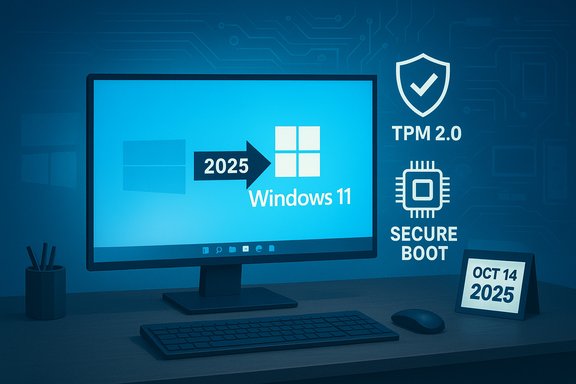
Windows 10's end-of-support is now an operational reality for millions of users worldwide, and the path forward — upgrade to Windows 11, enroll in a short-term Extended Security Updates (ESU) program, or replace the device — requires clear planning, tested procedures, and realistic timelines to avoid downtime and data loss.
Microsoft set October 14, 2025 as the formal end-of-support date for most editions of Windows 10. After that date Microsoft stopped issuing routine feature updates, cumulative security updates, and standard technical support for Windows 10 Home, Pro, Enterprise, Education and several IoT variants. That does not mean affected PCs stop working, but it does mean running them on production networks becomes an increasing security and compliance liability unless mitigations are applied. HP’s customer guidance mirrors Microsoft’s core messages: prepare in advance, verify compatibility, back up everything, prefer in-place upgrade paths where possible, and treat consumer ESU only as a temporary bridge. The HP guidance (provided to Indonesian users in its regional article) also stresses practical steps such as updating Windows 10 before upgrading, preparing an 8 GB USB drive for the Media Creation Tool method, and scheduling upgrades during off‑peak internet hours to avoid long downloads.
This article walks through the verified technical facts, compares the upgrade options, highlights the operational risks, and provides a step-by-step operational playbook for both home users and IT teams planning bulk migrations.
Source: HP Windows 10 Support Ending: Complete Windows 11 Upgrade Guide
 Background / Overview
Microsoft set October 14, 2025 as the formal end-of-support date for most editions of Windows 10. After that date Microsoft stopped issuing routine feature updates, cumulative security updates, and standard technical support for Windows 10 Home, Pro, Enterprise, Education and several IoT variants. That does not mean affected PCs stop working, but it does mean running them on production networks becomes an increasing security and compliance liability unless mitigations are applied. HP’s customer guidance mirrors Microsoft’s core messages: prepare in advance, verify compatibility, back up everything, prefer in-place upgrade paths where possible, and treat consumer ESU only as a temporary bridge. The HP guidance (provided to Indonesian users in its regional article) also stresses practical steps such as updating Windows 10 before upgrading, preparing an 8 GB USB drive for the Media Creation Tool method, and scheduling upgrades during off‑peak internet hours to avoid long downloads.This article walks through the verified technical facts, compares the upgrade options, highlights the operational risks, and provides a step-by-step operational playbook for both home users and IT teams planning bulk migrations.
Why the deadline matters
- No more routine security patches for most Windows 10 editions after Oct 14, 2025. That elevates the probability that new vulnerabilities will remain exploitable on unpatched Windows 10 endpoints.
- No vendor troubleshooting or feature updates — Microsoft’s support channels will direct users toward migration or ESU options, not prolonged Windows 10 troubleshooting.
- Regulatory and compliance exposure for businesses. Auditors and insurers increasingly treat end-of-life software as a material weakness unless compensating controls or ESU coverage is demonstrated. Independent reporting and vendor lifecycle pages reinforce that continuing to run unsupported OS versions is a risk-management decision, not a neutral choice.
What Microsoft and HP recommend (verified summary)
Both Microsoft’s official lifecycle pages and HP’s upgrade guide recommend these core actions before migrating from Windows 10 to Windows 11:- Inventory and compatibility checks (use the PC Health Check app and vendor documentation).
- Create at least three backups: one cloud and two physical copies (store one off‑site).
- Update Windows 10 with the latest cumulative patches before attempting an in-place upgrade. This reduces migration errors.
- Prefer the Windows Update in-place upgrade when offered — it’s the safest route to preserve apps, settings and files.
- If the device is not eligible for Windows 11, evaluate ESU or replace the hardware. ESU is explicitly time‑boxed and limited in scope.
Windows 11 compatibility — the core technical checkpoints
The single largest operational blocker for many Windows 10 PCs is hardware compatibility. Microsoft’s minimum requirements for Windows 11 (verified) include:- 64-bit, 2-core, 1 GHz or faster processor on the approved processor list.
- 4 GB RAM minimum and 64 GB storage minimum.
- UEFI firmware with Secure Boot capability.
- TPM version 2.0 (Trusted Platform Module).
- DirectX 12–compatible GPU and a 720p+ display.
Cross-checks and nuance
- Microsoft’s published requirements are authoritative and should be treated as binding for supported upgrades.
- Independent technical reporting from vendor support forums and tech press confirms that enabling TPM/Secure Boot in UEFI often turns an “incompatible” result into an “eligible” result — but some older CPUs will still fail the processor whitelist. Use the PC Health Check app plus your OEM’s firmware guidance before concluding a device is irreparably incompatible.
Upgrade methods — what they do, when to use them, and verified steps
Three practical upgrade methods are in common use and validated by Microsoft and OEM guidance:Method 1 — Windows Update (in-place upgrade)
Recommended for most users because it’s the simplest and preserves files, apps and settings.- Go to Start > Settings > Update & Security > Windows Update.
- Select Check for updates. If Microsoft has validated your PC for the rollout, you’ll see “Windows 11 is ready” with a Download and install option.
- Follow the on‑screen prompts and allow the system to restart as required.
Method 2 — Media Creation Tool (upgrade or re-install)
Use this when Windows Update does not offer the upgrade or when you want more control.- From Microsoft’s Windows 11 download page, choose “Create Windows 11 Installation Media” and Download Now.
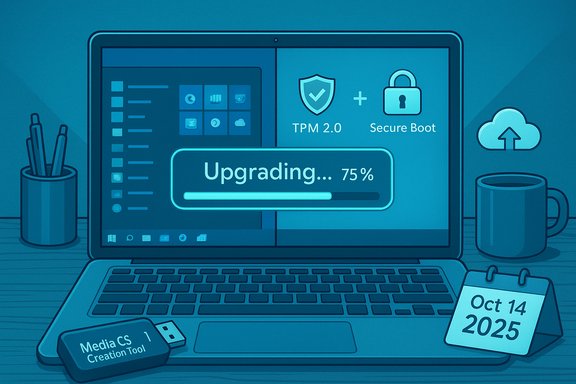
- Run MediaCreationTool.exe. Insert a blank USB flash drive (8 GB minimum) when prompted. Note: Microsoft explicitly recommends an 8 GB blank USB drive for the Media Creation Tool process.
- Choose to upgrade the current PC or create installation media for another PC, then follow the prompts.
- Reinsert the USB as required and let the installer run. This method is useful for machines where Windows Update doesn’t yet present the upgrade or for performing repairs.
Method 3 — Clean installation
A clean install boots from the USB drive and wipes the chosen partition.- Boot from the USB (change UEFI/BIOS boot order if necessary).
- At setup, choose Custom: Install Windows only (advanced) and select the target drive.
- Complete the installation and reconfigure accounts and settings. This is the only method that guarantees a fully fresh system but it erases data — back up first.
Practical timeline and performance expectations (verified and realistic)
- Download time depends entirely on internet bandwidth and the size of the package (commonly several GB). Expect slower downloads in regions with highly variable internet throughput; schedule major upgrades during off‑peak hours to improve speeds (a point HP explicitly recommends for Indonesian users).
- Installation time varies by hardware. On modern SSD-equipped systems, the in-place upgrade’s installation phase often completes in roughly 20–40 minutes; on mid-range or older systems expect 1–3 hours in total when you include downloading and post‑install updates. Microsoft’s upgrade FAQ and independent tech outlets emphasize wide variance and advise planning accordingly.
- Rollback window: after an upgrade you typically have 10 days to use the built‑in Recovery → Go back option to return to Windows 10 while preserving files and apps. After the rollback period the OS deletes the previous-installation files; you’ll need a clean install to revert. There are advanced DISM options to extend the rollback window up to 60 days, but those must be configured before the old files are removed. Verify this behavior on representative hardware before mass deployment.
Business migration planning — recommended process
For IT teams managing dozens to thousands of machines, the upgrade is an operational project, not just a handful of desktop updates.Minimum planning checklist
- Inventory all devices: model, CPU family, TPM capability, storage type (HDD vs SSD), and critical installed apps.
- Prioritize by risk: internet-facing endpoints, finance/HR machines, and executives’ laptops get top priority.
- Prepare driver package bundles and test images for each major hardware family.
- Build and test a pilot group (5–10% of estate) to validate app compatibility and imaging procedures.
- Plan phased rollouts by geography and function, scheduling upgrades during low-activity windows.
- Document the rollback / recovery process and keep bootable installers available for unsupported recovery scenarios.
Tools and automation
- For large environments use Microsoft Endpoint Manager (Intune + Autopilot) or Configuration Manager (SCCM) to schedule, monitor, and report upgrades across endpoints. These tools allow staged deployments, automated feature updates, and inventory reports. HP’s enterprise guidance aligns with using management tooling to coordinate upgrades at scale.
Backup and data protection — concrete steps
Do not skip these fundamentals:- Create a full disk image (system image) and a separate file-level backup of user documents.
- Store at least one copy off-site or in a trusted cloud (OneDrive, S3, etc..
- For critical systems, maintain a tested restore procedure (document the step-by-step Promise to recover).
- For laptops, ensure battery and AC power during upgrade; power interruptions during firmware updates or disk writes can corrupt the OS.
Compatibility and app testing — what to watch for
- Most Windows 10 applications run on Windows 11, but drivers, anti-cheat components for games, and hardware-dongle licensing systems are common trouble spots.
- Test business‑critical apps (ERP, line-of-business tools, vendor-supplied drivers for scanners and specialized hardware) in a pilot ring prior to broad deployment.
- Pay attention to TPM-related application behavior (for BitLocker or custom cryptographic modules) and to applications that interface with the boot chain or kernel-mode drivers — these are the usual sources of post-upgrade regressions.
Risks and mitigations — candid assessment
- Risk: Unsupported hardware — many older PCs cannot be upgraded to Windows 11 and will either require replacement or an unsupported workaround. Mitigation: classify devices and budget replacements; consider ChromeOS Flex or Linux for low-cost repurposing when replacement is not immediately feasible.
- Risk: Application compatibility regressions — mitigation: pilot testing, vendor verification, and fallback plan (system image restore or staged rollback).
- Risk: Data loss from poor backups — mitigation: enforce image + file backup policy and validate restores before mass upgrades.
- Risk: Network congestion during mass downloads — mitigation: use local caching / WSUS / peer caching or stagger downloads across off‑hours. HP specifically advises Indonesian users to perform upgrades during off‑peak times for better download speeds.
- Risk: False sense of security with unsupported installs — mitigation: avoid installing Windows 11 on unsupported hardware in business contexts; unsupported installs may not receive updates and may be ineligible for vendor or Microsoft support.
Extended Security Updates (ESU) — verified lifeline, not a destination
Microsoft offers a Consumer ESU program that provides security-only patches for eligible Windows 10 devices through October 13, 2026. ESU is meant as a limited bridge — it does not provide feature updates, non‑security fixes, or standard support. Enrollment paths include account-based enrollment and a one-time paid option for local account users. ESU is explicitly temporary and intended to give organizations and consumers time to migrate. Practical use cases for ESU:- Short-term protection for legacy peripherals that block immediate upgrades.
- Time to procure and stage replacement hardware.
- Rolling migration windows for complex application portfolios.
Rollback and recovery — test these before you need them
- The built-in rollback option lets you return to Windows 10 within 10 days while preserving apps and files. That’s the easiest way to undo a problematic upgrade. Test the rollback process in a pilot environment so staff know the steps.
- If you need more time you can extend the OS uninstall window using DISM (up to 60 days), but this must be done proactively and managed as part of your image lifecycle. Post‑rollback you may need to reapply updates that arrived while the machine was on Windows 11.
- If the rollback window expires, the only supported way back is a clean install of Windows 10 from installation media — a much slower and more disruptive path.
Practical, step‑by‑step checklist for a single PC upgrade (concise)
- Verify hardware with PC Health Check and OEM (BIOS/UEFI) options.
- Fully update Windows 10 (latest cumulative updates).
- Back up: system image + user data (cloud + physical).
- If upgrading in-place: try Windows Update first (Settings → Update & Security → Check for updates).
- If Windows Update does not offer upgrade, create Media Creation Tool USB (8 GB blank, formatted).
- Perform upgrade during off-peak hours, keep device plugged in, and monitor for driver prompts.
- After upgrade, validate key apps and drivers and confirm BitLocker or security policies operate correctly.
- Keep rollback window notes and validate Recovery → Go back availability for 10 days.
Special notes for Indonesian users and similar markets
HP’s regional guidance emphasizes realistic bandwidth planning and localized support steps. In markets with variable consumer internet speeds, the Media Creation Tool approach (preparing a single USB image and using it across multiple devices) can be faster than having each device download the full package over a slow or metered connection. HP also offers device‑specific firmware steps for enabling TPM in the UEFI of various models — follow OEM instructions rather than generic BIOS advice to avoid bricking or misconfiguring devices.Final assessment: strengths, opportunities and clear risks
Strengths of upgrading to Windows 11:- Stronger hardware‑rooted security (TPM 2.0, Secure Boot, virtualization-based protections).
- Ongoing vendor support and feature development (including AI and Copilot integrations for qualifying hardware).
- Better future-proofing and compliance posture for business environments.
- Use the migration as a moment to refresh aging hardware, consolidate software licensing, and retire technical debt.
- Standardize images and policies for a more uniform endpoint posture.
- Unsupported hardware and the temptation to “patch around” incompatibility using workarounds — not recommended for managed environments.
- Underestimating app and driver testing overhead, especially for niche hardware and specialist applications.
- Relying on ESU too long — it buys time but does not replace migration.
Conclusion — a pragmatic call to action
Windows 10’s end-of-support is not a theoretical event — it has real operational consequences for security, compliance, and user experience. The safest, most future-proof path for eligible devices is to upgrade to Windows 11 using Microsoft’s supported in-place routes, backed by tested backups and a staged rollout plan. For devices that cannot meet Windows 11 requirements, ESU provides a limited safety net while organizations budget and stage replacements or consider alternate operating systems for repurposing old hardware. HP’s guidance and Microsoft documentation together provide a clear migration playbook — follow compatibility checks, automate where possible, test thoroughly, and prioritize critical endpoints for early migration. Upgrade planning is not optional for connected systems. Start today, run pilots, and schedule mass deployments with documented rollback and recovery plans — that is how the transition stops being a crisis and becomes a modernisation project that reduces long‑term risk.Source: HP Windows 10 Support Ending: Complete Windows 11 Upgrade Guide