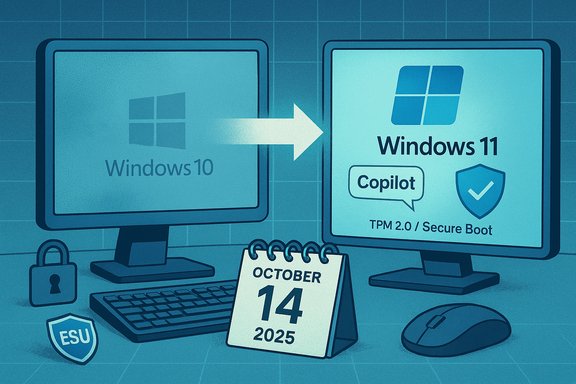
Microsoft’s fixed support clock for Windows 10 reached its deadline on 14 October 2025, and that change forces a clear choice for every Windows 10 user: upgrade to Windows 11 where possible, enroll in the short-term Consumer Extended Security Updates (ESU) program if eligible, or accept rising security, compliance, and compatibility risk for the devices you continue to run.
Microsoft set a definitive end-of-support date for Windows 10, and after that date the OS no longer receives regular feature, quality, or security updates for mainstream consumer SKUs. The practical reality is not an immediate shutdown — machines will still boot and run — but the vendor-supplied stream of security fixes and official technical assistance ends, making continued online operation a growing liability. The company published a consumer ESU option as a limited bridge for eligible devices; ESU is security-only and time‑boxed.
This guide distills the technical details, upgrade routes, and migration planning you need. It combines vendor guidance, proven procedures, and explicit cautions so home users and IT pros can choose the safest, most cost‑effective path.
Conclusion
The retirement of Windows 10 on 14 October 2025 shifts the problem from “what will Microsoft do?” to “what will you do?” A planned, documented migration — starting with inventory and backups, moving through firmware checks and pilot upgrades, and concluding with staged rollouts or carefully chosen ESU enrollment — minimizes disruption and reduces long‑term risk. Prioritize security, verify hardware capabilities, and treat community bypasses as temporary workarounds rather than long-term solutions. The time to act is now.
Source: HP Windows 10 Support Ending: Complete Windows 11 Upgrade Guide
 Background
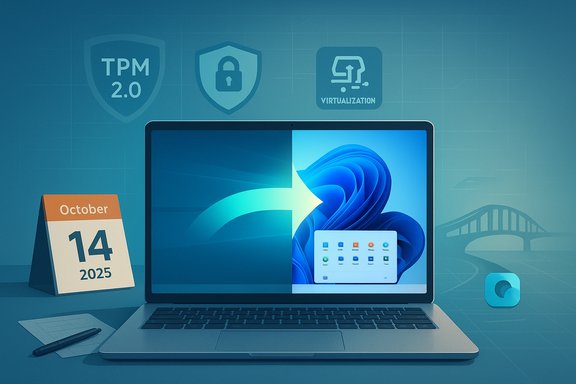
Microsoft set a definitive end-of-support date for Windows 10, and after that date the OS no longer receives regular feature, quality, or security updates for mainstream consumer SKUs. The practical reality is not an immediate shutdown — machines will still boot and run — but the vendor-supplied stream of security fixes and official technical assistance ends, making continued online operation a growing liability. The company published a consumer ESU option as a limited bridge for eligible devices; ESU is security-only and time‑boxed.This guide distills the technical details, upgrade routes, and migration planning you need. It combines vendor guidance, proven procedures, and explicit cautions so home users and IT pros can choose the safest, most cost‑effective path.
Why you should treat the end of Windows 10 support as urgent
- No more monthly security patches for un‑enrolled devices. Newly discovered OS-level vulnerabilities will not be fixed on Windows 10 after the cutoff unless you enrolled in ESU. That makes exposed systems increasingly attractive targets for ransomware and nation‑state style exploits.
- No routine technical support. Microsoft’s support channels will redirect Windows 10 queries toward upgrade or ESU options rather than troubleshooting Windows‑10‑specific issues.
- Software and driver compatibility will decline. Over time vendors will stop testing or releasing drivers and apps against an unsupported OS. Peripherals, security agents, and industry software may stop working or receive diminishing quality fixes.
- Regulatory and compliance exposure. For businesses in regulated sectors, retaining unpatched systems can create audit and insurance problems; unsupported OSes are frequently a compliance red flag.
Overview of Windows 11: what you gain by upgrading
Windows 11 is not just cosmetic: it enforces a higher hardware security baseline and brings modern productivity and AI enhancements. Key benefits verified by vendor guidance and industry analysis include:- Hardware-based security: TPM 2.0, Secure Boot, and virtualization‑based protections are baseline elements that materially reduce many firmware‑level attacks.
- AI and Copilot integration: Copilot is embedded into File Explorer, the Start menu, and the taskbar, with cloud-assisted and some on‑device features; higher‑tier Copilot+ experiences require certified hardware. These AI features are central to Microsoft’s Windows roadmap.
- Performance and gaming improvements: DirectStorage, Auto HDR, and other modern APIs improve load times and visual quality; a leaner set of default background apps reduces idle resource use.
- Modern lifecycle and ongoing support: Windows 11 uses a versioned servicing model where consumer Home & Pro builds currently receive roughly 24 months of servicing per feature update and Enterprise/Education receive 36 months for many releases. This gives predictable windows for planning future upgrades.
Windows 11 minimum system requirements — verified essentials
Microsoft’s baseline requirements for a supported Windows 11 installation include:- Processor: 64‑bit compatible, dual‑core or better, 1 GHz or faster and listed on Microsoft’s supported CPU lists.
- RAM: 4 GB minimum (practical recommendation: 8 GB+ for everyday use).
- Storage: 64 GB minimum (updates often require more free space).
- System firmware: UEFI with Secure Boot capability.
- TPM: Trusted Platform Module (TPM) version 2.0 — discrete or firmware fTPM (Intel PTT or AMD fTPM).
- Graphics: DirectX 12 compatible GPU with WDDM 2.x driver.
- Display: Greater than 9-inch and at least 720p.
How to check your PC for Windows 11 compatibility
Do these diagnostic checks in order so you know whether to pursue an in-place upgrade, enable firmware features, or plan for replacement.- Run the Microsoft PC Health Check tool (or check Windows Update for the “Upgrade to Windows 11” offer). This will flag obvious blockers such as unsupported CPU models or missing TPM.
- Confirm TPM status: Open Windows Security → Device security → Security processor to view TPM, or run tpm.msc. If TPM exists but is disabled, you usually can enable it in UEFI/BIOS.
- Check firmware mode: run msinfo32.exe and look for “Secure Boot State” and “BIOS Mode” entries to confirm UEFI vs legacy BIOS. If your system uses legacy BIOS/MBR you will likely need to convert to GPT/UEFI (MBR2GPT is the supported Microsoft tool).
- Verify CPU instruction support: some newer Windows 11 builds require instruction support such as SSE4.2 and POPCNT. If your CPU is very old, lack of instruction set support can be a hard blocker that cannot be worked around.
Upgrade options and step‑by‑step procedures
1) In‑place upgrade via Windows Update (recommended when available)
- Ensure Windows 10 is fully patched and at least on version 22H2 if you plan to enroll in Consumer ESU or to prepare for an upgrade image. Back up first.
- If Windows Update shows “Upgrade to Windows 11,” follow the prompts; this path typically preserves apps, data, and settings.
2) Microsoft Installation Assistant / Official ISO (manual in-place upgrade)
- Download the Installation Assistant or the official ISO from Microsoft’s download page, mount the ISO and run Setup.exe from within Windows to perform an in‑place upgrade while preserving files. Always back up first.
3) Clean install using Media Creation Tool / bootable USB
- Use Media Creation or an official ISO and boot your target PC from USB for a clean install. This is ideal for devices being repurposed or when you want a fresh start; it requires reinstalling applications and restoring data from backups.
4) Unsupported installs (registry tweaks, Rufus install builder)
- For machines that fail Microsoft’s compatibility checks but have otherwise adequate hardware, community‑documented workarounds exist (registry key AllowUpgradesWithUnsupportedTPMOrCPU and Rufus’ installer options). These can allow in‑place upgrades or USB installs on machines without TPM 2.0 or on CPUs not on Microsoft’s list. Important: Microsoft explicitly warns users that using such bypasses is at your own risk and may remove entitlement to future updates. Back up completely and consider these methods as stopgaps for technically able users only.
Consumer ESU: what it is, who’s eligible, and how it works
Microsoft offered a short-term Consumer ESU program to give Windows 10 users time to migrate. Key facts you must verify before relying on ESU:- ESU is a time‑boxed, security‑only update program that typically extends critical and important security updates for enrolled Windows 10 devices through mid‑October 2026. Enrollment prerequisites include specific Windows 10 build levels and may require a Microsoft account for the free/path or a paid one‑time purchase for devices using local accounts. ESU is not a substitute for long‑term support.
Enterprise and business migration considerations
- Inventory and prioritize. Conduct a device inventory that records OS versions, build numbers, hardware specs, and business-critical applications. Prioritize internet-facing and compliance‑sensitive endpoints for earliest upgrades.
- Test application compatibility. Build pilot images of Windows 11 and validate line‑of‑business apps, drivers, VPN clients and peripheral support before mass rollout.
- Staged deployment. Use versioned servicing policies and phased deployment rings. Enterprises typically use Windows 11 servicing windows to defer feature updates while keeping security updates current.
- Budget for hardware refresh where necessary. A non‑trivial number of older but functional PCs will not meet Windows 11 requirements without replacement; weigh the cost of ESU vs. hardware refresh, security risk and environmental considerations.
Pre‑upgrade checklist (essential steps)
- Back up everything — create a full disk image plus file‑level backups and verify restore. Image backups speed recovery and rollback.
- Update firmware/UEFI and chipset drivers before attempting an upgrade; many upgrades fail because of old firmware.
- Enable TPM and Secure Boot in UEFI if your hardware supports it; enabling these features often resolves compatibility flags.
- Record product keys and app licenses for software that may require reactivation after a clean install.
Post‑upgrade checklist (first 72 hours)
- Confirm Windows activation and link the digital license to a Microsoft account if desired.
- Update drivers from your OEM support site and run Windows Update until no updates remain.
- Create a fresh system image to capture the configured, up‑to‑date state for future recovery.
- Monitor logs and Device Manager for driver errors and performance regressions, and be ready to roll back if critical faults appear.
Troubleshooting common upgrade failures
- If Setup quits early with vague errors: choose Change how Setup downloads updates → Not right now while running the installer. This often avoids pre‑flight failures tied to update downloads.
- If component store or servicing stack errors occur, run sfc /scannow and DISM /online /cleanup-image /restorehealth from an elevated prompt before retrying. If these fail, point DISM to a mounted ISO as a repair source.
- If you encounter driver regressions post‑upgrade, roll back the driver via Device Manager and install OEM‑provided Windows 11 driver packages.
Critical analysis — strengths, risks, and practical trade‑offs
Strengths
- Security-first posture: Enforcing TPM 2.0, Secure Boot and virtualization protections raises the baseline and reduces attack surface for new devices. For organizations with regulatory requirements, that baseline is a clear benefit.
- Predictable lifecycle: Windows 11’s versioned support windows make it easier for IT teams to plan staged rollouts and budget refreshes.
- On‑device and cloud AI integration: Copilot features improve productivity and accessibility by integrating AI into core workflows; many users will see immediate UX value.
Risks and trade‑offs
- Hardware-driven refresh costs: Strict compatibility checks mean some otherwise serviceable devices must be replaced to stay vendor‑supported. For large fleets, this is a significant budget item.
- Unsupported installs carry ongoing uncertainty: Workarounds exist, but Microsoft reserves the right to withhold updates for unsupported systems. That means an ostensibly working workaround today could be blocked by a future cumulative update. These installs should be treated as experimental or temporary.
- Copilot+ hardware fragmentation: Full on‑device AI features require certified hardware; buying “Copilot‑ready” machines incurs additional cost and can cause inconsistent experiences across an organization. The precise hardware thresholds for advanced on‑device AI may change and should be validated for each deployment.
Practical migration roadmap (recommended for home users and small business)
- Inventory: Run PC Health Check and document machines, OS builds, and key applications.
- Backups: Create full images and verify restores.
- Firmware updates: Update BIOS/UEFI and enable TPM/Secure Boot where available.
- Pilot: Upgrade 1–3 non‑critical machines to Windows 11 to validate application and driver behavior.
- Staggered rollout: Use Windows Update or Installation Assistant for supported devices; for unsupported hardware that must remain online temporarily, enroll in ESU where eligible and plan replacement.
Final recommendations
- For most users with compatible hardware, upgrade to Windows 11 and keep your system fully patched; this preserves security and access to new features.
- For incompatible but still serviceable devices, enable TPM/Secure Boot if present before assuming incompatibility; many firmware flags are disabled by default.
- If you cannot upgrade immediately, enroll in Consumer ESU only as a short‑term bridge and verify the enrollment prerequisites for your region and account type. ESU is security‑only and temporary.
- Avoid unsupported installation workarounds for production machines unless you accept the potential for future update blocks, driver instability, and unsupported status. Treat such installs as experimental and keep robust backups.
Conclusion
The retirement of Windows 10 on 14 October 2025 shifts the problem from “what will Microsoft do?” to “what will you do?” A planned, documented migration — starting with inventory and backups, moving through firmware checks and pilot upgrades, and concluding with staged rollouts or carefully chosen ESU enrollment — minimizes disruption and reduces long‑term risk. Prioritize security, verify hardware capabilities, and treat community bypasses as temporary workarounds rather than long-term solutions. The time to act is now.
Source: HP Windows 10 Support Ending: Complete Windows 11 Upgrade Guide