

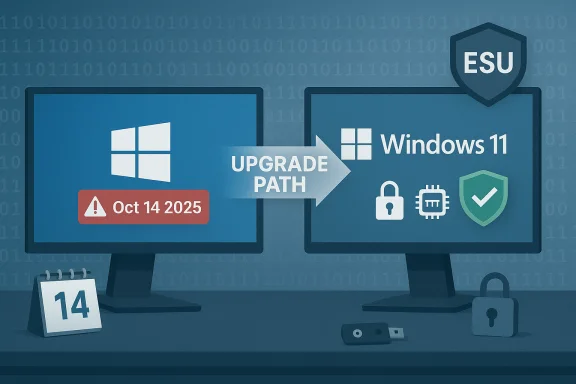
Microsoft’s long-running safety net for Windows 10 — the monthly security updates that quietly fixed the most dangerous bugs — has been withdrawn, and that shift changes the risk calculus for millions of PCs and the organisations that rely on them. The headline is simple: Windows 10 no longer receives routine OS-level security patches unless a device is enrolled in Microsoft’s time‑limited Extended Security Updates (ESU) program, and that reality forces every Windows 10 user to choose between upgrading, buying time, or hardening a now‑unsupported platform.
Background
What changed, exactly
On October 14, 2025, Microsoft ended mainstream support for Windows 10 — that means no more free feature updates, no more routine cumulative security patches for ordinary installations, and no standard technical support via Microsoft’s usual channels. Devices will still boot and run, but new kernel, driver, or platform vulnerabilities discovered after that date will not be patched for unenrolled systems. Microsoft explicitly recommends upgrading to Windows 11 where hardware permits, or enrolling eligible devices in the Windows 10 Consumer ESU program as a temporary bridge.Why this matters now
Operating-system security is foundational: OS patches close privilege‑escalation bugs, fix sandbox escapes, and block rootkit techniques that antivirus signature updates alone cannot fix. Once a vendor stops releasing those platform patches, the exposure is not hypothetical — attackers routinely reverse‑engineer vendor fixes to create exploits that work against unpatched installations. That technical reality turns unsupported desktops and laptops into increasingly attractive targets. Consumer groups and security professionals framed the change as an urgent risk-management problem for households, small businesses, and public bodies.The options for Windows 10 users — a practical overview
1) Upgrade to Windows 11 (preferred where possible)
Upgrading to Windows 11 is Microsoft’s recommended path because the newer OS embeds several security advances — hardware‑backed credentials, tighter kernel exploit mitigations, and design changes that reduce attack surface. However, Windows 11 enforces a higher minimum hardware baseline than Windows 10: a compatible 64‑bit CPU, 1GHz or faster with two or more cores, 4 GB RAM, 64 GB storage, UEFI firmware with Secure Boot, and TPM 2.0. The easiest way to verify eligibility is Microsoft’s PC Health Check tool, which will explain specific incompatibilities your PC might have. For many modern laptops and desktops (roughly models sold in the last four years), the upgrade path is straightforward; for older systems, TPM/Secure Boot and processor support are the common blockers.- Benefits:
- Continued OS‑level security updates and feature improvements.
- Access to Windows 11 security features such as hardware‑backed Windows Hello, enhanced virtualization‑based protections, memory integrity, and improved Defender hardening.
- Risks:
- Some older hardware is incompatible; forcing Windows 11 installs on unsupported machines is possible but unsupported and risky.
- Driver and application compatibility issues can occur for specialised software.
2) Enroll in Windows 10 Consumer ESU (time‑boxed bridge)
Microsoft published a consumer Extended Security Updates (ESU) program intended as a short, predictable bridge for users who cannot immediately upgrade or replace hardware. For consumer devices, the ESU window extends critical and important security updates only for a single year beyond the end‑of‑support cutoff (through October 13, 2026). Enrollment routes include a free cloud‑backed pathway (linking an eligible PC to a Microsoft Account and enabling Windows Backup or sync in some regions), redeeming Microsoft Rewards points, or a paid one‑time option that was widely reported at approximately $30 (regional variations may apply). ESU is explicitly a migration aid — it delivers security‑only fixes and does not include feature updates or routine technical support.- Benefits:
- Buys time to plan an upgrade or device replacement with vendor‑issued security patches for known critical issues.
- Risks:
- It’s temporary and limited in scope; relying on ESU indefinitely is not a sound long‑term security strategy.
- Some “free” enrollment paths require cloud sync or account actions that privacy‑conscious users may reject.
3) Replace the PC (buy new or refurbished)
If hardware is too old or incompatible, the most durable solution is to move to a Windows 11 PC or an alternative OS that receives active updates. Trade‑in programmes, refurbishers, and budget devices now offer vastly improved value and performance compared with old HDD‑based systems. Moving to a fresh machine resolves compatibility and patching concerns, but it requires migration of data and applications and an upfront cost. Many households recoup part of that cost by selling or trading in older PCs after securely wiping them.4) Move to a different operating system or isolate the device
For users unwilling or unable to upgrade to Windows 11, alternatives include installing a supported Linux distribution or ChromeOS Flex for basic workflows, or converting the device to an offline air‑gapped machine for specialised, non‑internet tasks. These are valid options for some, but they require application compatibility checks (many Windows‑only apps won’t run natively without virtualization or Wine‑style layers). For devices that must remain in service, isolating them from the internet and reducing network privileges reduces attack surface — but it’s a mitigation, not a cure.How big is the risk? Real‑world evidence and regional notes
It’s impossible to quantify the exact chance an individual PC will be targeted on any given day; exposure depends on use patterns, network accessibility, installed software, and local threat activity. But two concrete facts sharpen the picture:- Unsupported platforms accumulate risk quickly because every new discovery in modern Windows builds becomes a potential exploit vector for older versions. Security researchers and attackers commonly use “patch diffing” to create exploits that also hit unpatched targets.
- Ransomware and targeted extortion campaigns remain a dominant threat category, particularly where backup hygiene or defensive posture is weak. Sophos’ State of Ransomware 2022 survey reported striking regional variation: 71% of Nigerian organisations surveyed reported ransomware incidents in 2021 — a sharp jump from the previous year — and 44% of affected Nigerian organisations paid ransoms to restore encrypted data. That dataset is based on a global survey of 5,600 mid‑sized organisations and illustrates how rapidly ransomware exposure can rise in under‑protected environments. While national statistics do not map one‑to‑one to individual home PCs, the regional evidence shows that attackers will emphatically target systems where remediation and patching are impractical.
Immediate steps every Windows 10 user should take (priority checklist)
The most important actions are practical, measurable, and achievable within an hour to a few days. Treat them as an emergency checklist rather than optional tweaks.- Check your upgrade eligibility now
- Run Microsoft’s PC Health Check to determine whether your PC can be upgraded to Windows 11 and to learn which specific hardware items (TPM, Secure Boot, CPU model) are blocking the upgrade. If your device is supported, schedule the upgrade or plan a data migration window.
- Back up everything and verify restores
- Create multiple offline and online backups. Use image‑based backups for system restore capability and file‑level copies for user data. Test a restore — backups that can’t be restored are useless.
- Harden and verify anti‑malware and ransomware protections
- Keep Microsoft Defender real‑time protection, tamper protection, and controlled‑folder access enabled; these provide effective baseline defences and integrate with Windows’ OS features. Controlled Folder Access (part of Windows Security) helps stop many ransomware families from encrypting your documents and media folders.
- Minimise internet exposure for legacy machines
- If you must keep an unsupported device, reduce its network exposure: disable unnecessary services, avoid storing or processing sensitive credentials, block inbound RDP and other remote access ports at the router/firewall, and consider placing the device on an isolated VLAN or guest network. Consumer groups recommend disconnecting non‑essential unsupported devices from the internet as an emergency stopgap.
- Consider short‑term ESU enrollment if you cannot upgrade immediately
- If your device is eligible and you need more time, enroll in the consumer ESU program (free cloud‑backed route, Microsoft Rewards, or paid option) to receive security‑only updates through October 13, 2026. Treat ESU as temporary technical insurance, not a long‑term strategy.
- Review administrative hygiene
- Remove unnecessary admin privileges, enable Windows Hello and MFA for accounts where available, rotate passwords, and avoid reusing credentials. Monitor for suspicious account activity and sign in alerts.
- Harden browsers and email practices
- Most compromises start via phishing or malicious web content. Use a modern browser kept up to date, enable reputation‑based protections and SmartScreen, install an ad‑blocker, and train users to treat unexpected email attachments and downloads as high risk.
Third‑party security tools: useful but not a full substitute
Third‑party antivirus and endpoint protection tools (for example, Malwarebytes and many commercial EDR suites) can reduce risk by detecting and blocking malware, stopping privilege escalation attempts, and adding logging. They are helpful and, in many cases, essential for layered defence — but they do not replace OS patches that fix deep kernel and driver vulnerabilities. In other words, an antivirus can raise the bar, but it cannot completely neutralise the structural problem of an unpatched OS kernel. If you choose third‑party tools, pick reputable vendors, keep definitions and engines current, and ensure they are configured for real‑time protection and tamper resistance.The economics of replacement vs. ESU vs. risk
For households, upgrading or replacing a single PC is often cheaper in the medium term than the time and productivity cost of dealing with a compromise or paying for extended patching services year after year. For businesses, the calculus must include compliance, insurance, and operational risk: running unsupported software can void insurance claims, fail compliance audits, or trigger contractual penalties. ESU can be a cost‑effective bridge for managed fleets when migration projects need more time, but it should be budgeted as a one‑year line item rather than an indefinite alternative. Microsoft and consumer‑advocacy reporting both stress that ESU is a migration aid — not a life‑extension plan.Strengths and gaps in Microsoft’s transition approach
Strengths
- Microsoft provided an ESU pathway that recognises consumers and SMBs required time to migrate, and it included low‑friction enrollment options (cloud sync and a Microsoft Rewards route) to reduce the financial barrier for many households. That pragmatism helps avoid a sudden collapse of security across millions of devices.
- Windows 11’s baseline security improvements (TPM‑backed credentials, hardware‑enforced mitigations, memory integrity) represent real technical progress for new hardware, and Microsoft supplies clear upgrade tools such as PC Health Check.
Risks and weak points
- ESU is time‑boxed and limited to security‑only patches; it does not address non‑security bugs or new compatibility problems that will inevitably arise on older hardware. Relying on ESU beyond its intended window would be risky.
- The consumer‑free ESU route that depends on cloud sync may be politically or culturally unacceptable for privacy‑sensitive users; the pricing and account‑linking mechanics risk leaving a substantial cohort unwilling to enroll. Critics and consumer groups have flagged that conditionality as a practical barrier for many users.
- Hardware restrictions for Windows 11 (TPM 2.0, Secure Boot, supported CPU lists) leave a large tail of older devices that cannot be upgraded without replacement or unsupported workarounds, increasing the population of at‑risk endpoints.
Scenario planning: what to do in the most important cases
If your PC is Windows 10 and eligible for Windows 11
- Back up your system (image + files).
- Run PC Health Check and address obvious hardware/firmware blockers (enable TPM/secure boot in UEFI if present).
- Schedule the upgrade during a maintenance window and verify driver support from the OEM.
- After upgrade, re‑validate antivirus, BitLocker, and security settings.
If your PC is Windows 10 and not eligible
- Immediately create restorable backups and verify them.
- Evaluate ESU enrollment as a bridge while budgeting for replacement.
- Harden the machine (disable remote services, enable Defender features, isolate network access) and move sensitive workflows off that device.
- Consider alternative OS installs (Linux, ChromeOS Flex) where feasible, after testing application compatibility.
If you run a small business with many Windows 10 endpoints
- Inventory all devices and map eligibility for Windows 11.
- Prioritise replacements for endpoints that store or access sensitive data.
- Where replacement will be delayed, enrol eligible systems in ESU and deploy standard hardening: tamper‑protected EDR, controlled folder access, network segmentation, and robust backups.
- Log and test incident response and recovery plans; insurers increasingly expect demonstrable hygiene and tested restorations.
What to expect next: a realistic outlook
Over the next 12–24 months, expect a mix of outcomes: many modern devices will upgrade to Windows 11 and benefit from the newer security baseline; some households will use ESU as a short‑term safety valve; others will migrate to alternate platforms or buy new machines. Attackers will continue experimenting with unpatched Windows 10 exploits, and commodity exploit kits will target any widely deployed vector that remains unpatched. Organisations that delay migration without compensating controls will face increasing risk of ransomware, data theft, and compliance failure. The sensible path for most users is to plan and act now — the longer mitigation is postponed, the higher the probability of a disruptive compromise.Final recommendations — a concise action plan
- Run PC Health Check and document upgrade eligibility.
- If eligible, schedule and perform the Windows 11 upgrade after backing up.
- If not eligible, enroll in ESU only as a short‑term bridge — then budget for replacement.
- Harden Windows 10 installations: enable Windows Defender real‑time protection, tamper protection and Controlled Folder Access; verify backup restores.
- Reduce network exposure for unsupported devices and isolate them from high‑value resources.
Microsoft’s decision to move the ecosystem forward is technically defensible — modern security often requires modern hardware — but for many users that progress comes with a painful transition cost. The path forward is not binary: it mixes immediate technical hygiene, short‑term insurance via ESU in narrowly defined circumstances, and a clear migration plan to supported platforms. Treat the end of Windows 10 security updates as the prompt to take concrete action now: check compatibility, protect your data, and make a migration plan you can execute before the next serious exploit finds its way into the wild.
Source: Tribune Online Protecting Your Computer on Windows 10
