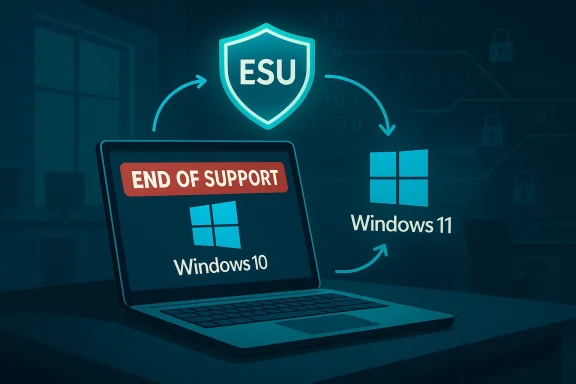
Windows 10 has reached its official end of support, but millions of machines still run it — and that reality means users must take immediate, practical steps to lower their risk of being hacked. Microsoft ended mainstream security updates for Windows 10 on October 14, 2025, and while a short-term safety net exists (consumer Extended Security Updates and continued Defender intelligence updates), those measures are time-limited and incomplete. This article explains exactly what changed, what protections remain, and a prioritized, actionable plan to keep a Windows 10 PC safer for as long as you need it — plus the strategic trade-offs if you decide to stay put rather than upgrade.
Windows 10’s lifecycle officially closed on October 14, 2025; Microsoft will not issue routine security or feature updates for the OS after that date. Consumers do, however, have the option to enroll eligible devices in Microsoft’s Extended Security Updates (ESU) program for a limited period, and Microsoft has committed to continuing Microsoft Defender Antivirus security intelligence updates for Windows 10 through at least October 2028. These policies buy time, not permanence. The details matter: eligibility rules, account requirements, and the scope of ESU are narrow, and Defender’s updates do not replace missing OS patches.
StatCounter and other telemetry trackers showed Windows 11 overtaking Windows 10 in overall pageview-weighted share in mid‑2025, but a significant portion of the installed base remained on Windows 10 at the time support ended — especially older or incompatible devices. That means many real-world PCs will need to be hardened rather than upgraded immediately. Use migration when feasible, but secure older machines if you can’t move them.
Why that matters: many modern attacks chain multiple small issues (phishing -> credential theft -> privilege escalation via unpatched OS bug). If the OS bug cannot be patched, a successful first-stage compromise can become far more damaging. Defender helps with detection and response, but the most resilient approach is to combine Defender with other mitigations described below.
Windows 10’s end of support changes the calculus from passive to active security: the OS will keep running, but you must assume responsibility for your device’s resilience. Use ESU only as a bridge, rely on Defender and a hardened security posture in the short term, and prioritize migration where risk and compatibility demands make it necessary. The result: you can meaningfully lower the chance of being hacked even on Windows 10 — but it requires layered controls, disciplined account hygiene, and a plan to move to a supported platform before the temporary protections run out.
Source: PCMag Using Windows 10? Do This Now to Lower Your Risk of Being Hacked
 Background / Overview
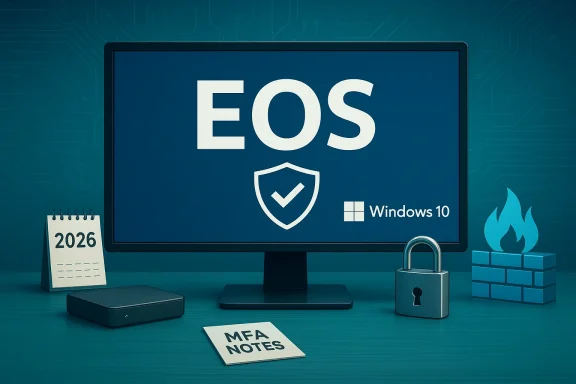
Windows 10’s lifecycle officially closed on October 14, 2025; Microsoft will not issue routine security or feature updates for the OS after that date. Consumers do, however, have the option to enroll eligible devices in Microsoft’s Extended Security Updates (ESU) program for a limited period, and Microsoft has committed to continuing Microsoft Defender Antivirus security intelligence updates for Windows 10 through at least October 2028. These policies buy time, not permanence. The details matter: eligibility rules, account requirements, and the scope of ESU are narrow, and Defender’s updates do not replace missing OS patches. StatCounter and other telemetry trackers showed Windows 11 overtaking Windows 10 in overall pageview-weighted share in mid‑2025, but a significant portion of the installed base remained on Windows 10 at the time support ended — especially older or incompatible devices. That means many real-world PCs will need to be hardened rather than upgraded immediately. Use migration when feasible, but secure older machines if you can’t move them.
What “End of Support” Actually Means
- No more cumulative OS security updates. Microsoft will not ship the monthly cumulative patches that address newly discovered Windows kernel, driver, or system-component vulnerabilities. That leaves system-level attack surfaces exposed unless you enroll in ESU.
- No technical support. If you call Microsoft about a Windows 10 problem, you’ll be told the product is no longer supported. That includes troubleshooting and remediation guidance for new Windows 10–specific bugs.
- Software compatibility will degrade over time. New apps and drivers will increasingly target Windows 11, meaning future hardware and high-end tools may not work on Windows 10. Expect friction with new peripherals and professional software.
- Limited compensations remain. Microsoft’s consumer ESU program allows enrolled Windows 10 devices to receive critical and important security updates for one year past EOS (through October 13, 2026) if prerequisites are met; enterprises may extend longer at higher costs. Separately, Microsoft stated it will deliver Defender security intelligence updates through at least October 2028 — but those are antivirus intelligence updates, not OS patches.
The ESU Program: How It Works, Costs, and Limits
What ESU gives you
- Access to security updates classified as Critical and Important by Microsoft’s Security Response Center (MSRC) for enrolled Windows 10, version 22H2 devices.
- Delivery via Windows Update to enrolled PCs. ESU does not include new features, non-security fixes, or technical support.
Eligibility and enrollment
- Devices must be running Windows 10, version 22H2 and be fully updated.
- For consumers, enrollment can be done from Settings > Windows Update; consumer rules differ from enterprise licensing. Microsoft requires either signing in with a Microsoft account (free ESU enrollment path for those who enable Windows Backup) or a one-time purchase (consumer option) for people who prefer local accounts — the typical one-time fee quoted was $30 for the single-year consumer ESU in many markets. Organizations face a different, tiered pricing model.
Important limitations
- Time-limited: Consumer ESU extends Windows 10 security updates only through October 13, 2026; enterprise ESU may go further but at increasing cost per year. ESU purposely does not restore general support or regular feature updates.
- Account requirements: Microsoft’s consumer enrollment paths can require a Microsoft account for the “free” or low-friction enrollment option. If you insist on staying local-only, the one-time paid option exists but is not free — and the consumer ESU only covers a single extra year. Tom’s Hardware and other outlets reported on how local-account users must purchase ESU or link a Microsoft account.
Microsoft Defender and What It Does — And Doesn’t — Protect
Microsoft has committed to keeping Microsoft Defender Antivirus receiving security intelligence updates for Windows 10 through at least October 2028. That means signature and cloud-driven threat intelligence used to detect malware will continue to be refreshed even after Windows 10 EOS. However, Defender’s updates are not a replacement for OS-level security patches. Defender can detect, quarantine, and sometimes prevent malware execution, but it can’t fundamentally fix an exploitable kernel or driver bug. Use Defender as a critical layer in a broader defense-in-depth strategy — not as your sole line of defense.Why that matters: many modern attacks chain multiple small issues (phishing -> credential theft -> privilege escalation via unpatched OS bug). If the OS bug cannot be patched, a successful first-stage compromise can become far more damaging. Defender helps with detection and response, but the most resilient approach is to combine Defender with other mitigations described below.
Practical Steps to Lower Your Risk — Immediate Actions
If you plan to keep using Windows 10 for a while, treat the next 6–12 months as a risk‑management sprint. The list below is prioritized from highest to lower immediate impact.1. Enroll in ESU if you qualify and need time
- Check Settings > Update & Security > Windows Update — look for an ESU enrollment link if you meet prerequisites.
- If you want to stay on a local account, be prepared to pay the one-time consumer fee or purchase ESU via other channels; otherwise, switching to a Microsoft account can enable different enrollment paths. ESU buys you time, not permanence.
2. Harden account security — passwords, MFA, and Windows Hello
- Turn on Multi‑Factor Authentication (MFA) for your Microsoft account and other critical services (email, financial, cloud storage).
- Deploy a password manager and replace reused or weak passwords with long, unique credentials.
- Use Windows Hello (biometrics) where available to remove password-based remote access risk.
- Audit local admin accounts; operate day-to-day as a non-admin account. This reduces the ability of malware to install system-wide components.
3. Lock down remote access and network exposure
- Disable or tightly restrict remote administration protocols (RDP, SMB) unless absolutely needed. If RDP must remain open, use a VPN and multi-factor authentication. Blocking RDP on the firewall and router is a fast improvement.
- Harden router admin credentials, keep router firmware updated, and use WPA3 (or WPA2 at a minimum) on Wi‑Fi.
4. Use a strong, modern security stack
- Keep Microsoft Defender enabled and verify it receives updates. Defender remains effective but do not rely on it alone.
- Consider a reputable third-party security suite (EDR-capable if you need enterprise-style protections) that includes exploit firewalling and behavior-based detection.
- Use browser hardening: enable reputation checks, block potentially unwanted apps, and limit plugin use.
ad defenses - Enable Exploit Protection and Core Isolation settings where supported by your hardware.
- Turn on Smart App Control or reputation-based blocking in App & Browser Control to reduce the risk of executing untrusted code.
6. Isolate high-risk activities
- Use a different machine or a virtualized environment for high-risk tasks (torrenting, unknown downloads).
- Consider running a separate hardened browser profile (or different browser) for banking and sensitive services.
7. Backups that resist ransomware
- Maintain at least three copies of important data: local, external offline (disconnected after backup), and cloud with versioning.
- Periodically test restore procedures. A backup you can’t restore is worthless.
8. Reduce attack surface: uninstall unused apps and drivers
- Remove legacy software and drivers you no longer use. Legacy code contains many historical vulnerabilities.
- Keep third-party apps (Java, Adobe Reader, browsers, Office) updated independently of the OS.
9. Network-level protections: DNS filtering and VPN
- Configure secure DNS (Cloudflare, Quad9) to block known malicious domains.
- Use a reputable VPN when on untrusted networks, but don’t rely on VPN for local OS protection.
10. Monitor and respond
- Enable logging and alerts where feasible. Use built-in Windows Event logs and set a simple schedule to review unusual authentications or service crashes.
- If compromised, disconnect the device from the network and use a known-clean system to change passwords and investigate.
A Tactical Two‑Month Checklist (Copy / Paste)
- Check Windows Update and your Windows 10 version (must be 22H2 for ESU).
- Decide: enroll in ESU (if eligible) or plan migration. If enrolling, perform it now.
- Turn on Defender, run full scans, confirm cloud-delivered protection is enabled.
- Enable MFA on email, Microsoft account, and other critical services.
- Configure automatic backups (local + cloud with versioning) and test a restore.
- Disable unnecessary inbound services (RDP, SMB) at the firewall.
- Patch all third-party apps and drivers.
- Install a modern security suite if you handle sensitive data or use the PC for work.
- Audit admin accounts; remove or rename the default admin account and use a standard account for daily use.
- Document your recovery plan and keep a hardcopy of your essential account recovery data.
Risks, Strengths, and Pragmatic Trade-offs
Strengths of staying on Windows 10 (short-term)
- Familiar environment; no hardware purchases required.
- If you enroll in ESU and keep Defender + a layered security stack, you can reduce immediate risk and extend safe use while you plan migration.
Real risks and long-term downsides
- Unpatched OS vulnerabilities can be discovered after EOS and weaponized; without cumulative updates, these can lead to privilege escalation and persistence that antivirus alone may not stop.
- Compatibility erosion: new peripherals, drivers, and apps will gradually drop Windows 10 support; this can hinder productivity or push you to upgrade under pressure.
- Rising operational cost: ESU is a stopgap and can be more expensive for organizations (and inconvenient for consumers relying on account linkage vs. paying a fee). Enterprise costs escalate for longer-term ESU.
Unverifiable or variable claims to watch for
- Headlines that claim specific global user counts or precise timelines without vendor telemetry often compress nuance. Always check vendor docs (Microsoft) and independent market trackers (StatCounter) for the specific metric you need. Some numbers in media pieces can be estimates or sample-based. Treat sensational headlines cautiously.
When to Stop Trying to Harden and Start Upgrading
- If your PC is used for work involving sensitive corporate data, healthcare information, or financial operations, treat EOS as an immediate migration requirement — hardening is not equivalent to support.
- If your device cannot run Windows 11 (hardware incompatibilities like unsupported CPU or missing TPM 2.0) and you rely on modern apps that declare Windows 11 only compatibility, plan a hardware refresh on your schedule.
- If you repeatedly rely on mission-critical software vendors who drop Windows 10 support — migrate sooner rather than later.
Final Recommendations — A Clear, Actionable Plan
- Immediate (today–week): Verify your Windows 10 build (22H2 recommended), enable Defender, enable MFA, and take a complete backup. If you’re eligible and want time, enroll in ESU now.
- Near term (30–90 days): Harden the device using the checklist above (disable RDP, remove unnecessary services, apply third-party updates, enable exploit mitigations). Start mapping software/hardware that may require Windows 11.
- Medium term (3–12 months): Plan migration. If hardware supports Windows 11, test and perform the upgrade during a maintenance window. If not, budget for a new device and schedule migration to avoid last-minute compromises.
- Ongoing: Maintain layered security: Defender + firewall + backups + MFA. Monitor vendor advisories and the threat landscape.
Windows 10’s end of support changes the calculus from passive to active security: the OS will keep running, but you must assume responsibility for your device’s resilience. Use ESU only as a bridge, rely on Defender and a hardened security posture in the short term, and prioritize migration where risk and compatibility demands make it necessary. The result: you can meaningfully lower the chance of being hacked even on Windows 10 — but it requires layered controls, disciplined account hygiene, and a plan to move to a supported platform before the temporary protections run out.
Source: PCMag Using Windows 10? Do This Now to Lower Your Risk of Being Hacked