

Microsoft’s guidance for keeping commercial Windows 10 devices patched after end of support is practical but narrow: follow the prerequisites, open specific activation endpoints, and choose the right activation path — MAK for volume-licensed fleets or cloud entitlements for Azure/Windows 365 — while accepting that ESU is a time‑boxed bridge, not a long‑term substitute for migration.
Microsoft formally ended mainstream support for Windows 10 on October 14, 2025. That milestone means the vendor stopped shipping routine cumulative updates, feature updates, and standard technical support for mainstream Windows 10 editions unless devices are enrolled in an Extended Security Updates (ESU) program. The ESU program exists in two broad tracks: a one‑year consumer ESU path that covers qualifying home/pro devices and a commercial (volume licensing) ESU for businesses that can be extended for multiple years at increasing cost. Microsoft’s October 2025 cumulative update (KB5066791) is the baseline servicing package that Microsoft used as the last broadly distributed free cumulative update for eligible Windows 10 servicing branches; corporates must be at or above that servicing baseline before ESU activation will work as documented. The October LCU moved affected systems to OS builds 19044.6456 (21H2 servicing) or 19045.6456 (22H2 servicing).
The rollout guidance Microsoft has posted gives administrators the tools to keep devices patched for the short term, but the operational caveats require careful testing and clear migration timelines. Treat the ESU window as breathing room — not an escape hatch.
Conclusion
For commercial IT environments, the path to keeping Windows 10 updated after October 14, 2025 is clear but finite: meet the 22H2 + KB5066791 baseline, ensure activation endpoints are reachable, retrieve and deploy the MAK from the Microsoft 365 admin center, verify activation with slmgr.vbs /dlv or Windows 365 registry/event checks, and treat ESU as a short‑term bridge toward migration to Windows 11 or alternative platforms. The technical instructions from Microsoft are actionable and scriptable, but administrators must also plan for proxy/firewall issues, enrollment nuances, cost escalation, and third‑party vendor support gaps — otherwise the ESU lifeline becomes a false sense of security.
Source: heise online Microsoft provides tips for extended support for commercial Windows 10
 Background
Microsoft formally ended mainstream support for Windows 10 on October 14, 2025. That milestone means the vendor stopped shipping routine cumulative updates, feature updates, and standard technical support for mainstream Windows 10 editions unless devices are enrolled in an Extended Security Updates (ESU) program. The ESU program exists in two broad tracks: a one‑year consumer ESU path that covers qualifying home/pro devices and a commercial (volume licensing) ESU for businesses that can be extended for multiple years at increasing cost. Microsoft’s October 2025 cumulative update (KB5066791) is the baseline servicing package that Microsoft used as the last broadly distributed free cumulative update for eligible Windows 10 servicing branches; corporates must be at or above that servicing baseline before ESU activation will work as documented. The October LCU moved affected systems to OS builds 19044.6456 (21H2 servicing) or 19045.6456 (22H2 servicing). What Microsoft is telling admins — the essentials
Prerequisites and baseline patch level
- Devices must be running Windows 10, version 22H2 (commercial ESU applies to supported SKUs on the 22H2 baseline).
- The minimum update level for MAK-based ESU activation is the October 2025 servicing baseline (for KB5066791 or later) that sets the SSU/LCU baseline to build numbers 19044.6456 / 19045.6456.
Activation endpoints and network egress
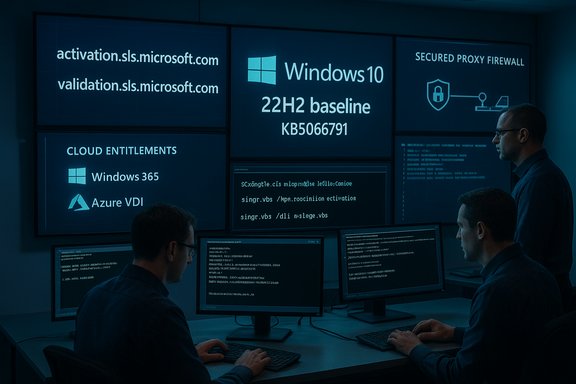
ESU activation and validation require access to specific Microsoft activation and licensing endpoints. Microsoft lists a set of URLs that must be reachable from clients performing activation or periodic validation (activation.sls.microsoft.com, validation.sls.microsoft.com, displaycatalog.mp.microsoft.com, licensing.mp.microsoft.com, purchase.mp.microsoft.com, and related endpoints). Do not rely on static IP allowlists — allow domain/URL egress through proxies and firewall appliances.How to find and distribute the ESU MAK
- The MAK (Multiple Activation Key) for commercial ESU appears in the Microsoft 365 Admin Center under Billing → Your products → Volume licensing → View contracts → View product keys. Appropriate admin roles (Product Key Reader or VL Administrator) are required to see keys.
- To install and activate the MAK on endpoints, Microsoft documents using the built‑in volume activation script: slmgr.vbs /ipk <ESU MAK> followed by slmgr.vbs /ato <Activation ID>. Verify activation with slmgr.vbs /dlv; the output should list the ESU program name and show License Status = Licensed. Activation IDs for Year 1, Year 2 and Year 3 are published and must be used as shown.
Supported distribution and tooling
- Management tools supported for deployment include Microsoft Intune, Configuration Manager (SCCM), Volume Activation Management Tool (VAMT), or scripted/slmgr calls pushed via remote management tooling or run locally (elevated). VAMT is recommended for offline or segmented networks because it can act as a proxy for activation and track MAK consumption.
- Phone activation remains an option for isolated endpoints that cannot reach Microsoft activation endpoints. The documented phone‑based workflow mirrors the slmgr sequence and the verification steps.
Cloud entitlements and virtualization exceptions
- Some Microsoft‑hosted cloud scenarios receive ESU coverage automatically and at no extra charge: Azure Virtual Desktop, Azure Virtual Machines, Azure Dedicated Host, Windows 365 Cloud PCs, and a number of Azure Stack variants. Other virtualization platforms (Citrix, Nutanix, VMware on Azure solutions) typically require manual ESU activation via MAK.
- Windows 365 Cloud PC entitlements: local Windows 10 devices used to access Cloud PCs can be automatically entitled to ESU if the device is Microsoft Entra joined or Entra hybrid joined and the user signs into the local device with the same Entra ID used for the Cloud PC on a regular cadence. Microsoft’s documentation uses “at least once every month” wording, but some administrative pages and partner guidance recommend a stricter 22‑day sign‑in cadence — implement the stricter cadence where practical and validate with registry or event log checks.
Step‑by‑step: a recommended activation workflow for enterprise admins
- Inventory and classify: gather edition, build, upgradeability, management state, and ownership for all Windows 10 endpoints. Tag systems that are internet‑facing, privileged, or regulative as high priority.
- Baseline patching: update targeted machines to Windows 10 22H2 and install the October 2025 servicing baseline (KB5066791 or later). Confirm build numbers (19044.6456 / 19045.6456).
- Network prep: ensure required activation/validation URLs are reachable through your HTTP/HTTPS proxy, allowlist relevant domains at egress, and test with a pilot machine.
- Pilot activation: use slmgr.vbs /ipk and /ato on a small controlled group; verify with slmgr.vbs /dlv and ClipESU logs (Event ID 113) where applicable. Capture and centralize activation logs.
- Automate mass deployment: push the slmgr-based calls via Intune/ConfigMgr or VAMT; for offline networks, run VAMT as an activation proxy. Maintain a record of MAK consumption and timestamps in your CMDB.
- Sunsetting plan: ESU is a stopgap. Schedule migration of ESU‑covered devices to Windows 11 or supported alternatives before final ESU expiration to avoid rising renewal costs and regulatory risk.
The technical details admins must verify immediately
Activation commands and Activation IDs (do not mistype)
- Install MAK:
- slmgr.vbs /ipk <ESU MAK>
- Activate with published Activation ID:
- slmgr.vbs /ato <Activation ID>
- Verify:
- slmgr.vbs /dlv → Look for ESU program name and License Status = Licensed
- Win10 ESU Year1: f520e45e-7413-4a34-a497-d2765967d094
- Win10 ESU Year2: 1043add5-23b1-4afb-9a0f-64343c8f3f8d
- Win10 ESU Year3: 83d49986-add3-41d7-ba33-87c7bfb5c0fb
Endpoints required for activation and validation
Key domains that must be reachable (non‑exhaustive):- activation.sls.microsoft.com and activation-v2.sls.microsoft.com
- validation.sls.microsoft.com and validation-v2.sls.microsoft.com
- displaycatalog.mp.microsoft.com, licensing.mp.microsoft.com, purchase.mp.microsoft.com
- go.microsoft.com and login.live.com
- crl.microsoft.com (for certificate revocation checks)
Verification telemetry and registry checks
- For MAK activations, rely on slmgr.vbs /dlv as canonical verification.
- For Windows 365 entitlements, Microsoft documents the registry flag HKLM\SOFTWARE\Microsoft\Windows NT\CurrentVersion\SoftwareProtectionPlatform\ESU\Win10CommercialW365ESUEligible and Event Viewer ClipESU Event ID 113 as reliable indicators of entitlement. Implement Intune scripts to query the registry and parse event logs to automate verification.
Why Microsoft’s guidance is useful — strengths
- Concrete, scriptable workflow: Microsoft provides explicit commands (slmgr.vbs /ipk, /ato, /dlv) and Activation IDs, enabling automation and auditing in enterprise tooling. This reduces ambiguity for administrators.
- Cloud entitlement options: For organisations that have already invested in Windows 365 or Azure‑centric desktops, Microsoft’s decision to include ESU at no additional cost in Azure Virtual Desktop, Azure VMs and Windows 365 Cloud PCs provides a pragmatic cost-offset and migration path for eligible workloads. This can substantially reduce per‑device ESU licensing cost and simplify lifecycle planning for VDI and Cloud PC users.
- Operational checks and logs: Microsoft documents multiple verification mechanisms (slmgr output, registry flags, Event ID 113), enabling teams to programmatically confirm entitlement status at scale and feed results into monitoring/CMDB systems.
Where the guidance still leaves operational risk — and what to watch out for
1) Baseline and servicing rigidity
If endpoints are not already at Windows 10 22H2 with the October 2025 LCU, activation may fail or Windows Update may not deliver ESU updates. Remediation requires patching to the exact baseline first, which for some fleets is non‑trivial due to change control, driver compatibility, or offline subnet restrictions. The requirement to be on 22H2 is strict and not merely advisory.2) Network and proxy surprises
Corporate proxy appliances, SSL inspection, and strict egress filters commonly block or tamper with the activation URLs and certificate checks required for ESU. It’s essential to test activation from representative network segments and to use domain‑allow rules rather than static IP lists; Microsoft does not publish static IPs for these services. Failed CRL checks or blocked activation endpoints are a frequent root cause of activation problems.3) Ambiguity in Windows 365 sign‑in cadence
Microsoft’s documentation presents slight variations (22 days vs one month) for the sign‑in cadence required to maintain Windows 365-based ESU entitlements for a local device. That discrepancy has operational impact: if you adopt the less frequent interpretation and Microsoft’s backend expects more frequent authentications, devices could silently lose entitlement. Implement the stricter 22‑day cadence and monitor Win10CommercialW365ESUEligible with scripts to be safe.4) Consumer‑side privacy and account requirements (applies to consumer ESU)
Microsoft’s consumer ESU free path requires linking devices to a Microsoft account and enabling settings sync or using Microsoft Rewards — a sharp change from earlier ESU models and problematic for customers who use local accounts for privacy or compliance reasons. Several outlets reported that consumer enrollment disallows pure local accounts for the free path, forcing a Microsoft account or paid alternative. Organizations must not assume consumer‑style free enrollment will work for corporate or domain‑joined devices.5) Cost escalation and compliance risk
Commercial ESU pricing typically escalates year over year; Microsoft designed the model to incentivize migration to Windows 11 rather than long‑term reliance on ESU. For regulated industries, ESU’s limited scope (security‑only patches classified as Critical or Important) may be insufficient to meet compliance obligations that require full vendor support or coverage for lower‑severity vulnerabilities. Evaluate whether ESU satisfies compliance requirements before purchasing.6) Third‑party software and driver support
ESU only addresses Microsoft’s security‑level fixes for the Windows platform; hardware vendors and independent software vendors may cease support for Windows 10 drivers or applications, creating compatibility or security gaps even on patched systems. ESU does not guarantee application vendor support.Practical recommendations and checklist for IT teams
- Patch first, then activate: ensure every target device is on 22H2 + KB5066791 (or later) before attempting MAK installation. Test the KB install and that the Settings UI does not erroneously block enrollment.
- Test activation from representative network zones: pilot across corporate WAN, remote/home VPN, and air‑gapped labs to catch proxy/SSL inspection failures early.
- Automate verification: deploy Intune/PowerShell scripts that check slmgr.vbs output (MAK cases), Win10CommercialW365ESUEligible registry values (Windows 365 path), and Event ID 113 for ClipESU. Feed results into a central SIEM or CMDB.
- Prefer cloud entitlements for suitable workloads: if your organisation already uses Windows 365 Enterprise or Azure VMs for large user groups, evaluate moving workloads to those platforms to avoid per‑device ESU licensing costs. Validate Entra join/hybrid join requirements and the sign‑in cadence.
- Plan migration budgets: treat ESU as a one‑ to three‑year bridge and schedule hardware refreshes or application upgrades; do not assume ESU is a cheaper long‑term solution once administrative overhead and escalated renewal pricing are factored in.
- Keep activation logs and rollback plans: record MAK installation timestamps, activation outputs and license status; snapshot or image critical systems before mass activation in case of unforeseen rollback requirements.
Final assessment
Microsoft’s published guidance for commercial Windows 10 ESU activation is comprehensive where it matters: it specifies the servicing baseline, the activation commands and IDs, the necessary network endpoints, and the cloud‑entitlement conditions. Those details make the ESU path practical and automatable for IT teams that have standard patch management and modern endpoint tooling. At the same time, ESU is intentionally limited and operationally brittle in several ways: strict baseline requirements, fragile network dependencies, account and sign‑in nuances for Windows 365 entitlements, and growing cost incentives to migrate. Organizations should treat ESU as a controlled, audited stopgap and not as a replacement strategy for a modern, supported Windows estate. Ensure legal/compliance teams assess whether security‑only patches meet regulatory obligations and schedule migrations well before ESU coverage expires.The rollout guidance Microsoft has posted gives administrators the tools to keep devices patched for the short term, but the operational caveats require careful testing and clear migration timelines. Treat the ESU window as breathing room — not an escape hatch.
Conclusion
For commercial IT environments, the path to keeping Windows 10 updated after October 14, 2025 is clear but finite: meet the 22H2 + KB5066791 baseline, ensure activation endpoints are reachable, retrieve and deploy the MAK from the Microsoft 365 admin center, verify activation with slmgr.vbs /dlv or Windows 365 registry/event checks, and treat ESU as a short‑term bridge toward migration to Windows 11 or alternative platforms. The technical instructions from Microsoft are actionable and scriptable, but administrators must also plan for proxy/firewall issues, enrollment nuances, cost escalation, and third‑party vendor support gaps — otherwise the ESU lifeline becomes a false sense of security.
Source: heise online Microsoft provides tips for extended support for commercial Windows 10
