

If a recent Windows 10 preview update left your taskbar scrambled — icons overlapping, disappearing, or hiding behind the clock — there's a high chance it’s the KB5003214 cumulative preview and, fortunately, there are straightforward workarounds you can apply right now.
Microsoft released KB5003214 as a May 25, 2021 optional cumulative preview for Windows 10 (applies to versions 2004, 20H2, and 21H1) and one of its headline features was the rollout of News and Interests on the taskbar — a small weather/news feed positioned next to the system tray. The update also bundled multiple bug fixes and other minor improvements, but users installing the preview quickly reported taskbar-related regressions. The reports cluster around a small set of symptoms: system tray icons moving erratically, icons vanishing or overlapping with the clock, network and action center icons not responding, and in some cases the search box or other taskbar UI elements failing to render correctly. These problems were seen both on standard devices and on Windows Insider/preview machines, which is why the preview release phase matters: it alerts both Microsoft and early adopters to high-impact regressions before a broad Patch Tuesday rollout.
wusa /uninstall /kb:5003214
Uninstalling a cumulative update will remove the corrections and feature changes it delivered, so the symptom will typically vanish, but be mindful this also removes the security and stability fixes contained in that package.
Key takeaways:
In the short term, the path that balances safety and usability is: restart Explorer → turn off News and Interests → uninstall KB5003214 only if necessary → pause updates until Microsoft releases a corrected build. That approach keeps your system secure where possible while restoring everyday taskbar functionality when needed.
If the problem persists after trying the recommended steps, document the behavior (screenshots, steps to reproduce) and submit feedback through the Feedback Hub so Microsoft has telemetry and repro details to prioritize a fix. Community threads and Microsoft’s update notes have historically shown that issues discovered in preview releases are typically addressed in subsequent cumulative updates, but until Microsoft publishes a confirmed fix, the mitigations above are the practical remedies available. Conclusion: KB5003214’s introduction of News and Interests triggered taskbar regressions in a meaningful subset of installs; the user-facing impact is real but addressable with simple workarounds, and removing the update is an effective last resort — taken with the appropriate security and servicing caveats.
Source: BetaNews KB5003214 update for Windows 10 is causing taskbar problems -- but there's a simple fix
 Background / Overview
Microsoft released KB5003214 as a May 25, 2021 optional cumulative preview for Windows 10 (applies to versions 2004, 20H2, and 21H1) and one of its headline features was the rollout of News and Interests on the taskbar — a small weather/news feed positioned next to the system tray. The update also bundled multiple bug fixes and other minor improvements, but users installing the preview quickly reported taskbar-related regressions. The reports cluster around a small set of symptoms: system tray icons moving erratically, icons vanishing or overlapping with the clock, network and action center icons not responding, and in some cases the search box or other taskbar UI elements failing to render correctly. These problems were seen both on standard devices and on Windows Insider/preview machines, which is why the preview release phase matters: it alerts both Microsoft and early adopters to high-impact regressions before a broad Patch Tuesday rollout. What the bug looks like (real user symptoms)
Common user-facing symptoms
- Icons disappear from the right side of the taskbar (system tray) or stay hidden in the overflow area even when toggled visible.
- Icons overlap or appear on top of the clock and date.
- Notification area elements — network icon, battery indicator, action center — become unresponsive or blank.
- Search box or taskbar search sometimes vanishes or behaves oddly after the update.
Where reports came from
The problem was widely reported in Feedback Hub and across community forums and social platforms. Users posting their experiences described reproductions that tied the behavior to KB5003214 and — notably — to whether News and Interests was enabled. Some found that turning News and Interests back on restored normal behaviour; others needed to uninstall the update.Why this probably happened (technical analysis and caveats)
There is no published Microsoft deep-dive that pinpoints a single debug trace for the issue, so the following is an evidence-informed analysis rather than definitive root-cause attribution.- The problem surfaced immediately after the optional KB5003214 preview that explicitly added News and Interests to the taskbar. Adding a new taskbar element changes layout and message handling in the Windows shell (Explorer), which can expose timing, scaling, and redraw race conditions in the notification area. That makes the new feature a logical suspect.
- Multiple reports indicate that the presence or absence of News and Interests affects the bug’s behavior: some users found the taskbar stable only when the feature stayed enabled, others needed to remove the update entirely. That points to an interaction between the new taskbar element and existing icon/overflow logic. This could be a race condition where apps fail to re-register their tray icons correctly after the system broadcasts the TaskbarCreated message, or a layout overflow calculation problem when the News widget is hidden or toggled. These causes are plausible but remain unverified without Microsoft’s internal repro or a hotfix note.
- Scaling and display settings (DPI scaling) were reported by some users as aggravating the issue; UI layout code is frequently sensitive to non-default DPI settings, which can reveal rendering bugs absent on 100% scaling. This observation is based on community reports and should be treated as provisional until Microsoft confirms.
Immediate, safe fixes you can try (ranked by invasiveness)
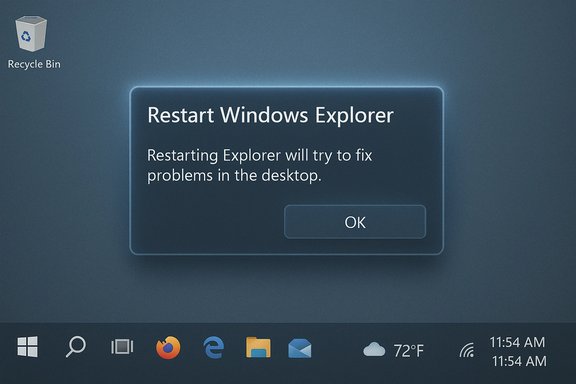
If you are affected, start with the least invasive options; they are fast and often resolve the symptom without removing updates.1. Restart Explorer (quick, non-destructive)
A restart of explorer.exe refreshes the shell and often forces tray icons to re-register. This is a common first-step workaround for transient UI glitches.- Press Ctrl+Shift+Esc to open Task Manager.
- Select "Windows Explorer" under Processes, right-click it and choose "Restart" (or End Task, then File → Run new task → explorer.exe).
- Check whether tray icons and the taskbar return to normal.
2. Disable News and Interests (the simplest targeted workaround)
Because the bug correlates strongly with the News and Interests feature, disabling that feature resolves the layout interaction for many users.- Right-click any blank area on the taskbar → News and interests → Turn off.
3. Uninstall KB5003214 (more invasive; reverts the system update)
If the earlier steps fail, uninstalling the update is decisive and reported to resolve the issue in affected systems.- Settings → Update & Security → Windows Update → View update history → Uninstall updates.
- In the Control Panel list, select the KB5003214 entry and uninstall. Reboot if prompted.
wusa /uninstall /kb:5003214
Uninstalling a cumulative update will remove the corrections and feature changes it delivered, so the symptom will typically vanish, but be mindful this also removes the security and stability fixes contained in that package.
How to perform the fixes — step-by-step guides
A. Restart Explorer (safe step)
- Press Ctrl+Shift+Esc to open Task Manager.
- Under Processes, find Windows Explorer.
- Right-click → Restart.
- If Restart is unavailable, select End task, then File → Run new task → type explorer.exe → Enter.
- Check taskbar icons.
B. Disable News and Interests (surgical and reversible)
- Right-click on an empty area of the taskbar.
- Hover over News and interests.
- Select Turn off.
C. Uninstall KB5003214 (when necessary)
Method 1 — via Settings:- Start → Settings → Update & Security → Windows Update → View update history.
- Click Uninstall updates.
- Select KB5003214 from the list and click Uninstall.
- Reboot when prompted.
- Open Command Prompt as Administrator.
- Run:
wusa /uninstall /kb:5003214 - Follow the prompts and reboot.
Risks and important caveats
Uninstalling can expose you to security risk
Removing a cumulative update can remove non-feature fixes and security patches. Always weigh the usability gain against potential security exposure, and plan to reinstall a corrected update as soon as Microsoft issues it. Microsoft documents the uninstall process and cautions about the risk of removing security updates.Some devices may not be able to uninstall KB5003214
Microsoft documented a separate, more serious issue tied to KB5003214 (and related updates) where scavenging of older components could mark the current LCU as permanent. On devices in that state, you cannot uninstall KB5003214 and may encounter update installation errors (for example, PSFX_E_MATCHING_BINARY_MISSING). Microsoft recommends an in-place upgrade to repair such systems. If your uninstall attempt fails with an error suggesting permanent servicing, follow Microsoft’s remediation guidance rather than forcing risky manipulations.Blocking reinstallation isn’t always straightforward
Even after uninstalling, Windows Update can automatically reinstall the update. You can pause updates or use Windows Update for Business policies to defer updates, but tools like the old Show/Hide updates troubleshooter (wushowhide.diagcab) have an uncertain status and may not function consistently across OS versions. Pausing updates via Settings is the simplest short-term control. Enterprises should use WSUS or update rings to control deployment.If you’re not sure: test on a non-production machine
Preview updates are designed for early testing. Home users who prefer stability should avoid installing optional preview updates until Microsoft completes the vetting process on Patch Tuesday releases. Enterprises should follow standard test-rings to catch regressions before broad deployment.What Microsoft has said (and what to expect)
Microsoft’s official KB for the May 25, 2021 preview confirms News and Interests landed with KB5003214 and lists the feature among the release highlights. The KB entry also documents other unrelated fixes and known issues for that release wave. Because initial reports came from the preview channel, Microsoft had an opportunity to address the bug before a broader rollout; however, some cumulative preview regressions still reach wider audiences if users install optional updates early. Microsoft later published guidance for a distinct post-KB5003214 scenario where devices could become unable to install future updates; that advisory includes remediation instructions and recommends in-place upgrade as a resolution for affected devices. If your device ends up in an irreparable servicing state after attempting rollbacks, follow Microsoft’s remediation instructions rather than attempting unsupported removal techniques.Recommendations for users and administrators
- Home users: If you installed KB5003214 and see taskbar problems, first restart Explorer, then disable News and Interests. If that fails, uninstall KB5003214 but be prepared to pause updates until Microsoft issues a corrected cumulative update.
- Power users / advanced: Use the wusa command to uninstall quickly (wusa /uninstall /kb:5003214), then pause updates in Settings → Windows Update to prevent immediate reinstallation. For machines that cannot uninstall due to scavenging/permanent LCU state, prepare for in-place upgrade workflow as recommended by Microsoft.
- System administrators / IT teams: Treat the KB as a preview and hold it in test rings. Use Windows Update for Business, WSUS, or SCCM to stage the update across rings and monitor for taskbar/UI issues. If the update is already in production and you see user impact, consider targeted rollback for affected endpoints and coordinate remediation with Microsoft update guidance.
- Security note: Never leave critical systems permanently without security updates. If a rollback is necessary for usability, schedule a follow-up to install the corrected update once Microsoft releases an official fix.
Long-form troubleshooting checklist (if you prefer a single reference)
- Reboot the PC (full restart).
- If still broken, restart Explorer (Task Manager → Windows Explorer → Restart).
- If that fails, right-click taskbar → News and interests → Turn off. Check taskbar behavior.
- If problems persist and the device is non-critical, uninstall KB5003214 via Settings → Update & Security → View update history → Uninstall updates, or use wusa /uninstall /kb:5003214. Reboot.
- After uninstall, pause updates in Settings → Windows Update → Pause updates. Consider enabling Windows Update for Business policies or WSUS in organizational settings to prevent immediate reinstallation.
- If uninstall fails or you encounter servicing errors, escalate to in-place upgrade or follow Microsoft remediation guidance (Windows RE or in-place upgrade) rather than forcing unsupported removals.
The bigger picture: what this episode tells us about preview updates and Windows UI changes
This incident is a textbook example of how even small UI additions can cascade into visible usability problems. Taskbar and shell code are central to daily workflows, and small timing/layout changes can produce disproportionate impact across a wide variety of hardware, display drivers, DPI settings, and third-party shell extensions.Key takeaways:
- Preview updates matter — bugs reported in preview help Microsoft catch regressions before broad distribution, but users who install previews accept greater risk.
- Taskbar is a fragile integration point — the system tray supports hundreds of third-party registrations and relies on careful sequencing; introducing new elements (like News and Interests) can expose latent timing or layout bugs. Community reports and subsequent troubleshooting consistently show Explorer restart and toggling the new feature as effective mitigations, reinforcing the interaction hypothesis.
- Rollbacks are non-trivial — Microsoft’s servicing model and LCU scavenging can make some updates irreversible on certain devices; administrators must plan for that possibility and use in-place repair strategies when needed.
Final verdict and practical guidance
If your Windows 10 taskbar started misbehaving after installing the KB5003214 preview, the simplest first move is to restart Explorer and disable the News and Interests widget. Those steps fix the majority of user-reported cases and are reversible. If the problem persists, uninstalling KB5003214 typically resolves the symptom, but that step has security and servicing implications; proceed with caution and be aware that some machines may need an in-place upgrade if the update becomes permanent. Pause updates or stage them through IT deployment tools until Microsoft issues a fixed cumulative update.In the short term, the path that balances safety and usability is: restart Explorer → turn off News and Interests → uninstall KB5003214 only if necessary → pause updates until Microsoft releases a corrected build. That approach keeps your system secure where possible while restoring everyday taskbar functionality when needed.
If the problem persists after trying the recommended steps, document the behavior (screenshots, steps to reproduce) and submit feedback through the Feedback Hub so Microsoft has telemetry and repro details to prioritize a fix. Community threads and Microsoft’s update notes have historically shown that issues discovered in preview releases are typically addressed in subsequent cumulative updates, but until Microsoft publishes a confirmed fix, the mitigations above are the practical remedies available. Conclusion: KB5003214’s introduction of News and Interests triggered taskbar regressions in a meaningful subset of installs; the user-facing impact is real but addressable with simple workarounds, and removing the update is an effective last resort — taken with the appropriate security and servicing caveats.
Source: BetaNews KB5003214 update for Windows 10 is causing taskbar problems -- but there's a simple fix
