

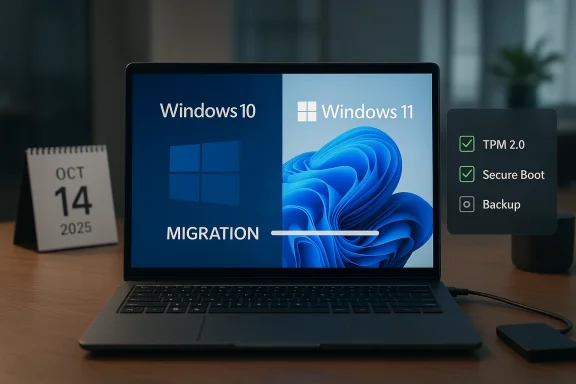
Windows 10 support ended on October 14, 2025, which makes the upgrade question less about “if” and more about how to move with the least pain. Microsoft now states plainly that Windows 10 no longer receives free security updates, technical assistance, or feature updates, and recommends either upgrading to Windows 11, enrolling in Extended Security Updates, or replacing the device altogether.
For years, Windows users treated operating system upgrades as something to postpone until the last possible moment. That habit made sense when support windows were long and hardware requirements were relatively forgiving, but Windows 11 changed the equation. Microsoft raised the bar with TPM 2.0, Secure Boot, 64-bit CPU expectations, and a minimum of 4 GB of RAM and 64 GB of storage, which immediately split the PC base into two groups: eligible machines and perfectly usable machines that were suddenly “unsupported.”
That split matters because Windows 10 was still widely used right up to the deadline. Microsoft’s own support pages now say that, after October 14, 2025, Windows 10 systems continue to run but no longer receive security fixes or feature updates. In practical terms, that means the operating system becomes a steadily riskier place to keep a daily driver, especially for users who browse the web, handle email, or store sensitive documents locally.
The transition also has a psychological dimension. Many users objected to Windows 11 not because it was unstable, but because it felt more opinionated. The centered Start menu, tighter taskbar rules, and the sense that Microsoft wanted to shepherd users toward its own services made the OS feel less like a customizable desktop and more like a curated experience. Microsoft’s current guidance, which emphasizes customization and migration support, suggests the company knows it has to lower the friction if it wants the remaining Windows 10 holdouts to move.
At the same time, the broader software ecosystem has shifted. Microsoft now frames Windows 11 as the safer and more modern platform, while key products such as Microsoft 365 and Office have their own support timelines tied to Windows 10’s end-of-support date. That means the upgrade decision is no longer just about the operating system; it affects app support, workflow continuity, and how long an older PC remains a viable business asset.
For anyone still on Windows 10, the real challenge is not whether Windows 11 can work. It can. The challenge is choosing the right path: direct in-place upgrade, clean install, new PC migration, or, for unsupported hardware, a workaround that may be acceptable on a lab machine but risky in a production environment. Microsoft’s own tools now try to make that decision easier, but the best outcome still depends on preparation.
That is why the check should include more than one box. You want to know whether TPM is enabled, whether Secure Boot is active, whether the CPU is supported, and whether the machine has enough storage to survive updates without constant housekeeping. On older systems, these are often BIOS settings rather than hard limits, which means some “incompatible” PCs are really just misconfigured.
If the machine fails the check, that does not automatically mean it is done. It means the upgrade path changes. For some users, that means a new PC. For others, especially hobbyists, it means evaluating an unsupported install or alternative operating system, but those choices should be made with eyes open rather than as a reflex.
Cloud sync is useful, but it is not a substitute for a true backup. OneDrive, Dropbox, Google Drive, and similar services can help restore your documents after a reinstall, but they do not always preserve every local-only setting or application state. That is why a local external drive backup still belongs in the plan, even if you also use cloud storage. Redundancy is not overkill; it is insurance.
If your PC contains work data, encrypted archives, or a carefully tuned development environment, snapshot everything before you touch the operating system. It is much easier to restore a known-good state than to remember every package, shortcut, and registry tweak after the fact. In an upgrade, the cost of being prepared is small; the cost of being careless can be enormous.
The drawback is that an in-place upgrade also preserves years of accumulated baggage. Old startup items, half-removed drivers, broken shell extensions, and stale utilities can all survive the process, which is fine until one of them causes a strange performance issue or a stubborn compatibility bug. The upgrade may finish quickly, but your troubleshooting burden may not. Convenience is real, but so is inherited clutter.
That does not mean in-place upgrades are bad. For business machines, family PCs, and systems with carefully curated application setups, they can be the most practical option. The key is knowing that “kept everything” is both the feature and the risk.
This is also the route most likely to expose hidden assumptions. If you depend on a printer driver, a specialized VPN client, or a custom utility chain, a clean install forces you to identify every moving part before it breaks. That extra effort is annoying, but it also reveals dependencies you may not have noticed in years.
The tradeoff is obvious: clean installs reward disciplined users and frustrate casual ones. For people who want a better Windows 11 experience rather than merely a newer one, that tradeoff is often worth it. Starting fresh feels tedious right up until the moment everything becomes easier to manage.
That matters more than it sounds. A desktop OS is a habit machine, and even small interface shifts can create repeated friction. Restoring the left-side layout may not improve performance, but it can reduce the low-grade annoyance that accumulates every time you open the PC.
The same logic applies to the context menu. Windows 11’s simplified right-click menu can be cleaner, but many users still prefer the old behavior when they need the full set of commands without extra clicks. If you are trying to keep the transition painless, address those familiarity gaps early rather than waiting for them to become daily irritants.
This is where the consumer and enterprise stories diverge. Enthusiasts want freedom and visual consistency. IT administrators want standardization and manageable defaults. A good Windows 11 setup has to satisfy both, which is why Microsoft’s growing list of customization options matters even when the changes appear cosmetic.
The attraction is obvious: you keep hardware out of the landfill, avoid a new purchase, and get access to a supported operating system. That is why many enthusiasts are willing to experiment. But the result is still an unsupported configuration, which means future updates, drivers, or compatibility quirks can become your problem alone.
The bigger issue is predictability. A workaround can be stable for months and then fail after an update, leaving you with a machine that is neither fully supported nor entirely broken. That is acceptable on a home lab box, not on a business endpoint that needs to be dependable every day.
There is also a performance argument. Windows 11 is not some tiny shell on top of nothing; it benefits from modern CPUs, firmware, and security features that older machines may not handle gracefully. On paper, the machine may run. In practice, the experience can feel compromised in ways that no compatibility check can fully predict.
For business buyers, the calculation is even sharper. A modern device may cost more upfront, but it also reduces downtime, compatibility headaches, and the risk of running an unsupported operating system after October 14, 2025. That makes replacement less of a luxury purchase and more of a risk-management decision.
If you keep it, repurpose it carefully. A lab box, offline media server, or experimental machine may still have a role, especially if it is disconnected from sensitive accounts. But if you do keep it in service, remember that Windows 10 no longer receives free security updates, which changes the risk profile substantially.
That distinction matters because it changes the upgrade conversation. If you are still on Windows 10 because you believe Windows 11 is fundamentally immature, the evidence now points the other way. The real issue is usability preferences, not whether the platform is ready for mainstream work.
For many people, that means the best strategy is not to wait for perfection. It is to migrate, then personalize. Once you accept that Windows 11 is the base and not the obstacle, the upgrade becomes much easier to manage.
That is why Microsoft is pushing so hard now. Once Windows 10 crossed the support finish line, there was no more room for “maybe later.” Users must either modernize, accept extended coverage, or take on the risks of running an unsupported OS.
That means the best upgrade experiences will likely come from users who treat the move as a project, not an impulse. Check compatibility, back up everything, choose the right install method, then spend a little time making Windows 11 feel like home. The less you rush, the less likely you are to resent the result.
What to watch next:
Source: How-To Geek It's time to give up your Windows 10 PC—here's 5 ways to make the switch to Windows 11 easier
 Background
For years, Windows users treated operating system upgrades as something to postpone until the last possible moment. That habit made sense when support windows were long and hardware requirements were relatively forgiving, but Windows 11 changed the equation. Microsoft raised the bar with TPM 2.0, Secure Boot, 64-bit CPU expectations, and a minimum of 4 GB of RAM and 64 GB of storage, which immediately split the PC base into two groups: eligible machines and perfectly usable machines that were suddenly “unsupported.”That split matters because Windows 10 was still widely used right up to the deadline. Microsoft’s own support pages now say that, after October 14, 2025, Windows 10 systems continue to run but no longer receive security fixes or feature updates. In practical terms, that means the operating system becomes a steadily riskier place to keep a daily driver, especially for users who browse the web, handle email, or store sensitive documents locally.
The transition also has a psychological dimension. Many users objected to Windows 11 not because it was unstable, but because it felt more opinionated. The centered Start menu, tighter taskbar rules, and the sense that Microsoft wanted to shepherd users toward its own services made the OS feel less like a customizable desktop and more like a curated experience. Microsoft’s current guidance, which emphasizes customization and migration support, suggests the company knows it has to lower the friction if it wants the remaining Windows 10 holdouts to move.
At the same time, the broader software ecosystem has shifted. Microsoft now frames Windows 11 as the safer and more modern platform, while key products such as Microsoft 365 and Office have their own support timelines tied to Windows 10’s end-of-support date. That means the upgrade decision is no longer just about the operating system; it affects app support, workflow continuity, and how long an older PC remains a viable business asset.
For anyone still on Windows 10, the real challenge is not whether Windows 11 can work. It can. The challenge is choosing the right path: direct in-place upgrade, clean install, new PC migration, or, for unsupported hardware, a workaround that may be acceptable on a lab machine but risky in a production environment. Microsoft’s own tools now try to make that decision easier, but the best outcome still depends on preparation.
Check Compatibility Before You Commit
The first step is boring, and that is exactly why it matters. If your PC meets Windows 11’s requirements, Microsoft says you should already be able to check eligibility through Windows Update, the upgrade assistant, or the system requirements page. If it does not, you need to decide whether the hardware is worth keeping, whether an unsupported install is acceptable, or whether a replacement machine makes more sense.Why compatibility checks are more than a formality
Compatibility is not just about whether setup will launch. It is about whether the machine will age gracefully after the install. A PC that technically runs Windows 11 but lacks headroom may feel fine for a week and miserable for the next three years, especially once background services, browser tabs, and modern apps start competing for memory and storage. Microsoft’s minimums are a floor, not a promise of comfort.That is why the check should include more than one box. You want to know whether TPM is enabled, whether Secure Boot is active, whether the CPU is supported, and whether the machine has enough storage to survive updates without constant housekeeping. On older systems, these are often BIOS settings rather than hard limits, which means some “incompatible” PCs are really just misconfigured.
If the machine fails the check, that does not automatically mean it is done. It means the upgrade path changes. For some users, that means a new PC. For others, especially hobbyists, it means evaluating an unsupported install or alternative operating system, but those choices should be made with eyes open rather than as a reflex.
The practical decision tree
Here is the simplest way to think about the choice:- Confirm the PC is eligible for Windows 11.
- Back up everything important.
- Decide whether you want to keep your apps and settings or start clean.
- Make sure your cloud accounts and licenses are ready.
- Upgrade or migrate only after the backup is complete.
Back Up First, Regret Later Never
The single best way to make a Windows 11 switch easier is to assume something will go wrong. That sounds pessimistic, but it is actually the most efficient approach to a major OS transition. Microsoft notes that its Windows Backup and related transfer experiences can help preserve files, settings, apps, and credentials, yet even a smooth upgrade can still leave you needing to reinstall software or recover a misplaced document.What should be backed up
The obvious answer is “your files,” but that is only the beginning. You should protect downloads, browser data, photos, desktop workspaces, project folders, and anything tied to a local application profile. If you use niche software, backup the configuration files too, because those are often harder to reconstruct than the app itself.Cloud sync is useful, but it is not a substitute for a true backup. OneDrive, Dropbox, Google Drive, and similar services can help restore your documents after a reinstall, but they do not always preserve every local-only setting or application state. That is why a local external drive backup still belongs in the plan, even if you also use cloud storage. Redundancy is not overkill; it is insurance.
If your PC contains work data, encrypted archives, or a carefully tuned development environment, snapshot everything before you touch the operating system. It is much easier to restore a known-good state than to remember every package, shortcut, and registry tweak after the fact. In an upgrade, the cost of being prepared is small; the cost of being careless can be enormous.
Best backup habits for a Windows 10-to-11 move
- Use at least two backup methods if possible.
- Include both cloud and local storage.
- Verify that the backup can actually be opened.
- Save license keys and account passwords securely.
- Export browser bookmarks and app profiles.
- Keep a copy of anything unique, irreplaceable, or work-critical.
Choose the Right Upgrade Path
Not every Windows 11 transition should look the same. Microsoft offers a few legitimate paths, and which one makes sense depends on how clean your current Windows 10 installation is and how much clutter you are willing to carry forward. The most conservative path is an in-place upgrade, while the cleanest long-term result usually comes from a fresh install.In-place upgrade: fastest, but not always best
An in-place upgrade preserves apps, files, and settings, which makes it attractive for people who do not want to spend a day reinstalling software. Microsoft’s Windows Update path and the Windows 11 Installation Assistant both support a relatively straightforward migration on eligible hardware.The drawback is that an in-place upgrade also preserves years of accumulated baggage. Old startup items, half-removed drivers, broken shell extensions, and stale utilities can all survive the process, which is fine until one of them causes a strange performance issue or a stubborn compatibility bug. The upgrade may finish quickly, but your troubleshooting burden may not. Convenience is real, but so is inherited clutter.
That does not mean in-place upgrades are bad. For business machines, family PCs, and systems with carefully curated application setups, they can be the most practical option. The key is knowing that “kept everything” is both the feature and the risk.
Clean install: more work, more control
A clean install takes longer because you must reinstall apps, restore data, and reconfigure preferences. But it also gives you the opportunity to cut away years of buildup and return the machine to something close to factory clarity. If your Windows 10 PC has become sluggish, messy, or unpredictable, a clean install is often the best reset.This is also the route most likely to expose hidden assumptions. If you depend on a printer driver, a specialized VPN client, or a custom utility chain, a clean install forces you to identify every moving part before it breaks. That extra effort is annoying, but it also reveals dependencies you may not have noticed in years.
The tradeoff is obvious: clean installs reward disciplined users and frustrate casual ones. For people who want a better Windows 11 experience rather than merely a newer one, that tradeoff is often worth it. Starting fresh feels tedious right up until the moment everything becomes easier to manage.
Make Windows 11 Feel Familiar
One reason people resist upgrading is not technical; it is emotional muscle memory. They know where things are in Windows 10, how the context menu behaves, and what the Start menu is supposed to feel like. Windows 11 has improved in that respect, but it still benefits from a little early customization to avoid daily irritation.Start menu and taskbar adjustments
Microsoft documents how to move the Start alignment to the left and how to tune taskbar behavior in Windows 11. The operating system still centers its defaults, but it now supports a left-aligned taskbar, which immediately makes the desktop feel more familiar to Windows 10 users.That matters more than it sounds. A desktop OS is a habit machine, and even small interface shifts can create repeated friction. Restoring the left-side layout may not improve performance, but it can reduce the low-grade annoyance that accumulates every time you open the PC.
The same logic applies to the context menu. Windows 11’s simplified right-click menu can be cleaner, but many users still prefer the old behavior when they need the full set of commands without extra clicks. If you are trying to keep the transition painless, address those familiarity gaps early rather than waiting for them to become daily irritants.
Third-party customization still has a place
Microsoft’s native customization options are better than they were at launch, but they are still not enough for everyone. Tools such as Start11 remain popular because they restore a more traditional Start experience and offer deeper control than the built-in settings. That demand tells you something important: users are not rejecting Windows 11 outright; they are asking for a more flexible version of it.This is where the consumer and enterprise stories diverge. Enthusiasts want freedom and visual consistency. IT administrators want standardization and manageable defaults. A good Windows 11 setup has to satisfy both, which is why Microsoft’s growing list of customization options matters even when the changes appear cosmetic.
Handle Unsupported Hardware Carefully
Some Windows 10 PCs cannot officially run Windows 11, and that is where the temptation to bypass Microsoft’s checks becomes strong. Tools such as Rufus can help install Windows 11 on unsupported hardware, but that does not make the result supported by Microsoft or necessarily wise for critical systems.The appeal of bypassing the rules
For hobby machines, media servers, and experimental systems, a workaround can be perfectly reasonable. If a machine is already outside the warranty window and the owner understands the risks, then bypassing installation blocks may be an acceptable way to extend the life of otherwise functional hardware.The attraction is obvious: you keep hardware out of the landfill, avoid a new purchase, and get access to a supported operating system. That is why many enthusiasts are willing to experiment. But the result is still an unsupported configuration, which means future updates, drivers, or compatibility quirks can become your problem alone.
The bigger issue is predictability. A workaround can be stable for months and then fail after an update, leaving you with a machine that is neither fully supported nor entirely broken. That is acceptable on a home lab box, not on a business endpoint that needs to be dependable every day.
When unsupported installs make sense
- Non-critical hobby PCs
- Media centers and test rigs
- Short-term bridges before hardware replacement
- Systems with offline or low-risk workloads
- Enthusiast machines where failure is tolerable
Consider Whether You Should Replace the PC
Sometimes the easiest Windows 11 upgrade is not an upgrade at all. If the machine is old enough that it fails the requirements, struggles with modern workloads, or feels physically tired, replacement may be the cheaper path in the long run. Microsoft’s own messaging increasingly nudges users in that direction when a device cannot meet Windows 11’s technical standards.The economics of “just one more year”
Keeping an older PC alive can look frugal, but it may cost more in time than money. Older hardware tends to need more support, more storage maintenance, more battery replacement, and more patience when updates arrive. At a certain point, the hidden cost of keeping a tired system alive exceeds the cost of moving on.There is also a performance argument. Windows 11 is not some tiny shell on top of nothing; it benefits from modern CPUs, firmware, and security features that older machines may not handle gracefully. On paper, the machine may run. In practice, the experience can feel compromised in ways that no compatibility check can fully predict.
For business buyers, the calculation is even sharper. A modern device may cost more upfront, but it also reduces downtime, compatibility headaches, and the risk of running an unsupported operating system after October 14, 2025. That makes replacement less of a luxury purchase and more of a risk-management decision.
What to do with the old machine
Microsoft suggests trade-in and recycling options for eligible devices, and that is the sensible path if the PC still has value. Even if the machine is not worth much on the secondary market, responsible disposal is better than letting it sit in a drawer as forgotten hardware.If you keep it, repurpose it carefully. A lab box, offline media server, or experimental machine may still have a role, especially if it is disconnected from sensitive accounts. But if you do keep it in service, remember that Windows 10 no longer receives free security updates, which changes the risk profile substantially.
Windows 11 Is More Stable Than Its Reputation Suggests
A lot of Windows 11 resistance is rooted in launch-era impressions that no longer fully match the current product. The operating system has been out for several years, and Microsoft’s own support pages now present it as the recommended destination for users coming off Windows 10. That does not mean every complaint is invalid, but it does mean the platform is mature enough for most mainstream users.Stability versus comfort
People often confuse “I dislike the UI” with “the OS is unstable.” Those are not the same thing. Windows 11 may still annoy users with interface decisions, but Microsoft’s broader positioning is that it offers a more secure and modern base than Windows 10, especially now that the older system is out of support.That distinction matters because it changes the upgrade conversation. If you are still on Windows 10 because you believe Windows 11 is fundamentally immature, the evidence now points the other way. The real issue is usability preferences, not whether the platform is ready for mainstream work.
For many people, that means the best strategy is not to wait for perfection. It is to migrate, then personalize. Once you accept that Windows 11 is the base and not the obstacle, the upgrade becomes much easier to manage.
Consumer and enterprise implications
Consumers care about familiarity, speed, and low drama. Enterprises care about supportability, policy control, and security posture. Windows 11 helps both groups, but for different reasons: consumers get a modernized desktop, while IT teams get a supported platform with stronger security fundamentals and better long-term planning.That is why Microsoft is pushing so hard now. Once Windows 10 crossed the support finish line, there was no more room for “maybe later.” Users must either modernize, accept extended coverage, or take on the risks of running an unsupported OS.
Strengths and Opportunities
The main strength of the Windows 11 transition is that it offers a chance to reset a PC rather than merely change its label. Done carefully, the move can improve security, simplify maintenance, and remove years of accumulated software clutter. It can also make a tired machine feel visibly more polished, especially if you choose a clean install instead of dragging every old problem forward.- Better security posture on supported hardware.
- Cleaner startup behavior after a fresh install.
- Improved familiarity with taskbar tweaks and layout changes.
- More modern app support as the ecosystem shifts.
- Microsoft’s transfer tools reduce the pain of migration.
- Optional customization can recover much of the Windows 10 feel.
- A natural chance to declutter old files, apps, and settings.
Risks and Concerns
The biggest risk is assuming every Windows 10 PC can safely make the jump with no planning. Unsupported hardware, cramped storage, and stale drivers can turn a straightforward migration into an ongoing support problem. Even a successful install can become a nuisance if the underlying machine is too old to keep up.- Unsupported installs may break later or remain unstable.
- Old hardware can feel sluggish even when technically compatible.
- In-place upgrades preserve clutter and can preserve hidden problems.
- Backup failures are expensive when something goes wrong.
- User frustration may persist if the interface is left untouched.
- Enterprise environments may need extra policy and compatibility testing.
- Post-support Windows 10 use increases exposure to security issues.
Looking Ahead
The next phase of the Windows 11 transition will be less about whether Microsoft can persuade users to move and more about how gently it can do so. The company now has to balance two forces at once: the hard stop of Windows 10 support and the softer problem of user preference. One is a deadline; the other is a trust issue.That means the best upgrade experiences will likely come from users who treat the move as a project, not an impulse. Check compatibility, back up everything, choose the right install method, then spend a little time making Windows 11 feel like home. The less you rush, the less likely you are to resent the result.
What to watch next:
- More polished migration tools from Microsoft.
- Continued customization improvements in Windows 11.
- Wider ecosystem support for Windows 11-only features.
- Better guidance for users on unsupported hardware.
- Ongoing pressure on holdouts to leave Windows 10.
Source: How-To Geek It's time to give up your Windows 10 PC—here's 5 ways to make the switch to Windows 11 easier
