

Microsoft’s quiet Windows 11 25H2 rollout is less about a flashy redesign and more about the sort of everyday refinements that change how the OS feels after you stop noticing them. The headline features are useful enough—more Start menu control, a clearer battery indicator, and updated Photos and privacy settings—but the real story is the batch of subtle quality-of-life upgrades hiding underneath. Taken together, they suggest Microsoft is finally spending more energy on reducing friction than on adding spectacle, even if a lot of those improvements still arrive through a browser tab, a cloud service, or a settings pane most users never open. The result is an update that feels oddly mature: less dramatic than Windows fans may expect, but more valuable than it first appears.
Windows 11 has always been a platform of contrasts. On one side, Microsoft has spent years pushing a modern visual language, Copilot integration, and feature rollouts meant to make the desktop feel smarter and more connected. On the other, users have repeatedly asked for simpler things: faster shell behavior, easier recovery when things break, better built-in utilities, and fewer cases where the OS gets in the way of basic work. That tension is what makes 25H2 interesting. Microsoft is not abandoning its broader AI ambitions, but it is also quietly shipping tools that solve very ordinary problems in very practical ways.
The most important detail is that 25H2 is an enablement update rather than a ground-up rewrite. Microsoft says most of the files already exist on Windows 11 24H2 systems with recent updates installed, and the feature update simply activates dormant capabilities. That matters because it lowers the risk profile. Instead of asking users to swallow a giant operating-system overhaul, Microsoft can switch on targeted improvements that have already spent time in the codebase. It is a safer way to evolve Windows, and it also hints at a broader engineering philosophy: ship less drama, more polish.
That philosophy shows up most clearly in features like AI actions in File Explorer, Quick Machine Recovery, and Fluid Dictation. None of those are especially glamorous in a keynote sense. All three, however, target real friction points: editing files without detouring into separate apps, recovering a machine that will not boot, and making voice input sound like human writing instead of raw transcription. Microsoft is also folding in quieter shell changes such as hardware indicator placement, version-control awareness in File Explorer, and better privacy controls for on-device generative AI. Those additions do not make for dramatic screenshots, but they do make Windows feel more thoughtful.
The other reason 25H2 stands out is timing. The Windows 11 experience has been under pressure for a while, especially from users who felt that core usability kept slipping behind the company’s AI messaging. Microsoft’s latest documentation and release notes suggest it knows that perception matters. The company is now trying to show that it can improve the shell, update flow, recovery story, and accessibility tools at the same time it pursues new AI features. That is a more credible Windows strategy than simply layering more Copilot prompts onto an already crowded interface.
That design is a good example of where Microsoft is getting AI right. The feature is not trying to replace File Explorer with a chatbot. It simply inserts AI at the point where a user already has the file in hand. That makes the workflow feel natural. You are not asking Windows to be clever for its own sake; you are asking it to reduce the number of steps between “I need something done” and “the thing is done.” In practice, that can be the difference between using a built-in tool and never bothering with one.
The limitation, of course, is that this is still very much a Microsoft ecosystem feature. Some actions are tied to Microsoft 365, some rely on Copilot licensing, and the actual processing happens in the relevant app rather than inside Explorer itself. That makes the experience less magical than the marketing might imply. Still, it is far more practical than the usual “AI for everything” posture, because it solves a task users actually encounter every day.
That may sound minor, but it reflects a bigger shift in how Windows should behave. The best system tools are often the ones that appear exactly when you need them, then disappear just as quickly. A speed test shortcut belongs in that category. It is not a feature you use constantly, but when your connection feels off, you want a fast answer, not a scavenger hunt. In that sense, Microsoft has made the network tray slightly more useful without turning it into another overloaded hub.
There is also a practical support angle here. Many home users assume something is broken with their ISP, router, or PC when the network is simply behaving differently than expected. Having a built-in shortcut lowers the threshold for basic troubleshooting. It will not diagnose everything, and it will not replace deeper network analysis, but it does make the first step of diagnosis easier and more likely to happen.
This matters because voice dictation has always had enormous promise and frustrating execution. Traditional speech-to-text is useful for accessibility and for users who think faster than they type, but it often produces text that still needs a cleanup pass. Fluid Dictation tries to remove that final burden. In other words, it is not just transcribing speech; it is editing on the fly. That is a more ambitious, and more helpful, design.
The on-device aspect is important too. Microsoft’s documentation frames some of these generative AI features as locally available capabilities that users can manage under Privacy & security > Text and Image Generation. That gives the feature a more serious feel than a cloud-only novelty. It also gives users more reason to trust that the system is processing their speech as part of the Windows experience rather than shipping every input to a distant service.
That is a big deal for two reasons. First, boot failures are the kind of problem that instantly changes a machine from productive to useless. Second, they often happen at the worst possible time, when the user has no easy way to search for fixes, download tools, or even reach the desktop. A built-in remediation path can save hours of frustration. It also gives Microsoft a better story for resilience, which has become a far more important selling point than it used to be.
The caveat is obvious: this only helps with known issues that Microsoft has a fix for, and it requires internet access in recovery mode. It also does not restore user files. So this is not a miracle button. But it is exactly the kind of tool that can turn an emergency into a manageable incident. For enterprises, that can reduce support load; for consumers, it can be the difference between panic and a fix that happens quietly in the background.
The good news is that Microsoft’s recent updates make Smart App Control switchable again without forcing a reinstall. That alone makes the feature far more reasonable. Users can now treat it as something to evaluate and toggle based on need, rather than as a one-way decision that punishes experimentation. For a security control, that flexibility matters a lot. Security that cannot adapt to real-world usage is usually security people disable.
That said, the underlying trade-off remains. Smart App Control can still block legitimate apps, especially niche open-source tools and command-line utilities. Some users also report performance quirks when installers are involved. So the feature is better than it used to be, but it is not universally loved. In practice, it is best viewed as a strong option for mainstream users who want more automated protection, not as a universal setting for power users who live in unsigned software.
That matters because File Explorer is still one of the most-used pieces of the Windows interface, and it is also one of the easiest places for small frustrations to pile up. Even tiny gains there have outsized effects because they compound across every workday. If Explorer can expose Git metadata or preserve your folder windows more intelligently, it is not just adding features; it is reducing the number of times you have to stop and reorient yourself.
Microsoft has also been refining the shell through better placement of hardware indicators. Users can now move volume, brightness, airplane mode, and virtual desktop indicators to different screen positions. That sounds cosmetic, but for people who work in full-screen apps, multi-monitor setups, or accessibility-heavy environments, cosmetic changes can be deeply practical. A notification that appears where you expect it is less disruptive, less annoying, and less likely to obscure what you are doing.
At the same time, the company is adding more obvious control points for features like AI actions and recovery settings. The pattern here is consistent. Microsoft seems to understand that a lot of Windows frustration comes from features being too hidden when people want them, or too prominent when they do not. Better settings architecture can reduce both problems. It can also make the OS feel less like a maze and more like a tool.
There is still a tension, though. More discoverable controls do not automatically mean more trust. Users will keep worrying about whether AI features are on by default, how much data they share, and whether local processing is truly local enough. Microsoft’s challenge is not just to add settings; it is to make those settings credible. That means clear wording, visible toggles, and behavior that matches the company’s promises.
For enterprise users, the significance is broader. Microsoft positions 25H2 as part of its managed update and servicing ecosystem, and several of these features matter directly to support teams and device managers. Quick Machine Recovery can reduce downtime during failure events. Smart App Control can strengthen baseline security. File Explorer improvements and AI actions can shave repetitive work from knowledge-worker workflows. Even the enablement-package approach is enterprise-friendly because it reduces the practical cost of adoption.
The most interesting enterprise angle, though, is cultural. Microsoft is trying to prove that Windows 11 can be both more secure and less annoying. That balance matters in managed environments where admins want control, but end users still demand speed and usability. If 25H2 makes the OS easier to recover, easier to support, and easier to use without inviting chaos, Microsoft will have done something more valuable than adding another headline feature. It will have made Windows feel dependable.
The other thing worth watching is how Microsoft balances AI usefulness against AI fatigue. Features like File Explorer actions and Fluid Dictation feel justified because they are task-oriented. If Microsoft keeps leaning into that model—AI only where it removes work rather than adds ceremony—it has a chance to win over skeptics who are tired of unnecessary Copilot surfaces. If it slips back into novelty-first behavior, the goodwill from 25H2 will evaporate quickly.
What to watch next:
Source: MakeUseOf Windows 11 has been getting better in secret — 6 features I wish I'd found sooner
 Overview
Windows 11 has always been a platform of contrasts. On one side, Microsoft has spent years pushing a modern visual language, Copilot integration, and feature rollouts meant to make the desktop feel smarter and more connected. On the other, users have repeatedly asked for simpler things: faster shell behavior, easier recovery when things break, better built-in utilities, and fewer cases where the OS gets in the way of basic work. That tension is what makes 25H2 interesting. Microsoft is not abandoning its broader AI ambitions, but it is also quietly shipping tools that solve very ordinary problems in very practical ways.The most important detail is that 25H2 is an enablement update rather than a ground-up rewrite. Microsoft says most of the files already exist on Windows 11 24H2 systems with recent updates installed, and the feature update simply activates dormant capabilities. That matters because it lowers the risk profile. Instead of asking users to swallow a giant operating-system overhaul, Microsoft can switch on targeted improvements that have already spent time in the codebase. It is a safer way to evolve Windows, and it also hints at a broader engineering philosophy: ship less drama, more polish.
That philosophy shows up most clearly in features like AI actions in File Explorer, Quick Machine Recovery, and Fluid Dictation. None of those are especially glamorous in a keynote sense. All three, however, target real friction points: editing files without detouring into separate apps, recovering a machine that will not boot, and making voice input sound like human writing instead of raw transcription. Microsoft is also folding in quieter shell changes such as hardware indicator placement, version-control awareness in File Explorer, and better privacy controls for on-device generative AI. Those additions do not make for dramatic screenshots, but they do make Windows feel more thoughtful.
The other reason 25H2 stands out is timing. The Windows 11 experience has been under pressure for a while, especially from users who felt that core usability kept slipping behind the company’s AI messaging. Microsoft’s latest documentation and release notes suggest it knows that perception matters. The company is now trying to show that it can improve the shell, update flow, recovery story, and accessibility tools at the same time it pursues new AI features. That is a more credible Windows strategy than simply layering more Copilot prompts onto an already crowded interface.
Why small changes matter more than big announcements
The Windows ecosystem has always rewarded users who know where to look. But the modern version of the operating system increasingly hides its best ideas behind context menus, toggles, and secondary panes. That is why these small improvements matter: they turn obscure utilities into routine behaviors. If the OS makes it easier to blur a background, summarize a file, or recover from a boot failure, users spend less time improvising workarounds and more time actually working.- Enablement updates reduce disruption compared with huge OS rewrites.
- Context-menu tools save users from launching separate apps.
- Recovery automation lowers the cost of rare but serious failures.
- Better voice dictation can replace third-party typing tools.
- Discoverable settings drive adoption far more than hidden power-user tricks.
AI Actions in File Explorer
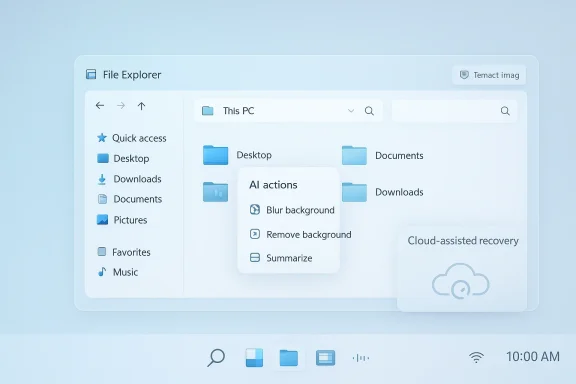
The most obvious of the hidden upgrades is also one of the most useful: AI actions in File Explorer. Microsoft’s documentation says you can right-click or press Shift+F10 on a supported file and select AI actions to edit images or summarize documents. For images like JPG, JPEG, or PNG, the available actions include blur background, erase objects, and remove background. For documents, Microsoft ties the summarize action to Copilot and Microsoft 365, which means it can work with files in OneDrive and SharePoint, but only if you have the necessary subscription and license.That design is a good example of where Microsoft is getting AI right. The feature is not trying to replace File Explorer with a chatbot. It simply inserts AI at the point where a user already has the file in hand. That makes the workflow feel natural. You are not asking Windows to be clever for its own sake; you are asking it to reduce the number of steps between “I need something done” and “the thing is done.” In practice, that can be the difference between using a built-in tool and never bothering with one.
The limitation, of course, is that this is still very much a Microsoft ecosystem feature. Some actions are tied to Microsoft 365, some rely on Copilot licensing, and the actual processing happens in the relevant app rather than inside Explorer itself. That makes the experience less magical than the marketing might imply. Still, it is far more practical than the usual “AI for everything” posture, because it solves a task users actually encounter every day.
Where it fits best
AI actions make the most sense for users who constantly move between files, documents, and quick edits. That includes office workers, students, content creators, and IT admins who need basic file transformation without opening a full editing suite. The feature is also a quiet accessibility win, because it lowers the barrier to making a file presentable or extracting useful information from it.- Image cleanup becomes a one-click task.
- Document summarization reduces reading overhead.
- Context-menu placement keeps the workflow anchored in Explorer.
- Subscription requirements limit some actions to Microsoft’s ecosystem.
- On-demand editing saves time on repetitive work.
The Taskbar Speed Test Shortcut
Windows 11 now includes a network-panel shortcut that opens a speed test directly from the taskbar. Microsoft’s implementation is not purely native—the test opens in your default browser and runs through a Bing-powered page using Ookla’s Speedtest under the hood—but it still removes friction. Instead of searching for a test site or keeping a bookmark around, users can check download speed, upload speed, and latency from the same panel they use to manage Wi‑Fi and Ethernet.That may sound minor, but it reflects a bigger shift in how Windows should behave. The best system tools are often the ones that appear exactly when you need them, then disappear just as quickly. A speed test shortcut belongs in that category. It is not a feature you use constantly, but when your connection feels off, you want a fast answer, not a scavenger hunt. In that sense, Microsoft has made the network tray slightly more useful without turning it into another overloaded hub.
There is also a practical support angle here. Many home users assume something is broken with their ISP, router, or PC when the network is simply behaving differently than expected. Having a built-in shortcut lowers the threshold for basic troubleshooting. It will not diagnose everything, and it will not replace deeper network analysis, but it does make the first step of diagnosis easier and more likely to happen.
Why browser-based can still be better
Browser-based does not automatically mean inferior. In this case, it means the shortcut can be updated and maintained with less system complexity than a fully native diagnostic app. It also means Microsoft can lean on a familiar interface and a mature measurement backend without rebuilding the wheel. For something that should remain lightweight and universal, that is a defensible choice.- Instant access is the main win.
- Latency visibility helps users spot real connection issues.
- No bookmarking means fewer steps to basic troubleshooting.
- Browser delivery keeps the tool simple.
- ISP checks become easier for non-technical users.
Fluid Dictation and Voice Access
One of the most impressive hidden changes is Fluid Dictation, a new on-device AI enhancement for Voice Access and voice typing. Microsoft says it can interpret speech more naturally, strip filler words, correct grammar, and insert punctuation based on sentence flow and pauses. The point is simple: instead of giving you a raw transcript, Windows tries to give you usable text. That is a genuinely different experience from the old “say everything exactly right or fix it later” model.This matters because voice dictation has always had enormous promise and frustrating execution. Traditional speech-to-text is useful for accessibility and for users who think faster than they type, but it often produces text that still needs a cleanup pass. Fluid Dictation tries to remove that final burden. In other words, it is not just transcribing speech; it is editing on the fly. That is a more ambitious, and more helpful, design.
The on-device aspect is important too. Microsoft’s documentation frames some of these generative AI features as locally available capabilities that users can manage under Privacy & security > Text and Image Generation. That gives the feature a more serious feel than a cloud-only novelty. It also gives users more reason to trust that the system is processing their speech as part of the Windows experience rather than shipping every input to a distant service.
A better fit for real writing
Fluid Dictation is especially useful for messages, notes, drafts, and accessibility workflows. It will not make every dictated sentence perfect, and it will not replace a careful editor, but it can make voice input feel good enough to use as a default rather than a novelty. That is a meaningful shift. When dictation becomes predictable and clean, more people will try it, and more of them will keep using it.- Filler-word removal makes speech cleaner.
- Automatic punctuation reduces editing time.
- Grammar cleanup improves readability.
- On-device processing supports privacy confidence.
- Accessibility users gain a more natural workflow.
Quick Machine Recovery
Quick Machine Recovery may be the most consequential feature in the whole 25H2 package, even if it is the least sexy. Microsoft says the feature helps recover Windows devices when they hit critical boot failures. When Windows detects repeated boot problems, it enters the recovery environment, tries to connect to the internet, and can download known remediations from Microsoft through Windows Update. The company frames it as a cloud-assisted self-repair system that reduces the burden of boot loops and widespread failures.That is a big deal for two reasons. First, boot failures are the kind of problem that instantly changes a machine from productive to useless. Second, they often happen at the worst possible time, when the user has no easy way to search for fixes, download tools, or even reach the desktop. A built-in remediation path can save hours of frustration. It also gives Microsoft a better story for resilience, which has become a far more important selling point than it used to be.
The caveat is obvious: this only helps with known issues that Microsoft has a fix for, and it requires internet access in recovery mode. It also does not restore user files. So this is not a miracle button. But it is exactly the kind of tool that can turn an emergency into a manageable incident. For enterprises, that can reduce support load; for consumers, it can be the difference between panic and a fix that happens quietly in the background.
Why cloud remediation changes the game
Old-school Windows recovery asked the user to be a troubleshooter at the very moment they were least equipped to think clearly. Quick Machine Recovery flips that logic by letting Microsoft maintain a growing library of known fixes. That is a more modern model of operating-system support, and it acknowledges a hard truth: the average user does not want to become a recovery expert just because a boot sequence failed.- Boot loops become less catastrophic.
- Cloud fixes reduce manual repair steps.
- Internet access is still required in recovery mode.
- Known issues only limits the scope.
- IT administrators can benefit most at scale.
Smart App Control Gets More Flexible
Smart App Control remains one of Windows 11’s more polarizing security features. It blocks untrusted apps using cloud intelligence and code-signing reputation, which is a clean idea on paper and a mixed experience in practice. The historic problem was that if you turned it off, you often had to perform a clean install to get it back. That made it too rigid for users who occasionally need unsigned utilities, niche tools, or developer software that does not fit Microsoft’s preferred trust model.The good news is that Microsoft’s recent updates make Smart App Control switchable again without forcing a reinstall. That alone makes the feature far more reasonable. Users can now treat it as something to evaluate and toggle based on need, rather than as a one-way decision that punishes experimentation. For a security control, that flexibility matters a lot. Security that cannot adapt to real-world usage is usually security people disable.
That said, the underlying trade-off remains. Smart App Control can still block legitimate apps, especially niche open-source tools and command-line utilities. Some users also report performance quirks when installers are involved. So the feature is better than it used to be, but it is not universally loved. In practice, it is best viewed as a strong option for mainstream users who want more automated protection, not as a universal setting for power users who live in unsigned software.
A more realistic security posture
This is the right direction because it respects user choice without throwing security out the window. A feature that can be turned off and restored is one people will actually experiment with. That is healthier than forcing an all-or-nothing decision that many users will simply avoid.- Reversible control makes the feature more usable.
- Cloud reputation checks help block suspicious software.
- False positives are still a practical concern.
- Unsigned tools remain a compatibility issue.
- Mainstream users are the best fit.
File Explorer and Shell Polish
Microsoft is also making quieter improvements to the shell itself. One example is the new version-control awareness in File Explorer settings, where users can add Git repositories so Explorer can surface commit details like last change date and commit message directly in columns. Another is broader File Explorer refinement, including restore-previous-folder-window behavior and more discoverable Explorer options. Microsoft is clearly trying to make the shell feel less like a static file browser and more like a workspace hub.That matters because File Explorer is still one of the most-used pieces of the Windows interface, and it is also one of the easiest places for small frustrations to pile up. Even tiny gains there have outsized effects because they compound across every workday. If Explorer can expose Git metadata or preserve your folder windows more intelligently, it is not just adding features; it is reducing the number of times you have to stop and reorient yourself.
Microsoft has also been refining the shell through better placement of hardware indicators. Users can now move volume, brightness, airplane mode, and virtual desktop indicators to different screen positions. That sounds cosmetic, but for people who work in full-screen apps, multi-monitor setups, or accessibility-heavy environments, cosmetic changes can be deeply practical. A notification that appears where you expect it is less disruptive, less annoying, and less likely to obscure what you are doing.
Shell quality is still product quality
The bigger lesson is that shell polish is not a side quest. In a desktop OS, the shell is the product. When Microsoft makes Explorer less awkward and the on-screen indicators less intrusive, users feel the improvement immediately even if they cannot name the individual change. That is the kind of work that builds trust slowly and steadily.- Git metadata helps power users track files faster.
- Folder window restoration reduces repetitive navigation.
- Indicator placement improves ergonomics.
- Explorer refinements have daily impact.
- Less visual interruption makes the desktop calmer.
Privacy, Discovery, and Control
25H2 also includes small but important privacy and discovery improvements. Microsoft’s documentation shows a new Text and Image Generation privacy area where users can see which apps are using on-device generative AI models provided by Windows and choose which apps can use them. That is a welcome sign that Microsoft is recognizing a basic truth: users want to know what the OS is doing with AI, not just be told it exists.At the same time, the company is adding more obvious control points for features like AI actions and recovery settings. The pattern here is consistent. Microsoft seems to understand that a lot of Windows frustration comes from features being too hidden when people want them, or too prominent when they do not. Better settings architecture can reduce both problems. It can also make the OS feel less like a maze and more like a tool.
There is still a tension, though. More discoverable controls do not automatically mean more trust. Users will keep worrying about whether AI features are on by default, how much data they share, and whether local processing is truly local enough. Microsoft’s challenge is not just to add settings; it is to make those settings credible. That means clear wording, visible toggles, and behavior that matches the company’s promises.
The trust problem Microsoft still has to solve
Windows is gradually becoming more configurable again, but trust must be earned through consistency. If a feature is advertised as privacy-friendly, it needs to feel that way in practice. If a feature is meant to help users, it should not be buried behind three unrelated menus. Microsoft’s current direction is better than the old “surprise AI everywhere” approach, but the company still has work to do before users assume good intentions by default.- AI usage visibility improves accountability.
- On-device model controls are a positive step.
- Clear settings paths reduce confusion.
- Trust depends on consistency, not just wording.
- Better disclosure helps privacy-sensitive users.
Consumer vs Enterprise Impact
The consumer impact of these changes is straightforward: Windows 11 is becoming easier to live with. A speed test shortcut helps when Wi‑Fi seems flaky. Fluid Dictation makes voice input genuinely practical. AI actions in File Explorer save time. Quick Machine Recovery offers a safety net when the PC will not boot. These are the kinds of features that do not always justify a product-demo segment, but they matter because they reduce the number of moments when users feel stuck.For enterprise users, the significance is broader. Microsoft positions 25H2 as part of its managed update and servicing ecosystem, and several of these features matter directly to support teams and device managers. Quick Machine Recovery can reduce downtime during failure events. Smart App Control can strengthen baseline security. File Explorer improvements and AI actions can shave repetitive work from knowledge-worker workflows. Even the enablement-package approach is enterprise-friendly because it reduces the practical cost of adoption.
The most interesting enterprise angle, though, is cultural. Microsoft is trying to prove that Windows 11 can be both more secure and less annoying. That balance matters in managed environments where admins want control, but end users still demand speed and usability. If 25H2 makes the OS easier to recover, easier to support, and easier to use without inviting chaos, Microsoft will have done something more valuable than adding another headline feature. It will have made Windows feel dependable.
Different users, different wins
Not every feature lands equally across the audience. Consumers will care most about convenience and polish, while enterprises will focus on recoverability, policy alignment, and security. The best Windows features often do both jobs at once, and 25H2 is strongest when it finds that overlap.- Consumers get time-saving convenience.
- Enterprises get better manageability and resilience.
- Admins benefit from recoverability and policy clarity.
- Power users get more shell control.
- Accessibility users gain cleaner voice input and smarter interface behavior.
Strengths and Opportunities
Microsoft’s 25H2 quality-of-life push has real upside because it targets frustration points users actually feel. The update is not trying to reinvent Windows 11; it is trying to make the current version less awkward, more helpful, and easier to trust. That is a smart place to spend engineering effort, especially in an era when so many operating-system complaints are about friction rather than missing features.- AI actions can make file workflows faster.
- Quick Machine Recovery can reduce downtime.
- Fluid Dictation brings voice input closer to natural writing.
- Smart App Control is more realistic when reversible.
- Taskbar speed testing is a practical support shortcut.
- Shell polish improves everyday ergonomics.
- Enablement-based rollout lowers upgrade risk.
Risks and Concerns
The downside is that many of these improvements depend on Microsoft’s ecosystem, staged rollouts, or good configuration. If users do not know the features exist, they cannot benefit from them. If they do know, but the feature requires a subscription, a cloud connection, or a particular hardware setup, frustration can return quickly. Windows can improve without becoming simpler, and that is a risk Microsoft still has to manage carefully.- Discoverability remains a major problem.
- Subscription gates limit some AI features.
- Cloud dependence affects recovery and some actions.
- False positives may keep Smart App Control controversial.
- Feature inconsistency can confuse users across editions.
- Privacy skepticism will remain high around AI features.
- Partial rollout timing can make the update feel uneven.
Looking Ahead
The next phase for Windows 11 will be less about announcing new things and more about proving these features work well in the real world. Microsoft’s own documentation suggests 25H2 is built on dormant features already present in 24H2, which means the company has a chance to ship a more stable improvement curve than it has in some past cycles. The key question now is whether these tools stay hidden curiosities or become normal parts of how people use the desktop.The other thing worth watching is how Microsoft balances AI usefulness against AI fatigue. Features like File Explorer actions and Fluid Dictation feel justified because they are task-oriented. If Microsoft keeps leaning into that model—AI only where it removes work rather than adds ceremony—it has a chance to win over skeptics who are tired of unnecessary Copilot surfaces. If it slips back into novelty-first behavior, the goodwill from 25H2 will evaporate quickly.
What to watch next:
- Broader rollout of AI actions and recovery features.
- More usable defaults in Start, taskbar, and Explorer.
- Further privacy controls for generative AI.
- Expansion of voice typing improvements beyond preview channels.
- Better documentation and onboarding for hidden settings.
Source: MakeUseOf Windows 11 has been getting better in secret — 6 features I wish I'd found sooner
