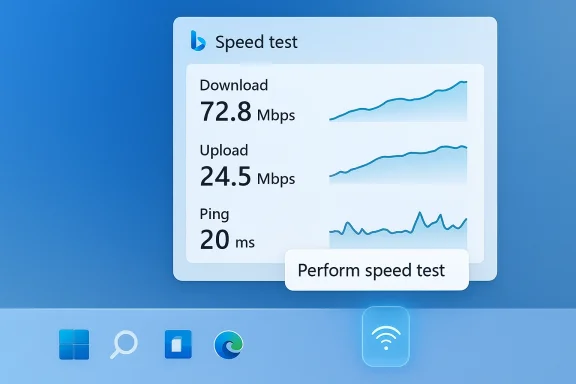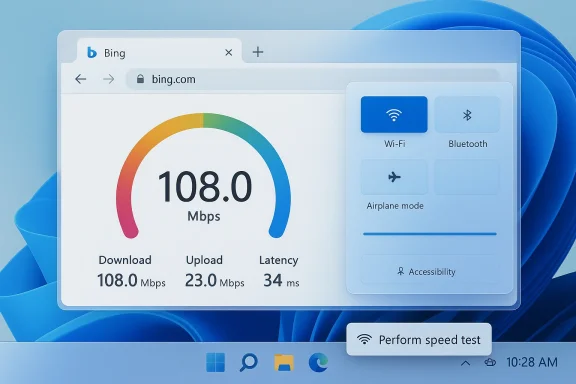
Microsoft has quietly added a one‑click network speed test to Windows 11’s taskbar — a small, highly discoverable convenience that launches a browser‑based speed check from the system tray and Wi‑Fi quick settings, putting download, upload and latency measurements one click away for everyday users and technicians alike.
Background
Windows has historically left ad hoc internet throughput checks to third‑party websites and standalone utilities: Speedtest by Ookla, Fast.com, Cloudflare’s Speedtest, and command‑line tools such as iperf have been the de‑facto ways to validate connectivity. That has meant remembering a URL, installing an app, or running terminal commands — all reasonable, but not exactly convenient for the average user who just wants to know whether their Wi‑Fi is slow or the ISP is throttling them.Microsoft’s recent preview updates fold a quick launcher for a web‑hosted speed test directly into the places most users already look when connectivity acts up: the network icon in the taskbar and the Wi‑Fi quick settings flyout. The change is being delivered via staged Insider and Release Preview builds (notably the 26100/26200 families and packaged updates such as KB5077241), and Microsoft describes it as a built‑in network speed test accessible from the taskbar that opens in the user’s default browser.
This move continuehan embedding a full native measurement engine into the OS, Microsoft is surfacing lightweight, web‑backed utilities where they are most useful — a pragmatic choice that trades offline capability for ease of update and reduced OS surface area.
What Microsoft shipped (exactly)
Where you’ll see the control
- Right‑click the network (system tray) icon and look for a new Perform speed test entry in the context menu.
- Left‑click the network icon to open Wi‑Fi quick settings and find a Test internet speed button in the panel.
Which builds and update packaging
- The change began appearing in Insider preview builds tied to the 26100/26200 build families and is part of servicing waves delivered under KB5077241 and related preview updates, where availability is subject to Microsoft’s staged rollout and Controlled Feature Rollout (CFR) gating. If you are in the Release Preview or Beta channels and have the toggle enabled to get the latest updates, you may see the control sooner.
What the control does — and what it does not
- It is a launcher: the taskbar control opens a web page (Bing’s speed test widget) in your default browser.
- It is not a new kernel‑level or OS‑native measurement engine; Windows itself does not perform the raw throughput measurement in a local subsystem.
- The Bing widget uses an external measurement backend (Speedtest by Ookla is the provider integrated into Bing’s experience), so the traffic and test selection are handled by the web service rather than Windows.
How the measurement works (technical overview)
When you activate the taskbar speed test:- Windows launches your default web browser and navigates to Bing’s internet speed test interface.
- Bing’s in‑page speed test runs standard web‑based measurements (latency/ping, parallel download streams, parallel upload streams, and throughput aggregation) against a selected test server.
- The test reports basic metrics: download speed, upload speed, and latency (and often an estimated jitter or packet loss metric depending on the provider).
- Server selection and test methodology are controlled by the web provider (Bing/Ookla), not the Windows client. Results reflect the provider’s server choice, stream concurrency, measurement duration, and packet sizing.
- The browser introduces overhead (TCP handshake behavior, HTTP(S) stack, browser network scheduling, and proxy settings) that can slightly affect results compared with a native app or low‑level measurement tool.
- Tests performed via a browser are excellent for sanity checks — is the internet clearly slow? — but less ideal for repeatable, tightly controlled diagnostics where you need to compare precise numbers over time or between specific endpoints.
Step‑by‑step: How to try it today
- Enroll in the Windows Insider Program (Release Preview or Beta channel) or ensure your device receives Release Preview servicing.
- Install the relevant preview update (Microsoft’s release notes list builds in the 26100 and 26200 families and packaged updates such as KB5077241). Availability may vary by region and may be gated per account.
- After the update installs, interact with the network icon on the taskbar:
- Right‑click the network icon and select Perform speed test, or
- Left‑click to open Wi‑Fi quick settings and press Test internet speed.
- Your default browser will open and load Bing’s speed test widget; press Start or let it auto‑run to get download/upload/latency numbers.
Why Microsoft chose a web‑backed launcher (the rationale)
- Maintainability: Web‑hosted widgets can be updated independently of the OS. Fixes, methodological tweaks, and UI changes for the speed test do not require a Windows servicing release.
- Leverage existing infrastructure: Bing’s speed test already exists and — since its integration with Ookla — provides a mature backend and global server network. Surface the tool where people expect it rather than re‑implementing measurement infrastructure in Windows.
- User discoverability: Placing the shortcut in the taskbar removes the friction of remembering a URL or searching for a test site during a frustrating connectivity moment.
- Consistency: Using a single web provider gives consistent UX for a large number of users regardless of their installed apps.
Benefits — who wins
- Everyday users gain a fast, low‑friction way to check whether their connection is broadly healthy.
- Helpdesk technicians and home‑office workers get a quick verification tool to use when troubleshooting customer‑facing calls.
- New PCs and unfamiliar Wi‑Fi environments become easier to triage without telling someone to “open a browser, go to Speedtest” or similar.
- One‑click access from where people already check connectivity.
- No installation required.
- Cross‑browser behavior: uses your default browser, so it fits user preference.
- Consistent visual and functional UX courtesy of the Bing widget.
Risks, limitations, and legitimate concerns
While the addition is convenient, there are real trade‑offs and potential issues to consider.1) It’s not a native diagnostic: reproducibility and precision
Because the test runs in a browser against servers chosen by a web service, results are not as reproducible as native or CLI tools. For enterprise troubleshooting, controlled tests (same server, same protocol, same concurrency, same timing) are crucial — browser tests are good for a quick sanity check but poor for forensic comparison. Tools like iperf3, Speedtest CLI, or vendor‑specific diagnostics remain the gold standard for reproducible measurement.2) Privacy and telemetry
A browser‑hosted test implicates the web provider in logging IP addresses, inferred ISP names, connection locations, and other telemetry. When you run Bing’s speed test, the request and measurement traffic originate from your machine to the test server and will be observable by Microsoft/Ookla and any intermediate networks. For privacy‑sensitive environments — regulated industries, research labs, or enterprises with strict telemetry policies — launching the test by default may be undesirable. Administrators should be aware that the taskbar shortcut funnels users to a web service rather than performing a purely local action.3) Promotional perception
Critics will rightly call the control a promotion for Microsoft/Bing rather than a pure platform utility. Because the button opens a Bing experience, some will see this as another attempt to surface Microsoft’s services inside Windows. That perception may stoke pushback among users who prefer neutral, third‑party choices.4) Enterprise manageability and policy control
Enterprises typically require deterministic tools and centralized reporting. A one‑click browser test does not integrate with enterprise telemetry, Network Operations dashboards, or SIEM systems. Administrators will prefer managed tools that can be scripted and logged. Microsoft’s staged rollout and Controlled Feature Rollout mean the feature may be invisible or unwanted in managed environments, but there is not, at the time of writing, a published Group Policy specifically to hide the taskbar test. Administrators who need to block or control access can use browser or network policies to limit access to Bing’s speed test endpoint, or rely on MDM configuration to control Windows Update rings and feature visibility.Comparing measurement methods: what to use and when
- Speedtest by Ookla (web or app)
- Strengths: large server network, consistent methodology, official apps and CLI for repeatable tests.
- When to use: cross‑ISP comparisons, logging, and consistent test runs.
- Cloudflare / Fast.com
- Strengths: simple, reliable, often prioritized by ISP peering; good for quick checks.
- When to use: quick verification for streaming/latency‑sensitive scenarios.
- iperf3
- Strengths: customizable, reproducible, runs against a chosen endpoint you control.
- When to use: lab‑grade testing between two managed endpoints, capacity planning.
- Windows taskbar → Bing speed test
- Strengths: discoverability and convenience; one click from taskbar.
- Limits: browser overhead, provider‑controlled server selection, less suited for enterprise diagnostics.
Privacy, telemetry, and what to watch for
If you care about what data is shared when you run the test, consider these points:- The test connects to external servers; your public IP and ISP are visible to that server.
- Browsers may send additional identifying headers or be subject to extensions that alter behavior.
- Bing/Ookla may log test metadata (time, location inferred by IP, provider, results).
- Enterprises should treat the test as outbound telemetry and, if necessary, block the test domain at the perimeter or restrict acces
Practical recommendations
- For quick home troubleshooting: use the taskbar control. It’s the fastest way to rule in/out a gross connectivity problem.
- For reproducible diagnostics: use Speedtest CLI, the Ookla desktop app, or iperf3 pointed at a controlled server.
- For privacy‑conscious users: prefer local CLI tools or avoid running the test on networks where you don’t want to publish your external IP to a third party.
- For enterprises: monitor Windows Update channels and MDM configuration; control access to Bing’s test endpoints if needed, and rely on logged, scripted diagnostics for auditing and reporting.
- If you don’t see the option after updating: check that your device is in the Release Preview/Beta Insider rings and that Controlled Feature Rollouts have not gated the functionality on your machine.
Larger context: what this says about Windows’ direction
This small UX addition is telling in three ways:- Microsoft prefers surfacing web‑backed flows for lightweight utilities rather than embedding them as native platform features. That reduces maintenance cost and enables faster iteration off the OS release cadence.
- Microsoft is continuing to make the taskbar and quick settings the place for discoverable troubleshooting tools, aligning with their emphasis on day‑to‑day user experience improvements instead of headline AI features in every release. The same preview wave that added the speed test also included camera PTZ controls and in‑box Sysmon as an optional feature — a mix of consumer convenience and enterprise tooling.
- There is an ongoing tension between convenience and control. Consumers will likely enjoy the one‑click path. Enterprises, privacy advocates, and power users will scrutinize the telemetry and repeatability trade‑offs — and rightly so.
Final analysis — small feature, meaningful trade‑offs
The Windows 11 taskbar speed test is a pragmatic, low‑risk convenience for the majority of users who want a quick answer: is my connection broken or slow right now? By placing the test where people already look when connectivity is suspect, Microsoft has removed a micro‑friction that used to send frustrated users to a browser search for "speedtest."However, the implementation is explicitly a launcher to a web service (Bing’s speed test, which itself uses Speedtest by Ookla’s backend in existing Bin raises three core considerations: accuracy and reproducibility for advanced diagnostics, privacy and telemetry for sensitive contexts, and control for organizations that need managed, auditable testing. For most home users this will be a net positive — convenience usually wins — but anyone who relies on consistent measurement practices should continue to use dedicated tools and expect to do so for the foreseeable future.
Quick checklist (what to expect and what to do)
- Expect: a Perform speed test item in the network icon context menu and a Test internet speed button in Wi‑Fi Quick Settings after installing the preview update (KB5077241 / builds 26100.7918 / 26200.7918), subject to staged rollout.
- Use it when: you want a rapid sanity check that your connection is broadly functional.
- Don’t rely on it when: you need reproducible, logged, enterprise‑grade diagnostics or when you must avoid sending telemetry to an external service.
- Alternatives: install Speedtest by Ookla app or use Speedtest CLI for scripting and logging; use iperf3 for controlled endpoint testing.
Windows’ new taskbar shortcut won’t replace the toolkits of network engineers any time soon, but it does remove a tiny, persistent annoyance for many users: the need to remember which site or app performs a quick speed check. That micro‑improvement — simple, discoverable, and unobtrusive — is exactly the kind of quality‑of‑life change most people will appreciate. At the same time, the design decisions behind it are a useful reminder that convenience often arrives with trade‑offs, and understanding those trade‑offs will let ordinary users, power users, and enterprise administrators pick the right measurement for the job.
Source: Digital Trends Windows 11 is adding a speed test, you can run it from the taskbar