

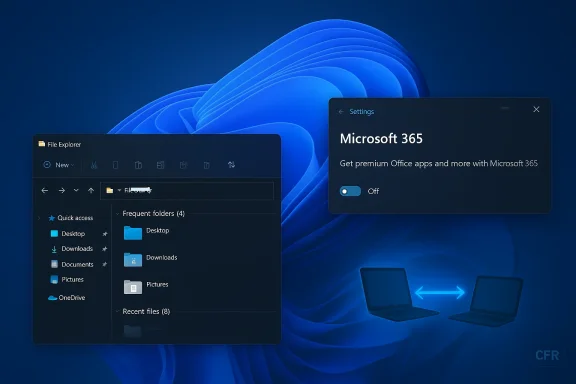
Microsoft’s latest Beta-channel maintenance flight for Windows 11 is small on fanfare but large on polish: Build 26220.7859 (delivered as KB5077223) focuses squarely on reliability fixes that address long-standing annoyances in the taskbar, File Explorer, Nearby Sharing and select Settings pages — and it quietly tests a new in‑OS Microsoft 365 upsell prompt for Microsoft 365 Family subscribers that you can turn off if you don’t want it.
Microsoft continues to service Windows 11, version 25H2 through incremental enablement-package builds in the Insider program. These enablement-package flights let Microsoft iterate on fixes and experiment with minor features without changing the underlying OS baseline. Build 26220.7859 is a textbook example: no bold UI overhauls, no new platform APIs, but a targeted set of reliability improvements and a controlled experiment inside Settings for Microsoft 365 subscribers.
The release is being distributed to Insiders in the Beta Channel and is being delivered gradually via Microsoft’s Controlled Feature Rollout (CFR) mechanism. That means not every eligible Beta user will see every change immediately — Microsoft ramps features to subsets of devices, watches telemetry and feedback, and then widens the rollout. For testers who want to get the newest phased changes immediately, there’s a toggle in Settings > Windows Update that enables “Get the latest updates as soon as they’re available.”
Why this matters:
What Microsoft changed:
Operational note:
Key characteristics:
At the same time, Microsoft’s subtle move to test a Microsoft 365 upgrade prompt inside Settings signals a broader trend: platform vendors increasingly use system surfaces for discoverability and conversion. The presence of a clear opt‑out and the roll‑out through CFR show Microsoft is balancing experimentation against user control, but it remains a UX choice that will be debated among privacy-minded and enterprise users.
If you’re a Beta Channel Insider who tolerates early experiments, enabling the “get the latest updates” toggle will likely put you into the early CFR groups for these improvements. If you’re running a managed or production environment, treat this release as a reminder to keep pilot rings healthy, document expectations, and verify that opt‑out settings and MDM policies behave as intended.
This is a practical flight: fewer bells and whistles, more polish where it counts. For many users, that’s exactly what the platform needs right now.
Source: TechRepublic New Windows 11 Insider Build Fixes Taskbar, File Explorer Bugs
 Background / Overview
Microsoft continues to service Windows 11, version 25H2 through incremental enablement-package builds in the Insider program. These enablement-package flights let Microsoft iterate on fixes and experiment with minor features without changing the underlying OS baseline. Build 26220.7859 is a textbook example: no bold UI overhauls, no new platform APIs, but a targeted set of reliability improvements and a controlled experiment inside Settings for Microsoft 365 subscribers.The release is being distributed to Insiders in the Beta Channel and is being delivered gradually via Microsoft’s Controlled Feature Rollout (CFR) mechanism. That means not every eligible Beta user will see every change immediately — Microsoft ramps features to subsets of devices, watches telemetry and feedback, and then widens the rollout. For testers who want to get the newest phased changes immediately, there’s a toggle in Settings > Windows Update that enables “Get the latest updates as soon as they’re available.”
What Microsoft shipped in Build 26220.7859 (KB5077223)
At a glance, the most important items in this flight are:- Build: 26220.7859
- Servicing package: KB5077223
- Branch baseline: Windows 11, version 25H2 (enablement-package model)
- Distribution: Beta Channel with Controlled Feature Rollout (CFR)
- Notable user-facing additions:
- A test upgrade option for Microsoft 365 Family subscribers on Settings > Accounts (opt‑out available).
- Key reliability fixes:
- Taskbar: improved reliability of showing system tray app icons when the taskbar is set to autohide.
- File Explorer: fixed a bug where all open File Explorer windows/tabs might jump unexpectedly to Desktop or Home.
- Nearby Sharing: improved reliability when sending larger files.
- Settings: improved reliability of configuring hardware options (for example, mouse wheel settings) under Bluetooth & Devices > Wheel.
Deep dive: the bug fixes that matter
Taskbar and System Tray (autohide icon visibility)
One of the most visible usability irritants in recent Insider builds has been flaky system tray behavior when the taskbar was configured to autohide. Users reported icons not appearing reliably — forcing awkward hover gestures or restarting Explorer to force a refresh. Build 26220.7859 explicitly targets this by improving the reliability of showing app icons in the system tray when the taskbar is set to autohide.Why this matters:
- The system tray is the hub for background apps, security notifications, VPN/remote‑access clients and media controls. When icons disappear intermittently, users can miss critical alerts or lose convenient access to controls.
- Fixing autohide related bugs matters across many workflows: laptop users who rely on single-monitor posture, multi‑monitor setups where bottom‑edge interactions are frequent, and touch devices that toggle between tablet and desktop postures.
File Explorer windows jumping to Desktop or Home
Testers had reported a jarring bug: open File Explorer windows or tabs would unexpectedly reposition or “jump” to Desktop or to the Home view. That disrupts workflows and can cause data‑loss anxiety — especially if unsaved context (open search or long lists) resets.What Microsoft changed:
- The build contains a targeted fix to prevent Explorer windows and tabs from unexpectedly jumping to Desktop or Home.
- This appears to be an internal state handling fix in Explorer’s window/tab management, addressing race conditions triggered by navigation, focus shifts, or file/thumbnail updates.
- File Explorer is the most frequently used shell component; reliability regressions there are disproportionately disruptive.
- Addressing window-jump behavior improves day‑to‑day stability for developers, power users with multiple tabs, and anyone using Explorer as part of heavy file‑management tasks.
Nearby Sharing: large file transfers
Nearby Sharing (peer-to-peer sharing between devices) has long been convenient for moving files between Windows PCs, but large transfers could be unreliable. The build improves the reliability of sending larger files using Nearby Sharing — a meaningful QoL improvement for users who use this feature instead of cloud uploads.Operational note:
- This is a reliability improvement rather than a protocol change; users should still expect the same security prompts and discovery behavior, but fewer dropped/failed transfers on large payloads.
Settings > Bluetooth & devices > Wheel reliability
The update also focuses on the Wheel settings page under Bluetooth & Devices: customizing hardware options such as mouse wheel behavior should be more reliable. These controls are small but matter to users who depend on specific wheel functionality (lines vs. pages, horizontal scrolling, app-specific overrides).The Microsoft 365 Family prompt: subtle, optional, and opt‑out
The build quietly introduces a new, subtle UI experiment: Microsoft 365 Family subscribers may see a prompt on the Accounts page in Settings offering an option to upgrade to a different Microsoft 365 plan.Key characteristics:
- The prompt appears as suggested content in Settings > Accounts for a subset of Insiders under the CFR experiment.
- Users who prefer a cleaner, ad‑free Settings experience can hide the prompt by turning off “Show me suggested content” inside the Settings app. That acts as an immediate opt‑out for the upsell prompt.
- Settings is a high‑traffic system UI. Microsoft can expose promotional or upgrade flows there to increase conversion while keeping users inside the OS experience.
- By rolling this out through CFR, Microsoft can A/B test placement, copy, and conversion without impacting the entire user base.
- The upsell is in‑UI marketing, not a forced purchase flow; the ability to hide suggested content mitigates user concerns if the control works reliably.
- Companies and IT admins should note this behavior if they distribute devices to end users; consumer-focused upgrade prompts inside Settings may be undesirable in managed environments.
Controlled Feature Rollout (CFR): how it shapes what you see
Microsoft continues to use Controlled Feature Rollout for these kinds of changes. Here’s how CFR affects Insiders and what to expect:- CFR lets Microsoft expose features and experiments to a small percentage of eligible devices first, then increase coverage as telemetry and feedback indicate the experience is stable.
- Even if your device is in the Beta Channel and meets all other criteria, you may not see the Microsoft 365 prompt or some fixes immediately.
- There’s a user-facing toggle in Settings > Windows Update to receive the latest features as soon as they’re available. Turning that toggle on increases the chance you’ll be included in early CFR groups — at the cost of getting more experimental surface sooner.
- CFR reduces the blast radius of regressions, but it also creates inconsistent behavior across test fleets and support desks. Two identical systems may behave differently simply due to CFR assignment.
- For enterprise testing and documentation, note that CFR can make reproducing issues harder unless you control assignment or reproduction steps precisely.
Critical analysis: strengths, trade-offs and risks
Strengths
- Focused reliability lift: This build prioritizes real user pain points — system tray icon visibility and Explorer window stability — that affect daily productivity more than feature glitter.
- Minimal disruption: Because this is an enablement package on top of version 25H2, organizations that have standardized on that baseline can expect lower compatibility risk than a full feature update.
- Respectful opt‑out for upsell UI: The Microsoft 365 upgrade prompt is reversible by disabling suggested content in Settings, demonstrating Microsoft’s attention to a non‑intrusive experiment model.
- Incremental rollout discipline: CFR allows Microsoft to gather telemetry and roll back or adjust experiments before wide exposure.
Trade‑offs and risks
- Inconsistent user experience: CFR leads to fragmentation. Support teams and documentation writers may see inconsistent reports about whether a fix or prompt exists on a device, complicating troubleshooting.
- Upsell visibility inside Settings: While opt‑out exists, placing promotional content inside a system configuration surface raises UX and trust questions. Users expect Settings to be a stable control surface rather than marketing real estate.
- Telemetry and privacy considerations: Controlled rollouts and feature experiments rely on telemetry. Organizations and privacy‑conscious users must trust Microsoft’s telemetry collection scope and opt‑out mechanisms (where available).
- Hidden regressions: Reliability fixes are targeted, but small fixes can sometimes introduce regressions elsewhere; CFR mitigates that risk, but only if telemetry and feedback are comprehensive and accurate.
- Enterprise interference: Managed environments with Group Policy, MDM or imaging workflows could be affected if Settings acne introduces unexpected behavior or if CFR flips features consumers rely on.
Recommendations for different audiences
For Windows Insiders (Beta Channel testers)
- Decide your risk tolerance. If you like seeing experiments early, turn on the Windows Update toggle to get the latest updates as soon as available. If you prefer stability, keep the toggle off and wait for broader rollouts.
- Test the specific areas: autohide taskbar, system tray icons, File Explorer tabs and Nearby Sharing with large files. Report any anomalies through Feedback Hub with logs attached.
- If you see the Microsoft 365 upgrade prompt and don’t want it, go to Settings > Accounts and turn off Show me suggested content (or the equivalent suggested content toggle) to hide it.
For IT administrators and imaging teams
- Monitor your pilot groups closely. Because CFR can enable experiences for subsets of devices, include telemetry and feedback criteria in pilot acceptance testing to detect unexpected behavior.
- Document the expected baseline. When submitting support guidance to help desks, note that some Insiders may see prompts or incremental changes that are not yet available to all Beta devices.
- Control consumer prompts on corporate hardware. If you manage enterprise devices, confirm whether your MDM or Group Policy options can suppress suggested content inside Settings; consider locking Settings pages if necessary.
For privacy‑conscious users
- The prompt is opt‑outable. If you prefer no in‑OS promotions, disable suggested content in Settings.
- Audit telemetry settings in Settings > Privacy & Security and use your preferred controls to limit diagnostic data if you have high privacy requirements. Keep in mind that reducing diagnostic data may limit Microsoft’s ability to diagnose problems during CFR.
Troubleshooting and practical guidance
- If system tray icons remain missing after updating:
- Toggle Settings > Personalization > Taskbar > Automatically hide the taskbar off and on.
- Restart Explorer via Task Manager (end process explorer.exe, then File > Run new task > explorer.exe).
- Report the behavior with Feedback Hub and include diagnostic logs.
- If File Explorer windows still jump:
- Try to reproduce the sequence and collect repro steps.
- Use Feedback Hub with a screenshot and the “Recreate my problem” toggle to capture graphics and event logs.
- Test with Explorer extensions disabled (use a clean profile) to rule out third‑party shell extensions.
- If Nearby Sharing fails on large files:
- Verify both devices are on the same network profile and have Nearby Sharing configured.
- Ensure both devices are fully updated and not in power‑saving modes that throttle network activity.
- If issues persist, collect network traces and Feedback Hub artifacts.
Why this kind of maintenance flight matters
Modern OS development is less about monolithic annual feature drops and more about continuous improvement. Build 26220.7859 is a reminder that small, iterative fixes—especially in the shell and settings — deliver outsized gains to user experience. Fixing the system tray autohide icon reliability and stopping File Explorer from jumping unexpectedly addresses long‑standing user friction that affects the entire installed base.At the same time, Microsoft’s subtle move to test a Microsoft 365 upgrade prompt inside Settings signals a broader trend: platform vendors increasingly use system surfaces for discoverability and conversion. The presence of a clear opt‑out and the roll‑out through CFR show Microsoft is balancing experimentation against user control, but it remains a UX choice that will be debated among privacy-minded and enterprise users.
Final assessment
Build 26220.7859 (KB5077223) is the kind of maintenance flight that doesn’t make headlines for feature launches but pays real dividends for daily use. It addresses painful, repeatable annoyances and improves a set of reliability vectors that affect both consumer and power users. The introduction of an in‑Settings Microsoft 365 upgrade prompt is a sensible test when paired with an opt‑out, but it will attract scrutiny — especially from IT pros and privacy-conscious users who expect Settings to be a neutral configuration surface.If you’re a Beta Channel Insider who tolerates early experiments, enabling the “get the latest updates” toggle will likely put you into the early CFR groups for these improvements. If you’re running a managed or production environment, treat this release as a reminder to keep pilot rings healthy, document expectations, and verify that opt‑out settings and MDM policies behave as intended.
This is a practical flight: fewer bells and whistles, more polish where it counts. For many users, that’s exactly what the platform needs right now.
Source: TechRepublic New Windows 11 Insider Build Fixes Taskbar, File Explorer Bugs
