

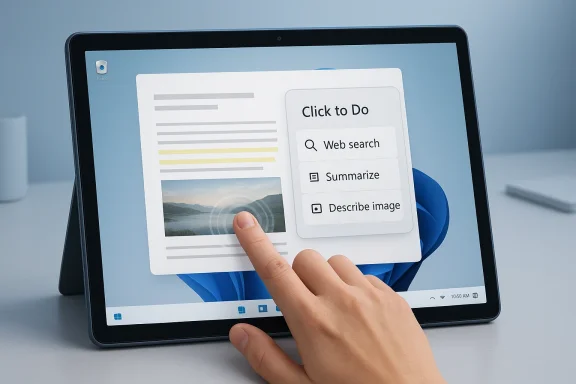
Windows 11’s AI story has been messy, but the platform has finally found a feature that feels less like a demo and more like a real workflow tool. On Copilot+ PCs, Click to Do turns whatever is on your screen into an actionable surface, and a hidden two-finger press and hold touch gesture makes it much easier to summon on a tablet like the Surface Pro without stealing the standard right-edge swipe used for notifications. The result is a small but meaningful improvement: one of Microsoft’s most ambitious AI additions becomes faster, more discoverable, and more practical in day-to-day use. Microsoft’s own support documentation confirms that Click to Do is a Copilot+ PC feature and that touch-based access is tied to Windows’ edge-gesture system, while recent Windows posts show the company continuing to expand the feature set around it.
Microsoft has spent much of the past two years trying to make Copilot feel like more than a chatbot bolted onto Windows. That effort has ranged from taskbar assistants and voice tools to AI in Paint, Photos, Recall, and Windows Search. In theory, the idea is straightforward: the operating system should understand what you are doing and offer help at the moment you need it, instead of forcing you to copy, paste, switch apps, and search manually.
The problem is that many of those AI features have felt theoretical to users. They are often either too generic, too hidden, too narrow in scope, or too tied to Microsoft’s own services to become habitual. That criticism matters because operating systems live or die by muscle memory, not by marketing language. If a feature takes too many gestures, too many clicks, or too much trust, it will usually lose to whatever older method already works.
Click to Do is different because it fits the way people already interact with what’s on screen. Microsoft describes it as a feature that analyzes screen content and offers actions on selected text or images, including web search, summarization, and other context-aware tasks. That makes it closer to Android’s Circle to Search than to a generic AI chatbot, and that distinction is important: it acts on the content in front of you rather than asking you to explain the content to it first.
The hidden touch gesture is what elevates it from “useful in concept” to “useful in practice.” On a touchscreen device, especially a tablet-class PC, launching a smart overlay should be as frictionless as taking a screenshot or opening notifications. By giving users a two-finger press and hold option, Microsoft is quietly acknowledging that touch-first interactions need their own entry points, not just mouse-and-keyboard metaphors transplanted onto glass.
This is also where Microsoft’s Copilot+ strategy becomes more defensible. Rather than treating the NPU as a badge for specs sheets, Click to Do gives the dedicated silicon a visible role in the interface. Microsoft’s Copilot+ messaging has repeatedly leaned on local AI processing and on-device experiences, and that approach helps frame Click to Do as a device capability instead of an internet-dependent service.
Microsoft’s broader AI features have often suffered from being either too ambitious or too abstract. Recall, for example, promised memory-like retrieval across what you have seen on your PC, but it also carried a heavy load of concern around trust, discoverability, and relevance. Click to Do avoids that trap by being simpler: it is not trying to remember your entire computing life, only to help with the thing you are looking at right now.
On a Surface Pro used in tablet mode, that matters even more. Tablets live and die by gesture consistency, and users will quickly abandon a feature if it interferes with something they use constantly. By moving Click to Do behind a two-finger hold, Microsoft preserves the right-edge swipe for the notification center while still giving AI a fast, tactile path into the workflow.
There is also an accessibility angle here. Microsoft has been steadily adding and refining gesture, touch, and Surface input options, including adaptive touch and other customization features across its hardware ecosystem. The broader pattern suggests a company trying to make touch interaction less brittle and more adaptable, even if Click to Do’s current gesture is not yet customizable in the way power users might want.
In other words, it is not trying to replace all of Windows with AI. It is trying to make selected interactions faster. That is a much more believable mission. Most users don’t want an operating system that talks to them constantly; they want an operating system that quietly shortens annoying tasks.
That matters because AI often fails when it asks users to invent work for it. Click to Do reverses that pattern. It waits for a real object on screen, then offers help based on that object. For many people, that makes it the first Windows AI feature that actually respects the way they already browse, read, and compare information.
That exclusivity has consequences. On one hand, it gives Microsoft a reason to sell newer devices and justify the Copilot+ label. On the other hand, it creates a two-tier Windows experience where the most interesting interface ideas may not reach the broader installed base for quite some time. This is a familiar Microsoft pattern, but it can still frustrate users who see the feature and then discover it is locked behind a hardware threshold.
Still, the practical meaning of all that silicon depends on whether people can see the benefit. If features like Click to Do remain hidden or awkward to launch, the hardware story becomes harder to justify. The gesture is therefore not a minor UX flourish; it is part of the business case for the platform.
This helps explain why Click to Do stands out so sharply. It is not just another AI feature; it is one that feels aligned with a more restrained vision of the operating system. The feature works best when it is practically invisible until needed, which is exactly how a good system-level tool should behave.
If Microsoft keeps moving in this direction, the company may finally reach a better balance between AI ambition and usability. That would mean less pressure to make every app “Copilot-enabled” and more attention to moments where the user clearly benefits from machine assistance. That is the real test, not whether the OS can generate content in every corner of the interface.
That is especially true on a Surface device in portrait or tablet mode, where screen space and hand position both matter. A gesture that can be executed anywhere on-screen feels inherently more tablet-native than one that depends on a keyboard shortcut. Microsoft has been improving Surface touch and adaptive input options across its hardware lineup, and Click to Do fits neatly into that broader philosophy.
The irony is that the feature’s usefulness partly depends on its restraint. If every gesture becomes customizable to the point of complexity, the experience gets messier again. Microsoft should be careful not to over-engineer the next iteration just because power users always ask for more knobs. Sometimes the smartest interface is the simplest one.
Enterprise adoption, however, depends on more than capability. IT departments need predictability, policy controls, and confidence that AI features will not expose sensitive content in unintended ways. Microsoft has been explicit that certain processing happens locally and that responsible AI mitigations matter, which helps, but organizations will still judge the feature based on manageability and compliance, not on marketing language.
The main question is whether Microsoft can keep the feature grounded in actual work scenarios. If it stays focused on selection, summarization, image understanding, and related actions, it could become a quietly valuable part of modern Windows deployments. If it drifts into more speculative generative behavior, it risks becoming just another banner in the Copilot campaign.
That positioning is strategically smart. Users do not think in terms of vendor ecosystems when they are trying to understand a diagram, summarize a paragraph, or identify what’s in an image. They think in terms of efficiency. If Microsoft can make that efficiency visible at the OS layer, it can argue that Windows remains the best place to do “real work” with AI.
The competitive problem is that rivals will not stand still. If Microsoft makes Click to Do obvious, fast, and dependable, it can create a meaningful point of differentiation for Copilot+ PCs. If it leaves the feature buried or inconsistent, it becomes another example of Windows arriving with an elegant idea that users barely notice.
The best sign would be a broader gesture and shortcut strategy that lets users tailor how they invoke contextual AI without breaking touch conventions. Microsoft has already shown that it can expand the AI surface area of Windows; now it needs to prove it can do so with discipline. That balance between ambition and restraint will determine whether Click to Do becomes a genuine Windows staple or just another clever feature people mention in passing.
Source: Pocket-lint I found a two-finger gesture that makes AI actually useful on Windows 11
 Overview
Microsoft has spent much of the past two years trying to make Copilot feel like more than a chatbot bolted onto Windows. That effort has ranged from taskbar assistants and voice tools to AI in Paint, Photos, Recall, and Windows Search. In theory, the idea is straightforward: the operating system should understand what you are doing and offer help at the moment you need it, instead of forcing you to copy, paste, switch apps, and search manually.The problem is that many of those AI features have felt theoretical to users. They are often either too generic, too hidden, too narrow in scope, or too tied to Microsoft’s own services to become habitual. That criticism matters because operating systems live or die by muscle memory, not by marketing language. If a feature takes too many gestures, too many clicks, or too much trust, it will usually lose to whatever older method already works.
Click to Do is different because it fits the way people already interact with what’s on screen. Microsoft describes it as a feature that analyzes screen content and offers actions on selected text or images, including web search, summarization, and other context-aware tasks. That makes it closer to Android’s Circle to Search than to a generic AI chatbot, and that distinction is important: it acts on the content in front of you rather than asking you to explain the content to it first.
The hidden touch gesture is what elevates it from “useful in concept” to “useful in practice.” On a touchscreen device, especially a tablet-class PC, launching a smart overlay should be as frictionless as taking a screenshot or opening notifications. By giving users a two-finger press and hold option, Microsoft is quietly acknowledging that touch-first interactions need their own entry points, not just mouse-and-keyboard metaphors transplanted onto glass.
Why Click to Do Feels Different
The biggest reason Click to Do resonates is that it removes the need to decide whether something is “worth asking AI about” in advance. You are simply looking at text, an image, or another on-screen element, and the OS lets you act immediately. That kind of contextual AI is far more credible than a chatbot waiting in the wings for a vague prompt.This is also where Microsoft’s Copilot+ strategy becomes more defensible. Rather than treating the NPU as a badge for specs sheets, Click to Do gives the dedicated silicon a visible role in the interface. Microsoft’s Copilot+ messaging has repeatedly leaned on local AI processing and on-device experiences, and that approach helps frame Click to Do as a device capability instead of an internet-dependent service.
A better fit for real workflows
The practical value is easy to see. If you are reading an article, examining a diagram, or reviewing a screenshot, Click to Do can reduce the number of context switches needed to extract meaning. That matters because the hidden tax of modern computing is no longer raw CPU time; it is attention fragmentation. A tool that trims even a few of those interruptions can feel disproportionately valuable.Microsoft’s broader AI features have often suffered from being either too ambitious or too abstract. Recall, for example, promised memory-like retrieval across what you have seen on your PC, but it also carried a heavy load of concern around trust, discoverability, and relevance. Click to Do avoids that trap by being simpler: it is not trying to remember your entire computing life, only to help with the thing you are looking at right now.
- It reduces app switching.
- It works from the content already on screen.
- It feels closer to an assistive UI than a chatbot.
- It is easier to understand than many Copilot features.
- It has a clear place in both consumer and enterprise workflows.
The Two-Finger Gesture Matters More Than It Sounds
At first glance, the two-finger press and hold may sound like a trivial convenience. In practice, it fixes one of touch computing’s oldest headaches: too many interactions compete for the same edge gestures and long-press behaviors. Microsoft’s support pages show that touch interfaces already reserve the right edge for notifications and the left edge for widgets, which means adding another major action without overloading the interface is a delicate balancing act.On a Surface Pro used in tablet mode, that matters even more. Tablets live and die by gesture consistency, and users will quickly abandon a feature if it interferes with something they use constantly. By moving Click to Do behind a two-finger hold, Microsoft preserves the right-edge swipe for the notification center while still giving AI a fast, tactile path into the workflow.
Why gesture design is product design
This is not just about ergonomics. It is about signaling what Microsoft thinks the operating system should prioritize. A gesture is a form of interface hierarchy, and placing Click to Do behind a natural two-finger hold suggests that the company wants AI to feel native rather than appended. That is a more mature design choice than shoving another icon into an already crowded UI. If Windows is going to be AI-forward, it has to be deliberate about how that intelligence is summoned.There is also an accessibility angle here. Microsoft has been steadily adding and refining gesture, touch, and Surface input options, including adaptive touch and other customization features across its hardware ecosystem. The broader pattern suggests a company trying to make touch interaction less brittle and more adaptable, even if Click to Do’s current gesture is not yet customizable in the way power users might want.
- It preserves existing edge-swipe behavior.
- It creates a quicker path to AI actions on touchscreens.
- It lowers the friction of launching a contextual overlay.
- It makes the feature feel more like part of Windows, not an add-on.
- It hints at a future where gestures can be assigned more flexibly.
What Click to Do Can Actually Do
Click to Do’s usefulness comes from breadth, but not too much breadth. Microsoft documents actions tied to text and images, including web search, summarization, and other context-sensitive operations, and recent Windows posts show the company adding features such as image description and expanding the available actions over time. That gives the feature a credible path from novelty to utility.In other words, it is not trying to replace all of Windows with AI. It is trying to make selected interactions faster. That is a much more believable mission. Most users don’t want an operating system that talks to them constantly; they want an operating system that quietly shortens annoying tasks.
The practical use cases
The strongest use cases are the ones that feel obviously adjacent to what you already do. If you are staring at an image, you can ask for a description. If you highlight text, you can search, summarize, or hand the content off to another action. Microsoft’s support docs and recent feature updates make clear that this is the direction the company is pushing: context in, action out.That matters because AI often fails when it asks users to invent work for it. Click to Do reverses that pattern. It waits for a real object on screen, then offers help based on that object. For many people, that makes it the first Windows AI feature that actually respects the way they already browse, read, and compare information.
- Search the web for selected text.
- Summarize dense passages.
- Describe images and charts.
- Jump into related editing actions.
- Surface context without leaving the current app.
Copilot+ PCs Are the Gatekeeper
The catch, of course, is that Click to Do is still a Copilot+ PC feature. Microsoft’s documentation and rollout posts tie these experiences to systems with NPUs, and the company’s Copilot+ branding is built around the idea that a device should have enough on-board AI horsepower to run these functions locally or at least in a more responsive way. That means feature access is still being shaped by hardware strategy as much as software design.That exclusivity has consequences. On one hand, it gives Microsoft a reason to sell newer devices and justify the Copilot+ label. On the other hand, it creates a two-tier Windows experience where the most interesting interface ideas may not reach the broader installed base for quite some time. This is a familiar Microsoft pattern, but it can still frustrate users who see the feature and then discover it is locked behind a hardware threshold.
The NPU story, simplified
Microsoft frames Copilot+ PCs around the ability to support on-device AI experiences, and the company has repeatedly emphasized that some processing happens locally for privacy and performance reasons. That architecture is central to the pitch: if the AI can work without always calling the cloud, it becomes faster and less dependent on network quality.Still, the practical meaning of all that silicon depends on whether people can see the benefit. If features like Click to Do remain hidden or awkward to launch, the hardware story becomes harder to justify. The gesture is therefore not a minor UX flourish; it is part of the business case for the platform.
- Copilot+ PCs get the most complete experience.
- On-device processing helps with responsiveness.
- Hardware exclusivity reinforces Microsoft’s premium tier.
- Discoverability becomes a competitive issue.
- Feature depth matters more than raw AI branding.
Microsoft’s Broader AI Reset
Microsoft has recently been talking more openly about improving Windows quality, stability, and fit-and-finish. That broader messaging matters because it suggests the company is hearing the criticism: users don’t want AI layered on top of a shaky foundation. They want Windows to be faster, less noisy, and less disruptive, before it is more intelligent.This helps explain why Click to Do stands out so sharply. It is not just another AI feature; it is one that feels aligned with a more restrained vision of the operating system. The feature works best when it is practically invisible until needed, which is exactly how a good system-level tool should behave.
From chatbot obsession to task completion
The Windows Copilot era began with a lot of emphasis on conversations, prompts, and general-purpose AI assistance. That approach has value, but it also blurred the line between an assistant and a product demo. Click to Do pulls the focus back to task completion, which is where operating system intelligence has the best chance of feeling indispensable rather than intrusive.If Microsoft keeps moving in this direction, the company may finally reach a better balance between AI ambition and usability. That would mean less pressure to make every app “Copilot-enabled” and more attention to moments where the user clearly benefits from machine assistance. That is the real test, not whether the OS can generate content in every corner of the interface.
- Quality improvements can make AI feel more trustworthy.
- Fewer gimmicks could improve user acceptance.
- Contextual tools are easier to defend than generic chat.
- Windows benefits when AI augments, not interrupts.
- Better fit-and-finish can make new features feel intentional.
Why Touch Users Get the Most Out of It
For mouse-and-keyboard users, Click to Do is useful. For touch-first users, it is potentially transformative. A tablet has a different physical grammar than a laptop, and any OS feature that asks a touch user to hunt through menus or go back to the Start menu is already losing some of its charm. The two-finger gesture helps avoid that penalty.That is especially true on a Surface device in portrait or tablet mode, where screen space and hand position both matter. A gesture that can be executed anywhere on-screen feels inherently more tablet-native than one that depends on a keyboard shortcut. Microsoft has been improving Surface touch and adaptive input options across its hardware lineup, and Click to Do fits neatly into that broader philosophy.
Touch-first computing still needs good defaults
The lesson here is that touch computing does not need more features so much as better defaults. A great gesture is one you remember only after it has already become habitual. Click to Do’s two-finger press and hold has the potential to become that kind of muscle memory if Microsoft keeps the implementation stable and predictable.The irony is that the feature’s usefulness partly depends on its restraint. If every gesture becomes customizable to the point of complexity, the experience gets messier again. Microsoft should be careful not to over-engineer the next iteration just because power users always ask for more knobs. Sometimes the smartest interface is the simplest one.
- Tablets benefit from one-gesture access.
- Edge gestures should not be cannibalized.
- A consistent hold behavior builds muscle memory.
- Surface hardware gives Microsoft a useful test bed.
- Touch-native AI is more compelling than touch-simulated desktop AI.
Enterprise Potential Is Easy to Miss
Click to Do is being discussed mostly as a consumer convenience, but its enterprise value could be substantial. Microsoft has increasingly pitched Copilot+ and Windows AI as productivity enhancers, and contextual actions on screen could help workers digest reports, inspect visuals, and extract meaning without copying data into separate tools. That is a modest claim, but it may be the most believable one Microsoft can make.Enterprise adoption, however, depends on more than capability. IT departments need predictability, policy controls, and confidence that AI features will not expose sensitive content in unintended ways. Microsoft has been explicit that certain processing happens locally and that responsible AI mitigations matter, which helps, but organizations will still judge the feature based on manageability and compliance, not on marketing language.
What business users will care about
The business case improves if Click to Do reduces the need to alt-tab between tools and if it can be deployed without training users on yet another assistant paradigm. In corporate settings, the best software is often the software that becomes invisible after onboarding. A context overlay that appears only when needed may fit that ideal better than a chat panel living in the corner of the desktop.The main question is whether Microsoft can keep the feature grounded in actual work scenarios. If it stays focused on selection, summarization, image understanding, and related actions, it could become a quietly valuable part of modern Windows deployments. If it drifts into more speculative generative behavior, it risks becoming just another banner in the Copilot campaign.
- It may help with rapid document review.
- It could reduce app switching in office workflows.
- Local processing supports privacy arguments.
- Admins will care about policy and control.
- Success depends on practical, not flashy, use cases.
Competitive Implications
Microsoft is not operating in a vacuum. Android already has Circle to Search, and Apple is steadily turning iOS and macOS into more AI-infused platforms of its own. In that environment, Windows needs an interaction model that feels native to the desktop while still borrowing the best instincts from mobile. Click to Do is Microsoft’s strongest answer so far because it is screen-centric, not app-centric.That positioning is strategically smart. Users do not think in terms of vendor ecosystems when they are trying to understand a diagram, summarize a paragraph, or identify what’s in an image. They think in terms of efficiency. If Microsoft can make that efficiency visible at the OS layer, it can argue that Windows remains the best place to do “real work” with AI.
The risk of being second but better
Microsoft’s challenge is that it is often late to a category but strong at productizing it. That is not a bad place to be, provided the company learns from what users already like elsewhere. Click to Do looks very much like a feature that was designed by studying the success of quick, screen-local actions on mobile and then translating that idea into a Windows context. That translation is the hard part, and Microsoft deserves credit when it gets it right.The competitive problem is that rivals will not stand still. If Microsoft makes Click to Do obvious, fast, and dependable, it can create a meaningful point of differentiation for Copilot+ PCs. If it leaves the feature buried or inconsistent, it becomes another example of Windows arriving with an elegant idea that users barely notice.
- Android has already normalized screen-aware search.
- Apple is pushing its own device-level intelligence.
- Windows needs a desktop-native differentiator.
- Copilot+ hardware gives Microsoft a premium lane.
- Discoverability will determine real-world adoption.
Strengths and Opportunities
Click to Do succeeds because it solves a real interaction problem instead of inventing a new one. The hidden two-finger gesture is a small design choice, but it gives the feature a better chance of becoming habit-forming on touch devices. That makes the current implementation one of Microsoft’s most credible AI wins on Windows 11, especially compared with the broader noise around chatbots and speculative productivity promises.- Contextual value is immediate and easy to understand.
- Touch-first usability improves on tablets and 2-in-1s.
- Local processing supports responsiveness and privacy.
- Workflow fit is stronger than generic chatbot integration.
- Hardware differentiation gives Copilot+ PCs a clearer purpose.
- Feature expansion can deepen usefulness over time.
- Better discoverability could turn a niche tool into a mainstream one.
Risks and Concerns
The biggest concern is that Click to Do could remain too hidden for ordinary users to find, which would undercut its usefulness before it has a chance to become habitual. There is also the danger of feature fragmentation: if Microsoft keeps introducing AI actions without creating a coherent mental model, Windows will feel cluttered rather than intelligent. A good feature that nobody notices is still a failed feature.- Limited availability on Copilot+ hardware creates a split experience.
- Discoverability issues may keep the best gesture from spreading.
- Gesture conflicts could emerge if future touch features expand.
- Overreliance on AI branding may dilute the real utility.
- Enterprise hesitation could slow adoption in managed environments.
- Feature creep may make the interface feel less focused.
- User trust will depend on consistency and low-friction behavior.
Looking Ahead
Microsoft has a real opportunity to make Click to Do the template for Windows AI: subtle, contextual, and obviously useful. If the company keeps refining the feature instead of smothering it with unnecessary layers, it could become one of the defining interface ideas of the Copilot+ era. The next step is not to make it louder; it is to make it more dependable, more discoverable, and more deeply tied to everyday tasks.The best sign would be a broader gesture and shortcut strategy that lets users tailor how they invoke contextual AI without breaking touch conventions. Microsoft has already shown that it can expand the AI surface area of Windows; now it needs to prove it can do so with discipline. That balance between ambition and restraint will determine whether Click to Do becomes a genuine Windows staple or just another clever feature people mention in passing.
- Expand discoverability without adding clutter.
- Preserve current touch and notification gestures.
- Broaden actions while keeping the workflow simple.
- Offer more customization for power users.
- Keep the emphasis on on-screen context, not generic chat.
Source: Pocket-lint I found a two-finger gesture that makes AI actually useful on Windows 11
