

Microsoft’s Copilot has quietly moved from a sidebar experiment into the places most users open every day: the Windows 11 taskbar and File Explorer, where it can run long‑running “agent” tasks from the search field and summarize or answer questions about files with a single click. This change is small on the surface — a new button here, an @ trigger there — but it signals a deliberate push to make AI an unobtrusive, always‑available productivity layer in the OS rather than a separate app you visit when you have time.
Microsoft has spent the last few years weaving Copilot through Microsoft 365 apps and the web; the latest effort is to fold that same assistant into core Windows 11 surfaces so it can intercept micro‑tasks where they originate. Rather than forcing users to switch to a Copilot window, the company wants Copilot to appear where people already look: the taskbar search field and the file manager. The announced features include agent discovery from the taskbar search composer (including shorthand triggers like typing “@”), background agent execution with progress indicators, and a small Copilot affordance in File Explorer that opens the assistant against a selected file for summaries, Q&A, or quick comparisons.
These changes are being rolled out as staged previews through Windows Insider channels and via Microsoft 365 controls, with the richer, hardware‑accelerated experiences gated to Microsoft’s Copilot+ PC program that leverages on‑device NPUs for faster, more private AI inference. For enterprise customers, Microsoft points to existing compliance stacks — notably Microsoft Purview — to retain tenant‑level controls over what Copilot can access and return.
For enterprise IT teams, the key gating items are:
On the other hand, Microsoft’s own publicly disclosed metrics suggest converting free or trial users into paid seats remains a challenge. In its fiscal reporting, Microsoft disclosed 15 million paid Microsoft 365 Copilot seats — a number that analysts translate to roughly 3.3% conversion of the broader Microsoft 365 commercial base. That contrast — broad usage at low paid conversion rates — is shaping Microsoft’s product calculus as it experiments with deeper integrations that could increase daily engagement. If integrations feel helpful and respectful of controls, engagement could rise; if they feel noisy or intrusive, Microsoft may dial them back.
If the UX proves fast, accurate, and respectful of corporate boundaries, these changes could increase daily Copilot usage and, over time, move more seats toward paid tiers. If they feel intrusive, noisy, or insecure, enterprises will push back and Microsoft will likely recalibrate. For now, the prudent path is clear: treat these features as productivity experiments that require deliberate piloting, strict DLP, and close monitoring — while being ready to capitalize on genuine time savings when the assistant gets it right.
The conversation about AI in the OS is no longer theoretical. With Copilot stepping into File Explorer and the taskbar, the question for every IT leader is this: will you treat the change as a controlled experiment or a surprise that arrives on everyone’s desktop? The safer and smarter choice is to plan, pilot, and govern — and to reserve judgment until the telemetry proves the productivity gains outpace the risks.
Source: findarticles.com Copilot Arrives In Windows 11 File Explorer And Taskbar
 Background / Overview
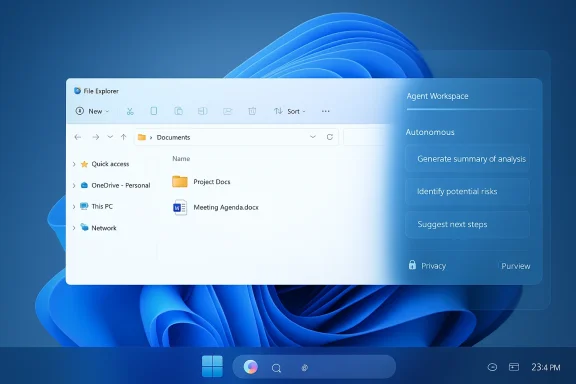
Microsoft has spent the last few years weaving Copilot through Microsoft 365 apps and the web; the latest effort is to fold that same assistant into core Windows 11 surfaces so it can intercept micro‑tasks where they originate. Rather than forcing users to switch to a Copilot window, the company wants Copilot to appear where people already look: the taskbar search field and the file manager. The announced features include agent discovery from the taskbar search composer (including shorthand triggers like typing “@”), background agent execution with progress indicators, and a small Copilot affordance in File Explorer that opens the assistant against a selected file for summaries, Q&A, or quick comparisons.These changes are being rolled out as staged previews through Windows Insider channels and via Microsoft 365 controls, with the richer, hardware‑accelerated experiences gated to Microsoft’s Copilot+ PC program that leverages on‑device NPUs for faster, more private AI inference. For enterprise customers, Microsoft points to existing compliance stacks — notably Microsoft Purview — to retain tenant‑level controls over what Copilot can access and return.
What changed in Windows 11 (the short list)
- Taskbar: the search/composer field now surfaces agent discovery — type “@” or click the Ask/Compose area and pick an agent (for example, “Researcher”) that can run a multi‑step job and notify you when it completes.
- File Explorer: eligible files show a small Copilot icon; click to get instant summaries, extraction of key findings, or natural‑language Q&A without opening the file’s native app. Supported files include common business formats such as .docx, .pptx, .pdf and plain text.
- Copilot+ PCs: a premium hardware tier unlocks systemwide capabilities — on‑device voice transcription, contextual screenshot recall, semantic file search, and reduced latency for local AI tasks thanks to the NPU. These features are being rolled out incrementally and are limited to certified devices initially.
Taskbar agents: what they are and why they matter
Agents, not just chat
The architected move here is from conversational Q&A to agentic workflows — mini applications that can run autonomously, chain multiple steps, and surface results asynchronously. In Microsoft’s demos, a “Researcher” agent accepted a broad brief, ran searches and synthesis steps, and delivered a long‑form report once finished, with a taskbar notification to draw the user’s attention. That approach is designed to reduce interruption: you can keep focusing on work while Copilot performs preparatory research, data extraction, or draft generation in the background.The Model Context Protocol and the agent workspace
Microsoft’s agent effort is being coordinated through a discovery-and‑tooling approach that lets agents request and use other services while running in a sandboxed agent workspace. This reduces the need to move data into a separate app and creates a standardized way for first‑ and third‑party agents to interoperate. The containment model and the new agent workspace are intended to lower the risk of agents taking inappropriate actions by making runtime permissions and scopes explicit. Early previews are gating third‑party agent capabilities until governance controls are proven.Practical examples
- Ask @Researcher to compile market sentiment on a competitor while you attend a meeting; the agent runs in the background and notifies you with a summary and attachments when ready.
- Launch a “Calendar Assistant” to scan upcoming meetings and suggest prework or a one‑page agenda, with notifications when the draft is ready.
File Explorer: one‑click intelligence
Inline file summarization and Q&A
File Explorer’s Copilot icon is a deceptively simple change. Click the icon next to a supported file and Copilot can summarize the document, extract the top findings, generate FAQs, or answer pointed questions about the contents without launching Word, Acrobat, or PowerPoint. Microsoft’s OneDrive/Copilot integration already supports summarizing up to five files at once and provides a chat pane for follow‑up queries; the File Explorer affordance brings that capability directly to the desktop. Supported file types and the “summarize” flow are documented in Microsoft’s Copilot/OneDrive guidance.Why this matters for everyday work
- Speed: No app startup or load times when you only need a short summary or to extract a single bullet point.
- Context: Copilot can use the file’s contents to produce semantically useful output (e.g., extract KPIs or a short executive summary).
- Less switching: Staying in File Explorer reduces the cognitive cost of switching to a browser or opening multiple Office apps.
Limits and caveats
- Best results are likely on standard, structured formats (.docx, .pptx, .pdf, .xlsx, .txt). The experience is bounded by format support and language coverage Microsoft has published for Copilot on Windows. If a file uses unusual encoding, non‑textual data, or unsupported formats the assistant may decline or provide only partial results.
Who gets this and when
Microsoft is distributing these features in staged rollouts, with priority given to Windows Insiders and tenants that opt into Copilot features through Microsoft 365. The richer experiences — semantic, local search and speed gains — are being limited to Copilot+ PCs, which are certified devices that include a dedicated NPU for on‑device model execution. Broader availability will depend on Microsoft’s rollout schedule and tenant provisioning.For enterprise IT teams, the key gating items are:
- Copilot licensing: these features tie to Microsoft 365 work or school accounts and require Copilot access to be provisioned by the organization.
- Hardware gating: the fastest, lowest‑latency features are tied to Copilot+ certified hardware with a neural processing unit (NPU).
- Staged rollouts: Microsoft is distributing changes through Insider channels and the Microsoft Store, and not every tenant will see features simultaneously.
Governance, privacy, and security — the practical reality
The enterprise implications are the most consequential part of this rollout. Microsoft says Copilot respects tenant boundaries and integrates with Microsoft Purview and sensitivity labels so that Copilot can access only what the user can already access. That is critical, but the addition of new, low‑friction entry points increases the potential for accidental data exposure unless administrators act deliberately.What Microsoft provides
- Sensitivity labels and encryption controls that extend to Copilot’s processing when configured correctly.
- A containment model for agents and an opt‑in permission flow for data access.
What IT teams should watch for
- Data leakage via prompts. Users often paste or attach sensitive content into prompts without realizing it. Organizations need clear policies, training, and technical controls such as DLP rules that block or flag certain prompt contents.
- Audit logs and visibility. Make sure Copilot actions are auditable and that logs are forwarded to SIEM/XDR if required. This is especially important for agents that can act across files or services.
- Least‑privilege and plugin scope. Limit which connectors or external services Copilot agents can call, and enforce approval workflows for any agent actions that cross trust boundaries.
Recommended rollout posture
- Pilot with a small, representative group.
- Monitor prompt patterns and results for the first 30–90 days.
- Apply DLP policies and sensitivity labels to protect high‑risk content.
- Require explicit tenant admin approval for any third‑party agent plugins or connectors.
- Train users on what not to paste into Copilot and provide clear examples of safe prompts.
Productivity trade‑offs: real gains, real questions
There are two competing realities here. On one hand, embedding Copilot where people actually work eliminates micro‑friction dozens of times per day: a three‑line task (summarize, extract, ask) becomes a single click; a background research run can happen while you attend a meeting; semantic search on Copilot+ hardware can find the right slide or memo with conversational queries. Those micro‑time savings compound, and Microsoft is banking on habit formation to drive paid adoption.On the other hand, Microsoft’s own publicly disclosed metrics suggest converting free or trial users into paid seats remains a challenge. In its fiscal reporting, Microsoft disclosed 15 million paid Microsoft 365 Copilot seats — a number that analysts translate to roughly 3.3% conversion of the broader Microsoft 365 commercial base. That contrast — broad usage at low paid conversion rates — is shaping Microsoft’s product calculus as it experiments with deeper integrations that could increase daily engagement. If integrations feel helpful and respectful of controls, engagement could rise; if they feel noisy or intrusive, Microsoft may dial them back.
Risks and failure modes (what keeps IT leaders up at night)
- Prompt leakage and accidental disclosure: users can and will paste sensitive text into a prompt. Human training and DLP are necessary but not sufficient; runtime monitoring is critical.
- Over‑automation and erroneous agent actions: agents that run multi‑step jobs increase blast radius if their actions are not constrained and auditable. Ensuring that agents cannot perform privileged destructive changes without explicit human review is essential.
- UI clutter and cognitive load: more entry points can become noise. Microsoft’s internal debates about how aggressively to surface AI hint that UX will be tuned quickly in response to user feedback.
- Compliance mismatches across clouds and tenants: connectors that reach outside a tenant (e.g., consumer Gmail or Drive) increase the complexity of applying corporate controls. Admins must validate connector scopes and consent flows before broad enablement.
Practical guidance for IT and security teams
- Start small: run a focused pilot across diverse teams (legal, HR, sales) to get early visibility into prompt content and agent behavior.
- Harden DLP and sensitivity labels: apply labels to columns, documents, and SharePoint/OneDrive libraries that contain high‑risk data; require EXTRACT usage rights where applicable so Copilot can’t return encrypted content without explicit rights.
- Configure tenant controls: limit which Copilot features and connectors are available by default, and require admin consent for any external connectors.
- Use audit and SIEM integration: ensure Copilot actions and agent runs generate logs that feed into existing monitoring infrastructure; set alerts for unusual agent behavior.
- Train users with concrete examples: provide a “Do / Don’t” cheat sheet that shows safe prompt practice and clarifies what not to include in Copilot conversations (e.g., passwords, PII, regulated health or financial information).
Competitive context and Microsoft’s strategic goals
Microsoft isn’t alone in embedding assistants: Apple has pushed Apple Intelligence across macOS and iOS, and Google has folded Gemini deeper into Workspace. Microsoft’s approach leverages two strategic advantages: (1) existing enterprise reach — Microsoft already owns the document formats, identities, and administrative surfaces that enterprise IT manages; and (2) hardware partnerships — the Copilot+ PC program lets Microsoft offer a hybrid local/cloud experience that reduces latency and raises a privacy bar for on‑device inference. Whether that strategy translates into paid conversions depends on the perceived value of alway effectively Microsoft and IT teams manage risk.The bottom line
Embedding Copilot into the Windows 11 taskbar and File Explorer is an evolutionary step with potentially large practical upside: fewer context switches, faster access to insights, and the ability to hand longer jobs to an assistant without interrupting your flow. But the rewards come with governance tax: administrators must pilot, monitor, and constrain agent scope; users must be trained to avoid prompt leakage; and Microsoft’s staged rollout means features and operational guarantees will evolve over months.If the UX proves fast, accurate, and respectful of corporate boundaries, these changes could increase daily Copilot usage and, over time, move more seats toward paid tiers. If they feel intrusive, noisy, or insecure, enterprises will push back and Microsoft will likely recalibrate. For now, the prudent path is clear: treat these features as productivity experiments that require deliberate piloting, strict DLP, and close monitoring — while being ready to capitalize on genuine time savings when the assistant gets it right.
Quick checklist for decision makers
- Confirm Copilot licensing and tenant provisioning before enabling File Explorer or taskbar agent features.
- Pilot with a small group and collect logs and prompt telemetry for 30–90 days.
- Apply sensitivity labels and DLP rules to protect high‑risk content.
- Require admin consent for any connectors to consumer accounts or external cloud services.
- Train users on safe prompting and establish a simple escalation path for suspicious agent outputs.
The conversation about AI in the OS is no longer theoretical. With Copilot stepping into File Explorer and the taskbar, the question for every IT leader is this: will you treat the change as a controlled experiment or a surprise that arrives on everyone’s desktop? The safer and smarter choice is to plan, pilot, and govern — and to reserve judgment until the telemetry proves the productivity gains outpace the risks.
Source: findarticles.com Copilot Arrives In Windows 11 File Explorer And Taskbar
