

Microsoft is quietly rolling out a user-facing control to stop AI assistants from reading app windows directly from the Windows 11 taskbar — a small setting with outsized implications for privacy, IT management, and how people will interact with on-device AI going forward.
Microsoft’s Copilot and the broader “Copilot Vision” experience have been evolving rapidly throughout 2025 and into 2026. What began as a conversational assistant integrated into Windows has expanded to include the ability to analyze visual content on screen: individual app windows, entire desktop screens, and contextual UI elements the assistant can reference while answering questions. That capability — powerful for troubleshooting, productivity, and accessibility — has also raised predictable questions about when, how, and by whom the assistant may access what’s on your display.
In response to that tension, recent Windows 11 preview builds have surfaced a new toggle in Taskbar settings labeled “Share any window from my taskbar with virtual assistant.” The control is intended to make the feature explicit, opt-in by default, and easily reversible for users who do not want Copilot or other virtual assistants to read the visible contents of app windows via the taskbar thumbnail preview.
This article breaks down what the toggle does, how the feature behaves today, which Windows builds and updates are involved, what the controls mean for end users and administrators, and the practical privacy and security trade-offs to weigh before enabling it.
Note: Microsoft’s rollout has been phased — not every Insider device receives the capability at the same time — and some aspects remain behind feature flags or hidden toggles during testing.
But the real-world privacy and security picture has several layers to evaluate.
That said, it is not a universal fit. For users and organizations handling sensitive data, the prudent path is to wait for fully documented enterprise controls and clear data-handling guarantees before enabling it broadly. For consumers and productivity-focused teams comfortable with cloud-assisted AI, the feature will likely accelerate routine tasks and provide genuine assistance.
The most responsible posture is measured: enable the toggle for scenarios where the productivity gains are obvious and the data exposure is acceptable, but keep it off for sensitive contexts and enforce centralized control where compliance demands it. As Microsoft moves beyond preview builds and refines Copilot Vision, watch closely for enhanced administrative tooling, auditability, and explicit cloud-local processing disclosures — those will determine how broadly and safely this capability can be used in the long term.
Windows is integrating AI into the user's workflow in ways that make sense — but convenience and control must move in lockstep. This new toggle is a step toward clearer user agency; the next steps should be stronger transparency, granular controls, and enterprise-ready auditing so that Copilot’s visual smarts can be a help rather than a hazard.
Source: PCWorld Microsoft adds setting to disable AI sharing in Windows 11 taskbar
 Background
Microsoft’s Copilot and the broader “Copilot Vision” experience have been evolving rapidly throughout 2025 and into 2026. What began as a conversational assistant integrated into Windows has expanded to include the ability to analyze visual content on screen: individual app windows, entire desktop screens, and contextual UI elements the assistant can reference while answering questions. That capability — powerful for troubleshooting, productivity, and accessibility — has also raised predictable questions about when, how, and by whom the assistant may access what’s on your display.In response to that tension, recent Windows 11 preview builds have surfaced a new toggle in Taskbar settings labeled “Share any window from my taskbar with virtual assistant.” The control is intended to make the feature explicit, opt-in by default, and easily reversible for users who do not want Copilot or other virtual assistants to read the visible contents of app windows via the taskbar thumbnail preview.
This article breaks down what the toggle does, how the feature behaves today, which Windows builds and updates are involved, what the controls mean for end users and administrators, and the practical privacy and security trade-offs to weigh before enabling it.
Overview: what the new taskbar sharing toggle actually does
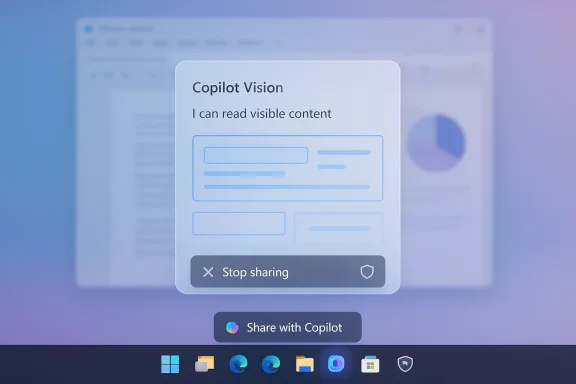
- The toggle controls whether a “Share with Copilot” button appears in the taskbar thumbnail that pops up when you hover an app icon.
- When enabled and used, Copilot Vision can read the visible content of the shared window, summarize it, offer guidance, and visually point out areas on the screen (visual guidance is being rolled out progressively).
- Crucially, the assistant does not take control of applications; current behavior is read and annotate, not remote control.
- The capability is being delivered via Windows 11 Insider and preview channel builds and has been included in broader cumulative updates and Copilot app updates during late 2025.
How the feature appears in Windows 11 (UX and builds)
What users will see
When the toggle is enabled and the feature is available on a device, hovering over an app icon on the taskbar produces the familiar thumbnail preview. Under that thumbnail a new “Share with Copilot” button appears. Clicking it launches Copilot Vision in a context-aware session where the assistant can analyze the content of that specific window.- A small floating toolbar appears while sharing — letting users stop sharing at any time.
- The Copilot composer shows that the assistant is analyzing the selected window, and responses may appear as text, voice, or visual highlights depending on the current Copilot capabilities and the user’s Copilot settings.
Which builds and updates introduced it
The capability has been visible in Windows 11 preview builds and in Copilot app updates delivered to Insiders in late 2025. It was exposed in preview channels with a combination of OS builds and Copilot versions; the December 2025 cumulative update (listed as KB5072033, with OS builds in the 26100–26200 range) contained multiple Copilot improvements that set the groundwork for taskbar-level sharing and UX refinements. Copilot app updates introduced a “glasses” icon and text-input flow for Vision sessions that are part of the same feature set.Note: Microsoft’s rollout has been phased — not every Insider device receives the capability at the same time — and some aspects remain behind feature flags or hidden toggles during testing.
The technical mechanics: what is shared, when, and how it stops
What the assistant can access
When you click “Share with Copilot” for a window, Copilot Vision is able to:- Read the visible content rendered in that specific window — text, images, UI elements, and any content currently visible.
- Summarize or extract information from that visible content.
- Provide visual guidance by highlighting or pointing to elements on screen (where supported by the current Copilot feature set).
How to stop sharing
Stopping a sharing session is immediate and user-controlled:- Click the “Stop” or the close (X) on the Copilot composer or floating toolbar.
- Close the Copilot pane or switch the Copilot Vision setting off in the Copilot app settings.
Controls and configuration: user and administrative options
User-facing controls
- Taskbar setting (Personalization → Taskbar): the “Share any window from my taskbar with virtual assistant” toggle controls whether the “Share with Copilot” button appears. It is disabled by default for many users during phased rollouts, and can be turned off to remove the taskbar share affordance entirely.
- Copilot app settings: within Copilot you can disable “Start Vision from app in taskbar” or turn off Vision features (sometimes presented as “Highlights” or similar toggles).
- Immediate session controls: the floating toolbar during a session provides a fast “Stop sharing” option.
IT and enterprise controls
- Group Policy/Registry: Companies can prevent Copilot Vision desktop/window sharing through policy keys or registry flags exposed for administrators to enforce. During preview stages, observers and community documentation have referenced registry keys that gate the taskbar toggle; enterprise-grade controls are expected in the formal policy catalog as the feature moves to general availability.
- Manageability: Microsoft has historically provided administrative settings for Copilot and related telemetry features and is expected to continue that approach for Vision and taskbar sharing to meet enterprise compliance requirements.
Privacy and security analysis: benefits and blind spots
Microsoft’s explicit, opt-in approach to taskbar sharing answers a clear user expectation: if an AI is reading what’s on my screen, I should be able to control it easily. That is a foundational privacy principle and an important design win.But the real-world privacy and security picture has several layers to evaluate.
Strengths and mitigations
- Explicit consent model: the taskbar affordance makes sharing an active user choice, reducing the risk of stealthy, unexpected capture.
- Session-level controls: the user can stop sharing instantly. Copilot’s composer and floating toolbar provide immediate session visibility.
- Per-feature disables: Windows and Copilot settings offer toggles to remove the taskbar share button or disable Vision entirely.
- Administrative enforcement: anticipated group policy and registry options give IT teams the tools to centralize control in managed environments.
Potential risks and unanswered questions
- Data path to cloud vs. local processing: Copilot often uses cloud-based models for processing. While Microsoft has made strides toward on-device models and hybrid processing, the specifics of what data is transmitted to the cloud for Vision analysis, what metadata accompanies it, and how long temporary frames or transcripts are retained remain implementation details that require careful review for high-sensitivity environments.
- Highlights and visual guidance: any UI that visually points to elements on screen can inadvertently expose sensitive areas — especially if a session is started accidentally while sensitive documents are visible.
- Accidental sharing: hovering, misclicks, or social engineering could lead to unintended shares. The UX reduces this by requiring an explicit click, but it does not eliminate the possibility entirely.
- Feature reuse by attackers: any feature that surfaces content to a process could be targeted by malicious code seeking to manipulate the UI into showing sensitive information for extraction; attackers with local access could try to trick a user into sharing.
- Retention and auditing: public documentation has described session-level controls and ephemeral behavior, but formal guarantees about ephemeral handling, audit logs, or enterprise eDiscovery for Copilot Vision sessions are still maturing.
Practical recommendations for Windows users
If you are a consumer or a knowledge worker deciding whether to enable the taskbar share toggle:- If you value convenience for quick help, enabling the toggle and using “Share with Copilot” selectively can accelerate tasks such as summarizing documents, troubleshooting error dialogs, or getting step-by-step guidance.
- If you handle sensitive materials (financial records, medical data, classified documents), keep the toggle off and disable Copilot Vision features at the Copilot settings level.
- Make stopping a habit: when you finish a Copilot Vision session, explicitly click the stop control to ensure no lingering session exists.
- Keep your Copilot app and Windows updates current; Microsoft refines privacy and manageability features across updates.
Practical recommendations for IT administrators
Organizations should treat the rollout like any new surface that can bridge user screens with an AI service.- Inventory and policy: identify which user groups need Copilot Vision and which should be restricted. Create a policy that maps copilot capabilities to risk profiles.
- Use administrative controls: deploy the officially supported group policy or registry settings to disable taskbar sharing where not permitted. Document the change for helpdesk teams.
- Educate users: update acceptable use and security awareness training to include Copilot Vision behavior and how to stop sessions.
- Audit and logging: request or require visibility into Copilot session logs where available, and validate data residency and retention characteristics with Microsoft if your compliance posture requires it.
- Test before enablement: pilot the feature with a limited group and validate that session workflows, stopping behavior, and data handling meet internal compliance needs.
Strengths and potential opportunities
- Faster contextual support: the utility is immediate — instead of describing a window or copying text, you can let Copilot see the content and get faster, more accurate help.
- Accessibility: for users with disabilities, letting an assistant read UI and highlight elements can be transformative.
- Troubleshooting and onboarding: support desks can provide better guided assistance if users explicitly share a window during a session, reducing time to resolution.
- Incremental rollout model: Microsoft’s opt-in, phased testing model and explicit taskbar affordance align with best practices for rolling out sensitive features.
Where Microsoft should be clearer (and what to watch for)
There are specific technical and policy areas where clearer documentation or stronger controls would build trust faster:- Precise data flow and retention guarantees: organizations need a clear, auditable description of what leaves the device, how long ephemeral data is kept, and whether any persistent artifacts are created.
- Enterprise logging and eDiscovery: formal support for auditing Copilot Vision sessions is essential for regulated industries. Microsoft should document available logs and APIs for compliance teams.
- Granular permissioning: ideally, users and admins should be able to whitelist specific applications or domains that are allowed to be shared, rather than a single global toggle.
- Default posture for managed devices: determining whether feature flags should default to off for corporate-managed machines (and providing clear documentation) will reduce accidental exposure.
Quick how-to: disable the taskbar share affordance (consumer-friendly steps)
If you want to ensure the taskbar does not offer the “Share with Copilot” button:- Open Settings → Personalization → Taskbar.
- Locate “Share any window from my taskbar with virtual assistant” and switch it off.
- Open the Copilot app and in Copilot Settings disable “Start Vision from app in taskbar” or turn off Vision features entirely if you prefer.
Final analysis: should you enable this?
The taskbar-level window sharing feature is a logical, well-scoped way to bring visual context to on-device AI helpers. It solves an important usability problem — giving Copilot the exact context it needs without manual screen sharing — while respecting the principle of explicit consent.That said, it is not a universal fit. For users and organizations handling sensitive data, the prudent path is to wait for fully documented enterprise controls and clear data-handling guarantees before enabling it broadly. For consumers and productivity-focused teams comfortable with cloud-assisted AI, the feature will likely accelerate routine tasks and provide genuine assistance.
The most responsible posture is measured: enable the toggle for scenarios where the productivity gains are obvious and the data exposure is acceptable, but keep it off for sensitive contexts and enforce centralized control where compliance demands it. As Microsoft moves beyond preview builds and refines Copilot Vision, watch closely for enhanced administrative tooling, auditability, and explicit cloud-local processing disclosures — those will determine how broadly and safely this capability can be used in the long term.
Windows is integrating AI into the user's workflow in ways that make sense — but convenience and control must move in lockstep. This new toggle is a step toward clearer user agency; the next steps should be stronger transparency, granular controls, and enterprise-ready auditing so that Copilot’s visual smarts can be a help rather than a hazard.
Source: PCWorld Microsoft adds setting to disable AI sharing in Windows 11 taskbar
