

Windows 11’s third‑party “debloat” ecosystem has quietly moved from hobbyist scripts to polished utilities with clearer safety guardrails, one‑click presets, and explicit controls for the OS’s growing set of AI features — and that shift matters for anyone who wants a lighter, quieter Windows experience without flipping their machine into an unsupported state. Recent updates to tools such as Win11Debloat, Winhance, Winpilot and a new wave of GUI wrappers bring safer defaults, rollback options, and targeted controls for Copilot, Recall, and other AI-enabled services — but they also raise new operational and security questions that every user should weigh before clicking “Remove.”
Windows 11 has added features yearly — from the redesigned shell to cloud‑connected services and, more recently, deep AI integrations. For many users, the result is a system that ships with dozens of inbox apps, background services, and telemetry features that do not match their needs. That gap created a robust community of scripts and small utilities (PowerShell scripts, GUI front‑ends and custom ISO builders) that remove or disable components Microsoft includes by default.
Key potential benefits:
At a policy level, the implication is straightforward: Microsoft is adding management controls for enterprises while leaving the consumer ecosystem open. That open landscape explains both the popularity of third‑party tools and Microsoft’s incremental moves to offer admins supported controls.
What to watch next:
That said, these tools are not magic. They require prudent use:
Source: thewincentral.com Windows 11 Debloating Tools Updated to Remove Unwanted Features More Easily
 Background: why debloat tools are resurging
Windows 11 has added features yearly — from the redesigned shell to cloud‑connected services and, more recently, deep AI integrations. For many users, the result is a system that ships with dozens of inbox apps, background services, and telemetry features that do not match their needs. That gap created a robust community of scripts and small utilities (PowerShell scripts, GUI front‑ends and custom ISO builders) that remove or disable components Microsoft includes by default.- Early tools were simple PowerShell scripts that required reading code and operating from an elevated shell. Modern tools give GUI options, presets, and explicit undo paths.
- Enterprise and education customers now also have Microsoft‑sanctioned ways to remove inbox apps through Intune and group policy in supported Windows 11 editions, which changes the landscape for managed devices. This doesn’t obviate community tools, but it does give admins a supported path.
What’s new: safer defaults, AI controls, and rollback
Recent updates across the debloat ecosystem concentrate on three themes: safety, clarity, and AI awareness. The headline improvements include:- Smarter identification of non‑essential apps and services: Tools are shipping curated lists that identify packages commonly removed across the community, often with descriptive text explaining what each package does. Win11Debloat’s repository explicitly lists removable components and explains default behaviors.
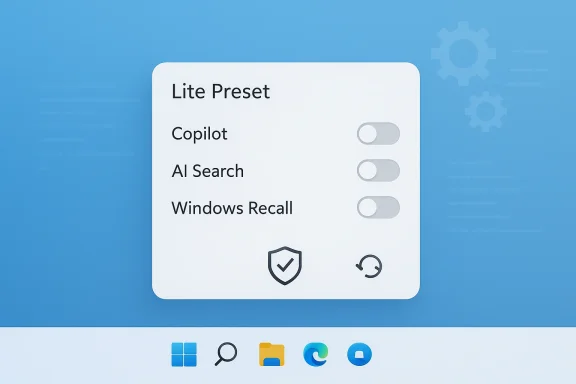
- Safer one‑click debloat presets: Instead of a single “nuke everything” switch, most projects now offer conservative defaults and a “lite” or “recommended” preset designed to minimize breakage. Win11Debloat, for example, supports a “Lite” preset that applies privacy and UI tweaks without removing apps.
- Improved controls for background and AI features: The latest versions add explicit toggles to disable or remove Copilot, Bing AI search integration, Windows Recall, and app‑level AI features in Paint/Notepad/Edge. These controls are now a standard part of many debloat GUIs and scripts.
- Built‑in restore and rollback options: Modern tools create restore points, ship undo scripts, or let users export current configurations to reapply later. Several projects now surface rollback instructions prominently and include “undo” menu options in GUIs.
- Clear warnings before system‑level changes: UIs and readmes emphasize backup steps and include step confirmations; open‑source projects show the exact commands they execute so power users can audit them first.
Examples from the ecosystem
- Win11Debloat: The PowerShell project documents default vs. lite runs, lists changes that affect AI features (Copilot, Recall) and provides undo guidance for most changes. The project’s changelog and README make conservative defaults explicit.
- Winhance: A full GUI utility that packages debloat, optimization and configuration export/import. It includes options to remove Copilot and other inbox packages, and an explicit configuration save/restore mechanism. The website and docs stress reversibility for many changes.
- Winpilot and similar GUI suites: Some projects have added “assistant” interfaces and plugin systems that make removing AI components easier and safer by recommending removals rather than forcing them. These UIs — sometimes cheekily themed with Clippy‑style assistants — aim to make the process approachable for non‑script users. Coverage of these UIs has appeared in mainstream tech outlets.
Why this matters to Windows users
For users who want a streamlined Windows installation, the updated tools deliver measurable benefits — and specific trade‑offs.Key potential benefits:
- Faster startups and less background noise: Removing optional background apps and services reduces the number of startup processes and the overall memory footprint.
- Reduced telemetry and privacy surface: Conservative tweaks can limit diagnostic telemetry and targeted ads, which is valuable for privacy‑oriented users.
- Cleaner user experience: Fewer promoted apps, notifications and UI clutter mean less distraction and lower maintenance for casual systems.
Critical analysis: strengths, genuine risks, and where the safeguards fall short
The newest generation of debloat tools addresses many earlier shortcomings, but they are not a free lunch. Below is a balanced evaluation.Strengths
- Transparency and audibility: Many leading scripts remain open source, letting any user inspect the exact PowerShell commands that run. That kind of transparency is rarer in closed utilities and is a major reliability plus. Win11Debloat’s public repository and README are good examples.
- Conservative defaults and presets: Having a “Lite” or “Recommended” preset reduces the chance of accidental feature removal, which was a frequent cause of forum reports of breakage in earlier waves.
- Operational safeguards: Built‑in restore point creation, undo scripts, and explicit rollback instructions are now standard for reputable projects. These all substantially lower the risk profile compared with ad‑hoc manual removal.
- Feature‑targeted controls for AI: Tools now let users disable or remove AI features specifically (e.g., Copilot, in‑search Bing/AI, Windows Recall) rather than broad, blunt changes — a practical evolution as AI functions become core to the OS.
Risks and caveats
- Update resilience and reintroduction: Windows updates (especially feature updates) can reintroduce removed apps or change internal package identifiers. Many community solutions try to prevent this by tweaking update policies, but those measures can have side effects and may not hold indefinitely. Users should expect some maintenance when major Windows builds arrive.
- Undocumented dependencies: Removing one package can break another subtle feature. Xbox/Xbox Game Services, Store‑linked components, or UI surfaces may stop working if dependent packages are removed. That’s why conservative defaults exist and why testing after changes is essential.
- Security and trust considerations: Any third‑party tool that runs with administrator privileges is a potential vector for harm if the code is malicious or compromised. Prefer open‑source projects with active communities and signed releases; avoid running obscure binaries from untrusted sources.
- Supportability in enterprise contexts: Aggressive debloating can affect vendor support or warranty claims for OEM systems and may conflict with corporate compliance. Enterprises should use Microsoft’s supported removal mechanisms (Intune/GP) for managed devices where possible.
Where safeguards still fall short
- Rollback is not universally trivial: Many changes can be reversed via undo scripts or reinstalling from the Store, but some components (or Start menu layout changes) require manual steps or a full system reset to restore completely. Projects disclose those limitations, but it remains a real user pain point.
- Automation vs. manual oversight tension: New “assistant” UIs that recommend removals risk encouraging less technical users to accept suggestions without inspecting them. Even when tools ask for consent, a non‑technical user may not appreciate cross‑package dependencies. The safest path remains manual review of recommended removals.
Practical guidance: how to use modern debloat tools safely
If you’re considering running one of the updated debloat utilities, follow a conservative, reproducible workflow.- Create a full backup (disk image) or at least a System Restore point before making changes. Many tools offer an option to create one automatically; use it.
- Start with a conservative preset (often labeled “Lite,” “Recommended,” or “Safe”). Run that and use the system normally for 24–48 hours to catch regressions.
- If you need to remove additional items, add them incrementally rather than in a single sweep. That helps isolate any problem and makes rollbacks easier.
- Prefer open‑source, actively maintained tools and always download releases from the official project page or verified GitHub release. Inspect changelogs and recent commits if you can.
- For managed devices, use Microsoft’s supported Intune/Group Policy options to remove inbox apps where appropriate; this keeps you within supported channels for enterprise scenarios.
- Back up or image the system.
- Use conservative preset.
- Create restore point inside tool if offered.
- Test for 48 hours (Wi‑Fi, sound, printers, Steam/Gaming).
- Keep undo instructions on hand.
The Microsoft angle: not an explicit ban, but enterprise tools are emerging
Microsoft has not pursued a blanket ban on users customizing or removing inbox apps. In fact, Microsoft offers sanctioned methods for administrators to remove default Microsoft Store packages on supported Windows 11 Enterprise/Education editions via Intune or Group Policy, and Microsoft’s own guidance and community Q&A pages provide scripts and instructions for managed scenarios. That means organizations can achieve inbox app removal through supported tooling, while individual consumers still rely on community projects when they need more granular or simpler controls.At a policy level, the implication is straightforward: Microsoft is adding management controls for enterprises while leaving the consumer ecosystem open. That open landscape explains both the popularity of third‑party tools and Microsoft’s incremental moves to offer admins supported controls.
The bigger picture: user expectations, product design, and where this trend may go
The evolution of debloat tools reflects a broader shift in user expectations: people want choice, less noise, and control over how deeply AI and cloud features integrate with their devices. If Microsoft’s roadmap continues to add features that target mainstream usage, community tools will keep evolving to give power users the opposite direction — a minimal, privacy‑focused desktop.What to watch next:
- Will Microsoft expand built‑in options to let consumer editions remove specific inbox apps without third‑party help? Enterprise features (Intune/GP) are a step in that direction, but consumer reach remains limited.
- How will feature updates change package identifiers and the durability of debloats? Community projects will need to maintain lists and provide robust update‑time checks to avoid breakage.
- Will mainstream media and larger open‑source projects converge on recommended safety patterns and standardized undo mechanisms? The best projects already offer this, and the community will reward those that minimize accidental damage and improve transparency.
Final verdict: use the new tools — but use them judiciously
The recent wave of updates to Windows 11 debloat tools is a real quality‑of‑life improvement. Modern releases show thoughtful defaults, restore options, and explicit controls for AI features that previously required manual registry edits or risky scripts. For enthusiasts, system builders and privacy‑minded users, these tools now offer a compelling, lower‑risk path to a cleaner Windows desktop.That said, these tools are not magic. They require prudent use:
- Back up before you act.
- Start conservative and validate.
- Prefer open‑source, actively maintained projects.
- Use Microsoft’s supported removal options for managed devices when possible.
Source: thewincentral.com Windows 11 Debloating Tools Updated to Remove Unwanted Features More Easily
