

Windows 11 quietly ships with a built‑in "efficiency" switch that can free up CPU cycles, reduce memory contention, and sometimes make a sluggish PC feel dramatically more responsive — and you can enable it for individual apps in seconds using Task Manager.
Windows performance is increasingly under pressure. New AI features, heavier web pages, background sync services, and long-lived processes pile up memory and CPU demand on modern systems, especially laptops with 8 GB of RAM or less. The operating system has several throttle-and-shape mechanisms to prioritize foreground work, but Microsoft added an explicit, user‑controlled toggle — Efficiency mode — so you can tell Windows which background apps should be intentionally deprioritized to preserve responsiveness and battery life.
Efficiency mode is exposed in Task Manager and was designed to combine a lower scheduling priority with an EcoQoS (energy‑efficient Quality of Service) hint so background work gets less thermal and power headroom. Microsoft’s own tests show a range of responsiveness improvements across scenarios, but real‑world outcomes vary by workload, hardware, and which process you throttle. This article explains what Efficiency mode does under the hood, how to enable it safely, where it helps most (and where it can cause problems), how to measure results, and sensible alternatives if it’s not the right tool for your situation. Community testing and troubleshooting notes are included so you can try this tweak without guessing.
Efficiency mode is one of those small, well‑scoped Windows controls that can provide a noticeable, immediate improvement in specific, common scenarios. It’s not a universal cure for sluggish systems, but when background processes are the culprit, it often helps more than expected — provided you use it selectively, measure the results, and revert it when an app misbehaves. For anyone trying to squeeze better responsiveness from an older laptop or a memory‑tight system, it’s a simple, reversible tweak worth testing right away.
Source: Tom's Guide https://www.tomsguide.com/computing...c-an-instant-speed-boost-heres-how-to-try-it/
 Background / Overview
Windows performance is increasingly under pressure. New AI features, heavier web pages, background sync services, and long-lived processes pile up memory and CPU demand on modern systems, especially laptops with 8 GB of RAM or less. The operating system has several throttle-and-shape mechanisms to prioritize foreground work, but Microsoft added an explicit, user‑controlled toggle — Efficiency mode — so you can tell Windows which background apps should be intentionally deprioritized to preserve responsiveness and battery life.Efficiency mode is exposed in Task Manager and was designed to combine a lower scheduling priority with an EcoQoS (energy‑efficient Quality of Service) hint so background work gets less thermal and power headroom. Microsoft’s own tests show a range of responsiveness improvements across scenarios, but real‑world outcomes vary by workload, hardware, and which process you throttle. This article explains what Efficiency mode does under the hood, how to enable it safely, where it helps most (and where it can cause problems), how to measure results, and sensible alternatives if it’s not the right tool for your situation. Community testing and troubleshooting notes are included so you can try this tweak without guessing.
What is Efficiency mode?
The technical idea in plain language
Efficiency mode is a per‑process toggle in Task Manager that asks Windows to:- Lower the process scheduling priority so it competes less with foreground tasks.
- Apply EcoQoS hints so the CPU favors energy efficiency and reduces thermal headroom for that process.
- Reduce CPU time and, indirectly, pressure on system memory and I/O, which can free resources for the app you are actively using.
What Efficiency mode is not
- It is not a memory‑compression or swap manipulation feature; it primarily affects CPU scheduling and energy hints.
- It does not replace browser‑specific power modes (browsers such as Edge have their own efficiency options).
- It cannot be enabled for every system or process — some system-critical groups or certain process groups don’t expose the toggle. Microsoft’s support documentation explains which cases are restricted.
How to enable Efficiency mode (step‑by‑step)
- Press Ctrl + Shift + Esc to open Task Manager.
- Click the Processes tab to see running apps and process trees.
- Expand a process group if needed by clicking the arrow to its left.
- Right‑click the process you want to limit and select Efficiency mode from the context menu.
- Confirm the popup (you can check Don't ask me again if you prefer no prompt).
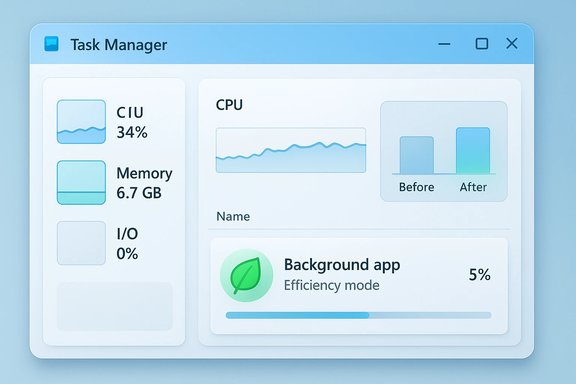
- Look for the green leaf icon that marks processes running in Efficiency mode.
What to expect when you switch it on
- Immediate reduction in CPU usage from the targeted process; background threads will receive fewer CPU slices.
- Lower thermal and power consumption from the limited process, which can leave more headroom for active apps and improve overall responsiveness.
- Possible slight changes in how quickly the limited app performs background work (e.g., syncing, indexing, auto‑updates) — intended behavior.
- A visible green leaf icon in Task Manager for processes where it’s active.
Where Efficiency mode helps most
- Background syncing apps (cloud clients, some backup tools) that intermittently hog CPU while you’re actively using the machine.
- Utility processes that perform batch work in the background (indexing, helper services) but aren’t latency‑sensitive.
- Long‑running tools that you keep open but don’t need to be computationally aggressive (some editors, document viewers, chat apps).
- Power/thermal constrained laptops where freeing CPU headroom for a single active app can noticeably improve perceived responsiveness.
Where to avoid enabling it
- Web browsers (Chrome, Edge, Firefox) — browsers are interactive and often have many renderer processes; enabling Efficiency mode can make tab switching, typing, and page rendering laggy. Multiple reports and user threads show browsers sometimes become unresponsive or appear "stuck" when Efficiency mode is applied. If you try it on a browser and see degraded behavior, turn it off immediately.
- Games and real‑time interactive apps — these frequently run multi‑process architectures and require full scheduling fairness.
- Processes that depend on consistent background throughput (some media transcoders, server processes, or real‑time communication backends).
- System process groups that do not support the toggle — Task Manager will grey out the option for such groups.
Known issues and troubleshooting
Browser processes stuck in Efficiency mode
Multiple users have reported browsers appearing to be stuck in Efficiency mode even when browser‑level efficiency settings are off. Workarounds that the community has used include:- Disabling Efficiency mode for the browser processes in Task Manager directly. If the toggle is unavailable or reverts, third‑party process managers like Process Lasso have been used to block Efficiency mode for selected executables. Use third‑party tools with caution.
- Check browser settings for built‑in energy/save features (Edge has its own Efficiency mode separate from Windows’ feature). Turning off the browser's internal efficiency settings does not control the Windows Task Manager toggle.
App instability
Microsoft warns Efficiency mode may cause instability for some processes. If an app misbehaves after you enable it, revert it immediately. The OS will show a warning the first time you enable Efficiency mode for a process.Process groups and limitations
Task Manager may not allow toggling Efficiency mode for certain process groups (for instance, some core Windows components or grouped explorers). If the command is greyed out, that’s intentional — those groups are exempt.How to test whether it helped — repeatable measurements
To evaluate whether Efficiency mode improved responsiveness on your machine, run quick before‑and‑after checks:- Use Task Manager and Resource Monitor to capture baseline CPU, memory, disk, and GPU utilization.
- Time common tasks that feel sluggish (open a heavy browser tab, switch tabs, run a short compile, or launch a large app). Use a stopwatch for simple real‑world timing.
- Enable Efficiency mode on a suspected background culprit and repeat the same tasks.
- For more precise boot and sign‑in metrics, consult Event Viewer > Applications and Services Logs > Microsoft > Windows > Diagnostics‑Performance. BootDuration and other counters can be compared across runs.
Practical recommendations: safe workflows
- Start small: enable Efficiency mode on one background app at a time, then use your system for a typical session to see the difference.
- Avoid enabling it on interactive apps (browsers, code editors, games) until you’ve confirmed behavior remains acceptable.
- If you rely on a background app to finish a job promptly (backups, syncs), remember that Efficiency mode will lengthen completion time.
- Use the green leaf icon and Task Manager’s status column to track which processes are limited; keep a short list of exceptions for apps that must not be throttled.
Alternatives and complementary tweaks
Efficiency mode is one tool among many. If your goal is to reclaim responsiveness or free RAM, consider these complementary options:- Close unnecessary apps and browser tabs; every open app consumes memory. Community guides repeatedly point to trimming startup and background apps as the single best low‑risk win.
- Use Task Manager → Startup to disable nonessential startup items; reboot and measure. This reduces early-session memory pressure.
- Switch to a higher power profile while plugged in (Settings → System → Power & battery → Power mode → Best performance) to avoid CPU downclocking during heavy work. This improves raw responsiveness at the cost of battery life.
- Turn off unnecessary visual effects (Settings → Accessibility → Visual effects → disable Transparency and Animation) to reduce GPU/CPU work for desktop compositing.
- Free disk space and enable Storage Sense to prevent pagefile thrashing on low‑capacity drives. For systems still on an HDD, a move to an SSD remains the single most transformative hardware upgrade for responsiveness.
Real‑world reports and community experience
Independent coverage and community threads echo Microsoft’s guidance: Efficiency mode is a handy control that can improve responsiveness for background work, but it can also cause problems — particularly with browsers — when applied indiscriminately. Microsoft’s documentation, developer blog, and mainstream tech outlets all agree on the basic mechanics: lower priority + EcoQoS → less interference for foreground tasks. Forums and user reports document several edge cases: browsers getting sluggish or stuck in Efficiency mode, games triggering mass throttling, and users needing third‑party tools to enforce exceptions. These reports underscore a practical rule: test, measure, and be prepared to revert.Step‑by‑step checklist to try it safely
- Identify the resource hog: open Task Manager → Processes → sort by CPU or Memory.
- Pick a non‑interactive background app (e.g., a backup client or a non‑critical helper).
- Enable Efficiency mode for that process via right‑click → Efficiency mode.
- Use the PC for 30–60 minutes in a typical workflow and note responsiveness.
- If performance improves and the app still functions acceptably, keep it enabled; otherwise, disable it.
- Repeat for other background apps if useful.
- If a browser or core app becomes laggy, disable Efficiency mode for that process immediately.
Final assessment — strengths, risks, and editorial take
Efficiency mode is a pragmatic, low‑risk lever that empowers users to tell Windows which background processes should yield CPU and energy headroom to active work. Its strengths are:- Granular control: per‑process toggle in Task Manager makes it easy to apply and revert.
- Power and thermal benefits: EcoQoS reduces unnecessary heat and battery draw from background tasks.
- Real wins in targeted scenarios: Microsoft’s lab data and community tests show measurable responsiveness gains when background CPU contention is the root cause.
- Potential instability or broken behavior: some apps do not behave well when deprived of CPU priority; Microsoft explicitly warns about this.
- Browser and interactive app regressions: multiple reports show browsers can become sluggish or stuck in Efficiency mode; don’t assume a browser is a safe target.
- Misapplied expectations: the headline “instant 76% speed boost” comes from controlled tests; real‑world improvements are usually smaller and scenario‑dependent. Treat lab numbers as indicative, not guaranteed.
Quick reference — commands & locations
- Open Task Manager: Ctrl + Shift + Esc.
- Processes tab → right‑click process → Efficiency mode to toggle.
- Power mode: Settings → System → Power & battery → Power mode.
- Disable visual effects: Settings → Accessibility → Visual effects → turn off Transparency and Animation.
- Manage startup: Task Manager → Startup tab or Settings → Apps → Startup.
Efficiency mode is one of those small, well‑scoped Windows controls that can provide a noticeable, immediate improvement in specific, common scenarios. It’s not a universal cure for sluggish systems, but when background processes are the culprit, it often helps more than expected — provided you use it selectively, measure the results, and revert it when an app misbehaves. For anyone trying to squeeze better responsiveness from an older laptop or a memory‑tight system, it’s a simple, reversible tweak worth testing right away.
Source: Tom's Guide https://www.tomsguide.com/computing...c-an-instant-speed-boost-heres-how-to-try-it/
