

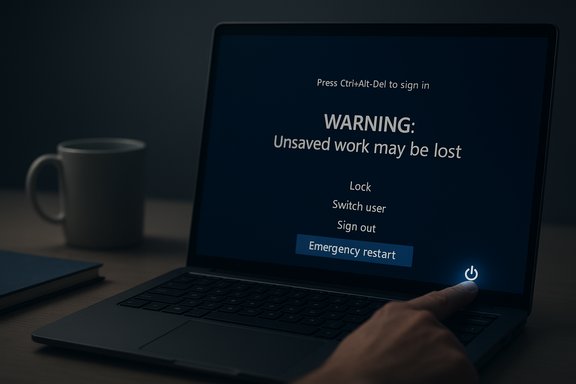
Windows 11 quietly includes an Emergency Restart option that lets you force a full restart from the secure Ctrl+Alt+Del screen — a last-resort reset that’s less theatrical than yanking the power cord but just as decisive for recovering a frozen PC.
Windows has long offered multiple ways to restart or shut down a machine: Start menu commands, the physical power button, power-shell and command-line utilities, and various remote-management interfaces for servers. Hidden among those options is Emergency Restart, an under-discussed method that appears on the Ctrl+Alt+Del screen and is designed specifically for situations where the desktop is unresponsive but the secure attention sequence still works.
This option is intended as a pragmatic, do-or-die tool for troubleshooting: it forces the system to stop everything and restart immediately, with an explicit warning that unsaved work will be lost. It’s not the same as a factory reset or a system refresh — it’s effectively a software-triggered hard reboot. Understanding what it does, when to use it, and how it differs from other reset methods helps you recover more safely and diagnose underlying problems that led to a freeze in the first place.
That said, full-system compromises at kernel level or firmware infections operate below the Secure Attention Sequence and could theoretically interfere with expected behavior. Treat Emergency Restart as a recovery tool, not a security mechanism.
However, its limitations should not be underestimated. It is a blunt instrument that sacrifices graceful shutdown and the safety of unsaved data for immediacy. It does not address root causes and should not be used as a routine fix. Frequent dependence on Emergency Restart is an operational smell — a signal that drivers, hardware, or software stability need attention.
Best practices:
This feature is a reminder that modern operating systems include quiet, often-unannounced shortcuts designed to help technicians and experienced users recover from the most stubborn hangs. Knowing how and when to use Emergency Restart — and how to follow up afterward — separates effective troubleshooting from guesswork and reduces downtime without introducing unnecessary risk.
Source: How-To Geek Windows 11 has an emergency shutdown option you probably don't know about
 Background
Windows has long offered multiple ways to restart or shut down a machine: Start menu commands, the physical power button, power-shell and command-line utilities, and various remote-management interfaces for servers. Hidden among those options is Emergency Restart, an under-discussed method that appears on the Ctrl+Alt+Del screen and is designed specifically for situations where the desktop is unresponsive but the secure attention sequence still works.This option is intended as a pragmatic, do-or-die tool for troubleshooting: it forces the system to stop everything and restart immediately, with an explicit warning that unsaved work will be lost. It’s not the same as a factory reset or a system refresh — it’s effectively a software-triggered hard reboot. Understanding what it does, when to use it, and how it differs from other reset methods helps you recover more safely and diagnose underlying problems that led to a freeze in the first place.
How to access Emergency Restart (quick steps)
Step-by-step (concise)
- Press Ctrl+Alt+Del to invoke the secure attention screen.
- When the screen appears, hold down the Ctrl key.
- While keeping Ctrl pressed, click the power icon in the bottom-right corner.
- Choose Emergency Restart (or click OK if the dialog appears) and accept the warning that unsaved data will be lost.
What Emergency Restart actually does
- Not a factory reset: Emergency Restart forces a hard restart but does not delete files, user profiles, or installed applications. It does not revert your system to factory defaults.
- Equivalent to a hard power reset: Functionally, it behaves like forcing power off (holding the physical power button) and then powering back on. It abruptly terminates user sessions and running processes.
- Risk to unsaved data: Any unsaved work in applications will be lost. Applications don’t get a graceful shutdown sequence in which they can prompt to save documents.
- File system risk is limited but present: Modern Windows uses NTFS (a journaling filesystem). Journaling helps avoid catastrophic file system corruption in sudden power loss situations, but it cannot completely eliminate the possibility of data corruption for files being written at the exact moment of the reboot.
- Useful when Ctrl+Alt+Del is the only responsive input: If a machine accepts the Secure Attention Sequence but refuses Task Manager or other UI interactions, Emergency Restart gives you a way to reboot without a physical button or pulling power.
Why this option exists — the design rationale
Emergency Restart fills a narrow but useful niche in troubleshooting:- Secure entry point: Ctrl+Alt+Del is the Secure Attention Sequence (SAS), which is processed by the system and cannot be intercepted by user-mode programs. That makes this restart option one of the few guaranteed-to-be-trusted paths out of a hung session.
- Hardware-less recovery: Some modern laptops (thin designs, tablets, or devices with recessed power controls) make it awkward to use the physical power button. Emergency Restart provides a software alternative.
- Reduced risk of accidental use: The multi-step requirement (SAS + hold Ctrl + click power) reduces the chance of accidental hard resets.
- Troubleshooter-friendly: For service desks and tech-savvy users troubleshooting remote help sessions, it provides a predictable and logged restart path when other recovery tools aren’t working.
When to use Emergency Restart — and when not to
Appropriate uses
- The system UI is partially responsive: Ctrl+Alt+Del registers but Task Manager won’t open or processes don’t respond.
- An application or driver has caused a hard freeze where mouse and keyboard input is ignored in the desktop session, but the SAS still works.
- You cannot physically access the machine’s power button, or the power button itself is unresponsive.
- Remote assistance has failed to regain control and a reboot is needed to restore services.
Avoid when
- You still have time to try graceful shutdowns: attempt Task Manager → End Task, or run shutdown /r /t 0 from an elevated terminal if possible.
- You are in the middle of critical write operations (disk imaging, database commits, large file copies).
- You suspect hardware-induced power issues (intermittent PSU, failing battery) — abrupt reboots can complicate diagnosis.
- You can use remote management interfaces (iDRAC, iLO, AMT, or out-of-band controllers) on servers to perform a controlled restart.
What to expect after an Emergency Restart
- Windows will reboot in a normal fashion and attempt to start all services and drivers as usual.
- You may receive post-boot messages from Windows about improper shutdowns, and Windows will log the event in the System event log.
- In most cases Windows will repair any minor inconsistencies automatically on startup thanks to journaling and safe startup routines.
- If the freeze was caused by a transient process or driver, the system may boot normally and appear no worse for wear.
- If the freeze recurs repeatedly, further diagnostic steps are required (see Troubleshooting checklist below).
Troubleshooting checklist — after a hard restart
- Inspect Event Viewer
- Open Event Viewer and check System and Application logs for error events around the time of the freeze. Look for driver failures, kernel errors, or repeated service crashes.
- Run Disk and System Health Checks
- Run chkdsk on system volumes and consider running S.M.A.R.T. diagnostics for SSD/HDD health using a vendor utility.
- Run sfc /scannow and DISM /Online /Cleanup-Image /RestoreHealth to verify system file integrity.
- Update drivers and firmware
- Display drivers, storage controller drivers, and chipset drivers are common culprits for freezes. Update them from the device manufacturer rather than relying solely on generic drivers.
- Check BIOS/UEFI and firmware updates for the motherboard or laptop; firmware bugs can manifest as hangs.
- Run memory tests
- Use MemTest86 or the Windows Memory Diagnostic to test for RAM faults which can cause freezes and reboots.
- Check thermal and power conditions
- Overheating CPUs/GPUs often cause hangs. Monitor temperatures and clean cooling systems if necessary.
- Inspect power supply stability on desktops and battery health on laptops.
- Test in Safe Mode / Clean Boot
- Boot to Safe Mode or use a clean boot to isolate third-party services and drivers. If the freeze disappears, systematically re-enable services to identify the culprit.
- Create diagnostics and crash dumps
- Configure Windows to create kernel or complete memory dumps for post-mortem analysis. Use tools like WinDbg to analyze stack traces if you have the expertise.
- Consider rollback
- If a recent update or driver install correlates with the issue, roll back to the previous version and test stability.
Alternatives to Emergency Restart
- Task Manager restart: If Task Manager responds, use it to end unresponsive applications or restart critical system processes.
- shutdown command:
- From an administrator command prompt: shutdown /r /t 0 to force an immediate restart.
- Add /f to force-close running applications.
- Alt+F4 on desktop: If you can access the desktop, Alt+F4 brings up the shutdown dialog.
- Hardware reset: Long-press the physical power button (typically ~10 seconds) — equivalent to a hard power cut.
- Unplug or remove battery (desktop/laptop): Last-resort physical power cut for systems without a functional power button; avoid on soldered batteries except in extreme cases.
- Out-of-band remote management: Enterprise environments should prefer iDRAC, iLO, AMT, or other out-of-band controllers for controlled power cycles.
Risks and caveats — what Emergency Restart won’t protect you from
- Unsaved work is lost: Applications cannot intercept Emergency Restart to save files; any unsaved documents are gone.
- Potential for file corruption: Although NTFS journaling reduces catastrophic damage, files being written at reboot time can become corrupted.
- Hardware failures may persist: If the root cause is a failing disk, RAM, or overheating, Emergency Restart is only a temporary remedy.
- Drivers and kernel-mode crashes: Some faults can cause persistent instability that a single reboot won’t fix — further investigation is necessary.
- Not a substitute for backups: Regular backups and versioned documents remain the best defense against data loss from forced restarts.
Practical scenarios and examples
Scenario 1 — Frozen explorer.exe but Ctrl+Alt+Del works
Explorer stops responding, the Start menu is dead, but Ctrl+Alt+Del is accepted. Try Task Manager first; if Task Manager doesn’t relaunch explorer.exe, Emergency Restart provides a way to clear the hung shell and reboot to a clean state.Scenario 2 — Remote session hang with SAS access
If remote tools allow you to send Ctrl+Alt+Del (or you can access a remote secure attention solution) but remote software refuses to close or log you out, Emergency Restart can bring the machine back online without physically accessing it.Scenario 3 — Critical write operations in progress
Avoid Emergency Restart: if a critical backup, disk imaging, or database commit is underway, forceful restarts can lead to irrecoverable data loss. Use remote management to orchestrate a safer shutdown when possible.For power users and admins: how Emergency Restart fits into your toolkit
- Document a recovery SOP: Add Emergency Restart as an explicitly named step in support runbooks for endpoints that have constrained physical access.
- Telemetry and monitoring: Track unexpected hard reboots. Repeated emergency restarts are a red flag and should trigger escalation to deeper diagnostics.
- Training: Teach helpdesk staff when Emergency Restart is a valid option and when it is not — emphasize the data loss implications.
- Automation: For fleets, prefer remote-managed reboots that allow logging and graceful service shutdowns; reserve Emergency Restart for endpoints without out-of-band control.
Preventing the need for Emergency Restart
- Keep drivers and firmware up to date and source drivers from vendor sites.
- Reduce startup bloat and run periodic clean boots to identify problematic services.
- Monitor hardware with S.M.A.R.T. tools and proactive thermal management.
- Encourage users to save frequently and use versioned cloud storage for critical documents.
- Use stability and reliability monitors to detect creeping problems early.
Security and spoofing concerns — why Ctrl+Alt+Del matters
Ctrl+Alt+Del is the Secure Attention Sequence: it is designed so that the operating system, rather than user programs, receives the input. That makes the Ctrl+Alt+Del screen a safer place to interact with core system commands like Emergency Restart. Because the SAS is handled by the OS at a low level, standard user-mode applications cannot easily spoof or intercept it. This design reduces the likelihood that malware could trick a user into performing an emergency restart via a fake dialog.That said, full-system compromises at kernel level or firmware infections operate below the Secure Attention Sequence and could theoretically interfere with expected behavior. Treat Emergency Restart as a recovery tool, not a security mechanism.
Frequently asked questions (concise answers)
- Is Emergency Restart available on all Windows 11 editions?
- It appears in the Ctrl+Alt+Del screen on typical Windows 11 desktop installations; behavior on specialized or highly locked-down builds may vary.
- Will Emergency Restart wipe my files or settings?
- No — it does not perform a factory reset. It forces an immediate reboot that discards unsaved application data.
- Is Emergency Restart safer than holding the power button?
- Functionally, they are equivalent in outcome. Emergency Restart provides a software path when the hardware button is unavailable.
- Could using Emergency Restart cause Windows to launch repair operations?
- The system may perform checks on startup after an improper shutdown; if inconsistencies are detected, Windows may run repair routines.
Final analysis — strengths, limitations, and best practices
Emergency Restart is a small but pragmatic feature that fills a realistic support gap. Its strengths are clear: it is accessible via the secure attention path, it is intentionally hard to trigger accidentally, and it provides a software-first option for hard reboots when hardware resets are inconvenient or impossible.However, its limitations should not be underestimated. It is a blunt instrument that sacrifices graceful shutdown and the safety of unsaved data for immediacy. It does not address root causes and should not be used as a routine fix. Frequent dependence on Emergency Restart is an operational smell — a signal that drivers, hardware, or software stability need attention.
Best practices:
- Use Emergency Restart only after attempting graceful recovery.
- Treat it as a documented recovery step for hard-to-access devices.
- Follow up every Emergency Restart with diagnostic steps to identify underlying causes.
- Maintain reliable backups, use cloud or versioned storage, and keep systems patched and monitored.
This feature is a reminder that modern operating systems include quiet, often-unannounced shortcuts designed to help technicians and experienced users recover from the most stubborn hangs. Knowing how and when to use Emergency Restart — and how to follow up afterward — separates effective troubleshooting from guesswork and reduces downtime without introducing unnecessary risk.
Source: How-To Geek Windows 11 has an emergency shutdown option you probably don't know about
