Windows 11 Faces Pressure: AI opt-in, memory bloat, and performance fixes

  • Thread Author
Journalists at PCMag — as relayed in an Inbox.lv news roundup — have distilled a short, blunt list of what they see as the most urgent user complaints about Windows 11, and the result is a clear signal to Microsoft: make AI features optional and transparent, stop eroding user choice, and fix the performance and usability regressions that still plague many installs. ows 11 launched with ambitions: a refreshed UI, deeper cloud and Microsoft 365 integration, and a roadmap that explicitly ties platform evolution to AI. That direction promised productivity gains, tighter security, and better support for modern hardware. In practice, however, mainstream and enthusiast reporting over the last two years shows a mixed picture: some feature wins have been overshadowed by performance complaints, usability regressions after certain updates, and a growing chorus of users unhappy with how Microsoft surfaces AI and promotional experiences inside the OS. Recent coverage and tests have crystallized those complaints into five headline problem areas that Microsoft should address.

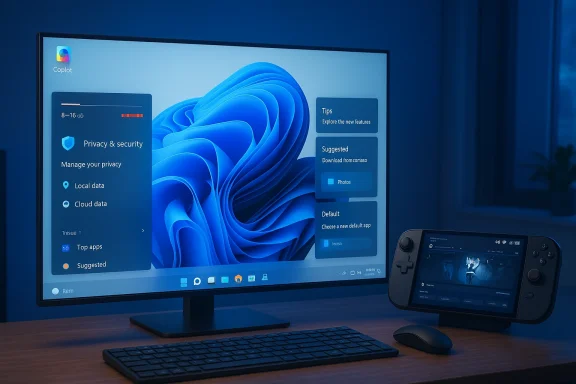
Blue-lit desk setup displays a Windows-like screen with Copilot AI opt-in toggle.Where users say Windows 11 is failing​

1) Forced or opaque AI: Copilot and the "AI everywhere" problem​

Microsoft’s push to add AI features — branded in many places as Copilot or "AI-powered experiences" — is one of the largest behavior changes in the OS. Users and journalists now regularly describe three related complaints: AI feels pushed rather than opt‑in, the operational details (what data is used and where inference runs) are unclear, and UI placements make accidental activation likely.
  • The root complaint is simple: many users want AI features to be optional, transparent, and trustworthy rather than imposed as a default. The Inbox.lv summary citing PCMag captures that sentiment precisely: AI options should be optional and auditable.
  • Community forums and coverage show users finding Copilot icons and UI affordances taking attention away from core tasks — a design choice that feels like product placement rather than a measured feature rollout. Independent commentary and troubleshooting threads describe users disabling or uninstalling Copilot where possible.
Why this matters: enterprise and privacy-conscious consumers demand predictable behavior. If AI features alter search results, change settings, or collect new telemetry without clear, accessible opt‑outs, trust erodes quickly. From a product design standpoint, AI should be a clear opt‑in path with visible controls for local vs cloud processing, data retention, and the ability to remove installed packages cleanly.

2) Memory and performance — more RAM at idle, and heavy app behavior​

A recurring technical complaint about Windows 11 is its higher baseline memory usage. Multiple independent analyses show Windows 11 typically consumes more RAM at idle than Windows 10, often in the order of roughly 1.0–1.5 GB more on a comparable system, driven by richer UI elements, background services, and more aggressive in-OS features.
  • The technical explanation is straightforward: a more visually rich shell, background widgets, integrated web-based components (WebView2), and extra system services all add to the idle memory footprint.
  • A compounding factor is the recent proliferation of heavy Electron- or WebView2-based apps (Discord, some Microsoft wrappers, and others) that can spike RAM per process to several hundred megabytes or more. Tech reporting has repeatedly flagged these single-app spikes and occasional memory leaks as practical pain points for users on 8GB or 16GB systems.
What to tell users: if you run Windows 11 on machines with 8GB of RAM, the perceived responsiveness and multitasking capacity can be materially worse than on systems with 16GB or more. Microsoft can and should continue to optimize memory management and push lightweight app strategies for core experiences, but developers (including third parties) must also stop shipping memory‑hungry web wrappers as the default Windows desktop model.

3) Default app resets and the browser battle​

One of the highest-profile friction points has been the OS behavior around choosing and keeping a default browser. Over recent years, multiple reports and user complaints described situations where the system appeared to promote Microsoft Edge or send promotional prompts when users tried to change defaults.
  • Microsoft’s response to regulators — notably the EU Digital Markets Act — led to tangible changes in how Edge is promoted inside Windows for users in the EEA, including rolling back some of the aggressive default prompts. Coverage confirmed those regional changes and Microsoft’s implementation steps.
  • Outside the EEA the experience has been more variable historically, and community posts still surface instances where default app settings appear to revert after updates, or where taskbar-initiated web searches open in Edge/Bing despite a different system default. These reports are often configuration-dependent and can be influenced by how certain apps register their handlers.
Balance and caution: while official changes have made improvements in some regions, there are still credible reports of defaults being reset on update or by promotion paths. Microsoft must ensure that default app choices are respected globally and not undermined by new UI experiments or store-driven promotions.

4) Intrusive advertising and in-OS promotions​

Users and reviewers consistently call out increased promotional content inside Windows 11: in-built games that push subscriptions, Store "featured apps" appearing in contexts where users expect local choices, and UI space dedicated to Microsoft or partner product marketing.
  • Examples include Microsoft Casual Games showing ads or gating functionality behind subscriptions, and system surfaces that promote Microsoft Bundles or Xbox subscriptions. This has created user backlash because it turns an OS session into a commerce surface.
  • The tension is genuine: Microsoft monetizes some consumer experiences, but blurred lines between core OS functionality and commercial promotions create user resentment when they feel ads are intrusive or hard to opt out of.
Good product practice would isolate promotional content in clearly labeled areas that are optional, never changing core app behavior or settings, and allow aggressive opt‑outs.

5) Gaming and the pressure from SteamOS/Linux handhelds​

Gamers have a technical gripe and a strategic one. Technically, some tests on recent handheld hardware show that a Linux-based SteamOS configuration can outperform Windows 11 for gaming on the same device, primarily because SteamOS removes Windows legacy overhead, benefits from kernel and driver optimizations for the Steam Deck ecosystem, and leverages Proton optimizations for many titles. Benchmarks on certain handhelds showed frame‑rate advantages of roughly 9–30% in real games like Cyberpunk 2077 and others under specific conditions.
  • The strategic worry for Microsoft is that SteamOS — and Linux gaming improvements via Proton/Mesa — are maturing fast enough to pose a credible alternative for a growing hand‑held and enthusiast market. When Valve or handheld OEMs ship devices that run longer on battery, boot quicker into games, and deliver higher frame rates for the same hardware, Windows’ "all purpose" approach looks relatively heavy.
  • For PC gamers, the issues are nuanced: Windows still has advantages in driver maturity, compatibility for niche middleware, and broad tool support. But Valve’s focused effort on gaming-level optimizations (and the advantages of a lightweight gaming OS) is a competitive signal Microsoft shouldn’t ignore.
Game on: to remain the default platform for gaming, Windows must continue to tune background services, reduce telemetry and antivirus overhead while gaming, and improve the console‑like gaming mode experience so the OS becomes the invisible host when the GPU and CPU matter most.

Update quality and regressions: the 24H2 / January incidents​

Windows’ servicing model is central to how users experience the platform. Recent major updates and monthly patches have sometimes introduced regressions — from File Explorer UI bugs and driver-related BSODs to the January 2026 patch that caused some devices to restart instead of shutting down and broke Remote Desktop authentication for a subset of installations.
  • Multiple independent incident reports and Microsoft’s own out‑of‑band patches show that update-induced regressions are real and occasionally impactful; Microsoft has used rollout safeguards and emergency patches but the experience has shaken user trust.
Operational takeaways: Microsoft’s fast cadences are beneficial in principle, but they must be matched with better preflight testing across realistic hardware permutations and an easier way for power users to opt out of experimental changes without losing security updates.

Critical analysis — strengths, risks, and where to focus​

Strengths Microsoft should keep and expand​

  • Security architecture and VBS: Windows 11’s hardware-assisted security stack (Virtualization Based Security, Secure Launch, TPM integration) is an important defensive step for the platform and enterprise customers.
  • AI that can add real productivity: Where AI features are well-scoped and clearly opt-in (for example, local semantic search on Copilot+ devices), they can save time and improve discovery.
  • Platform breadth and compatibility: Windows remains broadly compatible with a vast body of software and hardware, which is a core advantage for centuries-old productivity and gaming ecosystems.

Risks and growing user harms​

  • Trust erosion from forced or opaque features: Pushing AI or promotional content without clear opt‑outs risks alienating power users and enterprises. The perception of "AI being forced" is almost as harmful as poor AI outcomes.
  • Performance regressions reduce platform value: If memory bloat, heavy web-wrapped apps, and update regressions continue, users on mid-range hardware will feel Windows 11 is worse than its predecessors — driving churn to Linux or delaying upgrades.
  • Perception of monetization over usability: When ads and subscription prompts surface inside system apps, users feel the OS is monetizing attention at the expense of user experience.

Concrete recommendations for Microsoft​

  • Respect user choice: make AI features opt‑in by default and provide a single, obvious control to disable all AI integrations system‑wide. Evidence of this user desire is clear in journalistic and community reporting.
  • Publish clear data-handling docs: for every on‑device and cloud AI feature, show what data is sent off‑device, how long it is stored, and how users can purge it.
  • Prioritize memory and I/O optimization:
  • Audit core system components for idle footprint reductions.
  • Promote native, lightweight app frameworks for first‑party apps rather than WebView2 wrappers that balloon RAM.
  • Respect defaults globally:
  • Ensure default app choices are honored after updates and across taskbar/search flows, and keep the EU DMA improvements as a global baseline.
  • Cleanly separate promotions from system UI:
  • Put commercial content in an opt‑in “Discover” or “Store” area, and never inside primary workflow surfaces like File Explorer menus or Settings pages where users expect system functions.
  • Make gaming first-class:
    ad “Game Mode” that suspends telemetry, delays non-critical background scanning, and optimizes scheduling during gaming sessions.
  • Work with anti-cheat vendors and OEMs proactively to avoid driver conflicts that can produce BSODs during major updates.
  • Improve update quality signals:
  • Expand KIR and selective rollout safeguards, and provide clearer telemetry-driven guidance to users about whether to delay large updates based on their hardware profile. Recent emergency OOB measures show Microsoft can respond quickly — the aim should be to prevent regressions before wide rollout.

What’s verifiable and what remains fuzzy​

  • Verifiable: Windows 11 typically uses more memory at idle than Windows 10 by roughly 1.0–1.5 GB on many test platforms, and heavy Electron/WebView2 apps can consume hundreds of megabytes each; independent tests and reporting back this behavior.
  • Verifiable: SteamOS/Valve-based handhelds can and have outperformed Windows 11 on identical handheld hardware in some third‑party benchmarks, sometimes by substantial margins in FPS for specific titles. These results are hardware- and configuration-dependent.
  • Cautionary: Claims that Microsoft “resets” defaults universally after every update are too broad; while there are credible reports of defaults being reset in some circumstances and promotional prompts being shown in others, regulatory-driven changes and Microsoft’s EEA adjustments have already reduced some of thexperiencing resets should check whether specific apps or automation tools are re-registering handlers; administrators should test update behavior at scale.

For power users and IT admins: practical steps now​

  • Audit and tune startup/background apps: disable widgets, nonessential store apps, and heavy web-wrapped apps on systems with 8–16GB RAM.
  • Use Windows’ built-in “Performance” and Task Manager tools to identify memory spikes; prefer native apps where possible.
  • Defer feature updates on critical machines until vendor‑listed compatibility holds are cleared and OEM drivers are verified; Microsoft’s release health and enterprise KIR guidance can help.
  • For gamers, enable manufacturer performance profiles, and test the vendor‑recommended anti‑cheat configurations before major updates.

Conclusion​

The Inbox.lv summary of PCMag’s list captured a clear user demand: Windows 11 should feel like an OS that augments the user’s work and play, not one that interrupts or replaces user choice with heavy defaults and promotional content. The platform’s technical foeatures, AI ambitions, broad compatibility — remains a powerful asset. But Microsoft’s next priority must be trust and predictability: make AI visible and optional, optimize for real hardware realities (especially memory and gaming overhead), respect default app choices globally, and draw a strong boundary between commerce and core OS function.
If Microsoft does those things it will not only silence a lot of the current criticism, it will preserve Windows’ largest advantage: being the reliable, compatible home for both productivity and play. The choice is simple in principle and harder in execution: build AI and monetization into Windows in ways that feel like tools, not mandates. The community has spoken — now Microsoft needs to show it’s listening.

Source: Inbox.lv The Main Problems of Windows 11 Listed
 

PCMag’s short list of what’s wrong with Windows 11 — relayed by Inbox.lv and echoed across user forums — lands at a familiar set of complaints: forced AI features, rising idle RAM use, default‑app resets (particularly the browser), in‑OS promotions, and a gaming experience that still lags purpose‑built alternatives like SteamOS. These aren’t niche gripes anymore; they are recurring themes across technical reviews, community logs, and benchmarking labs that together paint a picture of an OS moving fast on features while struggling to preserve the basics users expect. rview
Windows 11 was framed as a design‑forward, security‑focused next step for the PC: refreshed visuals, deeper cloud integration, and a platform‑level push toward AI assistants and on‑device inferencing. The ambition is clear, but so is the trade‑off. A more featureful shell means more background services, more web‑based components, and more surface area for Microsoft to present paid experiences — all of which increase complexity for both users and administrators. Community trackers and forum archives show these tensions in action: performance regressions tied to updates, complaints about default choices being nudged or reset, and persistent user dissatisfaction with promotional content inside the OS.
Below I unpack the s identified by PCMag (via the Inbox.lv roundup), verify the most load‑bearing technical claims against independent testing and reporting, and assess the strengths and risks of Microsoft’s current approach. Where a claim is hard to verify or depends on hardware/configuration, I flag it with cautious language and point to mitigation steps users and admins can take today.

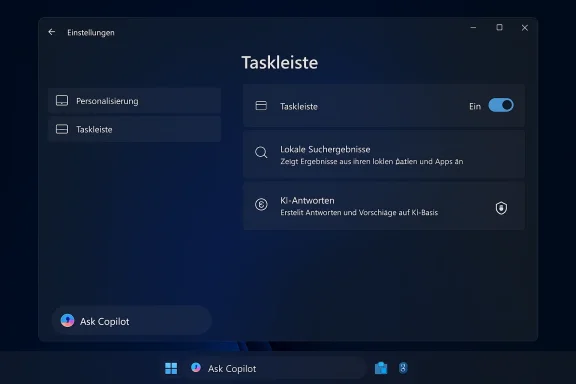
Desk setup with a large monitor displaying Windows UI, a keyboard, mouse, and a handheld game console.1) AI everywhere — make it optional, transparent, and trustworthy​

What users are complaining about​

Microsoft’s Copilot, Recall, and related “AI‑first” features are appearing in OS chrome, context menus, and the taskbar. For many users that isn’t merely an extra feature — it feels like a default behavior being thrust into the workflow. The core complaint is not just that AI exists, but that it is being surfaced in ways that are hard to opt out of, and that the operational details (what data is sent to the cloud, what runs locally, how long data is retained) can be unclear. Community resonance around this issue is strong: users describe inadvertent activations, unclear privacy boundaries, and the perception that the OS is encouraging Copilot/Bing usage rather than respecting user choice.

What independent reporting shows​

Micworked its more controversial AI snapshotting feature — “Recall” — after security researchers flagged weaknesses in early previews. Reporting from major outlets documents both the delay and Microsoft’s subsequent decision to make Recall opt‑in on qualifying Copilot+ PCs, add encryption and Windows Hello gating, and otherwise restrict the initial rollout. That sequence (announce → pause for security work → reintroduce as opt‑in) is a concrete signal that Microsoft heard the criticism — but that the company still plans to bake AI functionality into the platform.
Tech coverage and community analysis also show that Microsoft has been experimenting with Copilot prompts in places like the Start menu and search box. Some of these integrations are offered as optional toggles in Insider builds, but the defaults in preview channels have fueled the perception of a pushy rollout.

Risks and why it matters​

  • Privacy and compliance: Any feature that inspects open windows, clipboard contents, or voice/text interactions will draw regulatory attention in privacy‑sensitive markets. Enterprises will want auditable controls and clear data‑flow guarantees.
  • Trust erosion: If users cannot confidently control when AI reads or acts on their data, adoption will stall and pushback will grow.
  • Fragmentation: Tying premium AI experiences to specific hardware (Copilot+ PCs with NPUs) creates a two‑tier OS experience that compounds upgrade pressure and e‑waste concerns.

What Microsoft should (and can) do​

  • Make every AI surface genuinely opt‑in at first boot, and provide a single, discoverable “AI privacy and behavior” panel that lists what is local vs cloud, retention policies, and a one‑click global disable.
  • Publish compact, machine‑readable telemetry manifests that admins can audit and block via policy.
  • Keep key AI features removable via standard Windows uninstallation flows and block them by default on managed corporate devices.

2) Memory and performance: Windows 11’s baseline is heavier​

The claim​

Multiple outlets and lab tests report that Windows 11 uses more idle RAM than Windows 10 — often on the order of roughly 1.0–1.5 GB more on comparable systems — and that additional background services (UI enhancements, widgets, WebView2 components, VBS/VSM security primitives) contribute to a higher baseline footprint. This difference is most visible on machines with 8 GB of RAM or less.

Independent verification​

  • Digital Trends’ hands‑on coverage explains how Windows 11’s richer UI, SysMain caching, and background services raise the idle memory by an observable amount and offers practical checks in Task Manager. Their testing shows variability by configuration but a consistent pattern of higher baseline usage on Windows 11.
  • Comparative write‑ups and community lab runs (aggregated reporting and community forums) report typical idle memory differences in the 1–1.5 GB range and highlight Virtualization‑Based Security (VBS) as a contributor where enabled. These independent results align with the practical guidance users see when migrating midlife devices to Windows 11.

Why this matters​

  • On a modern 16 GB system the difference is often invisible to most users; on 8 GB devices the extra gigabyte can force paging, visible UI stutters, and a degraded multi‑tasking experience.
  • Some Windows 11 security features (VBS, Memory Integrity) intentionally trade memory for stronger isolation. Turning those off is possible but increases risk.

Practical steps for users and admins​

  • Check Task Manager’s Memory tab after a clean boot to get a baseline.
  • Disable unneeded startup apps and widgets: Settings > Personalization > Taskbar/Widgets.
  • For constrained devices, assess VBS/Micro‑isolation settings and consider targeted policy exemptions in controlled environments.
  • If hardware allows, upgrade to 16 GB as the practical sweet spot for a smooth Windows 11 experience.

3) Default app resets and the browser battle​

What’s happening​

Users and journalists cocidents where changing the default browser or default handlers in Windows 11 is harder than it should be. Reports range from repeated promptings and nag screens to perceived resets after updates. The broader pattern is one of an OS nudging users toward Microsoft Edge/Bing in multiple UI paths. That friction has attracted mainstream attention and long‑running complaints.

Independent context​

This is not a new debate: Microsoft has historically experimented with promoting Edge in system‑level contexts (mail links, system prompts), and those experiments have repeatedly provoked backlash and attention from competition regulators and the press. The technical reality is that some system protocols and internal handlers are tightly coupled to Microsoft components, and changing behavior sometimes requires more granular default‑handler mappings. The Register and other outlets have chronicled previous episodes of system‑level nudges toward Edge and the resulting user pushback.

Why this matters​

  • User choice: An OS that makes it inconvenient to persist user choices erodes trust.
  • Security surface: Third‑party browsers face compatibility and feature‑deployment lag if Windows ties some system actions to first‑party components.
  • Regulatory risk: Persistent preference steering invites antitrust scrutiny in multiple jurisdictions.

Realistic fixes​

  • Offer a single, consolidated “Set defaults” UI that allows users to set browser, email, and common protocols in one place without multiple file‑type hops.
  • Ensure updates do not reset user defaults; if a change is unavoidable, make the notification explain why and make acceptance explicit.
  • Expose Group Policy and MDM controls that lock default apps for enterprise images.

4) Intrusive advertising and in‑OS promotions​

The complaint​

Even in paid OSes, users are seeing promoted app suggestions in the Start menu, occasional store promotions in Settings and File Explorer, and contextual prompts encouraging Microsoft services. The outcry is not just about a single ad; it’s about the cumulative impression of being marketed to inside the platform the user paid for. Microsoft’s experiments with surfacing Store recommendations in Recommended area have been visible in Insider rings and raised the same “Windows as a marketing surface” concerns many users reject.

Independent reporting​

TechSpot and multiple community trackers documented Start menu recommendation experiments and published how‑to steps to disable the behavior; community threads corroborate the negative reception. Microsoft typically ships these as opt‑out toggles in Settings during Beta tests, but their existence in Insider builds is sufficient to alarm many customers who expect a more neutral workspace.

Strengths and risks​

  • Strength: Microsoft can increase app discovery for developers, potentially improving the Store ecosystem.
  • Risk: Normalizing promotions inside primary UI elements undermines the expectation of a distraction‑free OS and risks alienating paying customers.

Practical guidance​

  • For users: Settings > Personalization > Start → toggle off “Show recommendations for tips, app promotions, and more”.
  • For admins: Use Group Policy/MDM to disable promotions on managed devices and lock the setting.

5) Gaming experience vs SteamOS: the handheld wake‑up call​

The observation​

Recent apples‑to‑apples testing on dual‑boot handheld hardware (e.g., the Lenovo Legion Go S) shows SteamOS outperforming Windows 11 in multiple modern games, often by meaningful margins in frame rate and battery life. Ars Technica’s direct hardware tests, echoed by Windows Central and PC Gamer coverage, show SteamOS delivering higher and more consistent FPS in multiple titles on the same hardware configuration — a wake‑up call for Microsoft’s gaming posture, especially on handheld and low‑power devices.

Why is SteamOS faster in these tests?​

  • Streamlined OS: SteamOS is a gaming‑focused Linux distribution that eliminates a lot of generalist background services, freeing CPU and I/O for games.
  • Driver and stack differences: Valve and the Linux graphics stack (Mesa, tuned drivers) plus Proton improvements have converged to give SteamOS strong performance in many titles.
  • OEM driver mismatch on Windows: Some early Windows builds on handheld hardware shipped with older or OEM‑specific drivers that constrained Windows performance until updated drivers were manually installed. Even with updated drivers, performance delta persists in many tests.

What Microsoft is doing (and should do)​

Microsoft announced gaming optimizations for handheld devices (Xbox Experience for Handheld) intended to minimize background work during gaming sessions. That’s the right direction, but execution and timely OEM driver support are critical. Reducing background telemetry, deferring non‑essential jobs, and providing a unified “game mode” interference are practical engineering levers Microsoft must use more aggressively.

Cross‑cutting analysis: what Microsoft is doing well — and where the real risks are​

Notable strengths​

  • Ambitious roadmap: Microsoft’s integration of AI capabilities and security primitives is forward‑looking and positions Windows for modern workloads.
  • Rapid iteration: Frequent servicing means critical regressions can get out‑of‑band patches quickly when they are detected.
  • Ecosystem leverage: Deep integration with Microsoft services creates smooth experiences for users invested in the ecosystem (OneDrive, Office, Azure).

Real and material risks​

  • Quality vs velocity trade‑off: Repeated servicing regressions and compatibility holds indicate Microsoft’s update cadence can expose fragile interactions between firmware, drivers, and OS features. That fragility is visible in the community and enterprise logs.
  • Trust erosion from perceived coercion: When core UX elements surface commercial suggestions or make defaults hard to keep, users perceive a loss of control that damages brand trust.
  • Two‑tier user experience: Tying flagship AI features to Copilot+ hardware and monetized services risks fragmenting the user base and accelerating upgrade pressure in a way that burdens consumers and enterprises.
  • Competitor pressure in niches (gaming): The SteamOS results show Windows is not guaranteed to be the best gaming platform on all hardware classes; Microsoft must be pragmatic and fast in optimizing for handheld and low‑power platforms.

Practical recommendations for users, IT admins, and Microsoft​

For end users​

  • If you have 8 GB of RAM or less, consider upgrading to 16 GB for a smoother Windows 11 experience.
  • Disable unwanted AI/promotional surfaces: Settings > Personalization and Settings > Privacy & Security; where necessary, use Group Policy or registry edits for persistent control.
  • For gamers on handheld devices, test both OS options where vendor support exists and keep drivers updated.

For IT administrators​

  • Treat feature upgrades as nontrivial: test in phased deployments and use safeguard holds.
  • Implement strict Group Policy/MDM controls for Copilot/Recall and Start menu recommendations until Microsoft provides clearer enterprise guarantees.
  • Create a remediation playbook for post‑update regressions (recovery media, driver rollback steps, and user communication templates).

For Microsoft (constructive, prioritized)​

  • Make AI features off by default and provide one consolidated, auditable control panel for AI and telemetry.
  • Publish clear perfelemetry manifests; commit to preserving user defaults across updates.
  • Accelerate driver coordination programs with OEMs and GPU vendors for handheld/classic hybrid devices, and deliver a lightweight “gaming mode” that genuinely suspends nonessential services.
  • Reconsider default promotion strategies in core UI; if monetization is essential, put it in clearly labeled, opt‑in discovery surfaces, not primary productivity real estate.

Conclusion​

Windows 11 is not failing — it remains the dominant desktop platform and continues to push forward on security and modern features — but it is at an inflection point where the balance between innovation and user sovereignty must be reset. The list PCMag journalists highlighted (as summarized by Inbox.lv) is a useful, practical checklist: make AI optional and transparent; reduce baseline memory footprint where possible; stop changing default app choices without clear consent; curb in‑OS advertising in core productivity surfaces; and make gaming a first‑class scenario across hardware types.
Microsoft can and should respond with specific, measurable actions: stronger opt‑in guardrails for AI, clearer telemetry documentation, faster driver coordination, and more aggressive “resource budgeting” on low‑RAM machines. Those moves would not only fix discrete complaints — they would restore an implicit contract between Microsoft and its users: that the operating system remains a predictable, performant, and controllable platform rather than a marketplace in disguise.
For Windows enthusiasts and admins, the takeaway is pragmatic: expect continuous change, but insist on control. Use the available toggles and management tools today, test updates before widespread deployment, and push vendors for the driver and firmware updates that let Windows 11 deliver on both its promise and its responsibilities.

Source: Inbox.lv The Main Problems of Windows 11 Listed
 

Microsoft is taking a remarkable step with the latest Windows Insider test version: The close linkage of Copilot with the taskbar and search is no longer automatically forced, but offered as an opt‑in option — users must actively turn on the function if they want to use it.

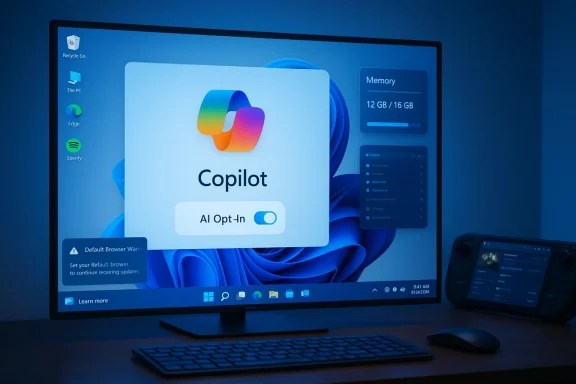
Dark settings window for the taskbar with toggle and Copilot shortcut.Background / Overview​

Since the introduction of Copilot as an integral part of Windows 11, Microsoft has adjusted its integration strategy several times: from a sidebar deeply embedded in the system, to a web‑based app, to a series of new interfaces like Copilot Vision, Copilot Voice, and most recently the new Ask Copilot button for the taskbar. The latest change — shipping Ask Copilot disabled by default and making it visible and usable only upon explicit activation by the user — marks a strategic shift towards more freedom of choice and greater consideration for user preferences and data protection concerns. In short:
[]The new taskbar button Ask Copilot is available in current Windows Insider builds, but is shipped turned off by default. []Activation is done via Settings > Personalization > Taskbar; only after switching it on does the interactive input field potentially replace the previous search box. []Ask Copilot combines local search (apps, files, settings) with AI‑supported answers, voice, and vision functions — however, the feature is designed to access further content only with express user permission. The announcement comes at a time when user and regulatory debates about AI integration, privacy, and control are intense. Microsoft is signaling that it has learned from the significant political and technical consequences of previous rollouts.

Why Opt‑in is Important​

User Acceptance and Trust​

The automatic activation of major system changes has repeatedly triggered resistance in the past. When a central UI element like Search suddenly functions differently or AI features are intrusively present, it can lead to confusion, mistrust, and negative reactions. The opt‑in model significantly reduces this risk: users retain control and can consciously try out new functionality.

Data Protection and Consent​

AI features that enable voice input, image recognition, or the analysis of screen content immediately raise questions about data collection and processing. The decision to ship Ask Copilot turned off by default allows users to decide on the privacy implications beforehand. Microsoft has emphasized that local search results continue to be processed with the existing Windows search indexer and Copilot only accesses local content when users explicitly share it.

Manageability for Enterprises​

For IT administrators, a feature that is turned off by default is easier to control: companies can use Group Policies, MDM profiles, or AppLocker rules to control whether and how Copilot is visible or usable. This reduces the risk of unwanted changes in managed environments.

Technical Details: What Ask Copilot Can Do and How It Behaves​

Functional Overview​

[]Taskbar Pill: A compact, interactive input field (or a button) that appears in the taskbar when activated. []Multimodal: Support for text, voice (press‑to‑talk / wake word on selected devices), and images (Copilot Vision). []Local & Web Results: Combination of classic local search (apps, files, settings) and AI‑supported answers, which can include web search and contextual functions. []Session‑based Sharing: Local content is only brought into a Copilot session upon express release.

Behavior Regarding Existing Input Methods​

[]If Ask Copilot is activated, it can replace the previous search field — although in some configurations the old Search UI remains in parallel. []The mapping of keyboard shortcuts changes: Standard shortcuts like Win+C or dedicated Copilot hardware keys can now launch Ask Copilot if the feature is activated; otherwise, they remain unbound or point to the previous functionality.

Privileges and Access Control​

Microsoft describes Ask Copilot as an interface that uses locally existing indices rather than gaining comprehensive access to personal files without consent. Functions that require more extensive access (for example, desktop wide view via Copilot Vision) are opt‑in and session‑based — the user must actively agree before content is analyzed.

Management and Deactivation: Tips for Home Users and Admins​

For Home Users — Quickly Turning On/Off​

[]Open Settings (Windows + I). []Select Personalization > Taskbar. []Toggle the option Ask Copilot to On or Off. This button is the simplest method to control the taskbar integration. If the option is not visible, the Copilot app may be missing or the relevant Insider Build may not yet be installed.

Removing or Preventing (for advanced users)​

[]Copilot can in many cases be uninstalled as an app: Settings > Apps > Installed Apps – Uninstall Microsoft Copilot. []Alternatively, app launch and installation can be blocked by AppLocker rules or by removing the Appx package via PowerShell.

Enterprise Control (MDM / Group Policies)​

[]Microsoft provides policy options, such as a setting to turn off Copilot (TurnOffWindowsCopilot) or AppLocker rules that block installation or execution. []Administrators should test these policies in test environments before rolling them out broadly, as integration into search and keyboard shortcuts can have system‑wide effects.

Opportunities: What Microsoft Gains From This Change​

Better Acceptance of New UI Models​

An opt‑in system reduces friction when introducing new user interfaces. Users who are skeptical feel respected; at the same time, Microsoft can collect feedback from a selected, interested user base to refine the feature.

Faster Iteration through Insiders and Granular Rollouts​

Testing in the Insider program allows Microsoft to use server‑side gateways and roll out functions gradually. This allows problems to be identified early without reaching the entire user base.

More Flexible Product Strategy​

The combination of an app‑based Copilot strategy and optional taskbar integration gives Microsoft the freedom to serve different use cases — from the minimalist desktop to CAD or Office‑heavy workstations where AI support is desired.

Risks and Open Questions​

1. Privacy and Unclear Default Settings​

Although Ask Copilot is opt‑in, several privacy questions remain open: What data is stored server‑side? How long are conversations or temporary desktop snapshots retained? Users need transparent and easily accessible information on data deletion options and retention periods.

2. Inconsistent Experiences Between Web and App Versions​

Users have been reporting differences between the web Copilot experience and the app integrated into Windows (e.g., different login options or features) for months. A fragmented user experience increases support effort and user frustration.

3. Bugs and Unintended Side Effects​

Previous Windows updates have shown that changes to Copilot can lead to regressive bugs — such as accidental uninstallation or the app failing to launch after patches. This confirms: even with opt‑in, update engineering must be robust.

4. Enterprise Compatibility​

In many companies, there is a desire to prevent any unauthorized telemetry or communication capabilities. Microsoft's management options cover this — but they must be carefully tested in Microsoft‑centric and heterogeneous environments, especially if third‑party tools interact with the Search or Taskbar UI.

Concrete Recommendations for Users and Admins​

For Private Users​

[]Try Ask Copilot only in a controlled session: turn the function on, test voice and image functions, close the session, and check account settings. []Check logged‑in accounts: Some Copilot functions require a Microsoft or linked account; check how account selection affects your data (e.g., history, memory). []If privacy concerns exist, uninstall or disable the app and use the web version instead, where you can control permissions separately.

For IT Administrators​

[]Check operational requirements: Determine whether Copilot is allowed in your organization (e.g., for pilot projects) or should be generally blocked. []Test Group Policy and AppLocker configurations in a staging environment before distributing policies to production. []Train helpdesk teams: Have instructions ready on how users can turn Ask Copilot on/off or remove the app. []Monitor telemetry and network requirements: Determine if additional network whitelist entries or proxy rules are necessary.

Transparency: What Is Not Yet Clear​

There are areas where Microsoft's documentation and reporting so far do not provide complete clarity. Users and admins should keep an eye on these points:
[]Detailed Data Lifecycle: How long are conversations, uploaded images, or "Vision" analyses stored? What options exist for deletion? []Different Login Options: The app and web experiences partially diverge (e.g., different authentication options for Google accounts). Users with mixed accounts should check which login method enables which functionality. []Server‑side Gating: Even after activation, Microsoft may withhold certain features server‑side; the visible switch does not guarantee immediate availability of all features. []Compatibility with Third‑party Software: Tools that modify the taskbar or search may interact with the new Ask Copilot integration. We expressly mark these points as "not yet fully verified" and recommend carrying out clarifications with Microsoft Support and pilot groups before large‑scale rollouts.

Outlook: Where is Microsoft Heading with Copilot?​

The decision to design the taskbar integration as an optional offering is part of a larger, longer‑term strategy: Microsoft is trying to scale AI functions in Windows so that they remain acceptable for both the enthusiast and the skeptic. The architecture is moving towards modular components controllable by the user:
[]Agent and Connector platforms will allow finer access control to services like OneDrive, Outlook, or third‑party storage in the future. []Multimodal interaction (text, voice, vision) is becoming the standard interface — but with clear consent mechanisms. []The separation of app‑based Copilot and system‑wide interface enables Microsoft to iterate features faster without forcing deep system changes on all users. For the coming months, it is expected that Microsoft will evaluate Insider signals and make fine‑tuning adjustments based on feedback — particularly regarding usability, privacy settings, and administration functions.

Conclusion: More Control — But Vigilance Remains Necessary​

The shift to an opt‑in model for Copilot's taskbar integration is a sensible step: It respects user preferences, mitigates privacy concerns, and facilitates administration in corporate environments. At the same time, it does not absolve Microsoft of the responsibility to provide clear, accessible information about data flows, retention periods, and deletion options. Briefly summarized:
[]For Users: Try out new AI functions consciously, check account settings, and keep an eye on privacy options. []For Companies: Use existing policy and management tools for controlled pilots and phased rollouts.
  • For Microsoft: The challenge remains to ensure trust through transparency, consistent user experiences, and robust update mechanisms. The decision to make Ask Copilot a choice is a sign that AI integration into operating systems is being handled more maturely and sensitively. It creates the conditions for AI functions in Windows to be broadly accepted — provided the next steps are just as well considered as this change.
    Source: BornCity Windows 11: Microsoft makes Copilot integration optional - BornCity
 

Back
Top