

Windows 11’s February 2026 cumulative arrives as a consequential, wide‑reaching refresh: Microsoft has pushed KB5077181 to Release/Stable rings, delivering the promised expansion of Cross‑Device Resume for Android phones, a major overhaul to Windows’ MIDI stack, important usability changes to Smart App Control, and a broader rollout of a redesigned Start menu and colorful battery indicators. The update is available through Settings → Windows Update and, for administrators and power users, as offline .msu installers in the Microsoft Update Catalog. Hands‑on reports from testers show the package now routinely measures several gigabytes because Microsoft bundles on‑device AI components with the monthly cumulative, and feature availability remains gated by staged rollouts and device requirements rather than mere file presence.
Microsoft’s monthly cumulative updates now do more than patch security holes and fix regressions: since the Copilot+ initiative and the addition of on‑device models, Patch Tuesday packages can include binary model payloads, servicing‑stack updates (SSU), and feature enablement flips alongside traditional fixes. The result is larger offline installers, more complex servicing behavior, and a growing separation between “files shipped” and “feature enabled.”
KB5077181 is the February 2026 quality update for Windows 11. Depending on your serviced branch and SKU, installing the cumulative will update the OS build values used by Windows internally. Test reports and catalog listings indicate package sizes in the multi‑gigabyte range for combined LCU + model payloads, and the update is being distributed as part of Microsoft’s standard staged rollout process. That means that while your system may receive the package and binaries, Microsoft can still gate new UX changes behind server‑side flags or require specific hardware (for example, a Neural Processing Unit (NPU) with sufficient TOPs) before the new behavior is visible.
Key high‑level takeaways
How it works in practice
Continuity experiences shrink the friction of switching devices. For many users this is convenience; for others it represents the sound of Microsoft catching up to Apple’s Handoff. That said, much of the value is already available through cloud sync (Spotify Connect, OneDrive), and the cross‑device resume experience will succeed only if Microsoft and OEMs maintain tight, reliable app integration. Expect variation: some devices will see full functionality quickly; others will not see the feature until later.
Technical improvements included
Musicians and DAW users should see more reliable routing and fewer conflicts when multiple apps access the same MIDI hardware. However, audio ecosystems are complex: driver quality, third‑party utilities, and plugin chains will determine whether this update is a painless improvement or a troubleshooting session. Admins deploying studio machines should pilot the update with their key software to confirm driver compatibility.
What changed in KB5077181
Notes and limitations
Why are updates so big now?
If you manage a production environment or creative workstation:
Windows 11’s February 2026 Patch Tuesday is not a minor housekeeping pass — it’s another sign that Windows updates are evolving into a blended delivery of fixes, feature enablement, and model delivery. That evolution brings both capability and complexity: more convenient continuity between phone and PC, better built‑in music handling, and a less punitive Smart App Control, but also bulkier packages, staged visibility, and new testing responsibilities for administrators. Treat KB5077181 like a feature‑forward cumulative: evaluate, pilot, back up, and deploy with eyes open.
Source: Windows Latest Windows 11 KB5077181 25H2 out with new features, direct download links for offline installers (.msu)
 Background / Overview
Microsoft’s monthly cumulative updates now do more than patch security holes and fix regressions: since the Copilot+ initiative and the addition of on‑device models, Patch Tuesday packages can include binary model payloads, servicing‑stack updates (SSU), and feature enablement flips alongside traditional fixes. The result is larger offline installers, more complex servicing behavior, and a growing separation between “files shipped” and “feature enabled.”KB5077181 is the February 2026 quality update for Windows 11. Depending on your serviced branch and SKU, installing the cumulative will update the OS build values used by Windows internally. Test reports and catalog listings indicate package sizes in the multi‑gigabyte range for combined LCU + model payloads, and the update is being distributed as part of Microsoft’s standard staged rollout process. That means that while your system may receive the package and binaries, Microsoft can still gate new UX changes behind server‑side flags or require specific hardware (for example, a Neural Processing Unit (NPU) with sufficient TOPs) before the new behavior is visible.
Key high‑level takeaways
- KB5077181 brings user‑facing features (Cross‑Device Resume, Start menu changes, colorful battery icons) and platform updates (Windows MIDI Services, Smart App Control lifecycle changes).
- Offline .msu installers are published in the Microsoft Update Catalog for administrators and offline scenarios; these .msu files are significantly larger than older months because they include AI components.
- Feature availability will vary by device, OEM configuration, and Microsoft’s phased rollout — installing the package does not guarantee immediate visibility of all new behaviors.
What’s new: features that matter
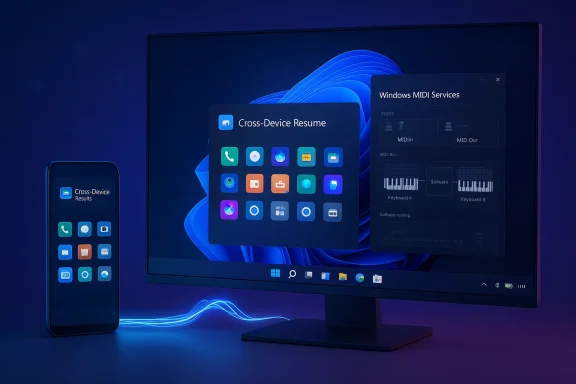
Cross‑Device Resume — Apple‑style continuity, closer to Android
Microsoft is expanding Windows’ resume/continuity experience from a OneDrive‑bound curiosity to a broader Android → PC “handoff” model. Cross‑Device Resume lets you continue certain tasks that you started on an Android phone directly on a Windows 11 PC: media playback sessions in apps such as Spotify, active Microsoft 365 sessions open in mobile Copilot/Office apps, and some web sessions when using supported mobile browsers.How it works in practice
- When an eligible activity on a paired Android phone becomes idle, Windows can surface a taskbar alert or entry allowing a one‑click resume on the PC.
- Supported scenarios include audio playback (Spotify), editing or viewing Microsoft 365 documents via the Copilot/Office mobile apps, and some browser sessions from partner browsers.
- Requirements: a PC running Windows 11, a compatible Android phone with Link to Windows or equivalent pairing, and the phone listed under Mobile devices on the PC. Availability is brand and model dependent; Microsoft is rolling the feature out in stages and exposing it to particular OEM/partner apps first.
Continuity experiences shrink the friction of switching devices. For many users this is convenience; for others it represents the sound of Microsoft catching up to Apple’s Handoff. That said, much of the value is already available through cloud sync (Spotify Connect, OneDrive), and the cross‑device resume experience will succeed only if Microsoft and OEMs maintain tight, reliable app integration. Expect variation: some devices will see full functionality quickly; others will not see the feature until later.
Windows MIDI Services — a new MIDI engine
This update includes a foundational change for musicians and audio developers: Windows MIDI Services, a refreshed MIDI engine that modernizes compatibility and adds richer routing.Technical improvements included
- Improved support for both MIDI 1.0 and MIDI 2.0, with translation layers so legacy apps can interact with newer messages.
- WinMM and WinRT MIDI 1.0 support with built‑in translation, helping older applications continue to function.
- Shared MIDI ports so multiple applications can talk to the same MIDI device simultaneously instead of one app locking the hardware.
- Support for custom port names, loopback, app‑to‑app MIDI, and lower latency behaviors.
Musicians and DAW users should see more reliable routing and fewer conflicts when multiple apps access the same MIDI hardware. However, audio ecosystems are complex: driver quality, third‑party utilities, and plugin chains will determine whether this update is a painless improvement or a troubleshooting session. Admins deploying studio machines should pilot the update with their key software to confirm driver compatibility.
Smart App Control — you can flip it without reinstalling Windows
Smart App Control (SAC), Microsoft’s pre‑execution gatekeeper that blocks untrusted and potentially harmful applications, has been a point of friction for advanced users. Historically, if SAC was turned off it could not be re‑enabled without a clean install — an all‑or‑nothing lifecycle that led many users to disable it permanently after a false positive.What changed in KB5077181
- SAC now exposes a toggle in Windows Security › App & Browser Control that permits turning SAC on or off without requiring a full OS reinstall.
- The update does not change SAC’s detection model or introduce a per‑app allowlist, but it removes the “one way gate” that prevented users from re‑enabling enforcement after turning it off.
- For casual users and households, SAC remains a strong, low‑maintenance mitigation: it blocks untrusted installers and malicious code early.
- For power users, gamers, and creators, the toggle reduces the operational cost of SAC: you can disable it temporarily to install or run a known‑good app and re‑enable it afterward.
- Caveat: SAC can still block legitimate software (drivers, anti‑cheat engines, hardware control suites). Keep an image or backup before flipping SAC on an existing, well‑used machine; pilot in a test environment where possible.
New Start menu and colourful battery icons
KB5077181 continues the wider rollout of a redesigned Start menu and taskbar battery indicators. The refreshed Start menu favors a single‑page layout, more pins available for high‑resolution displays, and pre‑categorized app groups (for example, Music, Productivity, Other). The colourful battery icons add a small visual flourish to the system tray.Notes and limitations
- The new Start menu is being phased in and may be gated by Microsoft for portions of the user base; not all machines will show the redesigned UI even after installing the update.
- App categories are vendor‑defined by Microsoft and are not freely editable: you cannot manually reposition apps out of a pre‑assigned category (for example, moving an app out of "Other" into "Music").
- Some users reported the Start menu covers a large portion of the screen in certain configurations; Microsoft is aware and monitoring feedback.
Accessibility, stability, and polish
In addition to headline features, KB5077181 includes a variety of accessibility and under‑the‑hood fixes:- Voice Access setup improvements and voice typing tweaks.
- Narrator options that let you fine‑tune what is announced and when.
- File Explorer responsiveness and network‑location performance fixes.
- Windows Hello enhancements, including broader support for external fingerprint readers in enhanced sign‑in modes.
Offline installers and package size: what’s inside the .msu
Microsoft publishes the update packages to the Microsoft Update Catalog as .msu files for manual download and offline deployment. Recent test reports show these offline installers are significantly larger than historical patch‑day packages — commonly in the 3.8–4.3 GB range for client architectures — because Microsoft now bundles on‑device AI models alongside the LCU and SSU.Why are updates so big now?
- Microsoft delivers on‑device model binaries (for Copilot/AI components) as part of the monthly servicing flow. These model files are large and are delivered via catalog .msu packages.
- The update may include both the LCU (Latest Cumulative Update) and an SSU (Servicing Stack Update); combined packages therefore grow.
- Bandwidth and storage impact: IT teams should plan for multi‑gigabyte downloads and catalog storage. Differential/express delivery helps for online updates, but offline image builders and WSUS/ConfigMgr administrators must budget for larger packages.
- Feature gating: installing the files alone does not guarantee the models will be loaded into active use — Microsoft may check for an NPU or apply feature flags before enabling model execution.
- Offline installers are useful for air‑gapped systems and multi‑PC rollouts, but for single machines Microsoft Update is generally faster and uses deltas where possible.
- Download the correct architecture package from the Update Catalog.
- On the target PC, open an elevated command prompt.
- Install with wusa.exe: wusa.exe windows11.0-kb5077181-x64.msu (replace filename as appropriate).
- For offline image servicing, use DISM /Add‑Package or Add‑WindowsPackage to add the .msu to a mounted image.
- If the MSU you install includes a Servicing Stack Update, the SSU is persistent and cannot be uninstalled via the usual Control Panel or wusa UI. Removing the LCU while preserving the SSU often requires DISM‑level package removal using the exact package name. Test removal procedures in a lab before performing them on production machines.
Compatibility, risks, and troubleshooting
Smart App Control false positives
Expect SAC to occasionally block legitimate applications that use unsigned drivers, nonstandard installers, or anti‑cheat hooks. If an app critical to your workflow is blocked, you can now toggle SAC off temporarily, complete the operation, and toggle it back on — but always validate the app’s provenance and keep backups.MIDI changes and audio tooling
The MIDI stack rewrite improves routing and multi‑app access, but audio systems are sensitive to driver and timing changes. If you rely on a fixed studio environment:- Pilot on a dedicated machine.
- Update audio/MIDI drivers and DAW software to the latest vendor recommended versions.
- Check for signed driver updates and keep fallback images ready.
AI model behavior and auditability
Bundling on‑device models into monthly updates introduces a functional surface area that is harder to audit than purely security‑fix updates. Model updates can change feature outputs (summaries, image inpainting, completion tone) and — in regulated environments — could affect compliance. Treat model updates as functional changes that require validation in workflows that depend on deterministic outputs.Rollback and uninstall windows
Microsoft’s rollback options differ depending on the update type:- Major feature updates (for example, moving from one H‑release to another) traditionally provide a Go back window (typically 10 days by default) during which you can revert your PC to the previous version using Settings › System › Recovery. That window can be extended with DISM in some scenarios.
- Monthly cumulative (quality/security) updates can often be removed via Settings › Windows Update › Update history › Uninstall updates, though the availability of the uninstall option may vary and SSUs complicate removal.
- Best practice: create a system restore point, full image backup, or other recovery measures before installing significant monthly updates — particularly when updating production or creative workstations.
Feature gating and “files vs. flags”
Installing the KB does not always equate to shipping the feature. Microsoft uses controlled feature rollouts and hardware gating. Administration teams and curious users should:- Confirm visibility on a test device before wide deployment.
- Check Settings, and if a feature is not visible, verify whether Microsoft has gated it or if your device lacks required hardware.
Enterprise guidance and deployment checklist
For IT managers and imaging teams preparing for KB5077181, here’s a pragmatic checklist:- Inventory and pilot
- Identify high‑risk groups (audio production, gaming rigs, devices that use unsigned or legacy drivers).
- Pilot the update on a small set of representative machines for 7–14 days.
- Bandwidth planning
- Expect multi‑gigabyte offline packages. Ensure WSUS/ConfigMgr distributors have capacity and consider differential/express optimizations for endpoint updates.
- Staging and feature flags
- Remember that some UX features may remain gated by Microsoft even after binary installation. Communicate to users that package install ≠ immediate visual change.
- Backup and recovery
- Create images or system restore points before deploy—particularly for critical workstations.
- Document a tested rollback plan and the exact DISM removal procedure for the LCU package if needed.
- Driver and app validation
- Update device drivers (audio, peripherals) to vendor‑recommended versions before broader deployment.
- Validate antivirus and anti‑cheat interactions with SAC changes.
How to get KB5077181 (quick steps)
- Recommended (for most users): Open Settings → Windows Update → Check for updates. Accept the offered update and let Windows handle express/differential delivery.
- If you need offline installers or are managing multiple PCs: download the .msu files from the Microsoft Update Catalog (choose the correct architecture). Use wusa.exe for single‑system installs or DISM/Add‑Package for offline images.
- Want the earliest preview builds? Join the Release Preview channel if you want early access — but remember preview channels are not production channels and can be unstable.
- Online install via Settings uses express delivery to reduce download size; .msu offline installs contain the full payload.
- Expect one reboot to finish applying the update; hands‑on testers have reported full install times that are short on modern hardware with fast internet (tens of minutes total), but your mileage will vary.
Verdict: should you install now?
For most users, the safest path is conservative: let Microsoft’s staged rollout reach your machine via Windows Update and allow a week or two of community feedback to surface any wide‑scale regressions. The improvements are real and meaningful — Cross‑Device Resume tightens Android→PC continuity, Windows MIDI Services is a long‑overdue quality‑of‑life upgrade for musicians, and the Smart App Control lifecycle change makes SAC usable for more people. But these gains come with new complexity: bundled AI models increase package sizes and introduce functional change vectors that warrant testing, and SAC still can block legitimate apps (so pilot before flipping it system‑wide).If you manage a production environment or creative workstation:
- Pilot KB5077181 on a test ring first.
- Validate audio toolchains, anti‑cheat and game launchers, and critical business apps.
- Ensure backups and a rollback plan are in place.
- Installing via Windows Update is the easiest and most efficient choice. If you’re curious about Cross‑Device Resume or the new Start menu and your device receives the feature, try it out; you can always roll back a feature update within the allowed window if anything goes sideways.
Windows 11’s February 2026 Patch Tuesday is not a minor housekeeping pass — it’s another sign that Windows updates are evolving into a blended delivery of fixes, feature enablement, and model delivery. That evolution brings both capability and complexity: more convenient continuity between phone and PC, better built‑in music handling, and a less punitive Smart App Control, but also bulkier packages, staged visibility, and new testing responsibilities for administrators. Treat KB5077181 like a feature‑forward cumulative: evaluate, pilot, back up, and deploy with eyes open.
Source: Windows Latest Windows 11 KB5077181 25H2 out with new features, direct download links for offline installers (.msu)
