

Microsoft’s February Windows 11 update is more than a routine patch — it’s a pragmatic bundle of fixes and incremental features that together reduce friction for everyday users, address long-standing platform complaints, and open modest new opportunities for creators and accessibility users.
Microsoft shipped the February preview as cumulative update KB5074105 in late January and has signaled a staged rollout to broader stable channels around Patch Tuesday, February 10, 2026. This preview is focused on quality-of-life improvements rather than a sweeping UI redesign: bug fixes, performance improvements, and a set of targeted feature activations delivered under Microsoft’s Controlled Feature Rollout (CFR) model.
The practical consequence is important: installing the update makes a device eligible for new features, but server-side entitlements and partner integrations determine whether an individual device sees each capability immediately. Treat this package as a pilotable upgrade — useful and deployable, but something that benefits from pilot testing before wide-scale adoption.
But the usual caveats apply: Controlled Feature Rollout means you may not see everything immediately after installing the LCU; some features depend on OEM or app-vendor cooperation; and creators and IT admins should pilot before broad deployment to avoid surprise regressions. Follow a staged rollout plan: pilot, validate, expand — and document behaviors so users and helpdesk staff can troubleshoot consistently.
If you’re a tinkerer or manage a mixed environment, this update is worth piloting now. If you run production audio systems, enterprise fleets, or critical business endpoints, treat the release as a carefully staged upgrade: test, confirm vendor compatibility, and apply policies to manage security toggles sensibly.
Source: TechRadar https://www.techradar.com/computing...ct-including-the-4-features-im-excited-about/
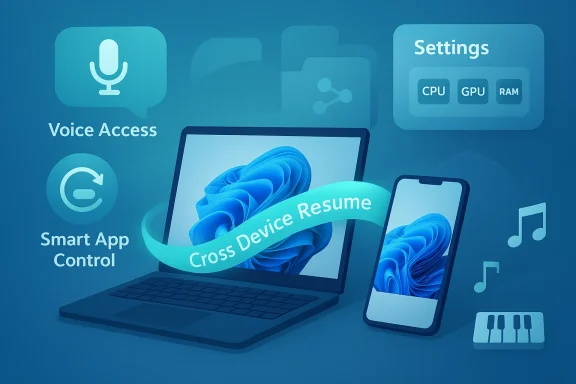 Background / Overview
Microsoft shipped the February preview as cumulative update KB5074105 in late January and has signaled a staged rollout to broader stable channels around Patch Tuesday, February 10, 2026. This preview is focused on quality-of-life improvements rather than a sweeping UI redesign: bug fixes, performance improvements, and a set of targeted feature activations delivered under Microsoft’s Controlled Feature Rollout (CFR) model.The practical consequence is important: installing the update makes a device eligible for new features, but server-side entitlements and partner integrations determine whether an individual device sees each capability immediately. Treat this package as a pilotable upgrade — useful and deployable, but something that benefits from pilot testing before wide-scale adoption.
Why this February release matters
Windows updates typically bundle security patches and stability work. What sets this release apart is the mixture of user-visible continuity features, a much-needed platform-level audio improvement, and a sensible fix to a previous security/usability deadlock — changes that each solve concrete real-world annoyances.- It closes a long-standing usability gap with Smart App Control (SAC) by making it reversible without reinstalling Windows. That alone will remove a major support headache for users who previously disabled SAC to bypass false positives.
- It expands Cross‑Device Resume, making phone→PC handoffs (music, browsers, Copilot mobile files) noticeably more useful for users of supported Android phones and apps.
- It modernizes Windows’ MIDI stack for creators and musicians, delivering app-to-app routing, shared ports, and WinMM/WinRT translation to improve compatibility.
- It tightens accessibility and voice workflows with a new Voice Access setup wizard and a configurable voice-typing wait time, lowering the barrier for adoption.
Deep dive: Smart App Control becomes reversible — what changed and why it matters
The problem SAC’s reversal fixes
Smart App Control (SAC) is designed to block risky installers and unknown binaries by checking app signatures and telemetry against Microsoft threat intelligence. The security model is sound — but the earlier implementation had a painful caveat: if a user disabled SAC to bypass a false positive, the only supported way to re-enable it was a full OS reinstall. That created two problems:- Non-expert users inadvertently lost a defensive layer and didn’t realize how to restore it.
- Administrators and support teams faced inconsistent device states and an avoidable support burden.
What’s different now
The February release exposes a toggle that allows SAC to be enabled and disabled without reinstalling Windows. That makes SAC a practical option for users who occasionally need to run unsigned or unusual installers, then want to return to a protected state afterwards. This change improves the security/productivity trade-off and should increase SAC adoption.Practical takeaways and recommendations
- For home users: use SAC in Evaluation mode first to observe blocking behavior without risking outright failures. If SAC blocks a legitimate app, you can now temporarily disable it and reenable when done.
- For IT admins: configure SAC behavior through Group Policy or MDM rather than relying on user toggles; that keeps enforcement consistent while giving you control over exceptions. Plan a pilot that documents which legitimate LOB (line-of-business) installers are blocked and pre-approve them via signers or whitelisting.
Risk and caveats
- Giving users the ability to toggle SAC reduces the “nuclear” fallback but also increases the risk of users disabling protections out of convenience. Clear UI messaging and admin policies are key.
Deep dive: Cross‑Device Resume — real continuity with meaningful limits
What Cross‑Device Resume now does
Cross‑Device Resume moves beyond simple file sync or notification mirroring. With this update, certain activities started on supported Android phones can be resumed on the PC with a taskbar affordance or automatic handler mapping. Early scenarios include:- Resuming Spotify playback started on your phone on desktop Spotify (desktop app opens if installed).
- Continuing Microsoft 365 documents opened in the Copilot mobile app (Word, Excel, PowerPoint) where desktop Office is present or falling back to the browser. This currently depends on cloud-stored files or deep links accessible from the PC; files stored only on the phone won’t resume.
- Handing off browser sessions from supported Android browsers — Vivo Browser is explicitly included in the initial expansion, with other OEM browsers already in the earlier support set.
Which phones and apps are in scope
Microsoft’s staged rollout targets specific OEMs and apps initially. The early list includes Samsung, Honor, Oppo, Vivo, and Xiaomi partner scenarios for Copilot app resume; browser support is being extended OEM-by-OEM. That means availability will be patchy during the first weeks. Expect more apps to join over the year.How it works, briefly
Rather than attempting to run Android code on Windows, the system exchanges a small resume descriptor (metadata with a deep link or cloud pointer). Windows maps that descriptor to a local handler — the desktop app or the default browser — to create a near-native continuation experience. That keeps things fast and native but imposes a dependency on cloud- or URL-addressable content.Real-world advantages
- Removes friction for users who commonly switch between phone and PC (e.g., listening to music on the phone, then continuing on the PC).
- Good for workflows where the phone is used for quick capture and the PC for deeper editing (Copilot-mobile → Word/Excel/PowerPoint continuity).
Limitations to be aware of
- Offline-only phone files aren’t eligible for handoff.
- Feature exposure is controlled server-side and requires partner integration, so you may not get the experience immediately even after installing the update.
Deep dive: Voice Access and voice typing — lowered friction for accessibility
What’s new
Voice Access gains a new setup wizard to guide first-time users through microphone selection and model download. Voice Typing adds a configurable "wait time before acting" so you can set how long the system waits before executing a voice command, which is useful for balancing speed and accidental activations. These changes make voice-driven workflows easier to adopt and tune.Why this matters
- Improved setup reduces the cognitive barrier for new users and for accessibility users who rely on voice control.
- The wait-time control is a practical tweak: some users want near-instant responsiveness, while others need a longer buffer to finish dictation or correct phrasing before the system acts.
Deployment and troubleshooting tips
- Verify your default microphone and test model downloads before relying on Voice Access in critical workflows.
- Admins should plan for bandwidth and model-download behavior on managed networks: on-device models reduce latency and preserve privacy, but may require extra disk space.
Deep dive: File Explorer performance — modest but meaningful improvements
The change
File Explorer gets a performance boost when accessing folders over a network share. The February update focuses specifically on responsiveness for network paths, which is a common source of perceived slowness on older hardware and in enterprise environments.Practical impact
- Users who rely on mapped drives or NAS will notice snappier folder listings and reduced freezes when browsing deep directory trees.
- It’s not a universal acceleration of all Explorer scenarios, but network responsiveness is one of the most painful areas, so this targeted fix will be welcome.
What to test in your environment
- Measure baseline folder-open times for representative network shares.
- Apply the update to a pilot group.
- Compare post-update responsiveness and monitor for regressions in thumbnail generation, file metadata retrieval, and DFS edge cases.
Beyond the four: MIDI, Settings cards, and other notable improvements
MIDI modernization — a long overdue platform upgrade
Windows MIDI Services have been modernized with WinMM and WinRT MIDI 1.0 compatibility, shared ports across apps, loopback, custom port names, and app-to-app routing. Microsoft is shipping an SDK/tools package separately for creators to opt into. This elevates Windows as a viable platform for professional MIDI workflows and modern hardware. Creators should test SDK/tooling in non-production environments until signed, production-ready packages land.Settings Home device info card
The Settings Home page now surfaces a device info card with CPU, GPU, RAM, and storage highlights for quick diagnostics without navigating to the About page. It’s a small UX win for support teams and curious users alike.Miscellaneous quality-of-life changes
- Windows Hello Enhanced Sign-in Security (ESS) has expanded peripheral fingerprint support, useful for external readers on desktops and kiosks.
- Multi-app camera access on devices with NPUs, ARM emulation improvements, and improved search/recall behavior for Copilot+ devices are included in the broader body of work around this update. Some features remain gated to Copilot+ hardware or specific OEMs.
Deployment guidance: who should install now and who should wait
Install sooner if:
- You’re an enthusiast or IT pro using Release Preview channels and you want to pilot Cross‑Device Resume, SAC toggling, or MIDI tooling on test machines.
- You rely on network shares and want to validate File Explorer responsiveness improvements in your corporate environment.
- You’re a creator willing to test the MIDI SDK on non-production machines.
Wait or pilot first if:
- You manage enterprise fleets where consistent behavior is critical; staged CFR exposure means experiences may differ across devices. Pilot broadly representative hardware before wide deployment.
- You rely on a production audio workstation: don’t install preview MIDI tooling on critical machines until signed packages and vendor compatibility are confirmed.
- You use third-party fingerprint peripherals in production — confirm ESS compatibility with the vendor before enabling new sign-in workflows at scale.
Troubleshooting and quick fixes
- Cross‑Device Resume missing? Confirm your phone is linked (Link to Windows), Copilot mobile is signed in, and you have allowed resume for the app in Settings → Apps → Resume. Remember server-side gating can delay visibility.
- Smart App Control blocking a needed installer? Use Windows Security → App & Browser Control to set SAC to Evaluation or disable temporarily, but record the change and reenable SAC afterward. For enterprises, whitelist through MDM/Group Policy.
- External fingerprint won’t enroll under ESS? Update firmware/drivers and test enrollment on a dedicated test device before rolling out. Consult vendors for ESS-certification guidance.
- MIDI SDK warnings about unsigned packages? Only install preview SDKs on non-production VMs or dedicated studio machines; wait for signed production releases for live work.
Security, privacy, and compatibility analysis
Security wins
- Making SAC reversible increases realistic adoption rates while keeping a path back to protection — a net security win if paired with good admin controls.
- ESS expansion allows organizations to adopt more flexible biometric architectures while preserving attested sign-in security where supported by hardware vendors.
Privacy considerations
- Cross‑Device Resume depends on metadata and cloud pointers. While not a full content sync, users and admins should understand what metadata is shared and ensure policies align with corporate privacy rules.
- Voice Access model downloads may be local (on-device) or cloud-based. On-device models favor privacy and latency but require disk space and careful deployment planning.
Compatibility risk
- CFR and partner gating create fragmentation: different users on the same update may see different feature sets. That complicates support and documentation. Plan internal documentation and helpdesk scripts accordingly.
- Audio and pro-MIDI workflows are sensitive: unsigned SDKs and early tooling should be isolated to test rigs until vendors release signed, supported drivers.
Final verdict — practical, careful, and useful
This February update is not about flashy UI changes; it’s pragmatic. Microsoft made a clear effort to address several real user pain points: un-sticking Smart App Control, making phone-to-PC workflows actually useful via Cross‑Device Resume, lowering voice-access friction, and modernizing MIDI for creators. Those are the sorts of fixes that improve daily life for many users without requiring a large platform shift.But the usual caveats apply: Controlled Feature Rollout means you may not see everything immediately after installing the LCU; some features depend on OEM or app-vendor cooperation; and creators and IT admins should pilot before broad deployment to avoid surprise regressions. Follow a staged rollout plan: pilot, validate, expand — and document behaviors so users and helpdesk staff can troubleshoot consistently.
If you’re a tinkerer or manage a mixed environment, this update is worth piloting now. If you run production audio systems, enterprise fleets, or critical business endpoints, treat the release as a carefully staged upgrade: test, confirm vendor compatibility, and apply policies to manage security toggles sensibly.
Quick checklist before you install
- Create a full backup or system image and a restore point.
- Pilot KB5074105 on a representative test device group.
- Validate LOB apps, printers, RDP, and audio workflows.
- Confirm peripheral fingerprint reader and MIDI hardware vendor compatibility.
- Prepare helpdesk scripts for SAC, Cross‑Device Resume, and Voice Access issues.
Source: TechRadar https://www.techradar.com/computing...ct-including-the-4-features-im-excited-about/
