

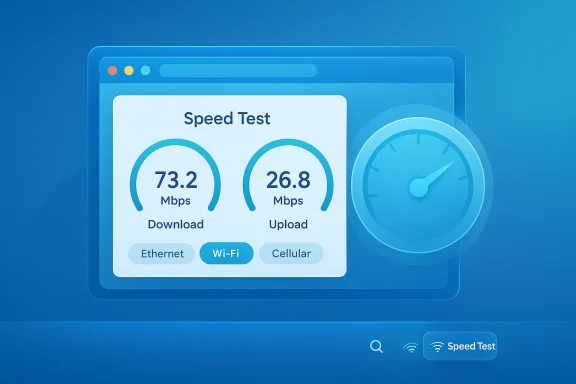
Microsoft has quietly added a built‑in network speed test to Windows 11 in the Release Preview Channel, delivering a simple, taskbar-accessible way to check Ethernet, Wi‑Fi, and cellular throughput without opening a third‑party site or a dedicated app.
Microsoft released Windows 11 Builds 26100.7918 and 26200.7918 as part of update KB5077241 to Insiders in the Release Preview Channel. The update targets machines on Windows 11 version 24H2 (Build 26100) and the rolling 25H2 (Build 26200), and it’s being gradually rolled out, so availability varies device to device. Alongside the speed test, Microsoft included a slate of visual, accessibility, and reliability improvements — including updated emoji, widget layout changes, .webp wallpaper support, and multiple stability fixes that touch File Explorer, printing, login, Nearby Sharing, and core system performance.
This article verifies the major claims in the update, explains how the built‑in speed test works in practice, and evaluates what the change means for everyday users, IT administrators, and privacy‑conscious customers. Where applicable, I cross‑checked Microsoft’s release details with independent reporting and hands‑on coverage to confirm build numbers, behavior, and limitations.
From a product strategy point of view, this is consistent with Microsoft’s approach over recent updates: integrate convenient, low‑friction utilities that solve common user problems while preserving the web as the execution environment for complex or frequently updated services.
However, the implementation’s browser‑hosted nature brings limitations and introduces unknowns about data flows and the exact measurement backend. Power users and IT administrators should treat the taskbar test as a first step in troubleshooting, not the final authority. For forensic network analysis, controlled benchmarking, or enterprise compliance, established dedicated tools and monitoring systems remain essential.
Microsoft’s incremental rollout of KB5077241 shows a pattern: small, taskbar‑centric conveniences that meet immediate user needs while preserving the web for heavier lifting. The built‑in speed test is a pragmatic, low‑friction addition that will cut through a lot of day‑to‑day confusion about internet problems — as long as users and administrators keep its limitations front of mind.
Source: YugaTech Windows 11 update adds built-in speed test
 Background
Microsoft released Windows 11 Builds 26100.7918 and 26200.7918 as part of update KB5077241 to Insiders in the Release Preview Channel. The update targets machines on Windows 11 version 24H2 (Build 26100) and the rolling 25H2 (Build 26200), and it’s being gradually rolled out, so availability varies device to device. Alongside the speed test, Microsoft included a slate of visual, accessibility, and reliability improvements — including updated emoji, widget layout changes, .webp wallpaper support, and multiple stability fixes that touch File Explorer, printing, login, Nearby Sharing, and core system performance.This article verifies the major claims in the update, explains how the built‑in speed test works in practice, and evaluates what the change means for everyday users, IT administrators, and privacy‑conscious customers. Where applicable, I cross‑checked Microsoft’s release details with independent reporting and hands‑on coverage to confirm build numbers, behavior, and limitations.
What Microsoft shipped in KB5077241 (high‑level)
Key items in the preview update
- Built‑in network speed test accessible from the taskbar — openable via Wi‑Fi/Cellular Quick Settings or by right‑clicking the network icon in the system tray. The test opens in the system’s default browser and measures Ethernet, Wi‑Fi, and mobile data speeds.
- Emoji 16.0 updates added to the OS glyph set.
- Full‑page Widget settings layout, giving a more comprehensive, single‑page experience for configuring widgets.
- Support for .webp desktop wallpapers, allowing modern web‑native images to be used natively as backgrounds.
- Reliability improvements for File Explorer, printing, login, Nearby Sharing, and overall system performance.
- Additional changes for device recovery behavior, Entra ID group/role SID resolution, and native Sysmon support in some builds.
The new built‑in speed test: what it is, how to open it, and what it measures
Where to find it
- Open Quick Settings and tap the Wi‑Fi or Cellular panel; you should see an option to run a network speed test.
- Alternatively, right‑click the network icon in the system tray and select the new speed test entry.
What happens when you run it
- The feature does not run as an embedded native dialog inside the quick settings. Instead, selecting the test opens your default web browser and launches a web‑based speed testing page.
- The test will attempt to measure throughput for the active network interfaces: Ethernet, Wi‑Fi, or cellular data, depending on which connection is active.
Why it opens the browser
Microsoft’s implementation relies on a browser‑hosted test rather than a fully native client. That design keeps the taskbar UI lightweight and shifts the actual measurement to the browser environment, where Microsoft can use web tooling (and third‑party measurement engines) that are already robust and maintained independently of the OS UI stack.How accurate and useful is the built‑in test?
Strengths: fast, convenient, low friction
- Instant access from the taskbar makes it hugely convenient for troubleshooting — no need to remember a website, bookmark it, or open a separate app.
- Because the test runs in your default browser, it will behave consistently with your usual browsing environment and any configured proxies or extensions.
- For quick sanity checks (is my ISP delivering roughly the expected speed today?), the tool is perfectly adequate.
Limitations to understand
- Browser‑hosted tests have constraints. Results can be affected by browser throttling, extensions, HTTP/2 multiplexing, TLS overhead, and how the browser handles multiple concurrent connections.
- Local conditions matter. Wireless interference, distance to AP, network congestion, CPU load, and background updates will skew results.
- Not a replacement for full network diagnostics. Dedicated tools or controlled lab tests remain necessary for rigorous benchmarking, latency profiling, or packet‑level analysis.
- Which measurement engine? Microsoft’s UI description says the test opens a web test but does not explicitly name the underlying measurement provider in the taskbar text. Historically, Microsoft has used Bing’s speed test and partnered with industry measurement providers; however, users should not assume a deep diagnostic capability is present simply because the test is integrated into the taskbar.
Practical guidance for meaningful results
- For a baseline, run the test over a wired Ethernet connection if available.
- Close major background network users (cloud backup, updates, large transfers).
- Run several trials at different times to identify transient congestion vs consistent shortfalls.
- For latency, jitter, or packet loss analysis, use specialized diagnostic tools — the taskbar test provides throughput, not packet‑level detail.
Why Microsoft is adding a taskbar speed test
Convenience equals fewer support calls
A single, easily discoverable action to test network speed lowers the friction for users and can reduce the number of basic support calls where users report “the internet is slow” without any diagnostics. An integrated speed check helps both consumers and frontline support quickly determine whether the problem is the device, the local network, or the ISP.A step toward unified troubleshooting
Microsoft has been gradually centralizing everyday utility features inside Windows rather than leaving them to third‑party web tools. Bringing a speed test into the taskbar aligns with that strategy: a familiar, single place users go for immediate checks. It also gives Microsoft a consistent starting point for guided troubleshooting flows in future updates.Edge cases and incremental rollout strategy
The speed test is shipping via a gradual rollout in the Release Preview Channel. That phased approach lets Microsoft monitor telemetry and support signals before a wide release, reducing the risk of a mass‑affecting regression.Privacy, telemetry, and data‑handling concerns
What the release states and what it implies
Microsoft’s release notes state the speed test opens in the default browser and measures connection speed. The notes do not enumerate every telemetry signal collected by the test or the backend service it calls. Because the measurement is web‑hosted, the actual measurement provider and its privacy policy govern data handling during the test.Where to be cautious
- Browser is the data path. If your default browser is configured to send diagnostic data, use extensions that intercept requests, or route traffic through a corporate proxy, the test results and data flows will reflect that.
- Third‑party telemetry. If Microsoft uses an external measurement provider to host the test, that provider — and not Microsoft alone — may receive IP addresses, timing information, and endpoint identifiers necessary to perform throughput tests.
- Enterprise network policies. Corporate networks that intercept or inspect TLS (via enterprise proxies) may disrupt test behavior or alter throughput numbers.
Recommendations for privacy‑conscious users
- Temporarily set your default browser to a controlled profile when testing, or run the test in a browser instance without extensions or add‑ons.
- For corporate devices, consult IT before using the built‑in test if your network forbids external measurement endpoints or if privacy policies restrict sending diagnostic data outside the organization.
- Treat built‑in speed tests as diagnostic hints, not forensic evidence.
Enterprise implications and IT administration
Quick Machine Recovery and policy nuances
The update also changes Quick Machine Recovery (QMR) behavior: QMR can activate automatically on eligible Windows 11 Pro devices that are not domain‑joined and not enrolled in enterprise endpoint management, bringing them the same automated recovery protections previously reserved for Home editions. For domain‑joined or enterprise-managed devices, QMR remains off unless explicitly enabled by the organization. IT teams should inventory devices and confirm group policy or management platform settings to avoid surprises during rollouts.Entra ID and Sysmon support
- The update improves Microsoft Entra ID group and role SID resolution so that cloud-only group SIDs can be translated into human‑readable names for permissions and local group memberships.
- Some preview notes reference native Sysmon support on certain builds, which could influence endpoint monitoring strategies by making additional telemetry and event types more readily available to security teams.
Action items for IT teams
- Validate that QMR settings align with organizational recovery policies.
- Update endpoint monitoring playbooks to account for Entra SID resolution changes and any new Sysmon artifacts.
- Test the built‑in speed test in managed environments to confirm it conforms to internal security and privacy policies.
UX, accessibility, and other refinements in this update
Emoji 16.0
Windows 11 is receiving Emoji 16.0 glyphs, bringing the OS into alignment with modern emoji standards used across mobile platforms. There are platform‑level caveats: historically, emoji in the system font may arrive before emoji panel integrations are fully updated, leading to inconsistent availability across apps initially.Widget settings and desktop imagery
- Full‑page Widget settings layout centralizes widget controls and makes it easier to manage personalization.
- .webp wallpaper support finally brings a widely used web image format to the desktop background pipeline. That saves space and affords higher compression efficiency versus older formats.
Quality‑of‑life fixes
Microsoft’s release notes and the preview reporting list reliability improvements for core areas:- File Explorer stability and performance tuning.
- Printing reliability fixes that should reduce sporadic failures.
- Improvements to logon reliability and Nearby Sharing performance.
Technical caveats and what the update does not promise
Not a replacement for network management systems
The taskbar test is a diagnostic convenience, not a full network monitoring or management solution. Organizations relying on SNMP, RMON, or full NetFlow/telemetry systems should not expect this feature to feed into their network operations.Does it measure upload and download?
Yes — the design intent is to provide both upload and download throughput. However, web‑hosted measurement mechanisms can differ in how they saturate the uplink vs downlink and how they account for TCP overhead, so exact numbers can vary by provider.Latency, jitter, packet loss — limited visibility
The speed test focuses primarily on throughput. While latency is often reported by consumer web tests, packet loss, jitter, and deep TCP behavior are not reliably exposed in a simple browser test.Impact on metered connections
A throughput test can consume tens or hundreds of megabytes depending on target servers and test duration, which is particularly relevant on cellular or metered connections. Windows’ UI should, and in many cases does, warn users or respect metered connection settings — but users must still exercise caution.How to use the built‑in speed test effectively (step‑by‑step)
- Choose the right connection: prefer Ethernet when available for baseline measurements.
- Close heavy network clients: pause cloud backups, stop streaming, and suspend large downloads.
- Launch the speed test from Quick Settings or by right‑clicking the network icon.
- Run the test at least three times at different times of day to identify patterns.
- For wireless troubleshooting, repeat tests at varying distances from the AP and with other devices disconnected to isolate congestion issues.
- If results are inconsistent with your subscription plan, contact your ISP with the results and timestamps from several trials.
Comparative note: built‑in test vs dedicated tools
- Built‑in taskbar test
- Pros: quick, accessible, integrated.
- Cons: limited diagnostics, browser‑dependent behavior.
- Dedicated apps (e.g., vendor tools, M-Lab, or Ookla clients)
- Pros: more control over servers, protocol behavior, and deeper diagnostics.
- Cons: additional installs, steeper learning curve.
Broader implications for Windows design and Microsoft strategy
This addition is a signal of Microsoft’s continuing effort to collapse common web tasks into the operating system’s surface area. The decision to rely on a browser test — rather than a fully native measurement service — is pragmatic: it leverages the breadth of web tooling and minimizes the scope of the OS surface change. That choice also gives Microsoft flexibility to iterate on or swap the underlying provider without repeated native updates.From a product strategy point of view, this is consistent with Microsoft’s approach over recent updates: integrate convenient, low‑friction utilities that solve common user problems while preserving the web as the execution environment for complex or frequently updated services.
Risks and potential downsides
- Opaque data flows. Because the test launches a web page, the backend provider and exact telemetry flows may not be immediately clear to users. Transparency about which endpoint receives measurement traffic would help trust.
- False assurance. Users may treat a single speed test result as definitive proof of network health when transient issues or test artifacts could be the cause.
- Enterprise policy friction. Organizations with strict proxying, monitoring, or blocked endpoints may see tests fail or produce misleading results.
- Metered dataplan impact. Users on limited or expensive mobile connections could be surprised by data usage if the test runs repeatedly without warning.
Final assessment: value balanced with limits
The built‑in network speed test in Windows 11 is a welcome convenience for most users. It addresses a common support friction point and places a lightweight diagnostic in the most discoverable UI in the OS: the taskbar. For quick checks and everyday troubleshooting, the feature will reduce friction and help users self‑diagnose connectivity problems without searching for a website or installing additional software.However, the implementation’s browser‑hosted nature brings limitations and introduces unknowns about data flows and the exact measurement backend. Power users and IT administrators should treat the taskbar test as a first step in troubleshooting, not the final authority. For forensic network analysis, controlled benchmarking, or enterprise compliance, established dedicated tools and monitoring systems remain essential.
Recommendations
- Consumers: Use the taskbar speed test for quick troubleshooting but validate persistent problems using multiple tests and, where needed, a dedicated diagnostic tool.
- IT administrators: Update internal troubleshooting documentation to include the new built‑in test while clarifying its limits; confirm compliance with corporate privacy and proxying policies.
- Privacy‑conscious users: Run the test in a controlled browser profile or temporarily change your default browser to minimize unexpected telemetry.
- Power users and network engineers: Continue using specialized clients and lab tests for SLA verification and packet‑level diagnostics; treat the Windows test as an additional convenient check.
Microsoft’s incremental rollout of KB5077241 shows a pattern: small, taskbar‑centric conveniences that meet immediate user needs while preserving the web for heavier lifting. The built‑in speed test is a pragmatic, low‑friction addition that will cut through a lot of day‑to‑day confusion about internet problems — as long as users and administrators keep its limitations front of mind.
Source: YugaTech Windows 11 update adds built-in speed test
