

If you’re choosing a new Windows PC or deciding whether to spend extra for Windows 11 Pro, the practical answer is short: Windows 11 Home covers the needs of most individual users, while Windows 11 Pro is aimed at businesses, IT pros, and power users who need encryption, management, virtualization, or remote access. This article breaks down exactly what you gain by upgrading — and what you don’t — with a clear, actionable checklist to help decide whether the extra cost is worth it.
Windows editions may look identical at first glance: same centered Start, Snap Layouts, Copilot, Widgets, File Explorer tabs, and gaming improvements like Auto HDR and DirectStorage. Microsoft distributes the same major feature set across editions so basic usability and modern Windows 11 experiences are consistent.
The edition split exists to separate consumer-focused convenience from the advanced management, security and hardware capabilities that enterprise and power users require. Over the past two years Microsoft has also introduced cloud-era tools (Azure AD, Microsoft Purview) and AI-optimized device classes (Copilot+ PCs) that make the differences between Home and Pro more meaningful for organizations than for casual users.
Before diving into the feature-by-feature comparison, two concrete pieces of context were verified: upgrades from a compatible Windows 10 installation to Windows 11 remain free, and retail price differentials persist between Home and Pro (Pro costs more). Those facts are confirmed by Microsoft’s product guidance and the pricing shown in retail and manufacturer stores — but retail prices and discount deals fluctuate, so treat exact dollar figures as variable.
Shared highlights include:
Major Pro-only features and why they matter:
Why IT teams pick Pro:
Things Pro does NOT provide:
Windows edition choice is a classic one: pay a little more for centralized control and enterprise-grade security, or keep things simple and cost-effective with the Home edition. For most people the answer is straightforward: keep Home. For anyone who manages fleets, handles sensitive data, or needs virtualization and remote-host capabilities, Pro is the correct choice — but plan the deployment, licensing, and management before you flip the switch.
Source: PCMag Windows 11 Home vs. Pro: What You Gain From Upgrading (and What You Don't)
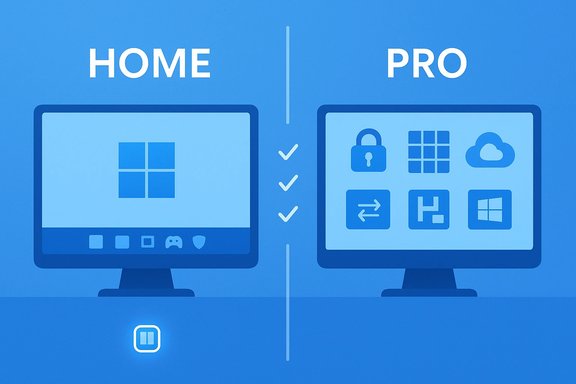 Background: why the Home vs. Pro question still matters
Windows editions may look identical at first glance: same centered Start, Snap Layouts, Copilot, Widgets, File Explorer tabs, and gaming improvements like Auto HDR and DirectStorage. Microsoft distributes the same major feature set across editions so basic usability and modern Windows 11 experiences are consistent.The edition split exists to separate consumer-focused convenience from the advanced management, security and hardware capabilities that enterprise and power users require. Over the past two years Microsoft has also introduced cloud-era tools (Azure AD, Microsoft Purview) and AI-optimized device classes (Copilot+ PCs) that make the differences between Home and Pro more meaningful for organizations than for casual users.
Before diving into the feature-by-feature comparison, two concrete pieces of context were verified: upgrades from a compatible Windows 10 installation to Windows 11 remain free, and retail price differentials persist between Home and Pro (Pro costs more). Those facts are confirmed by Microsoft’s product guidance and the pricing shown in retail and manufacturer stores — but retail prices and discount deals fluctuate, so treat exact dollar figures as variable.
Overview: what both editions include (the shared baseline)
Both Windows 11 Home and Pro include the same core operating system and user-facing features that define the Windows 11 experience. For everyday users this is the most important point: Home is not a stripped-down OS.Shared highlights include:
- New UI and productivity: centered Start, Snap Layouts, Snap Groups, improved notifications.
- AI features: built-in Copilot, system-level AI integrations where supported by hardware.
- Security basics: Windows Security (Microsoft Defender), firewall and network protection, Secure Boot, TPM 2.0 support, Windows Hello biometric sign-in, and device encryption where supported.
- Gaming and media: Auto HDR, DirectStorage, Xbox integration, and modern media apps.
- Developer tools: Windows Subsystem for Linux (WSL) is available; many developer workflows run equally well on Home and Pro.
- Hardware & compatibility: identical minimum system requirements (1 GHz 2-core 64-bit CPU, 4 GB RAM, 64 GB storage, UEFI + Secure Boot, TPM 2.0).
What you get only with Windows 11 Pro (the core differences)
Windows 11 Pro adds several features that are important if you manage machines at scale, handle regulated or sensitive data, or need advanced virtualization and remote-access capabilities. These Pro-only capabilities are what justify the edition’s price premium for the target audiences.Major Pro-only features and why they matter:
- BitLocker full-disk encryption
- Use case: strong, administrable drive encryption that helps meet compliance and protects data if a device is lost or stolen. Administrators can enforce policies and remotely manage recovery keys.
- Join a domain and Group Policy
- Use case: attach a PC to an on-premises Active Directory domain, apply Group Policy objects (GPOs) to centrally configure and lock down PCs — essential in corporate networks.
- Azure Active Directory (Azure AD) join and cloud management
- Use case: enroll devices into corporate cloud identity for single sign-on, policy enforcement, and modern remote management (e.g., Microsoft Intune). Enables separation of personal and work identities.
- Remote Desktop (host)
- Use case: allows your Pro PC to accept incoming Remote Desktop connections (Home only permits outgoing Remote Assistance or third‑party remote access tools).
- Hyper-V (native virtualization)
- Use case: create and run virtual machines natively for testing, development, or running isolated environments — valuable to developers, IT pros, and labs.
- Windows Sandbox
- Use case: quickly run untrusted programs in an isolated disposable environment (only in Pro and above).
- Windows Information Protection / Microsoft Purview Data Loss Prevention integrations
- Use case: apply enterprise data protection policies to prevent accidental leaks of corporate data and control sharing.
- Windows Update for Business
- Use case: stagger, defer, and control feature update deployment across fleets to reduce disruption.
- Enhanced management tools: Group Policy Editor, Windows Registry policies, Mobile Device Management (MDM) capabilities and other enterprise tooling that simplify controlling many devices.
Security differences: device encryption vs. enterprise-grade controls
Security marketing can be confusing: Home has “device encryption,” while Pro includes BitLocker. Here’s what to understand.- Device encryption (Home): modern machines with the appropriate hardware (TPM + UEFI) can enable a basic device encryption that protects data at rest. This is sufficient for many users.
- BitLocker (Pro): a superset of encryption capabilities. BitLocker introduces centralized management of recovery keys, granular drive selection, pre-boot authentication options, and group-based policy enforcement — features required by many businesses and security-conscious professionals.
- Information protection and DLP: Microsoft’s enterprise suite (Purview Information Protection, Purview Data Loss Prevention) integrates with Pro devices for policy-driven scanning, content classification, and automatic controls. These features are designed for organizations and typically require additional licenses for full capabilities.
- Application control (WDAC/AppLocker): stronger app whitelisting and execution controls are manageable in Pro.
- Deprecations to be aware of: some older enterprise features, such as Microsoft Defender Application Guard for Edge, were deprecated and removed starting with Windows 11 24H2; organizations should plan migrations to supported isolation solutions like Windows Isolated Workspace or cloud alternatives.
Management and fleet control: why Pro matters for IT
If you run more than a handful of machines, Pro’s management tools save time and reduce support load.Why IT teams pick Pro:
- Domain join and GPO let admins enforce settings centrally.
- Azure AD join and MDM (Intune) enable zero-touch provisioning, conditional access, and remote policy enforcement over the cloud.
- Windows Update for Business and Windows Autopatch (for enterprise licensing tiers) allow staged deployments and reduce the risk of unexpected breaks.
- Windows Autopatch, modern management tooling, and Microsoft Entra/Entra ID increasingly rely on Pro or higher editions as the management baseline.
Virtualization, developer workflows, and power-user scenarios
Windows 11 Pro includes built-in virtualization and testing features that are valuable to developers, sysadmins, and testers:- Hyper-V: native hypervisor for running multiple VMs without third-party software. It requires hardware support (SLAT). Great for local labs, nested testing, and running isolated servers.
- Windows Sandbox: disposable sandbox for running untrusted software in isolation.
- Improved WSL functionality on Pro devices: while WSL runs on Home, Pro is the natural fit for integrated dev environments that require virtual networks, multiple VMs, or Hyper-V backends.
Pricing and upgrade mechanics — what you’ll actually pay
Retail and upgrade pricing are subject to change, regional differences, and frequent promotions. Verified points:- Free upgrade: If you have a compatible Windows 10 system, the upgrade to the equivalent Windows 11 edition through Windows Update or Microsoft’s upgrade tools is free.
- Retail license pricing: Microsoft’s standard MSRP (when available at full price) places Windows 11 Home below Windows 11 Pro by roughly several dozen dollars. The difference historically sits around $60 at full retail, but retailers frequently run discounts, and you can find limited-time promotions or bundles that lower the actual out-of-pocket cost.
- Home → Pro upgrade: Microsoft’s built-in in-place upgrade (Settings > System > Activation) offers an upgrade path labeled and sold through the Store; standard upgrade pricing is typically less than a full Pro retail license but varies with promotions.
What you don’t get from upgrading to Pro (and what’s unnecessary)
Upgrading to Pro does not make your PC faster, nor does it add consumer-focused features like gaming performance boosts or additional UI improvements. If your needs are strictly entertainment, social, content creation, or general office productivity, Pro mainly adds administrative and security tools that you may never use.Things Pro does NOT provide:
- Instant speed increases or better battery life.
- Exclusive consumer apps or better gaming performance.
- Free corporate licensing for Microsoft 365 or Intune — many enterprise features require additional server/cloud licenses.
- Unlimited future-proofing: some enterprise tools are moving to cloud services and can require further subscriptions.
Step-by-step: how to upgrade from Windows 11 Home to Pro
If you decide you need Pro, Microsoft supports a straightforward in-place upgrade. Verified process:- Open Settings → System → Activation.
- Under “Upgrade your edition of Windows,” choose to go to the Microsoft Store link to purchase the Pro upgrade, or enter a Pro product key if you already have one.
- After purchase/activation, the system will automatically install the Pro features and reboot as needed.
- Confirm activation status in Settings → System → Activation.
A simple decision checklist: should you upgrade to Windows 11 Pro?
Use this checklist to decide quickly:- Upgrade to Pro if:
- You need BitLocker with centralized recovery key management.
- You must join a domain or use Group Policy to enforce settings.
- You require Remote Desktop hosting on your workstation.
- You depend on Hyper‑V or Windows Sandbox for virtualization.
- You manage multiple PCs and need Azure AD or Intune enrollment.
- You handle regulated data and need integration with Microsoft Purview data protection tools.
- Stick with Home if:
- You primarily use the PC for browsing, games, media, office productivity, or personal projects.
- You don’t administer multiple machines or enforce corporate policies.
- You prefer to avoid paying more for features you won’t use.
Risks, costs, and practical considerations
- Cost variability: retail and upgrade prices can change rapidly due to promotions. If cost is the deciding factor, check authorized retail channels and Microsoft’s store for current pricing.
- License type matters: OEM keys, retail keys, and volume licenses carry different transfer and support rules. OEM licenses are usually tied to one machine; retail keys can be moved.
- Administrative complexity: enabling Pro features (BitLocker with an organizational key escrow, Group Policy settings, Azure AD) requires an administrative plan and often server or cloud subscriptions.
- Deprecations and future changes: some legacy enterprise features have been deprecated (for example, Application Guard variants) and Microsoft is shifting many controls to cloud-managed services. Organizations should verify long-term support for any feature they plan to depend on.
- Security configuration mistakes: having Pro means you can configure far more powerful policies — misconfigurations can lock out users, cause data access problems, or expose systems if policies aren’t tested.
Final recommendation (clear, practical guidance)
- For typical consumers, students, and gamers: buy or keep Windows 11 Home. It delivers the full modern Windows experience and includes essential security and performance features.
- For business users, IT professionals, developers, and security-conscious users who require encryption management, remote access, virtualization, or centralized device control: Windows 11 Pro is the practical investment. In those scenarios the edition pays for itself by reducing support overhead, addressing compliance needs, and enabling remote and cloud-managed workflows.
Quick reference: feature matrix (condensed)
- Core Windows 11 experience (UI, Copilot, widgets, gaming features): Home & Pro
- BitLocker full-disk encryption: Pro
- Device encryption (basic): Home & Pro (hardware-dependent)
- Domain join & Group Policy: Pro
- Azure AD join & Intune enrollment: Pro
- Remote Desktop (host): Pro
- Hyper‑V & Windows Sandbox: Pro
- Windows Update for Business: Pro
- Enterprise DLP / Purview integration: Pro (with additional licensing for full features)
Windows edition choice is a classic one: pay a little more for centralized control and enterprise-grade security, or keep things simple and cost-effective with the Home edition. For most people the answer is straightforward: keep Home. For anyone who manages fleets, handles sensitive data, or needs virtualization and remote-host capabilities, Pro is the correct choice — but plan the deployment, licensing, and management before you flip the switch.
Source: PCMag Windows 11 Home vs. Pro: What You Gain From Upgrading (and What You Don't)
