

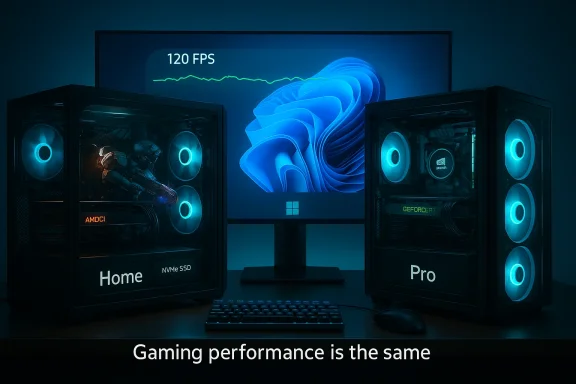
If you’re deciding between Windows 11 Home and Windows 11 Pro for a gaming PC, the short, evidence-backed answer is simple: for gaming performance itself, pick Home — Pro doesn’t make your games run faster. This conclusion comes from feature-level verification, real-world testing summaries, and recent platform behavior: both editions ship the same kernel, DirectX stacks, GPU driver interfaces, and game-facing features (DirectStorage, Auto HDR, Game Mode), while Pro’s extra features are focused on encryption, virtualization, and device management — valuable for work, development, and enterprise, but largely irrelevant to raw frame rates and input latency. ps://www.microsoft.com/en-us/windows/compare-windows-11-home-vs-pro-versions)
Windows editions have historically separated the same core user experience from additional controls aimed at businesses and power users. Windows 11 continues that approach: Home and Pro share the modern UI, security baseline (Defender, Secure Boot requirements), and all mainstream gaming features, while Pro layers on tools for encryption (BitLocker), virtualization (Hyper‑V, Windows Sandbox), Group Policy and centralized management (Azure AD, Intune), and inbound Remote Desktop hosting. If your definition of “better for gaming” is higher FPS, lower input latency, or faster in-game rendering, the edition difference won’t deliver that. Microsoft’s own comparison shows the same gaming capabilities present on both Home and Pro.
This article verifies those claims, explains the technical reasons behind them, highlights important edge cases where edition choices or defaults can create practical differences for gamers, and gives clear, actionable recommendations so you can spend money where it actually matters — on hardware and configuration, not a license that won’t improve FPS.
Practical mitigation:
In short: don’t let edition marketing or forum myths distract you — Windows 11 Home provides the same gaming performance and key features as Pro. Buy the edition that fits your workflows, protect your keys and backups if you enable BitLocker, and dedicate budget to hardware improvements if your goal is fewer stutters, higher FPS, and faster load times.
Source: H2S Media Windows 11 Home vs Pro for Gaming – Which One Is Better for Gamers
 Background / Overview
Windows editions have historically separated the same core user experience from additional controls aimed at businesses and power users. Windows 11 continues that approach: Home and Pro share the modern UI, security baseline (Defender, Secure Boot requirements), and all mainstream gaming features, while Pro layers on tools for encryption (BitLocker), virtualization (Hyper‑V, Windows Sandbox), Group Policy and centralized management (Azure AD, Intune), and inbound Remote Desktop hosting. If your definition of “better for gaming” is higher FPS, lower input latency, or faster in-game rendering, the edition difference won’t deliver that. Microsoft’s own comparison shows the same gaming capabilities present on both Home and Pro. This article verifies those claims, explains the technical reasons behind them, highlights important edge cases where edition choices or defaults can create practical differences for gamers, and gives clear, actionable recommendations so you can spend money where it actually matters — on hardware and configuration, not a license that won’t improve FPS.
What the tests and technical verification show
Core finding: no measurable FPS or latency advantage for Pro
Independent testing and community benchmarking consistently find no statistical difference in FPS, frame times, 1% lows, or input latency between Windows 11 Home and Pro when the underlying hardware, drivers, and OS build are identical. That’s because both editions use the samrectX runtime, and the same GPU driver stack — the layers that actually determine rendering performance and input processing. Multiple outlets and community studies repeatedly confirm that gaming features such as DirectStorage, Auto HDR, and Game Mode are not gated by Pro.The “why” in plain terms
- Graphics and frame rendering happen in the GPU driver + DirectX + kernel path; those components are identical on Home and Pro.
- Game Mode, Auto HDR, DirectStorage and Xbox integration are part of the standard Windows 11 gaming toolkit and are available on Home and Pro where hardware supports them. Microsoft documents Auto HDR and DirectStorage as Windows 11 features, not Pro-only features.
Feature checklist gamer's care about — Home vs Pro
Below is the practical list of gaming features and wheen editions.- DirectX 12 Ultimate — Yes on both Home and Pro.
- DirectStorage (NVMe + GPU-aware streaming) — Yes on both, if hardware/drivers and game support it.
- Auto HDR — Yes on both (requires an HDR-capable panel).
- Game Mode & Xbox Game Bar features — Yes on both.
- Variable Refresh Rate / GPU scheduling / Game Pass support — Yes on both.
When Windows 11 Pro actually matters for a gamer
Pro is not worthless for gamers —antages that matter in specific non-performance scenarios. Consider Pro if you fall into one of these categories:- Developer / DevOps / Work-from-home hybrid: you need Hyper‑V, Windows Sandbox, Windows Subsystem for Linux integrations, or Docker/containers that rely on Hyper‑V features for your day job. Those features are Pro-only and can justify the license if your machine is both a workstation and a gaming rig.
- Enterprise compliance: your employer requires BitLocker full-disk encryption, centralized recovery key management, or domain/Azure AD joining. Compliance often determines the edition.
- Advanced remote management: you want to host inbound Remote Desktop sessions on your gaming PC (Pro enables acting as an RDP host).
- Workstation features: higher hardware limits, ReFS, or management tooling that matches a combined game/render/compute workstation justify Pro.
Important edge cases and real-world risks gamers should know
1) BitLocker and default software encryption: a surprising performance impact
BitLocker is a Pro-only feature (Home uses device encryption where supported, but not full BitLocker). Critically, many OEM Windows 11 Pro installs enable software-based BitLocker encryption by default. Software encryption runs on the CPU and in some tests has reduced SSD performance dramatically (Tom’s Hardware measured random I/O drops and reported up to a ~45% hit in some scenarios). That affects load times, texture streaming responsiveness on SSDs, and general storage latency — real, measurable impacts in systems using software-based encryption. Microsoft documents BitLocker behavior and known configuration issues; additionally, Microsoft has announced work to reduce storage impact with new hardware crypto offload in upcoming CPU platforms. If your Pro system shipped with BitLocker enabled, check whether the drive is using hardware (OPAL) encryption or software BitLocker and decide based on your needs. ([tomshardware.com](Microsoft promises to nearly double Windows storage performance after forcing slow software-accelerated BitLocker on Windows — new CPU hardware-accelerated crypto will also improve battery life, but requires new CPUs takeaway:- If you have Pro pre-installed and you notice slow storage or longer load times, verify BitLocker status (manage-bde -status) and whether your SSD supports hardware encryption (OPAL). If BitLocker is software-mode and you don’t need encryption, consider turning it off (but back up your recovery key first). Tom’s Hardware’s benchmark results show this is not an academic concern for SSD-based systems.
2) Hyper‑V / Virtualization-Based Security (VBS) and anti-cheat compatibility
Some anti-cheat systems and kernel-level protections are sensitive to virtualization and hypervisor presence. Historically, games that use certain kernel-level anti-cheat drivers (for example, some versions of Easy Anti‑Cheat, Riot Vanguard, BattlEye) have either refused to run or have experienced crashes on systems with hypervisor features enabled (Hyper‑V, VBS, Memory Integrity). Mifixes and out‑of‑band updates to address specific incompatibilities, but the landscape is fluid: updates, driver versions, or anti-cheat changes can reintroduce issues. If you run Hyper‑V for development, you may need an alternate boot entry or to temporarily disable hypervisor features to play some anti-cheat‑protected games reliably.Practical mitigation:
- Keep Windows and anti-cheat middleware up to date. Microsoft has released targeted fixes for Easy Anti‑Cheat incompatibilities in recent emergency updates.
- If a game refuses to launch, try a separate "Gaming" boot entry with the hypervisor disabled (bcdedit hypervisorlaunchtype off) and switch back for development work. Community guides and Microsoft Q&A document this approach.
3) Default services and expectations
Pro exposes tools like Group Policy and Windows Update for Business; inexperienced users can misconfigure these and create update, driver, or security policy issues. Conversely, many alleged “gaming optimizations” via Group Policy yield placebo results; fiddling with policies rarely beats hardware upgrades as a performance strategy.Price and upgrade considerations (verified)
Microsoft’s retail MSRP historically lists Windows 11 Home at approximately $139 and Windows 11 Pro at approximately $199. Discounted promotions are common (third-party sellers and deal sites frequently offer deep discounts), and upgrade pricing from Home → Pro via the Microsoft Store has been presented historically as around a $99 in-place upgrade price in Microsoft’s documentation. If you’re building a new dedicated gaming PC, that $60 (MSRP difference) or $99 (upgrade pathway) is typically better spent on components that affect gameplay directly. Verify current pricing at purchase time because promotions and authorized reseller deals change frequently.Practical checklist for gamers: which edition and what to do after install
Quick decision checklist
- You only play games and use consumer apps: **Buy Windoe difference for a GPU/SSD/RAM upgrade.
- You run VMs, Hyper‑V, or use Windows Sandbox daily for work: Buy Windows 11 Pro (it’s useful beyond gaming).
- Your employer requires BitLocker, domain join, or Azure AD integration: Pro is necessary.
- You already have Pro pre-installed on a laptop that travels and contains business data: keep Pro and enable BitLocker sensibly (with proper key escrow).
Post-install checklist (regardless of edition)
- Update GPU drivers directly from NVIDIA/AMD/Intel. Driver versions matter far more for FPS and stability than Home vs Pro.
- Confirm DirectStorage / DirectX 12 Ultimate / Auto HDR availability using the Xbox Game Bar and Windows Settings (Display → HDR) if you have compatible hardware. Microsoft documents how to enable Auto HDR and check DirectStorage support.
- Check for BitLocker: run manage-bde -status. If BitLocker is enabled on a Pro machine and you’re seeing storage slowdowns, determine whether the SSD supports hardware encryption; consider switching or disabling encryption if unnecessary (but record recovery keys first).
- If you rely on Hyper‑V for work but play anti‑cheat‑protected titles, create a secondary boot entry that disables hypervisor for gaming or use a dedicated “gaming” disk/drive. Community guides and Microsoft documentation cover these steps.
Myth‑busting: common gamer misconceptions
- Myth: “Windows 11 Pro gives higher FPS.” Reality: No — both editions share the same rendering and driware + driver + game dependent, not edition-dependent. Multiple technical overviews and benchmarking communities report parity between Home and Pro for gaming.
- Myth: “Pro is required to use DirectStorage or Auto HDR.” Reality: Both features are part of Windows 11’s gaming toolkit and are available on Home where hardware supports them. DirectStorage needs an NVMe SSD and compatible drivers; Auto HDR needs an HDR-capable display. Neither is gated by Pro.
- Myth: “Pro fixes anti-cheat problems.” Reality: Pro adds Hyper‑V and other virtualization tools which can create anti‑cheat compatibility issues. If anything, using Home avoids accidental configuration of Pro-only features that can trip some anti-cheat systems. Microsoft and anti‑cheat vendors have patched some issues, but the interaction between virtualization-based security and anti-cheat remains a maintenance point.
Final verdict and recommendation
- For 95%+ of PC gamers: Windows 11 Home is the pragmatic choice. It includes every gaming-related feature a gamer will notice, performs identically to Pro in benchmarks and real-world gameplay, and leaves more budget for GPU, CPU, RAM, or an NVMe drive — the components that actually increase FPS, reduce stuttering, and shorten load times.
- Choose Windows 11 Pro only when you have explicit, repeatable needs that require Pro’s features: Hyper‑V and built‑in virtualization, BitLocker with enterprise recovery, domain/Azure AD join, Remote Desktop hosting, or other professional/enterprise requirements. Those are legitimate reasons — but they’re work-first, not game-first reasons.
- Watch for the two realistic caveats: (1) software BitLocker enabled on Pro OEM installs can materially reduce SSD throughput and affect loading behavior — check and remediate if you care about load times; (2) Hyper‑V/VBS features can interfere with anti‑cheat systems and cause crashes or refusals to launch in some titles; keep your system patched and consider a game-only boot option as a mitigation.
Quick reference: commands & checks (copyable)
- Check BitLocker status (admin PowerShell/CMD):
manage-bde -status C: - Check DirectStorage / DirectX features:
Open Xbox Game Bar (Win+G) → Settings → Gaming features; or Windows Settings → System → Display for Auto HDR. - Temporarily disable hypervisor for a “Game” boot entry:
- Create a copy of current boot entry:
bcdedit /copy {current} /d "Windows 11 - Gaming" - Disable hypervisor on that entry (replace {GUID} with returned ID):
bcdedit /set {GUID} hypervisorlaunchtype off - Turn off BitLocker (if you decide to):
manage-bde -off C:
In short: don’t let edition marketing or forum myths distract you — Windows 11 Home provides the same gaming performance and key features as Pro. Buy the edition that fits your workflows, protect your keys and backups if you enable BitLocker, and dedicate budget to hardware improvements if your goal is fewer stutters, higher FPS, and faster load times.
Source: H2S Media Windows 11 Home vs Pro for Gaming – Which One Is Better for Gamers
