

Windows 11’s trajectory in 2025 felt less like steady refinement and more like an accelerated sprint that left a lot of users watching features break, defaults change, and formerly optional telemetry become baked in. The result: a growing number of practical regressions — UI glitches, update-triggered drive encryption lockouts, forced online identity at setup, and AI (Copilot) features that reinstall themselves after removal. This article breaks down four concrete ways Microsoft’s moves made Windows worse for many users in 2025, verifies the technical claims, explains the real-world risk, and gives step‑by‑step, pragmatic undo steps you can use today to regain stability and control.
Windows development shifted to a fast, cloud‑and‑AI‑centric cadence in the early 2020s. That strategy brought advantages — faster security fixes, on‑device AI features, and closer integration with Microsoft services — but it also increased the frequency and scope of changes pushed to consumer devices. Multiple community and industry reports documented accelerated feature and servicing waves in 2024–2025 and a rise in update regressions that affected core workflows and recovery surfaces. These problems aren’t hypothetical: real incidents have produced broken File Explorer behavior, game performance regressions, and BitLocker recovery lockouts triggered by servicing packages.
The remainder of this piece drills into four visible, repeatable pain points, verifies the technical mechanics with multiple independent writeups from community and incident archives, and offers safe, supportable mitigations.
Caution: registry edits should be made carefully. Always back up the key before editing and create a restore point.
Source: How-To Geek 4 ways Microsoft made Windows worse in 2025 (and how to undo them)
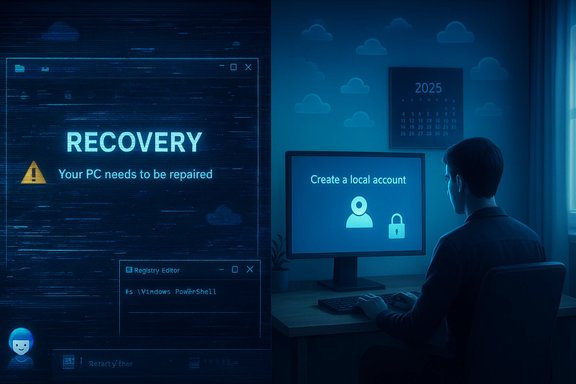 Background / Overview
Windows development shifted to a fast, cloud‑and‑AI‑centric cadence in the early 2020s. That strategy brought advantages — faster security fixes, on‑device AI features, and closer integration with Microsoft services — but it also increased the frequency and scope of changes pushed to consumer devices. Multiple community and industry reports documented accelerated feature and servicing waves in 2024–2025 and a rise in update regressions that affected core workflows and recovery surfaces. These problems aren’t hypothetical: real incidents have produced broken File Explorer behavior, game performance regressions, and BitLocker recovery lockouts triggered by servicing packages.The remainder of this piece drills into four visible, repeatable pain points, verifies the technical mechanics with multiple independent writeups from community and incident archives, and offers safe, supportable mitigations.
1) Update cadence and regressions: frequent feature updates that break things
What changed and why it matters
Microsoft moved from an annual major release cadence to a model that delivers feature and capability updates far more frequently, sometimes as monthly or near‑monthly packages that include larger, modular components (including AI models). That faster cadence shortens the testing window for unusual hardware/firmware combinations and increases the chance that an update touches pre‑boot or recovery components — which are inherently fragile — and triggers system instability or outright failures such as File Explorer crashes, taskbar regressions, or BitLocker recovery prompts. Multiple community archives and incident analyses flagged recurring regressions after servicing waves across 2024–2025.Notable incidents and verifiable facts
- The October 14, 2025 servicing wave (calls out KB5066835 for Windows 11) produced field reports of BitLocker recovery prompts and a separate WinRE regression where USB keyboards didn’t respond inside the recovery environment. Microsoft issued an out‑of‑band fix (KB5070773) to restore WinRE USB input. These KB numbers and their relationship to the incident are documented in multiple incident threads and advisories.
- Gaming performance regressions linked to certain cumulative updates have been reported in parallel by vendors and communities; hardware vendors such as GPU suppliers issued driver-level hotfixes in response to real‑world complaints. While the exact KB and driver pairings depend on the machine, the pattern of large servicing packages causing cross‑stack regressions is verifiable across fields.
How to undo — slow the upgrade cadence and stay stable
If frequent feature updates are destabilizing your machine, you can pin Windows to a stable target release and still receive security updates.- Open Registry Editor (press Windows+R, run regedit).
- Navigate to:
HKEY_LOCAL_MACHINE\SOFTWARE\Policies\Microsoft\Windows\WindowsUpdate- Create (if missing) a DWORD (32‑bit) named
TargetReleaseVersionand set its value to1. - Create a String (REG_SZ) named
TargetReleaseVersionInfoand set it to the release you want to remain on (for example,23H2or24H2depending on your preference and installed build). - Reboot and verify Windows Update reports the device is managed for the target release.
Caution: registry edits should be made carefully. Always back up the key before editing and create a restore point.
2) Forced Microsoft accounts at OOBE and the shrinking local account path
What changed and why it matters
Windows’ Out‑Of‑Box Experience (OOBE) increasingly pushes — and in some preview builds enforces — a Microsoft Account (MSA) sign‑in. Common one‑line bypasses and in‑OOBE workarounds (for creating a local account without network access) were neutralized in preview channels, making the default setup path network‑and‑account‑first. Microsoft’s stated rationale includes ensuring BitLocker key escrow, Windows Hello cloud recovery, and smoother device management for typical consumers, but the practical effect is making local-only installs harder for privacy‑minded and offline users. Community tests and deployment discussions confirm that supported unattended deployment tools (autounattend.xml, imaging, Autopilot) remain available, while fragile console tricks were removed or made unreliable.Verifiable workarounds and supportable methods
- Supported: Use an unattended installation image (
autounattend.xml) or imaging tools (Windows Deployment Toolkit, MDT, SCCM, or Autopilot/Intune) to preseed a local account during image creation. These enterprise tools bypass interactive OOBE and are the recommended, durable approach for deterministic installs. - Common consumer workaround (repeatable but fragile): Use Rufus or similar media creators that offer an option like “Remove requirement for an online Microsoft account” when crafting the installer. Rufus produces a repeatable consumer installer that can create a local account during setup. This works today for many builds but is not guaranteed long term — Microsoft has actively closed other consumer bypasses in preview builds.
How to undo — practical paths
- For one‑off installs: sign in with a temporary Microsoft account to finish OOBE, then create a local administrator account and remove the Microsoft account afterward. This is low‑friction and robust across builds.
- For repeated installations or privacy‑first installs: build an unattended
autounattend.xmland use Rufus or the Windows ADK to create media that preseed a local user. Test the image on a spare device to confirm behavior before deploying widely.
3) BitLocker Device Encryption default and update-driven lockouts
What happened (fact-checked)
Modern Windows 11 installations increasingly enable device encryption (BitLocker Auto‑DE) automatically during OOBE on compatible hardware. When you sign in with an MSA, Windows often uploads (escrows) the BitLocker recovery key to that Microsoft account by default. That convenience becomes a single point of failure when updates change pre‑boot measurements or WinRE behavior: multiple servicing waves in 2024–2025 produced BitLocker recovery prompts on some hardware, and in one high‑impact October 2025 wave the recovery UI could also fail to accept USB keyboard input — leaving users locked out even if they had the 48‑digit recovery key. Microsoft released emergency updates and Known Issue Rollback tooling to address these regressions. These are well documented and repeatedly verified in community incident threads.The real risk
BitLocker is deliberately unforgiving: without the correct recovery key, data on the encrypted volume cannot be decrypted. If the recovery key was automatically backed up to an MSA you no longer control or to a different account, retrieving it can be difficult or impossible for the end user. The October 2025 incidents illustrate how an update touching pre‑boot or Safe OS components can cascade into an operational emergency.How to undo / protect yourself now
- Find and back up your recovery key immediately:
- If you used an MSA during setup, sign in to your Microsoft account’s recovery key page to view and export your keys.
- For enterprise devices, verify Azure AD / Active Directory key escrow and practice retrieval with your helpdesk.
- Also export the key to a file or print it and store it in a safe place off‑device. Multiple independent copies are recommended.
- Prevent automatic Device Encryption during OOBE if you want to control key custody:
- Use an unattended install to avoid automatic encryption, or choose a local account during setup and opt to enable encryption manually after you’ve set up your escrow options.
- If you’re about to perform firmware updates or major servicing:
- Suspend BitLocker for maintenance:
manage-bde -protectors -disable C: -rebootcount 1(or useSuspend-BitLockerwith PowerShell on managed endpoints). - After the operation, re-enable protection:
manage-bde -protectors -enable C:. - If you see a BitLocker recovery screen after an update:
- On another device, sign in to every Microsoft account you may have used at setup and check aka.ms/myrecoverykey for the key ID shown in the prompt.
- If WinRE input is unresponsive, try a touchscreen, a legacy PS/2 keyboard/adapter, or boot from a validated recovery USB drive that includes a tested
winre.wim. Microsoft’s emergency KBs and Known Issue Rollback packages are the correct remediation path.
4) Copilot and agentic AI: baked‑in assistants that reappear after removal
The problem in practice
Microsoft’s Copilot became a pervasive UI element: a taskbar/app shortcut, context‑menu entries (Ask Copilot), integration across Notepad/Paint/Photos/File Explorer, and deeper agentic features (AI Actions, Recall) that can act on files and settings. Uninstalling the Copilot app or hiding buttons sometimes works temporarily, but Windows Update and servicing can re‑provision Copilot packages and restore UI elements. Community projects have developed scripts to automate removal, but these range from safe registry and policy flips to high‑risk Component‑Based Servicing (CBS) edits. The reproducible truth: Copilot is designed as a modular, serviceable component that Windows Update can re‑provision, so casual uninstalls aren't always permanent.Verified removal methods (and their tradeoffs)
- Supported policy method (Pro / Enterprise):
- Group Policy: User Configuration → Administrative Templates → Windows Components → Windows Copilot → Enable Turn off Windows Copilot.
- This maps to the registry key
SOFTWARE\Policies\Microsoft\Windows\WindowsCopilot\TurnOffWindowsCopilot(DWORD = 1) and is reversible. It’s the safest, supported mechanism for managed environments. - PowerShell/Appx removal (moderate risk, per‑user):
- Use
Get-AppxPackageto find Copilot package names andRemove-AppxPackagefor current‑user uninstalls orRemove-AppxProvisionedPackagefor provisioned manifests. - This removes the package for the current profile but may be re‑provisioned by servicing. Back up user data and create a restore point first.
- Community scripts (highest risk):
- Projects like RemoveWindowsAI orchestrate registry flips, Appx removals, scheduled task and data wipes, and optional CBS store edits to block re‑provisioning. Independent hands‑on reports show the script can hide or remove UI on tested stable builds, but the CBS and blocker package manipulations are invasive and can break servicing or OEM customizations. These scripts explicitly warn about risk and recommend backups. Use only if you understand the code, have full backups, and are willing to accept possible breakage.
How to undo — safe, staged approach
- Try the supported policy route first (GP or registry) to disable Copilot at machine level.
- If the app remains, uninstall it via Settings → Apps → Installed apps (if available), or use the
Get-AppxPackage+Remove-AppxPackagePowerShell sequence for the current user. - After uninstall, verify no scheduled tasks or shell hooks remain (check Task Scheduler and shell context entries).
- If Copilot reappears after an update, prefer to:
- Reapply the Group Policy/reg key, or
- Defer/hold feature updates with the TargetReleaseVersion approach while investigating the re‑provisioning mechanism.
- Only as a last resort, and only with a tested backup and clear rollback plan, consider community automation that edits the CBS store — but understand this is the riskiest approach and can interfere with official servicing.
Wider implications, trade‑offs, and a practical checklist
Strengths visible in Microsoft’s direction
- Default device encryption increases baseline security for users who would otherwise run unencrypted machines.
- Copilot and agentic AI promise productivity features that are genuinely useful for some workflows (image editing, summarization, cross‑app actions).
- Faster servicing and modular components let Microsoft push urgent security fixes quickly across a wide hardware base.
Real trade‑offs and risks
- Rapid servicing increases the probability of regressions on diverse OEM hardware; pre‑boot and recovery environments are particularly fragile when servicing touches Safe OS components.
- Making the MSA the default OOBE path simplifies recovery for many users but centralizes key custody in ways that can be catastrophic if users lose access to that account.
- Aggressive in‑OS AI integration that cannot be reliably blocked by supported settings raises privacy, control, and maintainability concerns for power users and admins.
Practical checklist (do these now)
- Back up any BitLocker recovery keys to at least two independent secure locations; verify you can retrieve them from the Microsoft account(s) you used.
- Set
TargetReleaseVersionto pin to a stable build if you rely on a consistent desktop experience. Test before committing. - If you oppose a forced MSA on a new install, plan to use:
- An unattended
autounattend.xml, or - Rufus‑created media that disables the MSA requirement (test on spare hardware), or
- Short‑term MS account sign‑in followed by local account creation and unlinking.
- Disable Copilot with Group Policy or the published registry key if you manage multiple devices; use supported methods before resorting to community scripts.
- Create and validate a Windows recovery USB (with a tested
winre.wim) and keep a legacy input device (or PS/2 adapter) available for emergency recovery scenarios.
Conclusion — practical realism, not paranoia
Windows in 2025 is more capable and more opinionated than many long‑time users expected. The architectural shift toward cloud identity, default device encryption, and embedded AI brings real benefits for many consumers and organizations — but it also makes some classic safety nets and local‑first workflows harder to reach. The incidents of 2024–2025 (update regressions, BitLocker recovery storms, forced account paths, and re‑provisioned Copilot components) are verifiable and consequential, but they are also manageable with a disciplined approach:- Treat updates that touch the boot chain as maintenance events.
- Keep clearly retrievable copies of BitLocker recovery keys.
- Use supported policy and deployment tools when you need durability.
- Prefer reversible, documented configuration methods before diving into invasive scripts.
Source: How-To Geek 4 ways Microsoft made Windows worse in 2025 (and how to undo them)
