

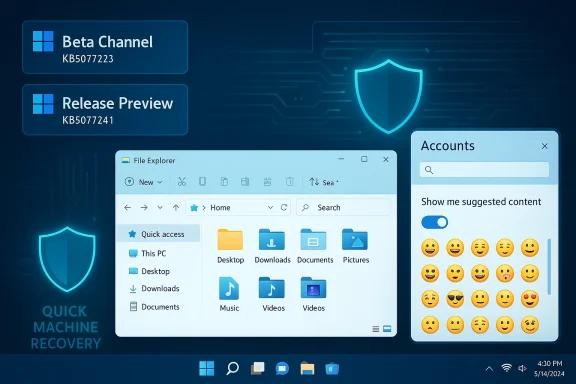
Microsoft shipped two closely timed Insider updates on February 17–18, 2026 that together deliver a mix of practical polish, resiliency tools, and one eyebrow‑raising experiment in commercial prompts inside core OS surfaces: Beta-channel enablement package KB5077223 (Build 26220.7859) and Release Preview cumulative KB5077241 (Builds 26100.7918 / 26200.7918). These releases address long‑standing File Explorer quirks, add enterprise‑oriented recovery and restore features, expand Emoji 16.0 availability, and surface a reversible Microsoft 365 upsell inside Settings — all rolled out using Microsoft’s familiar enablement‑package + Controlled Feature Rollout model.
Microsoft continues to split pre‑release work between channel types: Beta for nearer‑to‑ship features using enablement packages, and Release Preview for validating final builds across both 24H2 and 25H2 branches. The enablement package model lets Microsoft flip feature flags without shipping a full OS image, while Controlled Feature Rollout (CFR) gates visible experiences server‑side so subsets of Insiders — and later consumers — get changes gradually. That means installing the package does not guarantee every new UI or capability; server flags and account targeting determine who sees what and when.
Both updates emphasize reliability and incremental UX improvements over large headline features. KB5077223’s public notes highlight a handful of fixes for the taskbar, File Explorer, Nearby Sharing, and Settings, plus the experimental Microsoft 365 suggestion tile in Accounts. KB5077241 in Release Preview bundles the first organization‑grade sign‑in restore experience, Quick Machine Recovery (QMR) expansion ces, Emoji 16.0 additions, and several admin‑ and security‑focused utilities such as an optional Sysmon‑style feature. Microsoft frames many items as gradual rollouts, reinforcing that availability will vary by device and account status.
At the same time, Microsoft’s decision to experiment with subscription prompts inside Settings requires attention. The opt‑out is necessary and appreciated, but repeated commercial intrusions into system control surfaces risks damaging user trust over time. Administrators should preemptively configure policies to maintain a predictable, non‑commercial control plane on managed devices.
If you test these builds, use isolated pilots, validate recovery scenarios, and monitor Feedback Hub reports and Flight Hub notes closely. These updates are not dramatic feature dumps — they are the kind of nuanced polish that, when aggregated, meaningfully improves day‑to‑day Windows 11 behavior. For the broader Windows ecosystem, the careful balance between experimentation, resiliency, and commercial signals in the OS will be the story to watch as Microsoft iterates through 2026.
Source: Windows Report https://windowsreport.com/windows-11-kb5077223-beta-update-improves-file-explorer-taskbar-and-more/
Source: Windows Report https://windowsreport.com/windows-1...in-restore-for-organizations-emoji-16-0-more/
 Background / Overview
Microsoft continues to split pre‑release work between channel types: Beta for nearer‑to‑ship features using enablement packages, and Release Preview for validating final builds across both 24H2 and 25H2 branches. The enablement package model lets Microsoft flip feature flags without shipping a full OS image, while Controlled Feature Rollout (CFR) gates visible experiences server‑side so subsets of Insiders — and later consumers — get changes gradually. That means installing the package does not guarantee every new UI or capability; server flags and account targeting determine who sees what and when.Both updates emphasize reliability and incremental UX improvements over large headline features. KB5077223’s public notes highlight a handful of fixes for the taskbar, File Explorer, Nearby Sharing, and Settings, plus the experimental Microsoft 365 suggestion tile in Accounts. KB5077241 in Release Preview bundles the first organization‑grade sign‑in restore experience, Quick Machine Recovery (QMR) expansion ces, Emoji 16.0 additions, and several admin‑ and security‑focused utilities such as an optional Sysmon‑style feature. Microsoft frames many items as gradual rollouts, reinforcing that availability will vary by device and account status.
What shipped: concise sueta, Build 26220.7859)
- Reliability fixes: File Explorer focus jumps, taskbar auto‑hide icon visibility, Nearby Sharing stability, and Settings reliability for Bluetooth & Devices > Wheel.
- A server‑side experiment: a Microsoft 365 Family upgrade prompt surfaced as Suggested content on the Accounts page in Settings; reversible via the Show me suggested content toggle.
- KB5077241 (Release Preview, Builds 26100.7918 / 26200.7918)
- Emoji 16.0: curated additions to the emoji panel.
- First sign‑in restore for Organizations: Windows Backup catings and Microsoft Store apps automatically at initial sign‑in on supported device types (Entra hybrid joined, Cloud PCs, multi‑user scenarios).
- Quick Machine Recovery (QMR): auto‑on by default for Windows 11 Pro devices that are not domain‑joined or managed by enterprise endpoint tools.
- Other additions: built‑in network speed test from Quick Settings/network tray, camera pan & tilt controls in Settings, and a Sysmon‑style optional feature that writes events to the Windows Event Log.
File Explorer: the pragmatic polish users actually notice
File Explorer remains one of the most impactful touchpoints in Windows. Small misbehaviocups in Explorer translate directly into hours of frustration for power users. These updates bundle multiple fixes and modest feature polish that together materially improve day‑to‑day workflows:Key improvements and why they matter
- Focus stability: Explorer windows and tabs will no longer unexpectedly jump their focus to Desktop or Home — a recurring annoyance for multi‑tab power users and those who use Explorer tabs heavily for productivity. This prevents accidental context loss during file operations or large batch work.
- Search and address bar fixes: Typing URLs or folder paths in the address bar behaves reliably, and the search box retains focus while you type — small but essential fixes for fast navigation.
- Performance on archives and media folders: Several builds preceding and surrounding these updates showed improved handling of .zip, .7z, and oth — particularly noticeable when uncompressing thousands of small files. That yields real time savings for developers and content professionals dealing with large archives.
- Contexresponsiveness: Right‑click menus for cloud‑stored files and cloud‑integrated thumbnails are snappier and more consistent, smoothing workflows that involve OneDrive or other cloud providers.
Accessibility and UX refinements
- Narrator scan‑mode improvements and new navigation shortcuts reduce friction for screen‑reader users, allowing jumps past links or to list starts/ends with single commands. These changes are meaningful for inclusive usability.
- Dialog and scaling fixes ensure copy/save dialogs and other UI elements respect system text scaling, which matters on high‑DPI displays and for users with accessibility needs.
Taskbar, Settings and the Microsoft 365 upsell — UX, policy and trust
KB5077223 surfaces a small but important UI experiment: Microsoft 365 Family subscribers in the Beta CFR pool may see a Suggested content tile on the Settings > Accounts page prompting an upgrade. Microsoft documents an opt‑out — turn off Show me suggested content in Settings — and accounts/telemetry are presumably used to target the tile.Why this matters beyond a single tile
- Perception of OS neutrality: Settings has traditionally been framed as a non‑commercial control surface. Introducing upsells, even reversible ones, shifts expectations about where commercial prompts belong and how the OS surface is used to surface services.
- Support and reproducibility friction: CFR and server‑side targeting mean two otherwise identical Insiders may see different UIs, complicating community reporting, helpdesk escalation, and reproducibility in enterprise testing. Microsoft’s stance — provide an opt‑out toggle and allow admin policies — is reasonable, but signals and heuristics used for targeting are not fully public, leaving transparency questions open.
Practical user controls
- To hide the prompt: Settings → Privacy & security → General → turn off Show me suggested content.
- For managed devices, admins can control suggested content and similar behaviors via Group Policy / MDM settings (CloudContent policies) — a recommended step before broad enterprise deployment.
Release Preview: Recovery, restore and admin‑grade features
KB5077241 contains items with deeper implications for device resilience, onboarding, and enterprise lifecycle management.First sign‑in restore for organizations
- What it does: Windows Backup gains a “first sign‑in restore” experience for organizations, restoring user settings and Microsoft Store apps automatically when supported devices are first signed into (applies to Entra hybrid joined devices, Cloud PCs, and multi‑user environments). This streamlines device refresh, migration, and provisioning workflows and reduces manual setup time for end users.
Quick Machine Recovery (QMR) expansion
- What changed: QMR — a WinRE‑backed cloud recovery flow that fetches remediations from Microsoft when boot failures are detected — will automatically enable on Windows 11 Professional devices that are not domain‑joined or managed by enterprise endpoint tools. Domain‑joined/managed devices remain governed by organizational policy. This alignment closes a resilience gap for unmanaged Pro devices and makes Home and Pro behavior more uniform in consumer/small‑business scenarios.
- Fewer dead‑end recoveries for consumers/SMB: An automated QMR that can fetch and apply fixes reduces the need for manual reimaging or technician intervention in many common boot failure scenarios.
- Policy clarity for enterprises: Microsoft explicitly leaves QMR off by default for domain‑joined and managed devices, preserving administrative control and compliance. Administrators should validate QMR behavior in their environment and document any required corporate policies before a broader rollout.
Sysmon‑style optional feature and security telemetry
KB5077241 introduces an optional built‑in Sysmon capability that records detailed system events to the Windows Event Log when enabled. This feature gives defenders improved local visibility without requiring third‑party Sydministrators should evaluate how enabling this integrates with existing SIEM ingestion and event retention policies.Emoji 16.0: small visual change, interesting rollout behavior
Emoji 16.0 additions are listed in the Release Preview notes and are rolling out in a cut coverage shows Microsoft has sometimes toggled Emoji 16.0 on or off in the Insider channels during staged rollouts, which explains why Insiders have seen variance across builds and channels. Windows Central and other outlets have documented partial availability and application‑level support differences. In short: the emoji set is included but its availability may be staggered and some glyphs may appear in select apps sooner than they appear universally in the OS emoji panel.Enterprise impact: what IT teams should do now
- Pilot early, not wide:
- Use representative hardware and account types (personal Microsoft accounts, Entra AAD accounts, Microsoft 365 Family vs enterprise subscriptions) to observe CFR behaviors and the presence/absence of the Microsoft 365 tile.
- Validate recovery workflows:
- Test Quick Machine Recovery on non‑domain‑joined Pro pi organizational expectations about automatic remediation and to ensure compliance tools do not interfere with recovery flows.
- Prepare Gtrols:
- Document and, if appropriate, lock down settings that control suggested content and QMR exposure for workstations to avoid unexpected end‑user prompts.
- Update SOC and SIEM plans:
- If enabling the optional Sysmon‑style feature, coordinate with security operations to map the additional event streams into existing alerting and retention policies.
How to get these builds (step‑by‑step for Insiders and testers)
- Join the Windows Insider Program and pick a channel:
- Beta Channel to receive KB5077223 (Build 26220.7859) enablement package.
- Release Preview Channel to receive KB50772 / 26200.7918).
- On your test device: Settings → Windows Update → Check for updto increase your chance of seeing CFR experiences: Settings → Windows Update → toggle Get the latest updates as soon as they’re available ON. Note: this increases variance across machines and may expose in‑progress experiments.
- For admins: assess features on isolated test hardware or VMs before wider rollout; lock down or pilot Group Policy/MDM settings that control suggested content and QMR as required.
Strengths — what Microsoft got right
- Targeted, high‑impact fixes: Many changes aim squarely at user pain points: File Explorer focus jumps, address bar reliability, context menu responsiveness, and Nearby Sharing stability. These are high‑frequency problems whose fixes improve everyday productivity.
- Resiliency improvements for consumers and SMBs: Expanding Quick Machine Recovery to unmanaged Pro devices makes recovery more robust across the non‑enterprise fleet without stripping enterprises of policy control.
- Admin‑oriented features: First sign‑in restore for organizations and an optional Sysmon‑style capability give IT teams stronger onboarding and visibility tools. Those are practical, not just flashy, additions.
Risks, trade‑offs and open questions
- Commercial prompts inside Settings may erode trust over time. A single opt‑outtable tile is low risk, but repeated monetization of control surfaces can change user expectations about privacy and the role of Microsoft’s OS. Transparency about targeting signals would help.
- Server‑side rollouts complicate reproducibility. CFR makes it hard to reproduce issues or know whether a bug relates to a local build, a server flag, or account targeting — this increases the burden on helpdesks and independent testers.
- Incomplete public telemetry detail. Microsoft documents opt‑outs and policy controls, but it does not publish the exact signals used for suggestion targeting; that opacity invites reasonable privacy scrutiny. Treat claims about which signals drive suggestions as partly unverifiable without internal documentation. Flagged for caution.
What to watch next
- Will Microsoft broaden the Settings‑hosted upsell experiment to other subscription products or surfaces, and will it publish more transparency about targeting signals?
- How quickly will Quick Machine Recovery telemetry show reduced device recovery times in the field, and will third‑party recovery tools need to adjust?
- Will Emoji 16.0 reach parity across apps and the emoji panel, or will Microsoft continue to gate glyph appearance by channel and app? Independent trackers and community reporting will reveal pacing.
Final analysis and practical recommendations
These Insider updates are a classic example of modern Windows servicing: a steady cadence of reliability fixes and incremental features delivered via enablement packages and controlled rollouts. For everyday users and small IT shops the wins are concrete — a steadier File Explorer, fewer focus jumps, more reliable file transfers, and stronger out‑of‑box recovery for unmanaged Pro devices. For enterprises, the new organization‑focused restore flow and optional logging improvements deserve careful evaluation and testing before broad adoption.At the same time, Microsoft’s decision to experiment with subscription prompts inside Settings requires attention. The opt‑out is necessary and appreciated, but repeated commercial intrusions into system control surfaces risks damaging user trust over time. Administrators should preemptively configure policies to maintain a predictable, non‑commercial control plane on managed devices.
If you test these builds, use isolated pilots, validate recovery scenarios, and monitor Feedback Hub reports and Flight Hub notes closely. These updates are not dramatic feature dumps — they are the kind of nuanced polish that, when aggregated, meaningfully improves day‑to‑day Windows 11 behavior. For the broader Windows ecosystem, the careful balance between experimentation, resiliency, and commercial signals in the OS will be the story to watch as Microsoft iterates through 2026.
Source: Windows Report https://windowsreport.com/windows-11-kb5077223-beta-update-improves-file-explorer-taskbar-and-more/
Source: Windows Report https://windowsreport.com/windows-1...in-restore-for-organizations-emoji-16-0-more/
