

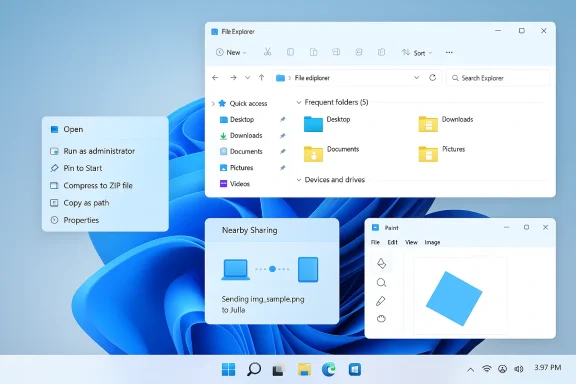
Microsoft has quietly pushed a focused set of quality-of-life updates to Windows Insiders this week, delivering small but meaningful refinements to the context menu, the Settings “Device info” card, taskbar behavior, File Explorer stability, Nearby Sharing reliability—and even the Paint app’s long-requested freeform rotate control—across the Dev, Beta, and Canary channels.
Microsoft’s Insider program continues to be the lab where incremental UI and usability changes are trialed before they either graduate to broad consumer releases or are shelved. The most recent flights arrive as preview updates identified by KB5077232 (Dev Channel, Build 26300.7877) and KB5077231 (Beta Channel, Build 26220.7872). These are delivered as enablement-package style updates against Windows 11, version 25H2—an approach Microsoft has used to accelerate selective feature rollouts while keeping baseline servicing consistent.
What purists should know: these are not sweeping feature releases. Instead, they’re a pattern of iterative polish—visual consistency, clearer system information, animation tuning, and a handful of functional tweaks—that reflect a development philosophy of “many small improvements” rather than a single big headline feature. That design choice reduces risk at scale, but it also raises important tradeoffs for testers and administrators (more on that below).
Why this matters:
Practical testing checklist:
Why this matters:
What this means for Insiders:
However, the method of delivery—CFR and enablement packages—introduces friction for testers and admins:
That said, the controlled rollout model and enablement-package mechanics place a burden on Insiders and IT teams to validate behavior across diverse hardware and management scenarios. Enterprises should treat these builds as test fodder rather than production candidates, and support organizations should update documentation and guidance to reflect the new Device Card flows.
For Insiders, the path forward is straightforward: install the applicable preview (KB5077232 on Dev, KB5077231 on Beta), enable the “get updates as soon as available” toggle, test the new interactions, and file precise Feedback Hub reports when things go awry. Your feedback—especially reproducible reports from diverse hardware configurations—will determine whether these small improvements graduate to broadly available releases or are revised further.
In short: modest, useful changes shipped with sensible caution. These updates won’t rewrite how you work, but they will smooth a handful of daily frictions—and over time, those are the changes that most users will remember.
Source: Windows Report https://windowsreport.com/kb5077232...text-menu-adds-device-cards-in-settings-more/
 Background
Microsoft’s Insider program continues to be the lab where incremental UI and usability changes are trialed before they either graduate to broad consumer releases or are shelved. The most recent flights arrive as preview updates identified by KB5077232 (Dev Channel, Build 26300.7877) and KB5077231 (Beta Channel, Build 26220.7872). These are delivered as enablement-package style updates against Windows 11, version 25H2—an approach Microsoft has used to accelerate selective feature rollouts while keeping baseline servicing consistent.What purists should know: these are not sweeping feature releases. Instead, they’re a pattern of iterative polish—visual consistency, clearer system information, animation tuning, and a handful of functional tweaks—that reflect a development philosophy of “many small improvements” rather than a single big headline feature. That design choice reduces risk at scale, but it also raises important tradeoffs for testers and administrators (more on that below).
What changed, at a glance
- Context menu: the “Open” verb now shows the icon of the default app for .exe, .bat, and .cmd files, improving visual recognition and reducing accidental launches.
- Settings: the Device info card on Settings Home has been refined to show key specs in a scannable layout; the System > About page now surfaces graphics, storage, and hardware details more prominently, with simple copy/paste support.
- Taskbar & system tray: mouse-over animations for app groups have been smoothed and the system tray shows icons more reliably when the taskbar is set to autohide.
- File Explorer: a fix prevents open File Explorer windows and tabs from unexpectedly jumping to Desktop or Home.
- Nearby Sharing: reliability for sending larger files has been improved.
- Paint app: version 11.2601.391.0 introduces freeform rotate for shapes, text, or any active selection with both drag handles and a custom-angle entry option.
Deep dive: Context menu gets a subtle but smart visual hint
The change
When you right-click an executable (.exe) or command script (.bat, .cmd), the context menu’s “Open” verb now displays the icon of the app that will handle the file. In practice, that means the small “Open” text will be accompanied by a recognisable icon—for example, a text editor, a terminal, or a package manager—matching whatever the OS considers the default opener.Why this matters
- Faster recognition: Users can instantly see which app will open the file. This is especially useful when multiple apps could plausibly handle a filetype.
- Reduces mistakes: The visual cue helps avoid accidental launches of the wrong app—handy for scripts and executables that can behave differently depending on the handler.
- Small UX wins matter: These micro-interactions add up. They are the sort of tiny improvements that increase perceived polish without changing workflows.
Caveats and risks
- Icon accuracy depends on defaults: If a system’s file-association data is corrupted or overridden by a third-party installer, the icon could be misleading.
- Localization and scaling: Insiders should check how the icon/label pairing behaves in different languages and on high-DPI displays; subtle layout shifts can introduce truncation or alignment issues.
- CFR means uneven exposure: Some users will see the change immediately while others will not, so community feedback may appear fragmented.
Device Cards and Settings > About: clearer system identity and easier troubleshooting
What was refined
The ‘Device info’ card on Settings Home has been redesigned to prioritize the most relevant system details. The About page under Settings > System now groups graphics, storage, and other hardware details in a single, scannable area. Crucially, Microsoft added easy copy/paste support for device details, intended to simplify sharing hardware specs with support teams or documentation processes.Strengths
- Better first impressions: For many users, the Settings Home is the first place they look to check a device’s identity or warranty status. Presenting specs in a compact, readable card reduces friction.
- Support friendliness: Easy copy/paste for device data is a practical quality-of-life improvement for support desks and knowledgebase workflows. No more transcribing model names or available storage.
- Enterprise-aware design: Microsoft is shipping a dedicated variant for IT-managed devices, which preserves enterprise-grade information and control while providing a consistent look for consumers.
Practical implications
- Troubleshooting becomes faster when essential information is visually grouped and available to copy into a support ticket.
- OEMs and IT admins should re-evaluate any custom scripts or internal tooling that parse Settings output, because the layout and structure improvements could alter expected DOM positions or textual formatting.
Risks and privacy considerations
- Data leakage risk: The convenience of copy/paste increases the risk that users might share sensitive system identifiers unintentionally. IT teams should remind staff about best practices when sharing device information externally.
- Localization and formatting: When extracting hardware strings programmatically, administrators must confirm the format stability across locales. Human-friendly presentation does not always equal machine-friendly structure.
Taskbar and system tray: smoother animations, fewer missing icons
The improvements
Microsoft improved the responsiveness and animation of hover interactions on grouped taskbar icons and targeted a reliability issue where tray icons would sometimes disappear when the taskbar was autohidden.Benefits
- Perceived performance: Smoother, snappier animations make the OS feel faster even without backend performance gains.
- Reduced annoyance: Autoshow/autohide tasks can be maddening when tray icons vanish; making icon visibility more reliable addresses a frequent support complaint.
What to watch for
- Animation tweaks can expose stutter on older GPUs or secondary monitors. Insiders should test across different hardware profiles and report stutter or frame-rate drops.
- Some users prefer minimal motion for accessibility or motion-sickness reasons; animation changes should respect Windows’ reduced-motion accessibility settings.
File Explorer stability: stopping the jump-to-Desktop/Home bug
An annoying bug where File Explorer windows or tabs would unexpectedly jump to Desktop or Home has been addressed in this update. That fix targets a real frustration: losing window context while managing multiple folders or tabs.Why this matters:
- For power users that rely on multi-window workflows and tabbed navigation, window-jump bugs can cause lost context and user errors (accidentally closing the wrong tab, moving files into the wrong folder).
- Fixes like this, while small, significantly improve user trust in the UI’s reliability.
- Regression risk exists any time window-management code is changed. Insiders should validate multi-monitor tabbed workflows and session persistence after applying the update.
Nearby Sharing: more reliable for larger files—but test in your environment
The update aims to improve the reliability of sending larger files via Nearby Sharing. Microsoft’s messaging is intentionally cautious—“improved reliability”—which is the right level of modesty for a networking feature that depends on Wi‑Fi/Bluetooth stacks, driver quality, and environmental network conditions.Practical testing checklist:
- Test with a range of file sizes (small documents up to multi-GB media files).
- Test across different transport layers (Wi‑Fi Direct vs. Bluetooth vs. local network where supported).
- Validate behavior when either sending or receiving device goes to sleep or switches networks.
- A fix on the OS layer may surface driver-level issues. If users still experience failures, capture logs and report them through Feedback Hub.
- CFR rollout means not every Insider will see the improvement at once, which complicates community feedback loops.
Paint gets freeform rotate—creative workflows get a missing tool
One of the smaller but widely requested changes is the addition of freeform rotate in the Paint app (version 11.2601.391.0). Users can rotate shapes, text, or selections to arbitrary angles using a rotate handle or by entering a custom angle.Why this matters:
- Paint remains a lightweight go-to for quick image edits and mockups. Freeform rotate closes a known gap in its toolset and prevents the need to jump to heavier editors for simple layout adjustments.
- Designers and content creators who rely on quick composition workflows will appreciate the incremental productivity gain.
- This is a UX-level enhancement; it doesn’t materially change Paint’s editing depth. Power users still need layers, advanced transforms, and non-destructive edit history offered by dedicated image editors.
- Performance on very large canvases or on low-end hardware should be validated—rotation can be GPU-accelerated or software-driven depending on driver support.
How these updates are deployed: enablement packages and controlled rollouts
Microsoft continues to use the enablement-package model and Controlled Feature Rollout (CFR) to deliver features to Insiders. That means the underlying Windows build version (25H2 in this case) is the same, but additional features are toggled on per-device or per-cohort.What this means for Insiders:
- Installing KB5077232 or KB5077231 does not guarantee immediate access to every feature listed in release notes. Features are often turned on gradually.
- To maximize your chance of seeing the latest toggled features, enable the “Get the latest updates as soon as they’re available” toggle in Settings > Windows Update.
- Features may never reach general availability. Microsoft explicitly warns that some features could be altered or removed as testing continues.
- Feature parity between lab machines and user endpoints may be inconsistent during the Insider evaluation phase.
- If you use automated tests or imaging workflows that check for UI strings, the CFR approach can make reproducible testing harder—plan for feature gating in QA checks.
Cross-channel nuance: who gets what and where
- Dev Channel (KB5077232; Build 26300.7877): Receives the widest set of changes first, including the context menu icon alignment, Device Cards refinements, taskbar animation tuning, File Explorer fixes, Nearby Sharing improvements, and Paint freeform rotate.
- Beta Channel (KB5077231; Build 26220.7872): Receives many of the same consumer-facing refinements (context menu, Device Cards, taskbar improvements) but on a more conservative cadence and with enablement-package semantics that reference 25H2.
- Canary Channel: Microsoft occasionally rolls app-level changes (like experimental Paint features) into Canary before wider rollouts. Insiders in Canary will see the earliest iterations of app-level experiments.
Practical steps for Insiders who want to test these changes
- Enroll the test device in the Windows Insider Program and choose the appropriate channel (Dev for earliest exposure; Beta for a more conservative path).
- Open Settings > Windows Update and install the available preview update (KB5077232 for Dev; KB5077231 for Beta) if it appears.
- Turn on Settings > Windows Update > Get the latest updates as soon as they’re available to increase your chance of receiving CFR features.
- After updating, test scenarios:
- Right-click several .exe/.bat/.cmd files and validate the “Open” verb icon.
- Visit Settings Home and Settings > System > About to exercise the Device info card and copy/paste flows.
- Open multiple Explorer windows and tabs; survey for jumping behavior.
- Test Nearby Sharing with progressively larger files between different device combinations.
- Open Paint and try freeform rotate on shapes and text, then enter a custom angle.
- Capture Feedback Hub logs (WIN + F) for any unexpected results and include reproduction steps, device make/model, Windows build number, and any crash dumps.
Critical analysis: real benefits, but uneven rollout and hidden tradeoffs
These updates exemplify the type of incremental polish that modern operating systems need. The improvements are practical, low-friction, and oriented toward reducing everyday annoyances. The Device Card refinement and copy/paste facility address a recurring bona fide user pain point in support workflows. The context-menu icon is a deceptively simple change that increases trust in the UI and reduces cognitive load.However, the method of delivery—CFR and enablement packages—introduces friction for testers and admins:
- Fragmented feedback signals: When features are available to only a subset of Insiders, community-reported issues can be inconsistent and hard to correlate. A bug reported by 1% of Insiders could be invisible to 99%, which complicates repro and triage.
- Tooling mismatch risk: Admins and help-desk tools that relied on a stable Settings structure may need updates to parse the new Device Cards layout properly. The copy/paste convenience is great for humans but might break scripts built to scrape Settings for inventory.
- Privacy surface area: Better device visibility facilitates support, but it also increases the ease of sharing device identifiers. Enterprises and privacy-conscious users need guidance about what to include when copying and sharing system details.
- Regression probability: Any user-facing polish introduces the risk of UI regressions on specific hardware, especially with animation and rendering changes. Test coverage must include low-end GPUs, different DPI settings, and multi-monitor setups to catch surprises.
- Expectation management: Microsoft’s explicit caveat that some features may never ship beyond Insider testing is healthy, but it can frustrate Insiders who invest time testing features that are later abandoned.
Recommended testing matrix for IT pros and power users
To robustly validate this wave of changes in a lab or pilot deployment, run a focused matrix of tests that cover the most likely failure modes:- Device diversity: low-end laptops, mainstream business laptops, high-end workstations, and virtual machines.
- Display setups: single external monitor, laptop internal display, multi-monitor spanning mixed DP/HDMI adapters, and high-DPI scaling (125%, 150%, 200%).
- Localization: at least one non-English locale to verify Device Card formatting and context-menu layout.
- Accessibility: reduced motion, high-contrast themes, and keyboard-only navigation to validate no loss of functionality.
- Enterprise-managed devices: devices enrolled in Intune/Group Policy to confirm the enterprise Device Card variant behaves as intended.
- Networking: test Nearby Sharing across Wi‑Fi direct, same-network Wi‑Fi, and Bluetooth-assisted transfers with large files to measure throughput and retry behavior.
Final verdict
This update cycle is a textbook example of incremental product refinement: low-risk, human-centered changes that, collectively, raise the day-to-day quality of Windows 11. The context menu icon tweak and Device Card redesign are practical wins; the Paint freeform rotate is a welcome small victory for creators; and the taskbar and File Explorer fixes reduce friction in common workflows.That said, the controlled rollout model and enablement-package mechanics place a burden on Insiders and IT teams to validate behavior across diverse hardware and management scenarios. Enterprises should treat these builds as test fodder rather than production candidates, and support organizations should update documentation and guidance to reflect the new Device Card flows.
For Insiders, the path forward is straightforward: install the applicable preview (KB5077232 on Dev, KB5077231 on Beta), enable the “get updates as soon as available” toggle, test the new interactions, and file precise Feedback Hub reports when things go awry. Your feedback—especially reproducible reports from diverse hardware configurations—will determine whether these small improvements graduate to broadly available releases or are revised further.
In short: modest, useful changes shipped with sensible caution. These updates won’t rewrite how you work, but they will smooth a handful of daily frictions—and over time, those are the changes that most users will remember.
Source: Windows Report https://windowsreport.com/kb5077232...text-menu-adds-device-cards-in-settings-more/
