

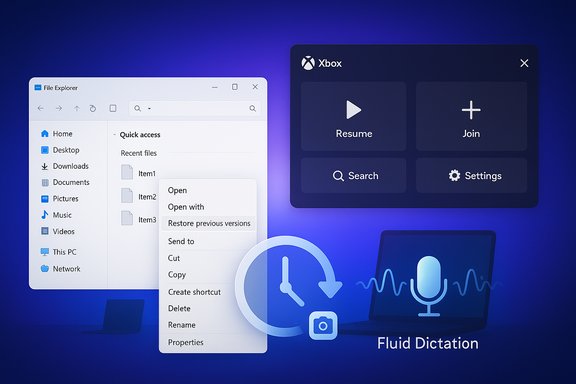
Microsoft has started rolling out Windows 11 Insider Preview Build 26220.7271 (KB5070307) to both the Dev and Beta Channels, bundling a mix of visible features and under-the-hood recovery and input improvements while expanding the Xbox “Full Screen Experience” (FSE) from handhelds to a wider set of Windows 11 PCs. This release is notable for continuing Microsoft’s temporary parity between Dev and Beta on the 25H2 enablement-package line, offering Insiders a limited window to switch from Dev to Beta before Dev diverges to a higher, less-stable build number. The build brings three high-impact items to test: Point‑in‑Time Restore (a modern fast-recovery system built on VSS), Fluid Dictation for voice typing (powered by on‑device small language models), and the Xbox Full Screen Experience preview for more desktops, laptops, and tablets — alongside refinements to File Explorer and the Microsoft Store.
Microsoft’s Insider cadence has evolved into a two-track approach for many features: some experiences are gradually rolled out only to Insiders who opt into “get the latest updates as they are available,” while other features are released broadly to everyone in the channel. Build 26220.xxxx is distributed as an enablement package for Windows 11, version 25H2, and Microsoft is using controlled feature rollouts to limit initial exposure and monitor telemetry and feedback before a wider push. That approach is intentionally conservative: features may be changed, delayed, or removed based on how they land with Insiders. This release is functionally important for two reasons. First, the temporary parity between Dev and Beta on the same 25H2 build gives Insiders who prefer a more stable Beta-channel experience a short opportunity to switch from Dev without re-installing Windows. Second, the build consolidates several platform-level improvements — notably the recovery and voice-input systems — that could affect both IT administrators and everyday consumers once they reach general availability.
Source: The Hans India Microsoft Releases New Windows 11 Insider Preview Build 26220.7271 for Dev and Beta Testers
 Background / Overview
Microsoft’s Insider cadence has evolved into a two-track approach for many features: some experiences are gradually rolled out only to Insiders who opt into “get the latest updates as they are available,” while other features are released broadly to everyone in the channel. Build 26220.xxxx is distributed as an enablement package for Windows 11, version 25H2, and Microsoft is using controlled feature rollouts to limit initial exposure and monitor telemetry and feedback before a wider push. That approach is intentionally conservative: features may be changed, delayed, or removed based on how they land with Insiders. This release is functionally important for two reasons. First, the temporary parity between Dev and Beta on the same 25H2 build gives Insiders who prefer a more stable Beta-channel experience a short opportunity to switch from Dev without re-installing Windows. Second, the build consolidates several platform-level improvements — notably the recovery and voice-input systems — that could affect both IT administrators and everyday consumers once they reach general availability. What’s in Build 26220.7271: Quick summary
- Expanded Xbox Full Screen Experience (FSE) preview to additional Windows 11 PCs (desktop, laptop, tablet) while maintaining general availability on Windows handhelds.
- Point‑in‑Time Restore (PITR) — modern VSS‑based snapshots for fast rollback to a recent system state (including OS, apps, settings, and local user files).
- Fluid Dictation added to Voice Typing on NPU / Copilot+ devices, leveraging on‑device small language models (SLMs) for real‑time grammar/punctuation correction.
- File Explorer context-menu reorganization and an experimental pre‑loading option to speed explorer launches.
- Microsoft Store enhancement: uninstall Store-managed apps directly from the Store’s Library page.
- Continued use of Controlled Feature Rollouts — Insiders can enable the “get the latest” toggle under Settings > Windows Update to receive some features earlier.
Xbox Full Screen Experience (FSE): What it is and why it matters
What FSE delivers
The Xbox Full Screen Experience is Microsoft’s console-like UI layer that runs on top of Windows to provide a controller-first, distraction-free environment for gaming. On handhelds it’s already offered an optimized flow that can boot directly into the Xbox app, reduce background processes, and improve memory usage. With this build, Microsoft is previewing FSE on additional PC form factors — laptops, desktops, and tablets — so users can test a controller-first UI that aggregates games across multiple storefronts and provides a fast task-switching model.How to open FSE in the preview
- Join the Windows Insider Program (Dev or Beta channel) and, if you want the earliest access, join the Xbox Insider Program and the PC Gaming preview in the Xbox Insider Hub.
- Make sure the Xbox app is installed and updated from the Store.
- Launch the experience via Task View, through Game Bar settings, or by pressing Win + F11.
Benefits
- Controller-first navigation: A UI tailored to gamepads reduces friction for living-room / couch play and handheld scenarios.
- Consolidated game library: Aggregates titles from Xbox libraries and popular PC storefronts; simplifies launching and switching between games.
- Performance optimizations: On handheld hardware, FSE can cut background services and bypass Explorer to reclaim memory and improve battery life and responsiveness. Early reports indicate tangible memory savings on some devices.
Risks and caveats
- App compatibility and UX trade-offs: Booting into an Xbox-first environment will change expected default behavior for some apps and utilities; non-gaming apps may behave differently or be less discoverable.
- Controlled rollout: Not everyone on Dev/Beta will see FSE immediately — availability is gated and tied to both channel membership and the Xbox Insider program for the earliest access.
- Privacy & telemetry: Any new launcher-style environment that aggregates multiple storefronts raises legitimate questions about data flows, opt-in telemetry, and what is persisted between sessions; Insiders should scrutinize privacy settings and read the Xbox app’s permissions when testing.
Point‑in‑Time Restore (PITR): A modern fast-recovery tool
What PITR is
Point‑in‑Time Restore is a new, preview recovery feature that leverages Volume Shadow Copy Service (VSS) to capture periodic full-system restore points and allow rollback from the Windows Recovery Environment (WinRE) to an earlier state. The feature is designed to be faster than reimaging and more comprehensive than the classic System Restore, specifically targeting recent updates, drivers, or misconfigurations that break a device. Microsoft positions it as a quick remediation path to get machines back to productivity with minimal administrative overhead.Key technical specifics (preview defaults)
- Default cadence: Restore points are captured automatically, typically every 24 hours (frequency is configurable in preview).
- Retention: Restore points are retained for up to 72 hours by default; older points are automatically purged to limit disk usage.
- Scope: Restore points aim to capture the OS, installed apps, settings, and local user files on the MainOS volume — cloud‑stored files (OneDrive) are not modified by the operation.
- Storage: VSS uses available disk space; preview exposes configuration for maximum VSS usage (default examples show small percentages/minimums — e.g., 2% or a 2 GB minimum in some preview docs).
How it works in practice
When PITR is enabled, Windows will create scheduled VSS snapshots. If a recent update or driver causes instability, an administrator or user can boot to WinRE and choose a specific restore point captured within the retention window to roll the system back. The intent is to reduce recovery time from hours to minutes without complex imaging infrastructure.Risks and limitations
- Local-only and short retention: Restore points are stored locally and are short‑lived (default 72 hours). This is a deliberate trade-off for speed; it is not a replacement for long-term backups or enterprise imaging.
- Data loss possibility: Restoring to a prior state reverts local files and settings to the snapshot state — any local changes made after the restore point are lost. Microsoft explicitly warns that PITR can cause data loss for local files and that BitLocker keys and encrypted file scenarios introduce additional constraints.
- Disk space & VSS constraints: VSS failures — due to low disk space, corrupted file systems, or heavy I/O — can prevent restore-point capture or restoration.
- Admin controls: In enterprise contexts, remote management support is limited in preview; Cloud and managed devices have different tooling (e.g., Windows 365 Cloud PCs can surface similar restore controls via Intune). Administrators should test PITR in lab scenarios before broad rollout.
Practical advice for Insiders and admins
- Treat PITR as a complement — not a replacement — for regular backups and enterprise imaging.
- Confirm BitLocker recovery keys are accessible before attempting local restores on encrypted devices.
- Monitor VSS storage use and set sensible caps to avoid unexpected disk pressure.
- Test restore and recovery in controlled environments to validate behavior with enterprise policies and third‑party security tools.
Fluid Dictation and Voice Typing: on-device SLMs are moving to voice typing
What’s new
Microsoft is expanding Fluid Dictation — previously available in Voice Access — to Voice Typing on devices equipped with Neural Processing Units (NPU) and Copilot+ capabilities. Fluid Dictation uses on‑device small language models (SLMs) to automatically correct grammar, punctuation, and filler words in real time, reducing post-dictation cleanup. The feature is enabled by default in the Voice Typing launcher and can be toggled off.Benefits
- Privacy: On‑device SLMs reduce reliance on cloud processing for dictation, which can be a privacy advantage for sensitive content.
- Latency: Local inference reduces lag and makes dictation feel immediate compared with round‑trip cloud processing.
- Productivity: Automatic punctuation and grammar trimming reduce the amount of manual editing needed after dictation.
Limits and considerations
- Hardware dependency: Fluid Dictation for Voice Typing is targeted at NPU-equipped devices; machines without on‑device inference hardware may not get the full experience.
- Language support: Initially supported locales are limited; Microsoft will expand localization over time.
- Secure fields: Dictation is disabled in secure input fields (passwords/PINs) to avoid leakage through speech‑to‑text.
File Explorer and Microsoft Store refinements
File Explorer context menu and preloading
Build 26220.7271 introduces a reorganized context menu aimed at reducing clutter by moving less‑used actions into a Manage file flyout and grouping cloud provider options into their own submenus. Microsoft is also experimenting with preloading File Explorer in the background to speed launch times; this preload can be disabled from Folder Options if it appears on your device. These are incremental UX refinements meant to streamline common workflows while preserving access to legacy commands.Microsoft Store: uninstall from library
Based on user feedback, the Store library page now supports uninstalling Store-managed apps directly from the library entry, simplifying housekeeping for users who manage many apps from the Store. This improvement is available in Microsoft Store builds 22510.1401.x.x and higher for Insiders.Channel parity and the switching window: what Insiders need to know
Why channels are in parity
Microsoft temporarily shipped the same 25H2-based builds to both Dev and Beta to allow a smoother transition for Insiders and to enable more testers to validate select features. When the Dev Channel moves forward to a higher build number, Dev will resume its role of testing earlier, less-stable work that may never reach Beta or production.The switching window
If you’re on Dev and prefer Beta stability, now is the time to switch — Microsoft has left a short window to move channels without reinstalling Windows. Once the Dev Channel jumps forward to a new build series, switching without a clean install may no longer be possible. This is a one-time operational opportunity while builds remain synchronized.How to switch channels safely
- Open Settings > Windows Update > Windows Insider Program.
- Select the Beta Channel from the available options.
- Reboot if prompted and confirm your Insider settings.
- If you depend on bleeding-edge features or specific Dev-only testing flows, evaluate whether you will lose access to those capabilities before switching.
Deployment guidance: who should test what
- Testers and hobbyists who want to try new gaming experiences and voice input capabilities should join both Windows and Xbox Insider programs, and opt into the “get the latest” toggle for faster rollouts.
- IT professionals and system admins should validate Point‑in‑Time Restore in lab environments, checking BitLocker behavior, VSS storage limits, and interactions with backup and endpoint protection tools.
- Users who depend on predictable File Explorer workflows should experiment with the context-menu changes on an opt-in test machine, and be prepared to toggle the preload setting if it causes issues.
- Organizations should not assume PITR replaces existing backup and disaster-recovery strategies; it’s a convenience layer for short-term recovery, not a long-term archive.
Strengths, trade-offs, and potential risks — a critical analysis
Notable strengths
- Practical, user-centric recovery: PITR addresses a long-standing gap between fast recovery and minimal admin burden. The VSS-based approach is familiar to Windows admins and promises quick remediation for recent failures.
- On-device AI where it matters: Fluid Dictation’s on-device SLM approach balances productivity and privacy and shows Microsoft continuing to push compute to the edge where appropriate.
- Console-like gaming parity: Expanding FSE to non-handheld PCs is a smart move for users who want a living-room or controller-first experience without buying a dedicated console.
- Incremental UX improvements: File Explorer and Store tweaks reflect responsive product design driven by Insider feedback.
Potential risks and trade-offs
- False sense of backup: PITR’s short retention window and local storage model could be misinterpreted as a replacement for backups, exposing users to data-loss risk if they rely on it exclusively.
- Fragmentation and feature gating: Controlled rollouts and toggle-based distribution complicate testing and policy enforcement in enterprise environments; different employees may see different behaviors at any given time.
- Performance vs. compatibility: FSE bypassing Explorer or altering background services for performance gains could create compatibility problems for certain utilities and enterprise management agents.
- Hardware dependence: Some features (Fluid Dictation, full on-device SLM benefits) are gated by Copilot+/NPU hardware, which fragments the experience across the Windows hardware ecosystem.
Flags on unverifiable or ambiguous claims
- Reports about precise memory savings when running FSE versus desktop mode vary by device and manufacturer. While several tests indicate measurable improvements on handhelds, the size of the performance delta depends on platform firmware and driver behavior, so specific savings should be validated per device before assuming uniform gains.
- Microsoft’s phrasing around “rolling out to more devices” leaves timing ambiguous; availability is phased and may vary by storefront, region, and Insider eligibility. Treat claims of imminent broad availability with caution until Microsoft marks a general release.
Practical steps: how to try the key features now
- Join the Windows Insider Program (Dev or Beta) via Settings > Windows Update > Windows Insider Program.
- If you want earliest access to Xbox FSE, join the Xbox Insider Program and opt into the PC Gaming preview in the Xbox Insider Hub.
- Turn on the toggle under Settings > Windows Update to “get the latest updates as they become available” if you want to receive gradual feature rollouts sooner.
- Update the Microsoft Store and Xbox app to the latest Insider versions.
- To test PITR: enable Point‑in‑Time Restore under System > Recovery and note default retention and storage settings. Perform a test restore in a lab or non-critical VM to validate behavior and BitLocker interactions.
- To try Fluid Dictation: press Win + H to launch Voice Typing on a Copilot+ device and ensure Fluid Dictation is enabled in the voice-typing flyout.
Conclusion
Build 26220.7271 represents a careful, incremental step in Windows 11’s evolution: Microsoft is shipping recovery, input, and gaming experiences that both respond to long-standing user requests (faster, local restore; better voice input) and advance new platform directions (controller-first FSE). The simultaneous Dev/Beta parity is a short-lived operational convenience that gives Insiders a chance to reposition themselves between channels without reinstalling, but it’s also a reminder that the Insider program is an experimental ground — features are staged, gated, and subject to change. For Insiders and IT teams alike, the release is worth testing: PITR and Fluid Dictation both offer real productivity and resilience gains, while FSE previews indicate where Microsoft is taking PC gaming UI. However, these advantages come with trade-offs — notably hardware dependencies, potential compatibility nuances, and the ever-present need to preserve robust backup and management practices. Those planning to adopt any of the changes should test thoroughly and plan mitigations for the known limitations before rolling them into production.Source: The Hans India Microsoft Releases New Windows 11 Insider Preview Build 26220.7271 for Dev and Beta Testers
