Microsoft has pushed a matched Insider preview to both the Dev and Beta channels—Windows 11 Insider Preview Build 26220.7271 (KB5070307)—bringing a mix of staged AI features, a broader Xbox full‑screen experience for PC form factors, important recovery tools (including a new point‑in‑time restore), voice‑typing improvements powered by on‑device models, and a raft of targeted fixes and UI refinements for File Explorer, Microsoft Store, and the taskbar.
Background / Overview
Microsoft continues to ship 25H2‑based preview updates as small cumulative packages and enable features via server‑side flags and toggles rather than large, monolithic OS upgrades. That approach lets the company deliver the same binary across multiple Insider channels while selectively turning features on by telemetry, entitlement, or hardware gating. The current 26220.xxxx family is the 25H2 preview stream being pushed to Dev and, temporarily, Beta—the parity window gives Dev Insiders a short opportunity to move to Beta without reinstalling if they prefer the slower cadence. This flight emphasizes two themes:- Practical resilience and recovery improvements (Quick Machine Recovery refinements and the new point‑in‑time restore).
- Continued AI integration across shell surfaces and input modalities (Fluid Dictation, Click‑to‑Do refinements, Copilot tie‑ins), with many items gated to Copilot+ / NPU‑equipped devices or rolled out gradually via the Insider toggle.
What landed in Build 26220.7271 (KB5070307) — at a glance
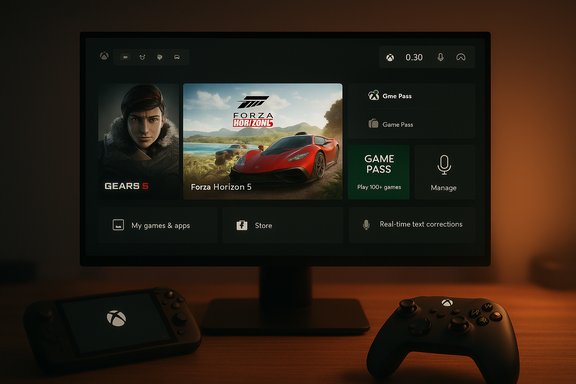
- Xbox Full Screen Experience (FSE) expands to additional Windows 11 PC form factors and starts a gradual rollout to Insiders who are also Xbox Insiders.
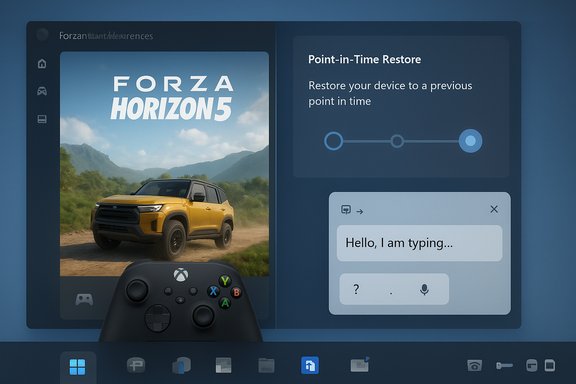
- Point‑in‑time restore appears in the recovery options—an expanded restore capability that can revert apps, settings, and user files to an earlier state from WinRE. This is previewed to Insiders in Dev & Beta.
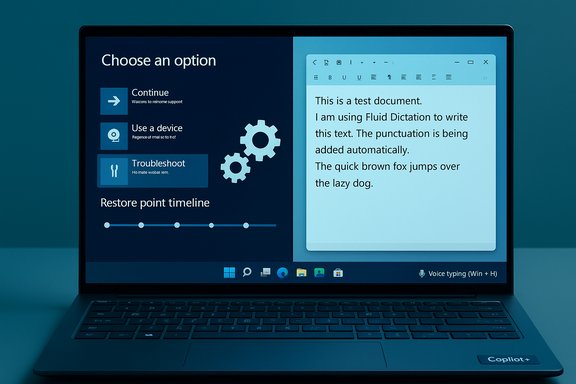
- Fluid Dictation is now available in Voice Typing for devices with NPUs (on‑device SLMs), applying grammar, punctuation, and filler‑word removal in real time.
- File Explorer receives context‑menu reorganization and performance preloading experiments; Microsoft Store gains an uninstall control for Store‑managed apps from the library page.
- A set of reliability fixes across the taskbar, Settings, display/graphics, Task Manager, and .NET Framework issues for ARM64 devices. Known issues include virtual keyboard behavior in FSE and UI flashes in File Explorer for some Insiders.
Xbox Full Screen Experience for PC — what changed and why it matters
A console‑style shell for controller‑first play
The Xbox Full Screen Experience (FSE) debuted on a small set of handhelds and is now being previewed on more Windows 11 PCs. FSE is a minimal, distraction‑free shell that boots the Xbox app as a home surface, optimizes task switching for controllers, and trims background work to prioritize gaming responsiveness. Users can toggle FSE from Task View, the Game Bar, or with Win + F11.Independent reporting confirms the broader rollout to more handhelds and notes the intent: reduce Explorer overhead, limit background services, and provide a console‑like navigation model on PCs that will primarily be used with a controller. The Verge’s coverage mirrors Microsoft’s claims about the UX changes and hardware targeting.
Practical notes and known limitations
- The experience is being staged: initial access is limited to Insiders who are also registered Xbox Insiders, and Microsoft expects to expand availability over time.
- Known issues reported in this flight include the virtual keyboard not appearing on non‑touch devices when a controller is used; some apps that assume a fixed window size may behave poorly under FSE. These are active investigations in the Insider announcements.
Recommendation
FSE is a welcome addition for handheld and living‑room PCs that aim to provide a console‑like experience. Test it on non‑critical hardware first—particularly if you rely on multiple windowed apps that may not respond well to a full‑screen, size‑locked environment.Point‑in‑time restore — a deeper, faster rollback option
What Microsoft is offering
Point‑in‑time restore (PITR) is introduced as a recovery feature that can return a device to a prior exact system state, including apps, settings, and user files, from the Windows Recovery Environment (WinRE). Microsoft positions it as a more comprehensive successor to legacy System Restore for scenarios where an update, driver, or configuration change has broken a device. The Insider notes show PITR appearing as a WinRE entry and as a Settings/Recovery option for qualifying devices.Independent technology coverage confirms Microsoft’s public messaging: PITR is part of a broader resiliency push announced at Ignite and complements Quick Machine Recovery (QMR) and cloud rebuild workflows aimed at reducing downtime for both consumers and managed fleets. Windows Central and Windows IT Pro reporting outline similar functionality and the enterprise/Intune integration Microsoft is pursuing.
Technical caveats and limitations
- Restore point retention and frequency are configurable in preview, but defaults are modest (preview reporting suggests short retention windows and disk caps). Expect settings for frequency, retention, and disk usage to change before GA. Independent summaries note a 72‑hour default retention in early previews and configurable intervals in preview builds—test and verify the defaults on your hardware before relying on PITR.
- PITR is destructive to changes made after the selected restore point: user files, installed apps, and system changes since that point can be lost. Backups and cautious testing remain essential.
- Early previews restrict restore initiation to WinRE on the device; remote trigger/management from full Windows may be limited or require Intune/Autopatch integrations that ship later. Microsoft is planning stronger Intune/Autopatch tooling for enterprise scenarios.
Why this matters
PITR moves recovery closer to an image‑style rollback without forcing a full reimage. For service desks and power users, PITR reduces mean time to repair in many common failure modes, but it is not a replacement for regular backups—particularly for mission‑critical data that changes after the restore point.Fluid Dictation in Voice Typing — real‑time editing with on‑device models
What Fluid Dictation does
Fluid Dictation is a mode for Voice Typing (Windows key + H) that cleans dictation in real time—applying punctuation, smoothing grammar, and removing filler words as you speak. Microsoft is shipping the feature to NPUs/Copilot+ devices that run on‑device small language models (SLMs) for low‑latency, private processing. The build notes show Fluid Dictation enabled by default on supported hardware, with toggle controls in the voice typing flyout.Independent reporting and Insider community writeups confirm the behavior: Microsoft is positioning fluid dictation as a productivity and accessibility enhancement that makes longer dictation practical by reducing manual editing. Observers note the hardware dependency: top responsiveness and privacy guarantees are better on devices with on‑device SLMs (Copilot+ hardware), with cloud fallbacks available for other devices.
Practical considerations
- Fluid Dictation is intentionally disabled in secure fields (passwords/PINs) to limit risk.
- Language and locale support is expanding; early previews are English‑centric, with broader language rollouts following. Community notes indicate staged availability by build and hardware.
Recommendation
For journalists, accessibility users, and content creators, Fluid Dictation is a practical productivity gain—test it on devices with robust microphones and, if available, Copilot+ NPUs for the best latency and local privacy. Organizations should update dictation‑related guidance if deploying on shared devices.File Explorer, context menus, and performance preloading
Context‑menu reorganization
Microsoft is consolidating less‑used context‑menu actions into a new “Manage file” flyout and moving cloud provider actions into provider‑specific submenus to declutter the right‑click experience. Actions moved include Compress to ZIP, Copy as Path, Set as Desktop Background, Rotate Right/Left, and cloud actions like “Always keep on this device” and “Free up space.” The store‑side “Send to My Phone” option has been relocated closer to cloud provider entries.Preloading experiments
The build explores preloading File Explorer in the background to improve launch times; an option to disable the behavior appears in Folder Options (“Enable window preloading for faster launch times”) for Insiders who receive the change.Risks and interoperability
- API changes and the toggled StorageProvider integration have been temporarily disabled in prior previews due to reliability concerns; expect third‑party cloud provider behavior to vary during the staged rollouts. Test any cloud‑storage‑dependent workflows before broad deployment.
Microsoft Store: uninstall from the library
One of the smaller but highly practical additions is support to uninstall Store‑managed apps directly from the Library page. Insiders running Microsoft Store version 22510.1401.x.x and later will see a three‑dot menu allowing app uninstall from the Library. This simplifies cleanup of trial or ephemeral Store apps without hunting in Settings > Apps.Fixes, known issues, and the Dev↔Beta parity window
Notable fixes in this flight
- Taskbar hang behind certain notifications resolved; battery icon backplate hover issue fixed.
- Settings crashes navigating to Camera/Location/Microphone fixed; Task Manager shows Die/CAMM memory form factor info for compatible hardware.
- ARM64 Visual Studio/.NET Framework crash issues addressed with the latest .NET update.
Known issues (select, active list)
- Xbox FSE: virtual keyboard missing for controller users on devices without touch screens; some apps may misbehave in FSE.
- Taskbar/Start: Start menu may not open on click for some Insiders (works via Windows key); notification center may be impacted.
- File Explorer: dark‑mode copy dialog may show visual glitches when text scaling is used; a white flash may appear navigating pages post‑flight for some devices.
The short Dev→Beta switch window
Microsoft is temporarily offering matched 25H2 enablement packages to both Dev and Beta channels. While parity remains, Dev Insiders can switch to Beta without needing a clean OS reinstall. That window will close once Dev jumps ahead to higher build numbers; switching after the divergence may require a reinstall. Steps are straightforward: pause updates, switch channels in Settings > Windows Update > Windows Insider Program, unpause and update—but only while parity is truly active. Confirm the on‑device winver/build before making a channel decision.Risk analysis: privacy, data loss, compatibility, and agentic features
Privacy and on‑device AI
Microsoft’s approach—offering on‑device SLMs and explicitly gating higher‑privacy, lower‑latency experiences to Copilot+ hardware—reduces the need to stream raw data to cloud APIs for certain tasks. That improves privacy posture for dictation and local Copilot features. However, users must still consider:- Which features still fall back to cloud processing (not all devices will run on‑device models).
- Copilot Vision and agentic workflows that can access files or screen contents require explicit permission, but enterprises should audit the permission model and DLP policies before enabling broad agent or vision features.
Data‑loss risks for point‑in‑time restore
PITR can restore an entire device to a previous state; changes made after the restore point (including user files) will be lost. This is a powerful recovery tool but also dangerous if relied on as a primary backup. Continue regular file backups and test restore workflows in a lab before trusting PITR for production devices.Compatibility and manageability
- Controlled Feature Rollouts mean identical builds will not necessarily produce identical experiences: features may appear to some users and not others, complicating support and test matrices. IT teams should pilot in small rings and log feature flags and entitlements.
- File Explorer API changes and temporarily disabled integrations may break vendor workflows; coordinate with cloud provider vendors (OneDrive, Dropbox, etc. when testing new File Explorer behavior.
Agentic features: a caution
The flight notes and adjacent Insider previews have also surfaced early plumbing for agentic automation (agent workspaces and agent accounts) in other 26220 builds. Those capabilities—if enabled—will let trusted agents act on users’ behalf inside contained workspaces. While promising for productivity, these agent runtimes raise novel operational questions about privileged access, signing/revocation of agents, and audit trails; treat agent features as experimental and evaluate carefully before enabling in managed environments.Practical guidance — what to do next
- For Insiders who want the earliest staged features: enable Settings > Windows Update > Get the latest updates as they are available (toggle) and enroll in the Xbox Insiders Program for Xbox FSE early access.
- For testers and IT pilots: build a small validation ring with representative hardware (including Copilot+ NPUs if you plan to test on‑device AI features), capture images, and verify backups before upgrading.
- If you rely on Smart App Control or other security toggles: test the new on/off behavior in a lab to understand telemetry and endpoint effects; SAC can now be toggled without a reinstall in these flights.
- If you encounter regressions: use Feedback Hub (WIN + F) and include repro steps, logs, and the build number reported by winver. Known issues are actively tracked and the team iterates quickly on fixes.
Final analysis — strengths, questions, and potential risks
Strengths- Microsoft is delivering meaningful improvements across recovery (PITR, QMR), input (Fluid Dictation), and device‑class UX (Xbox FSE) while keeping the update package size small by shipping binaries broadly and enabling features selectively. This reduces distribution friction and lets Microsoft iterate rapidly with real‑world telemetry.
- On‑device SLMs for dictation and other Copilot features improve privacy and latency for capable hardware, a pragmatic compromise between cloud AI and local control.
- Controlled Feature Rollout fragmentation complicates testing and support: identical builds can look different across devices. IT organizations should not treat a single build number as a guarantee of uniform functionality.
- Point‑in‑time restore is powerful but potentially destructive; default retention and scope in preview indicate it’s not a substitute for comprehensive backup strategies. Organizations must update recovery runbooks and train help desks before relying on PITR.
- Agentic features and expanded Copilot capabilities raise new operational security questions—signing, revocation, and auditing must be understood before enabling agents on managed endpoints. Early previews show Microsoft is thinking about containment and visibility, but enterprises should evaluate carefully.
- The Xbox FSE’s controller‑first model will be attractive to handheld and living‑room PCs, but the missing virtual keyboard and app compatibility issues must be resolved before recommending broad adoption.
Conclusion
Build 26220.7271 (KB5070307) continues Microsoft’s steady, iterative approach to modernizing Windows 11: targeted recovery improvements, richer on‑device AI for input, and device‑class UX experiments are being introduced behind toggles and staged rollouts. For Insiders and IT pilots, the flight offers valuable testable features—point‑in‑time restore and Fluid Dictation among them—that can materially improve resiliency and productivity when managed carefully. For production environments, the recommendation remains conservative: pilot early, validate backups and DLP policies, and keep tight telemetry and rollback plans in place while Microsoft completes the staged rollouts and addresses the known issues flagged in this preview.Source: Microsoft - Windows Insiders Blog Announcing Windows 11 Insider Preview Build 26220.7271 (Dev & Beta Channels)