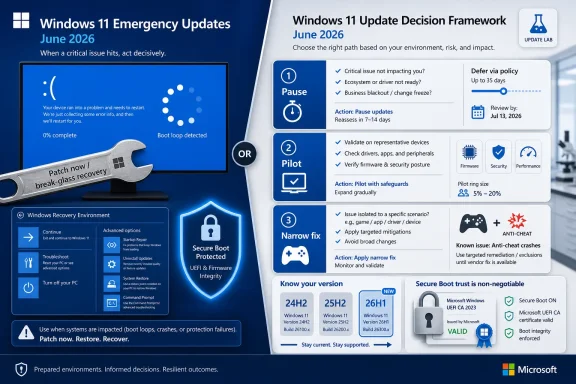
Microsoft’s current Windows 11 emergency-update picture in June 2026 spans ordinary cumulative servicing, out-of-band setup and servicing updates, and special recovery-style fixes, with Windows 11 24H2 and 25H2 both still receiving monthly cumulative updates such as KB5089549 on May 12, 2026. The right response is not always “install immediately.” Patch now when the machine is already failing, pause when the update itself is the suspected trigger, and pilot when the fix targets a narrow condition such as gaming crashes, setup media, or Secure Boot trust changes.
If you came here for the practical answer, start with the symptom. If Windows 11 is blue-screening, stuck in a boot loop, or unable to complete startup after a recent update, treat the emergency update or rollback guidance as a break-glass fix and move quickly. If the only symptom is game instability, anti-cheat crashes, or one title suddenly throwing stop errors, install first on affected gaming systems rather than every machine you own. If nothing is broken and the update is described as setup, dynamic, servicing, or certificate-related, pilot it on representative hardware before pushing it fleet-wide.
The most common mistake with Windows 11 emergency updates is assuming the adjective tells you the deployment strategy. It does not. “Emergency” can mean Microsoft is stopping active damage on machines that already fail to boot, but it can also mean the company is quickly shipping a narrow compatibility fix, a setup improvement, or a servicing prerequisite that only matters under certain conditions.
That distinction matters because Windows updates are cumulative, stateful, and increasingly tied to firmware, boot trust, recovery behavior, and hardware enablement. A fix that is lifesaving on one machine can be irrelevant noise on another. Worse, a fix that is safe for a home desktop may be exactly the kind of change an enterprise should stage carefully because it touches the chain of trust before Windows even reaches the sign-in screen.
The Windows 11 servicing landscape in 2026 makes this less optional than it used to be. Microsoft’s release information shows Windows 11 24H2 and 25H2 continuing to receive monthly cumulative updates, including the May 12, 2026 KB5089549 release for OS builds 26100.8457 and 26200.8457. At the same time, Microsoft maintains out-of-band and dynamic update channels for Windows 11 setup and servicing, including 2026 updates carrying Secure Boot certificate warnings.
That means there is no single “emergency update” playbook anymore. There is a triage model. First determine whether the emergency is on your machine, in Microsoft’s release channel, or in the ecosystem around Windows.
For a single PC, the first move is still boring and necessary. Open Settings > Windows Update and select Check for updates if the machine can boot normally. Install the available cumulative or emergency update only after saving work, closing open apps, and ensuring the device is on AC power if it is a laptop.
If Windows will not boot normally, use the recovery environment rather than repeatedly forcing the same failed startup. After several failed boots, Windows should enter recovery automatically; otherwise, use installation or recovery media. From there, go to Troubleshoot > Advanced options and look for Startup Repair, Uninstall Updates, or System Restore, depending on what is available on that machine. The point is not to click randomly through recovery screens; the point is to get one clean boot so the update state can be corrected.
For administrators, “patch now” means something different. It means immediately isolating affected hardware classes, confirming whether the failure started after a known update event, and moving a small number of broken devices through the remediation path before declaring success. A successful boot on one laptop model does not prove the fix is safe for a desktop fleet with different storage drivers, firmware, security software, or boot configuration.
WindowsForum’s own discussion history shows why this distinction matters. Threads about Windows 11 boot loops, ACPI-related boot failures, and gaming-linked BSODs all look similar to a frustrated user — Windows updated, then the PC broke — but they do not imply the same cure. A boot failure fix belongs in the emergency lane. A narrow crash fix belongs in the affected-device lane. A setup servicing change belongs in the pilot lane.
For consumers and enthusiasts, the exact path is Settings > Windows Update > Pause updates. Choose the shortest pause that gives you time to confirm what happened, not the longest pause your anxiety will tolerate. If an update is already installed and causing trouble, go to Settings > Windows Update > Update history > Uninstall updates, then remove the suspect update if Windows offers it there.
That setting is not a strategy by itself. It is a timeout. During that timeout, record the Windows version, OS build, update name, stop code if one appears, and whether the failure happens before sign-in, after sign-in, during gaming, during software installation, or during restart. Those details determine whether you are dealing with a system-wide servicing issue, a driver collision, an anti-cheat incompatibility, or a broken install state.
In managed environments, pausing should be ring-based rather than emotional. Keep security baselines moving where risk is high, but hold optional or narrow emergency updates for device groups that do not match the failure profile. A finance department laptop with no affected game stack should not be treated the same as a gaming desktop crashing under Easy Anti-Cheat or another kernel-adjacent component.
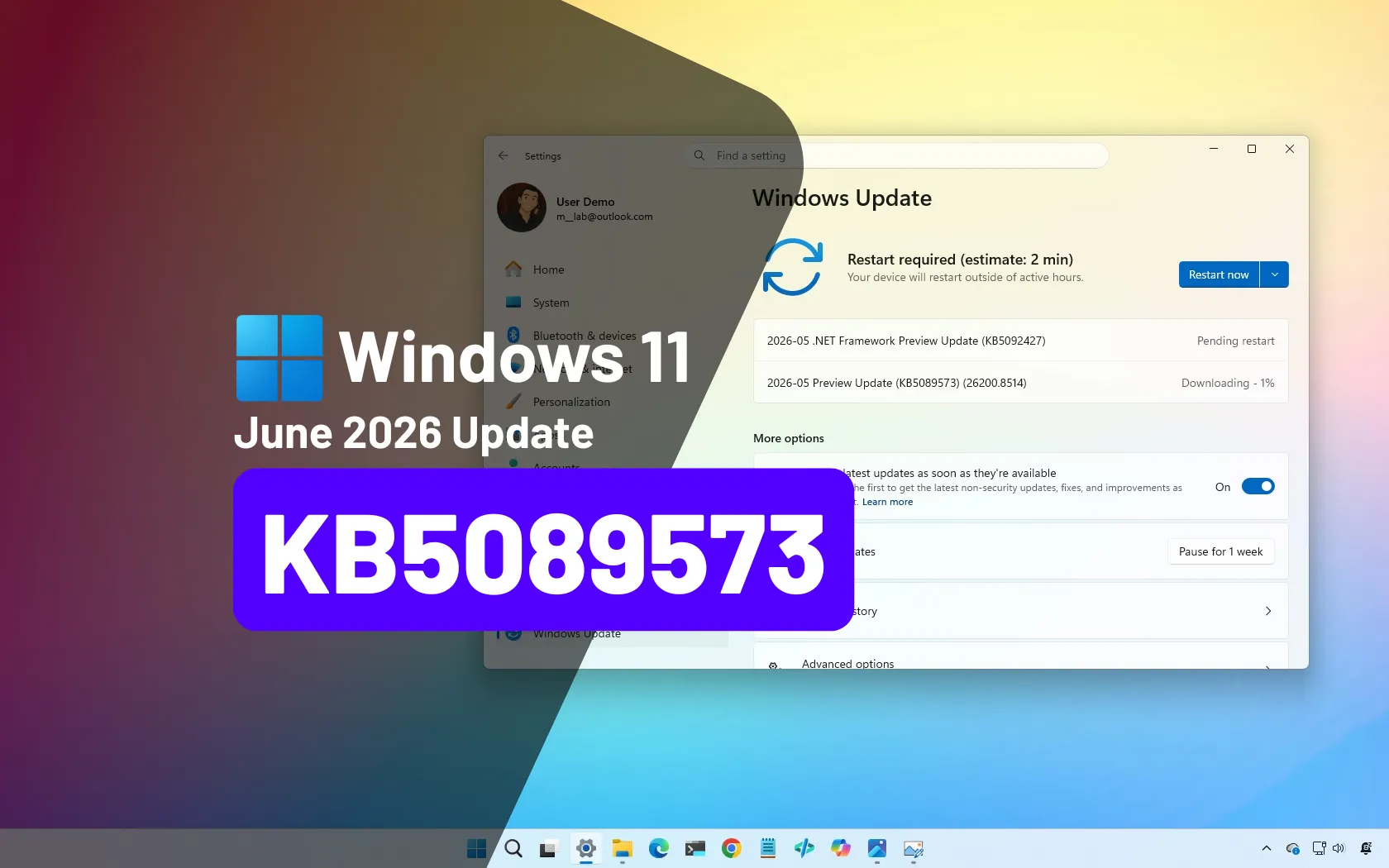
The hard part is that Microsoft’s cumulative model compresses many fixes into one package. KB5089549, for example, is a monthly cumulative update for both Windows 11 24H2 and 25H2 builds in May 2026. That does not make every fix inside it equally urgent for every device. It means the urgency depends on what problem you are solving and whether waiting increases or decreases operational risk.
Secure Boot certificate work is exactly the kind of change that deserves a controlled pilot. Microsoft’s guidance says some third-party components that rely on Microsoft Secure Boot trust may fail to update if newer certificate entries are required. That is a polite way of saying that the Windows update is only part of a larger trust chain involving firmware, boot loaders, drivers, security products, imaging tools, and sometimes vendor utilities that many organizations barely inventory.
For home users, the practical rule is simple. If you are not seeing boot failures and the update is framed around setup, servicing, or Secure Boot certificate preparation, do not panic-install from random advice threads. Use Windows Update, keep firmware current through your PC vendor’s official tool, and avoid making multiple boot-related changes in the same sitting.
For IT pros, this is where the pilot ring earns its budget. Test on hardware that reflects the real estate: laptops and desktops, Intel and AMD, machines with BitLocker, machines with third-party security agents, devices that boot from docking stations, and anything with unusual recovery or imaging requirements. The pilot should include reboot testing, recovery testing, and verification that device encryption and boot policies behave as expected.
The goal is not to distrust Microsoft by default. The goal is to respect the blast radius of boot trust. A browser crash and a Secure Boot certificate transition are both “Windows issues” to an end user, but they do not belong in the same deployment lane.
That is why the best first move is to update the affected gaming PC, not every Windows 11 device in sight. If the emergency fix is aimed at game crashes or BSODs linked to a gaming component, then the affected population is defined by game stack, driver stack, and workload. A workstation that never loads that anti-cheat path is not the same risk profile.
WindowsForum has covered this pattern before in pieces about emergency Windows 11 updates for EAC gaming crashes and BSODs, as well as separate gaming crash fixes. The common thread is not that gaming PCs deserve less attention. It is that they deserve more precise attention because the failure often sits at the intersection of Windows kernel behavior, GPU drivers, anti-cheat components, and game updates.
Enthusiasts should treat that as a reminder to update in layers. Install the Windows fix, reboot, test the affected game, and only then decide whether to touch GPU drivers, overlays, RGB utilities, capture tools, or motherboard software. Changing five things at once may feel productive, but it destroys the evidence you need if the crash persists.
Administrators managing labs, esports rooms, shared gaming PCs, or creator workstations should do the same at scale. Build a small test group with the actual games and peripherals in use. Let the fix prove itself under the workload that triggered the failure. Then widen deployment.
That is why boot-loop emergency fixes should be treated as operational incidents, not as ordinary patching. The machine is either recoverable into Windows, recoverable through Windows Recovery Environment, or requires offline intervention. Each stage has a different risk profile, especially if BitLocker, firmware passwords, or enterprise device management are in play.
The consumer procedure is straightforward but easy to skip under stress. Stop forcing restarts after repeated failures. Enter recovery, try Startup Repair, then consider Uninstall Updates if the failure began immediately after an update. If the system reaches the desktop, go directly to Windows Update and install the fix Microsoft has made available for that class of failure.
For IT teams, the important question is not simply “does the emergency fix work?” It is “which machines are likely to enter the failure state before they can receive the fix?” That question pushes administrators toward deployment telemetry, hardware grouping, and recovery readiness. If a subset of devices is at risk of failing during restart, you want recovery keys, support scripts, and field instructions ready before the next maintenance window.
This is where related WindowsForum coverage of Microsoft’s emergency fix for a Windows 11 boot loop after KB5043145 remains useful as a pattern, even when the specific update changes. The lesson is not that every boot loop has the same cause. The lesson is that Microsoft’s rollback and emergency response mechanisms are now part of the Windows servicing reality, and administrators should plan for them rather than being surprised by them.
Windows 11 26H1 is a different story. Microsoft says 26H1 is not a general feature update for existing devices; it is a preinstalled-only release for select new devices. That makes it more of a hardware enablement branch than a conventional “everyone should upgrade now” Windows release.
This matters because emergency-update advice often gets flattened into version panic. Users see a higher Windows version number and assume they are behind. Administrators see a new branch and wonder whether they should prepare a broad migration. In this case, the practical answer is calmer: if you manage existing Windows 11 24H2 or 25H2 devices, keep servicing those builds; do not treat 26H1 as the next general destination unless Microsoft changes its guidance.
That also means emergency fixes for 24H2 and 25H2 should be evaluated inside the 24H2/25H2 servicing model. Do not chase 26H1 to solve a cumulative update issue on existing hardware. Do not assume a new 26H1 device proves anything about your current fleet. The branches may share branding, but the deployment implications are different.
For enthusiasts buying new hardware, 26H1’s preinstalled-only status is a reminder to read the support page before attempting clever workarounds. New-device Windows releases can be tuned for platform-specific hardware and firmware assumptions. Existing-device servicing is where ordinary cumulative update decisions still live.
If the machine is already failing with blue screens, boot loops, or startup errors matching Microsoft’s described issue, install the emergency fix or follow the recovery guidance as soon as practical. If the machine is stable but belongs to the affected class — for example, a gaming PC running the software stack implicated in a crash fix — pilot or install on that affected subset. If the update is about setup, servicing, or Secure Boot certificates and the device is otherwise healthy, test before broad deployment.
This framework also makes home-user decisions less mysterious. A single gaming desktop with repeated BSODs after launching affected games should get the emergency fix quickly. A family laptop that only browses the web and writes documents does not need to be used as a test mule for a narrow gaming crash fix. A machine that fails software installs at 99 percent may need broader Windows Update, servicing, or component-store troubleshooting rather than assuming the latest emergency package is relevant.
For sysadmins, the framework maps cleanly onto rings. The first ring is the broken population. The second ring is the exposed population. The third ring is the representative pilot. The last ring is the general fleet. The mistake is pretending that all four rings collapse into one because the word “emergency” appears in a headline.
There is also a communications benefit. Users do not care whether a fix is out-of-band, dynamic, cumulative, or rollback-based. They care whether they should click install. Telling them “install now if you see boot loops; wait for IT if you are stable; report gaming BSODs with the game and stop code” is far clearer than forwarding a Microsoft release note.
To pause updates, use Settings > Windows Update > Pause updates. This is best used when a newly released update is suspected of causing instability, when you need time to back up, or when you are waiting for confirmation that a fix applies to your exact symptom. It should not become a permanent substitute for patching.
To review what happened, use Settings > Windows Update > Update history. This page is often the difference between useful troubleshooting and folklore. It shows whether the update actually installed, failed, or is still pending, which matters when a user says “Windows updated” but the machine may only have attempted the update.
To remove an update when Windows offers the option, use Settings > Windows Update > Update history > Uninstall updates. Not every component can be removed this way, and not every problem should be solved by removal. But when a specific update clearly preceded a new failure, this is the supported starting point before more invasive repair work.
For startup failures, use the recovery path: Troubleshoot > Advanced options > Startup Repair or Uninstall Updates. If BitLocker is enabled, recovery may require the recovery key. That is not a corner case anymore; it is a normal part of modern Windows incident response.
Secure Boot certificate guidance makes this especially plain. Microsoft’s warning that some third-party components relying on Microsoft Secure Boot trust may fail to update if newer certificate entries are required should push administrators to identify those components before the deadline pressure arrives. Firmware, third-party boot tools, endpoint security, disk encryption, imaging systems, and recovery workflows all belong in the same conversation.
For cumulative updates such as KB5089549, the inventory question is simpler but still necessary. Which devices are on 24H2 build 26100? Which are on 25H2 build 26200? Which have failed prior cumulative updates? Which are stuck in a pending reboot state? Which hardware models show repeated install failures?
That last question is where many organizations lose time. Windows servicing failures often cluster by model, driver, BIOS revision, security stack, or previous update state. Treating the whole fleet as one homogeneous Windows blob is administratively convenient and technically false.
The more mature play is to predefine emergency lanes. Security-critical broad fixes go through an accelerated but still monitored deployment. Break-fix updates go first to affected machines. Setup and servicing changes go through pilot hardware. Boot-related changes require recovery preparation. Gaming and app-compat fixes go to the exposed workload.
That is why WindowsForum readers should resist the urge to paste one fix into every thread. Ask what changed, what build the machine is on, whether the failure occurs before or after sign-in, whether the device can enter recovery, and whether the issue is reproducible under a specific workload. Those questions are not pedantry. They are the difference between installing the right emergency fix and adding noise.
The same discipline applies when reading headlines. “Microsoft releases emergency update” is the beginning of the story, not the end. The useful questions are narrower: which Windows versions, which builds, which devices, which symptoms, and which deployment channel?
This is also where enthusiasts can help themselves by keeping a small update log. Note the date, KB number if visible, OS build, driver updates, firmware updates, and major app changes. When something breaks, that log becomes more useful than memory, especially after a weekend of attempted fixes.
Windows servicing is not getting simpler. But user discipline can make it less mysterious.
If you came here for the practical answer, start with the symptom. If Windows 11 is blue-screening, stuck in a boot loop, or unable to complete startup after a recent update, treat the emergency update or rollback guidance as a break-glass fix and move quickly. If the only symptom is game instability, anti-cheat crashes, or one title suddenly throwing stop errors, install first on affected gaming systems rather than every machine you own. If nothing is broken and the update is described as setup, dynamic, servicing, or certificate-related, pilot it on representative hardware before pushing it fleet-wide.
 The Emergency Label Hides Three Very Different Kinds of Fix
The most common mistake with Windows 11 emergency updates is assuming the adjective tells you the deployment strategy. It does not. “Emergency” can mean Microsoft is stopping active damage on machines that already fail to boot, but it can also mean the company is quickly shipping a narrow compatibility fix, a setup improvement, or a servicing prerequisite that only matters under certain conditions.That distinction matters because Windows updates are cumulative, stateful, and increasingly tied to firmware, boot trust, recovery behavior, and hardware enablement. A fix that is lifesaving on one machine can be irrelevant noise on another. Worse, a fix that is safe for a home desktop may be exactly the kind of change an enterprise should stage carefully because it touches the chain of trust before Windows even reaches the sign-in screen.
The Windows 11 servicing landscape in 2026 makes this less optional than it used to be. Microsoft’s release information shows Windows 11 24H2 and 25H2 continuing to receive monthly cumulative updates, including the May 12, 2026 KB5089549 release for OS builds 26100.8457 and 26200.8457. At the same time, Microsoft maintains out-of-band and dynamic update channels for Windows 11 setup and servicing, including 2026 updates carrying Secure Boot certificate warnings.
That means there is no single “emergency update” playbook anymore. There is a triage model. First determine whether the emergency is on your machine, in Microsoft’s release channel, or in the ecosystem around Windows.
Patch Now When the Computer Is Already in the Ditch
If a Windows 11 PC is already hitting stop-code errors, unexpected restarts, boot loops, or startup failure, the decision changes from risk management to recovery. Microsoft’s own support language for unexpected restarts and stop-code errors treats these as conditions where the system state matters first: identify the error, get the device stable, and then deal with the update path. In plain English, a machine that cannot reliably boot is not a good candidate for a leisurely pilot ring.For a single PC, the first move is still boring and necessary. Open Settings > Windows Update and select Check for updates if the machine can boot normally. Install the available cumulative or emergency update only after saving work, closing open apps, and ensuring the device is on AC power if it is a laptop.
If Windows will not boot normally, use the recovery environment rather than repeatedly forcing the same failed startup. After several failed boots, Windows should enter recovery automatically; otherwise, use installation or recovery media. From there, go to Troubleshoot > Advanced options and look for Startup Repair, Uninstall Updates, or System Restore, depending on what is available on that machine. The point is not to click randomly through recovery screens; the point is to get one clean boot so the update state can be corrected.
For administrators, “patch now” means something different. It means immediately isolating affected hardware classes, confirming whether the failure started after a known update event, and moving a small number of broken devices through the remediation path before declaring success. A successful boot on one laptop model does not prove the fix is safe for a desktop fleet with different storage drivers, firmware, security software, or boot configuration.
WindowsForum’s own discussion history shows why this distinction matters. Threads about Windows 11 boot loops, ACPI-related boot failures, and gaming-linked BSODs all look similar to a frustrated user — Windows updated, then the PC broke — but they do not imply the same cure. A boot failure fix belongs in the emergency lane. A narrow crash fix belongs in the affected-device lane. A setup servicing change belongs in the pilot lane.
Pause When the Update Is the Suspect, Not the Cure
The other side of the decision tree is less dramatic but just as important. If your PC was stable yesterday and became unstable immediately after a preview, optional, or newly released cumulative update, the first priority is not to keep hammering the update button. It is to stop churn long enough to preserve evidence and avoid layering another variable on top of the problem.For consumers and enthusiasts, the exact path is Settings > Windows Update > Pause updates. Choose the shortest pause that gives you time to confirm what happened, not the longest pause your anxiety will tolerate. If an update is already installed and causing trouble, go to Settings > Windows Update > Update history > Uninstall updates, then remove the suspect update if Windows offers it there.
That setting is not a strategy by itself. It is a timeout. During that timeout, record the Windows version, OS build, update name, stop code if one appears, and whether the failure happens before sign-in, after sign-in, during gaming, during software installation, or during restart. Those details determine whether you are dealing with a system-wide servicing issue, a driver collision, an anti-cheat incompatibility, or a broken install state.
In managed environments, pausing should be ring-based rather than emotional. Keep security baselines moving where risk is high, but hold optional or narrow emergency updates for device groups that do not match the failure profile. A finance department laptop with no affected game stack should not be treated the same as a gaming desktop crashing under Easy Anti-Cheat or another kernel-adjacent component.
The hard part is that Microsoft’s cumulative model compresses many fixes into one package. KB5089549, for example, is a monthly cumulative update for both Windows 11 24H2 and 25H2 builds in May 2026. That does not make every fix inside it equally urgent for every device. It means the urgency depends on what problem you are solving and whether waiting increases or decreases operational risk.
Pilot When the Fix Touches Setup, Servicing, or Secure Boot Trust
The most underappreciated category is the one that does not look dramatic until it goes wrong: setup and servicing updates. Microsoft maintains dynamic update channels for Windows 11 setup and servicing, and some 2026 entries carry warnings tied to Secure Boot certificates. These are not always the updates that make headlines, but they can affect the reliability of installation media, feature update setup, recovery flows, and boot trust transitions.Secure Boot certificate work is exactly the kind of change that deserves a controlled pilot. Microsoft’s guidance says some third-party components that rely on Microsoft Secure Boot trust may fail to update if newer certificate entries are required. That is a polite way of saying that the Windows update is only part of a larger trust chain involving firmware, boot loaders, drivers, security products, imaging tools, and sometimes vendor utilities that many organizations barely inventory.
For home users, the practical rule is simple. If you are not seeing boot failures and the update is framed around setup, servicing, or Secure Boot certificate preparation, do not panic-install from random advice threads. Use Windows Update, keep firmware current through your PC vendor’s official tool, and avoid making multiple boot-related changes in the same sitting.
For IT pros, this is where the pilot ring earns its budget. Test on hardware that reflects the real estate: laptops and desktops, Intel and AMD, machines with BitLocker, machines with third-party security agents, devices that boot from docking stations, and anything with unusual recovery or imaging requirements. The pilot should include reboot testing, recovery testing, and verification that device encryption and boot policies behave as expected.
The goal is not to distrust Microsoft by default. The goal is to respect the blast radius of boot trust. A browser crash and a Secure Boot certificate transition are both “Windows issues” to an end user, but they do not belong in the same deployment lane.
Gaming BSODs Belong in the Narrow-Fix Lane
Gaming-related emergency updates are the easiest to overgeneralize because they create vivid failures. A crash in the middle of a game, especially one tied to anti-cheat or kernel-level components, feels catastrophic to the person affected. It is also usually narrower than a system-wide boot failure.That is why the best first move is to update the affected gaming PC, not every Windows 11 device in sight. If the emergency fix is aimed at game crashes or BSODs linked to a gaming component, then the affected population is defined by game stack, driver stack, and workload. A workstation that never loads that anti-cheat path is not the same risk profile.
WindowsForum has covered this pattern before in pieces about emergency Windows 11 updates for EAC gaming crashes and BSODs, as well as separate gaming crash fixes. The common thread is not that gaming PCs deserve less attention. It is that they deserve more precise attention because the failure often sits at the intersection of Windows kernel behavior, GPU drivers, anti-cheat components, and game updates.
Enthusiasts should treat that as a reminder to update in layers. Install the Windows fix, reboot, test the affected game, and only then decide whether to touch GPU drivers, overlays, RGB utilities, capture tools, or motherboard software. Changing five things at once may feel productive, but it destroys the evidence you need if the crash persists.
Administrators managing labs, esports rooms, shared gaming PCs, or creator workstations should do the same at scale. Build a small test group with the actual games and peripherals in use. Let the fix prove itself under the workload that triggered the failure. Then widen deployment.
Boot Loops Are Different Because Every Reboot Is Evidence
A boot loop deserves its own mental category because it changes the meaning of time. With an app crash, you can often gather logs, test another account, or uninstall software. With a boot loop, every failed restart can deepen user panic, trigger recovery behavior, and obscure the original sequence of events.That is why boot-loop emergency fixes should be treated as operational incidents, not as ordinary patching. The machine is either recoverable into Windows, recoverable through Windows Recovery Environment, or requires offline intervention. Each stage has a different risk profile, especially if BitLocker, firmware passwords, or enterprise device management are in play.
The consumer procedure is straightforward but easy to skip under stress. Stop forcing restarts after repeated failures. Enter recovery, try Startup Repair, then consider Uninstall Updates if the failure began immediately after an update. If the system reaches the desktop, go directly to Windows Update and install the fix Microsoft has made available for that class of failure.
For IT teams, the important question is not simply “does the emergency fix work?” It is “which machines are likely to enter the failure state before they can receive the fix?” That question pushes administrators toward deployment telemetry, hardware grouping, and recovery readiness. If a subset of devices is at risk of failing during restart, you want recovery keys, support scripts, and field instructions ready before the next maintenance window.
This is where related WindowsForum coverage of Microsoft’s emergency fix for a Windows 11 boot loop after KB5043145 remains useful as a pattern, even when the specific update changes. The lesson is not that every boot loop has the same cause. The lesson is that Microsoft’s rollback and emergency response mechanisms are now part of the Windows servicing reality, and administrators should plan for them rather than being surprised by them.
24H2 and 25H2 Share the Servicing Spotlight While 26H1 Sits Apart
One source of confusion in 2026 is the version map. Microsoft’s current release information shows Windows 11 24H2 and 25H2 both continuing to receive monthly cumulative updates, and the May 12, 2026 KB5089549 release applied to builds 26100.8457 and 26200.8457. For most existing Windows 11 devices, those are the lanes that matter.Windows 11 26H1 is a different story. Microsoft says 26H1 is not a general feature update for existing devices; it is a preinstalled-only release for select new devices. That makes it more of a hardware enablement branch than a conventional “everyone should upgrade now” Windows release.
This matters because emergency-update advice often gets flattened into version panic. Users see a higher Windows version number and assume they are behind. Administrators see a new branch and wonder whether they should prepare a broad migration. In this case, the practical answer is calmer: if you manage existing Windows 11 24H2 or 25H2 devices, keep servicing those builds; do not treat 26H1 as the next general destination unless Microsoft changes its guidance.
That also means emergency fixes for 24H2 and 25H2 should be evaluated inside the 24H2/25H2 servicing model. Do not chase 26H1 to solve a cumulative update issue on existing hardware. Do not assume a new 26H1 device proves anything about your current fleet. The branches may share branding, but the deployment implications are different.
For enthusiasts buying new hardware, 26H1’s preinstalled-only status is a reminder to read the support page before attempting clever workarounds. New-device Windows releases can be tuned for platform-specific hardware and firmware assumptions. Existing-device servicing is where ordinary cumulative update decisions still live.
The Decision Framework Starts With Symptoms, Not Headlines
A useful emergency-update policy begins with the symptom and only then looks at the package. The headline tells you Microsoft moved quickly. The symptom tells you whether you should.If the machine is already failing with blue screens, boot loops, or startup errors matching Microsoft’s described issue, install the emergency fix or follow the recovery guidance as soon as practical. If the machine is stable but belongs to the affected class — for example, a gaming PC running the software stack implicated in a crash fix — pilot or install on that affected subset. If the update is about setup, servicing, or Secure Boot certificates and the device is otherwise healthy, test before broad deployment.
This framework also makes home-user decisions less mysterious. A single gaming desktop with repeated BSODs after launching affected games should get the emergency fix quickly. A family laptop that only browses the web and writes documents does not need to be used as a test mule for a narrow gaming crash fix. A machine that fails software installs at 99 percent may need broader Windows Update, servicing, or component-store troubleshooting rather than assuming the latest emergency package is relevant.
For sysadmins, the framework maps cleanly onto rings. The first ring is the broken population. The second ring is the exposed population. The third ring is the representative pilot. The last ring is the general fleet. The mistake is pretending that all four rings collapse into one because the word “emergency” appears in a headline.
There is also a communications benefit. Users do not care whether a fix is out-of-band, dynamic, cumulative, or rollback-based. They care whether they should click install. Telling them “install now if you see boot loops; wait for IT if you are stable; report gaming BSODs with the game and stop code” is far clearer than forwarding a Microsoft release note.
The Practical Settings Paths Still Matter
For all the abstraction around servicing rings and boot trust, Windows users still need exact paths. On an individual Windows 11 PC, the basic update path is Settings > Windows Update > Check for updates. After installing, restart when prompted and return to the same page to confirm there are no additional pending updates.To pause updates, use Settings > Windows Update > Pause updates. This is best used when a newly released update is suspected of causing instability, when you need time to back up, or when you are waiting for confirmation that a fix applies to your exact symptom. It should not become a permanent substitute for patching.
To review what happened, use Settings > Windows Update > Update history. This page is often the difference between useful troubleshooting and folklore. It shows whether the update actually installed, failed, or is still pending, which matters when a user says “Windows updated” but the machine may only have attempted the update.
To remove an update when Windows offers the option, use Settings > Windows Update > Update history > Uninstall updates. Not every component can be removed this way, and not every problem should be solved by removal. But when a specific update clearly preceded a new failure, this is the supported starting point before more invasive repair work.
For startup failures, use the recovery path: Troubleshoot > Advanced options > Startup Repair or Uninstall Updates. If BitLocker is enabled, recovery may require the recovery key. That is not a corner case anymore; it is a normal part of modern Windows incident response.
The Enterprise Answer Is Inventory Before Urgency
The enterprise version of “patch now, pause, or pilot” depends on knowing what you have. Without inventory, every emergency update becomes a debate. With inventory, the decision becomes a routing problem.Secure Boot certificate guidance makes this especially plain. Microsoft’s warning that some third-party components relying on Microsoft Secure Boot trust may fail to update if newer certificate entries are required should push administrators to identify those components before the deadline pressure arrives. Firmware, third-party boot tools, endpoint security, disk encryption, imaging systems, and recovery workflows all belong in the same conversation.
For cumulative updates such as KB5089549, the inventory question is simpler but still necessary. Which devices are on 24H2 build 26100? Which are on 25H2 build 26200? Which have failed prior cumulative updates? Which are stuck in a pending reboot state? Which hardware models show repeated install failures?
That last question is where many organizations lose time. Windows servicing failures often cluster by model, driver, BIOS revision, security stack, or previous update state. Treating the whole fleet as one homogeneous Windows blob is administratively convenient and technically false.
The more mature play is to predefine emergency lanes. Security-critical broad fixes go through an accelerated but still monitored deployment. Break-fix updates go first to affected machines. Setup and servicing changes go through pilot hardware. Boot-related changes require recovery preparation. Gaming and app-compat fixes go to the exposed workload.
The Forum Lesson Is That “Windows Update Broke It” Is a Symptom, Not a Diagnosis
Community threads are valuable because they capture the user experience before it has been cleaned up into release-note language. A user reporting that software installs hang at 99 percent, another describing a Windows 11 upgrade that reboots and fails around 90 percent, and another chasing a gaming BSOD may all say Windows Update is involved. They may not have the same problem.That is why WindowsForum readers should resist the urge to paste one fix into every thread. Ask what changed, what build the machine is on, whether the failure occurs before or after sign-in, whether the device can enter recovery, and whether the issue is reproducible under a specific workload. Those questions are not pedantry. They are the difference between installing the right emergency fix and adding noise.
The same discipline applies when reading headlines. “Microsoft releases emergency update” is the beginning of the story, not the end. The useful questions are narrower: which Windows versions, which builds, which devices, which symptoms, and which deployment channel?
This is also where enthusiasts can help themselves by keeping a small update log. Note the date, KB number if visible, OS build, driver updates, firmware updates, and major app changes. When something breaks, that log becomes more useful than memory, especially after a weekend of attempted fixes.
Windows servicing is not getting simpler. But user discipline can make it less mysterious.
The Windows 11 Emergency-Update Rulebook for June 2026
The safest Windows 11 emergency-update decision is the one that matches the failure mode. Treat the machine in front of you, not the adjective in the headline. As of June 2026, 24H2 and 25H2 remain the mainstream cumulative-update lanes, Secure Boot certificate work deserves staged validation, and 26H1 should not be mistaken for a general upgrade target for existing PCs.- Install immediately when the PC is already affected by blue screens, boot loops, startup failure, or a Microsoft-described issue that matches your symptoms.
- Pause briefly when a newly installed update appears to be the cause and you need time to confirm build numbers, collect error details, or wait for a clarified fix.
- Pilot first when the update changes setup, servicing, Secure Boot trust, recovery behavior, or other low-level components that can vary by firmware and hardware model.
- Deploy narrowly when the fix targets gaming crashes, anti-cheat instability, or a workload-specific BSOD rather than a general Windows failure.
- Keep Windows 11 24H2 and 25H2 devices in their normal servicing lanes, and do not treat Windows 11 26H1 as a general feature update for existing machines.
- Record the update name, OS build, stop code, and exact failure point before changing multiple variables, because good notes often beat heroic troubleshooting.
References
- Primary source: support.microsoft.com
Troubleshooting Windows unexpected restarts and stop code errors - Microsoft Support
Resolve Windows blue screen errors with tips and resources to do your own troubleshooting, or contact the Microsoft support if you need more help. support.microsoft.com
- Independent coverage: blogs.windows.com
Releasing Windows 11 Builds 26100.8106 and 26200.8106 to the Release Preview Channel
Hello Windows Insiders, today we’re releasing Windows 11 Builds 26100.8106 and 26200.8106 (KB5079387) to Insiders in the Release Preview Channel on Windows 11, versions 24H2 (Build 26100) and 25H2 (Build 26200). This update is available through tw blogs.windows.com